How to Check Real-Time Server Latency in the PUBG HUD

Enable PUBG’s network statistics HUD to monitor ping and packet loss in a match. See where to find it, what the numbers mean, and what they cannot diagnose.
If you want to “unlink” Supercell ID from Brawl Stars, the safest answer is simple: do not try to remove Supercell ID from the Brawl Stars account itself. Supercell says that, since September 2023, players who have joined Supercell ID can no longer opt out. What you can safely do depends on your goal: log out on one device, switch to another Supercell ID, change the email attached to the ID, or request account/data deletion.
That distinction matters because “unlink” is often used for several very different actions. Logging out of a phone does not erase your Brawl Stars progress. Changing the Supercell ID email keeps the same Supercell ID but changes the address used to receive login codes. Deleting an account or personal data is a much more serious action and should not be used just to remove a saved login.
Supercell's current Brawl Stars support page states that Supercell ID is designed to safeguard game accounts and allow access across devices, and it explicitly says opting out is no longer available once you have joined. See Supercell's official Supercell ID overview for Brawl Stars.
If your real goal is “remove this Brawl Stars account from this phone” or “switch to another account,” logging out is usually the correct action. It disconnects the active session on that device without asking Supercell to delete your progress.
For example, suppose you used your main Brawl Stars account on a family tablet and now want the tablet to open a different account. You do not need to delete Supercell ID. Log out on the tablet, then sign in with the other Supercell ID. Your original progress remains associated with its Supercell ID and can be loaded again when you authenticate with that ID.
From the Brawl Stars home screen, open the game settings. Menu placement can change between versions, so look for the settings gear rather than relying on an exact pixel position.
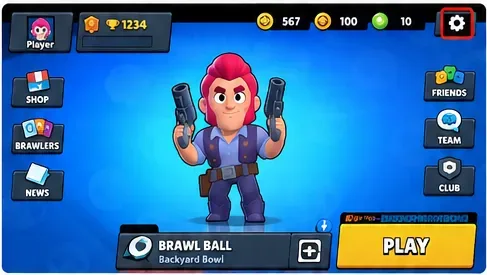
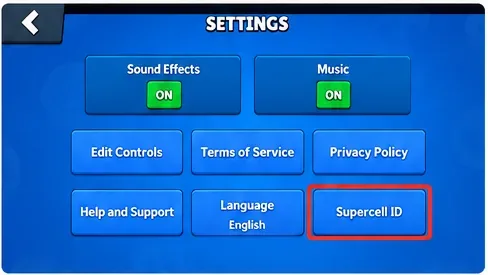
In Settings, choose the Supercell ID entry. If the account is already connected, the game should present the Supercell ID account interface rather than a registration flow.
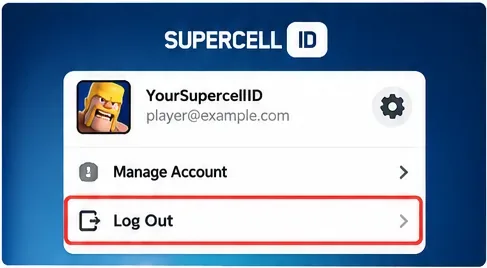
Open the Supercell ID options and choose Log Out. Supercell's official multiple-account guidance uses this same action when moving between Supercell IDs on one device. It explains that after logging out, the game returns to a screen where you can continue without that Supercell ID or log in with another one.
Confirm the logout when prompted. After the game returns to its account/start flow, choose the appropriate option for your situation: log back in with the same Supercell ID, sign in with another ID, or continue with an account flow offered by the game. Supercell recommends Supercell ID as the supported way to manage multiple game accounts.
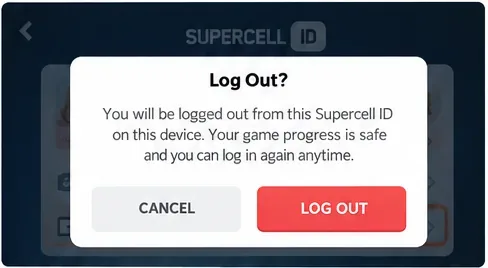
Logging out changes the session on the device. It is not the same as removing Supercell ID from the Brawl Stars account. Your progress remains tied to the account information held by Supercell, and you can normally regain access by signing in with the connected Supercell ID.
This is why you should verify your recovery path before logging out, especially on your only device. Supercell ID uses verification codes sent to the registered email rather than a conventional password. If you no longer control that email and do not have a valid recovery route, signing out first can make getting back into the account harder.
If “unlink” means “I no longer want this email address attached to my Brawl Stars account,” the relevant operation is an email change, not an opt-out. Supercell introduced an in-product email-change flow and says that changing the registered Supercell ID email updates the Supercell ID used by connected Supercell games. The change requires verification through the account's security process. Supercell's Brawl Stars support index includes Change Your Supercell ID Email under the Supercell ID section: Brawl Stars account support.
Use this route when you are moving from an old mailbox to a new one but want to keep the same Brawl Stars progress. Do not use it casually to hand an account to another person. Supercell's Terms and support guidance are designed around protecting the legitimate account owner, and account sharing can create recovery and enforcement problems.
Where available, Account Protection adds recovery methods such as SMS verification and recovery codes. Supercell says recovery codes can help prove ownership when recovering an account or changing the email. It also warns never to share recovery or verification codes with anyone other than Supercell Support in an in-game support ticket. Review Supercell's official Account Protection guidance before changing important account details.
Availability is not universal. Supercell's current support article says Account Protection is unavailable for young-player accounts, some accounts with unusual activity, and in certain countries. If the option does not appear, that does not necessarily mean your installation is broken.
A local logout only affects the device you are using. If you suspect another person has your Supercell ID, treat it as an account-security problem. Supercell says that when it sends an alert about a new-device login, choosing the “This is not my device” option can lead to a page that logs the Supercell ID out on all devices. After regaining control, Supercell recommends changing the connected email when appropriate.
Start with Supercell's official guidance for an account being used by someone else. The page is part of Supercell's support system and describes the same Supercell ID security model used across its games.
If your only goal is to stop Brawl Stars from loading a particular account on one phone, account deletion is unnecessary and potentially destructive. The Brawl Stars support area separates Supercell ID management from requests to delete personal data. Deletion should be reserved for users who genuinely intend to request deletion—not as a workaround for switching accounts.
| Your goal | Best action | Main caution |
|---|---|---|
| Remove the active account from one phone | Log out of Supercell ID on that device | Make sure you can sign back in later |
| Use a different Brawl Stars account on the same device | Log out, then log in with another Supercell ID | Double-check which ID/email belongs to each account |
| Stop using an old email address | Change the Supercell ID email | Keep access to the verification/recovery process |
| Someone else may be using the account | Use Supercell's security/recovery process | A local logout is not enough |
| Permanently remove account/personal data | Use the official deletion request process | This is not an “unlink” shortcut |
You cannot fully “unlink” Brawl Stars from Supercell ID in the old opt-out sense once the account has joined Supercell ID. The safe approach is to choose the action that matches your actual goal: log out to remove the session from a device, change the email to replace the login address, or use official Support for recovery, suspicious access, or deletion requests. That keeps account management reversible where possible and reduces the risk of locking yourself out of your Brawl Stars progress.
Enable PUBG’s network statistics HUD to monitor ping and packet loss in a match. See where to find it, what the numbers mean, and what they cannot diagnose.
Learn how to import VALORANT crosshair codes, compare presets with manual settings and spectator copy, and fix common import issues.
Choose Dota 2 minimap size, hero icons, team colors, and background settings by readability, fewer misclicks, and clear results on your own display.
Fix Fortnite texture pop-in on PC with official steps for GPU drivers, file verification, DirectX 12, high-resolution textures, VRAM, SSDs, and stutter.
Learn what Heroes of the Storm minimap size and position options are verified, improve readability, and choose camera-click controls that suit you.
Set Super Smash Bros. Ultimate Quickplay to prefer hazards-off stages. Follow the Preferred Rules menu steps and learn why matchmaking may not always honor them.
Enable Server Latency and Packet Loss in Warzone to monitor connection quality, read the overlay, and use recurring spikes to guide troubleshooting.
Learn how to carry from mid lane in League of Legends by setting up waves, choosing safe roam windows, reading side lanes, and converting pressure into objectives.
Fix Minecraft Evoker spell problems with a safe vanilla test, version checks, log review, and a step-by-step way to isolate mod or datapack conflicts.
Fix PUBG stuck on Initializing on Steam with a focused checklist for PC service notices, launch options, game files, downloads, and connection issues.








