Home
» 🎮 Esports
»
How to Turn Off the Trade Hold Timer in Rocket League: What Actually Works Now
How to Turn Off the Trade Hold Timer in Rocket League: What Actually Works Now
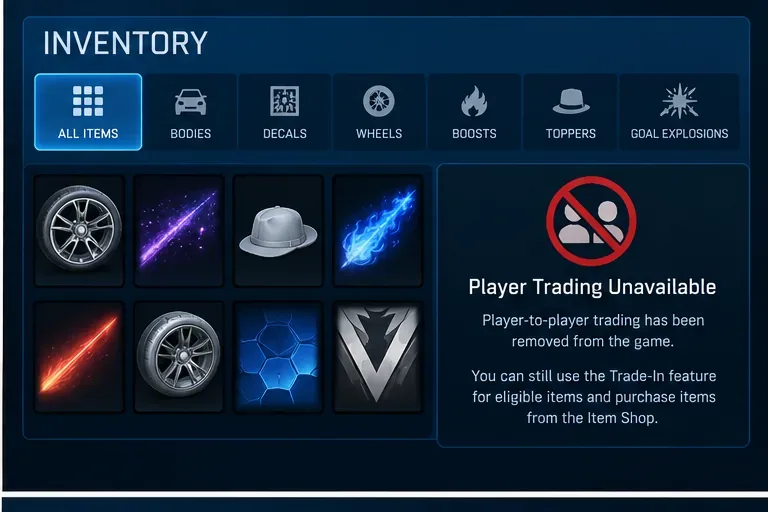
If you are looking for a setting to turn off the trade hold timer in Rocket League, the important answer is that there is no player-facing switch to disable it. More importantly, the old timer no longer serves its original player-to-player trading purpose because Rocket League removed player-to-player trading on December 5, 2023. Epic Games Support currently says there are no plans to reintroduce that feature.
That means the useful result today is not finding a hidden menu option. It is identifying what you are actually trying to do with your Credits or items, then using the current system that matches that goal. This guide explains what changed, how to tell whether you are seeing an old trade-hold reference or a different restriction, and what you can still do safely.
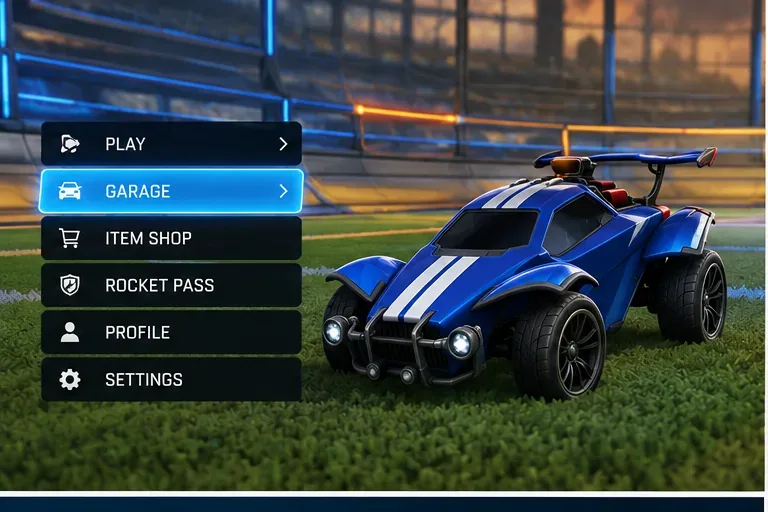
The relevant current paths are Garage for inventory and Trade-In features, and Item Shop for spending Credits; there is no player-to-player trade menu to unlock.
Can you turn off the Rocket League trade hold timer?
No. Rocket League does not provide a supported option that lets a player remove, bypass, shorten, or manually disable a trade hold. Historically, purchased Credits were subject to a 72-hour trade hold, and that hold affected certain items acquired with those Credits. The original Credit system documentation in the Rocket League v1.70 Blueprint Update notes documented that rule.
Epic's current Rocket League Support page also states that player-to-player trading was removed in December 2023 and that there are currently no plans to bring it back. So if your goal is to send an item or Credits to another player, waiting for a timer or searching for a setting will not restore that ability.
Player-to-player trading is unavailable. A timer cannot restore a feature that the game itself no longer supports.
How do you know whether the timer is actually your problem?
The best way to evaluate the problem is to focus on the action you want to complete rather than the wording you remember from older guides, videos, or support pages.
Your goal
Current result
What to do instead
Trade Credits with another player
Not supported
Use Credits for supported purchases on the platform where they are available.
Send a cosmetic item to another player
Not supported
Keep the item, use it, archive it if appropriate, or use Trade-In if it is eligible.
Exchange duplicate eligible items for another item
Supported through Trade-In
Open Garage and use the Trade-In feature.
Buy an Item Shop cosmetic
Supported if you have enough usable Credits
Purchase it directly in the Item Shop.
Use purchased Credits on another linked platform
May be limited
Use the platform where those Credits were originally purchased.
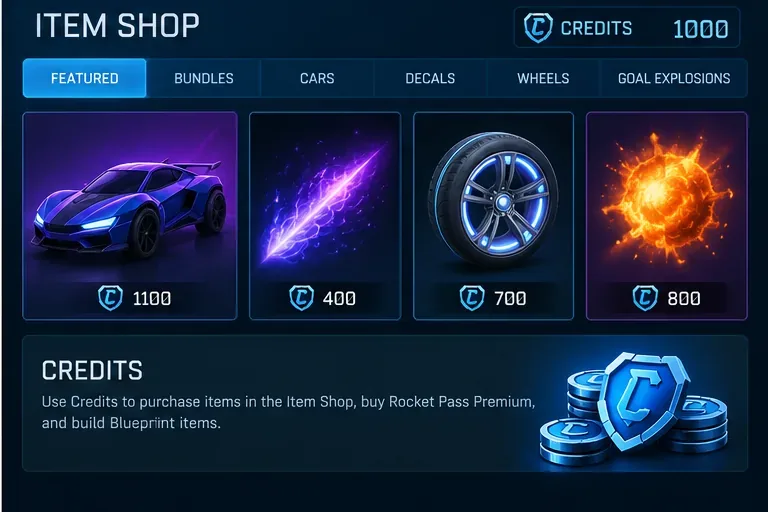
This distinction matters because a Credit balance issue can look like a trading restriction even when no trade timer is involved. Epic's current Credits support page says Credits are used for the Item Shop, Rocket Pass Premium, and Blueprint builds, and explicitly notes that Credits can no longer be used to trade with other players.
What should you do if your goal was to trade items?
Use the in-game Trade-In system for eligible duplicates
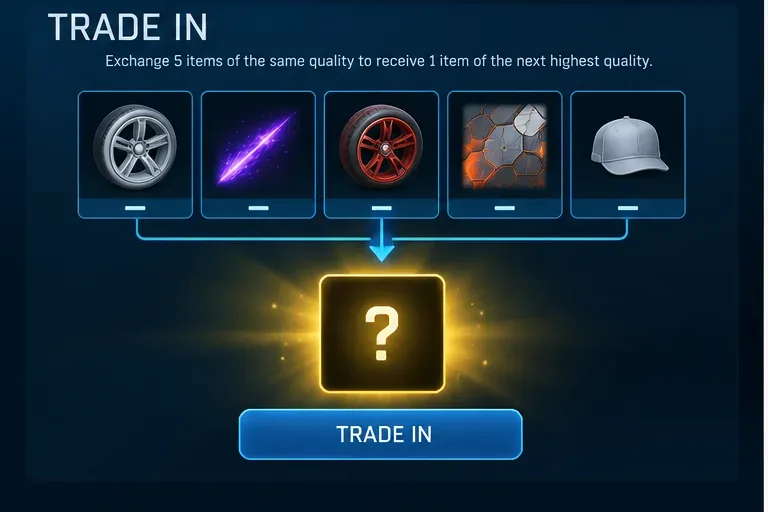
Trade-In is not the same thing as the removed player-to-player trading system. It is an in-game exchange mechanic. Epic's current support documentation says eligible items are organized into Core Items, Tournament Items, and Blueprints. You select five qualifying items of the same rarity and exchange them for one random item of the next rarity tier.
To use it, select Garage from the main menu, choose Trade-In, pick a category and rarity, select five eligible items, then confirm the exchange. The result is permanent, so check the five items carefully before accepting.
Trade-In remains available for eligible items: five qualifying items of the same rarity are exchanged for one random item of the next rarity tier.
Use the Item Shop or Blueprints when you want a specific cosmetic
If your real objective is to obtain a cosmetic rather than exchange something with another player, the Item Shop and Blueprints are the supported routes. Credits can be used to buy eligible shop content, upgrade Rocket Pass, or build Blueprint items. Item Shop purchases themselves are not a workaround for transferring content to another account.
Credits are currently intended for supported in-game purchases such as Item Shop content, Rocket Pass Premium, and Blueprint builds—not player-to-player transfers.
What if your Credits appear locked or missing?
First, confirm whether the issue is really a hold timer. A common modern cause of confusion is platform-specific Credit availability. Epic says purchased Credits are available only on the platform where they were bought, while Credits earned from Rocket Pass can be shared across linked platforms. If your balance is lower on Xbox, PlayStation, Switch, Steam, or Epic Games Store than on another linked platform, that does not necessarily indicate a timer.
If the Credits are completely missing on the original purchase platform, or the game prevents a normal supported purchase after the transaction has completed, restart Rocket League and verify that the purchase appears in your platform's transaction history. If the balance still does not match, contact Epic Games Support rather than trying third-party tools, account transfers, or unofficial trading services.
Does changing account settings, date, or platform remove the restriction?
No supported documentation indicates that changing your system clock, unlinking and relinking accounts, switching platforms, reinstalling the game, or changing privacy settings disables a trade hold. Those actions also do not bring back player-to-player trading.
Avoid third-party sites or Discord services that claim they can bypass the restriction or transfer Rocket League items between accounts. Psyonix's removal announcement specifically warned that after player-to-player trading ended, services advertising item trading were not connected to Psyonix or Epic Games. That is a useful safety check: if a service's main promise depends on a Rocket League player trade that the game itself does not support, do not treat it as an official workaround.
How to check that you have reached the right result
You have resolved the issue correctly when the next action matches the current Rocket League system:
If you wanted to send Credits or an item to another player, you understand that the action is no longer supported and you are no longer waiting for a timer to make it available.
If you wanted to get value from duplicate items, you can see whether they qualify in Garage > Trade-In and can complete a valid Trade-In.
If you wanted to spend Credits, your usable balance appears on the platform where those purchased Credits are available and you can use them for supported content.
If a balance or purchase still fails on the correct platform, the issue should be treated as a purchase, account, or connectivity problem rather than a player-trading timer.
Bottom line
You cannot turn off the Rocket League trade hold timer through a setting, command, account option, or supported workaround. The older 72-hour hold belonged to a trading system that has since been overtaken by a larger policy change: player-to-player trading was removed in December 2023. As of the current Epic Games Support guidance, there are no plans to reintroduce it.
For the best result, use Trade-In for eligible duplicate items, use Credits for supported Item Shop, Rocket Pass, and Blueprint purchases, and check platform-specific Credit availability if your balance seems wrong. If a supported purchase is still blocked or your balance is missing, move from “trade timer” troubleshooting to Epic Games Support rather than waiting for a nonexistent player-trading unlock.