Home
» 🎮 Esports
»
How to Fix High Ping and Rubberbanding in SMITE on NA Servers
How to Fix High Ping and Rubberbanding in SMITE on NA Servers
Illustrative example: Jordan queues on SMITE’s North American region from home. The ping number is usually steady in the lobby, then jumps during a match and the character snaps backward after moving. This example is hypothetical, not a real player report or test. It shows why “high ping” and “rubberbanding” should be investigated as connection symptoms rather than treated as proof that one particular setting is wrong.
Ping is the time it takes data to travel between your device and the game server and back. Rubberbanding is the visible correction that can happen when movement updates arrive late or inconsistently. Packet loss, sudden latency variation, a congested Wi-Fi link, an internet route problem, or a game-server issue can contribute. A low download speed is not required for any of these symptoms, and a fast speed test does not guarantee a stable route to a match server.
Scope: Hi-Rez’s PC troubleshooting article is specifically for the original SMITE, listed in its SMITE 1 help collection. The basic network checks below also help narrow down SMITE 2 issues, but its platform and menu instructions may differ. This guide focuses on Windows PC. Check the live service page for current incidents; no active NA outage is asserted here.
Image note: The interface panels are generic illustrations of Windows tools and troubleshooting concepts. They do not show live server status, real ping results, or a player’s actual settings.
Start by separating the likely causes
A problem in one match can come from the game service, the route between your ISP and the server, or your home connection. A pattern across several matches and devices gives you better evidence than a single ping reading.
A neutral status dashboard illustrates what to look for on Hi-Rez’s official service page; it is not a live outage report.
1. Check for a service incident and confirm the game version
Open the Hi-Rez server status page before changing your router or Windows settings. If it reports an incident affecting SMITE or matchmaking, local changes are unlikely to fix that incident; wait for the service update and test again afterward. The status page is the live source to consult. Its current contents were not available as readable incident data during this article’s research, so this article does not claim that NA servers are up or down on October 8, 2026.
Also make sure you are troubleshooting the game you actually launch: original SMITE or SMITE 2. Hi-Rez maintains separate help areas. If your version exposes a server or region choice, confirm that matches are being placed on the intended North American region. Menu names and availability vary, so do not assume every build has the same selector. If you are physically far from North America, a longer route can create a higher baseline ping; no DNS tweak can remove the distance.
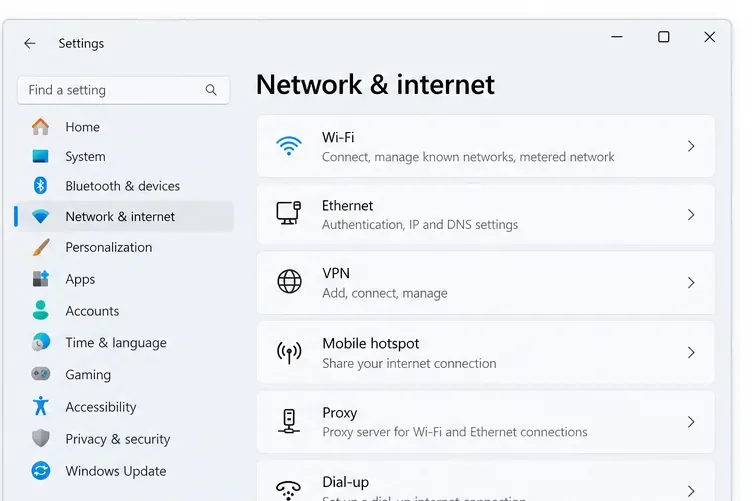
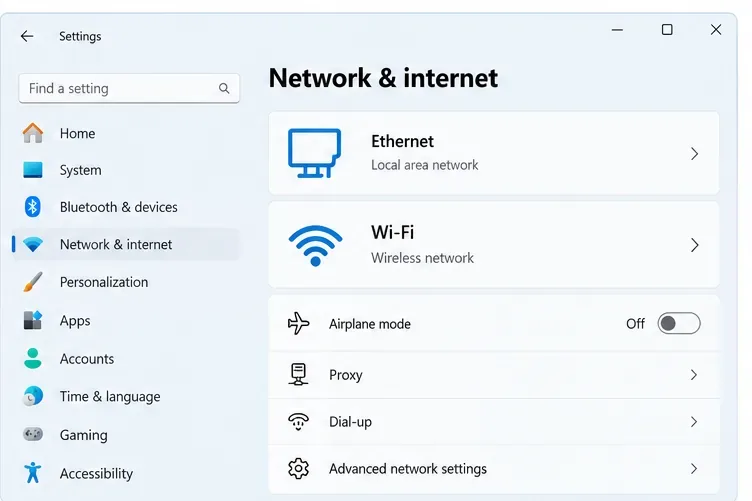
Windows Network & internet settings show where to identify the connection type before comparing Wi-Fi with Ethernet.
2. Record what happens in more than one match
Before changing anything, note the game/version, selected region if shown, time of each match, ping range if the game displays it, and whether rubberbanding occurs in every match or only occasionally. Record whether voice chat, streaming, or downloads were active. If the game offers network indicators, note them, but do not assume a particular symbol or menu exists in every version.
This matters because one bad match does not establish a persistent server fault. If several players in the same region report the same issue at the same time, a service or shared network path becomes more plausible. If only one PC has trouble while other devices and games remain stable, focus first on the PC, its Wi-Fi adapter, or the home network. These are clues, not conclusive diagnoses.
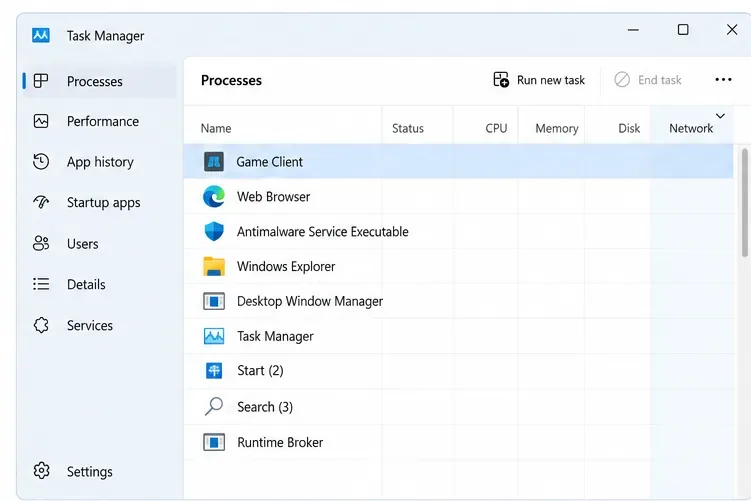
The Network column in Task Manager can help reveal downloads or background apps using bandwidth while you play.
3. Test the home connection with Ethernet if possible
Hi-Rez recommends trying a wired Ethernet connection instead of Wi-Fi when available. Connect the PC directly to the router with a known-good cable, then compare several matches under similar conditions. Avoid changing server regions or several network settings during this comparison.
If Ethernet is stable while Wi-Fi is not, investigate signal strength, distance, walls, interference, or a crowded wireless channel. Hi-Rez’s PC guide specifically suggests changing the Wi-Fi broadcast channel when nearby networks are crowding the current one. Router menus vary, so consult your router maker’s instructions before changing a channel. If Ethernet has the same spikes, Wi-Fi interference is less likely to be the only cause.
Comparing the same game over Ethernet and Wi-Fi helps determine whether the wireless link is contributing to the spikes.
4. Pause competing downloads and background traffic
Pause game downloads, cloud backups, large file transfers, and high-bitrate streams on your PC and other devices sharing the connection. Open Task Manager with Ctrl + Shift + Esc, select Processes, and review the Network column. Hi-Rez recommends closing unnecessary programs that consume bandwidth or system resources.
Do not end unfamiliar Windows system processes just to make the column look empty. Pause the known download or close the known app normally, then retest. If the ping spikes disappear only while downloads are paused, your connection may be experiencing congestion or queueing under load. That points toward traffic management at home or with the ISP; it does not prove your internet plan is too slow.
5. Restart the modem/router, then retest once
Save any work, close the game, and restart the modem/router using the manufacturer’s normal procedure. Wait for the connection lights to settle, reconnect the PC, and run the same comparison again. Hi-Rez includes a modem/router restart in its PC connection troubleshooting steps.
A restart can clear a temporary router or modem problem, but it cannot repair an outage, a poor route beyond your ISP, or a congested neighborhood link. If the issue returns at the same times or affects multiple devices, record that pattern instead of repeatedly power-cycling equipment.
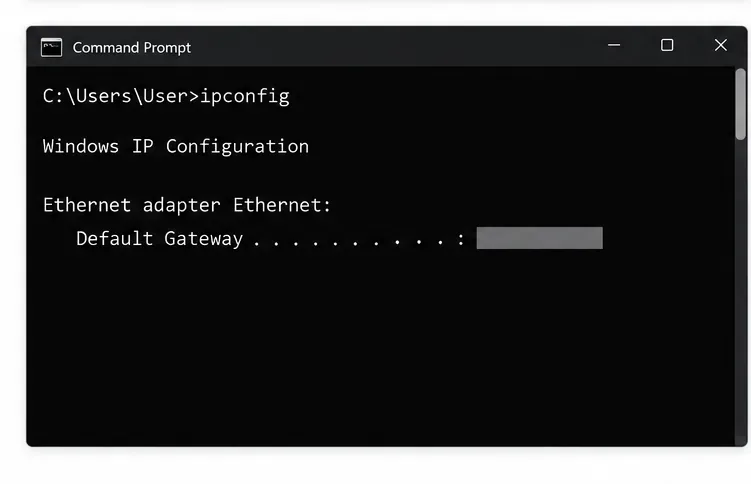
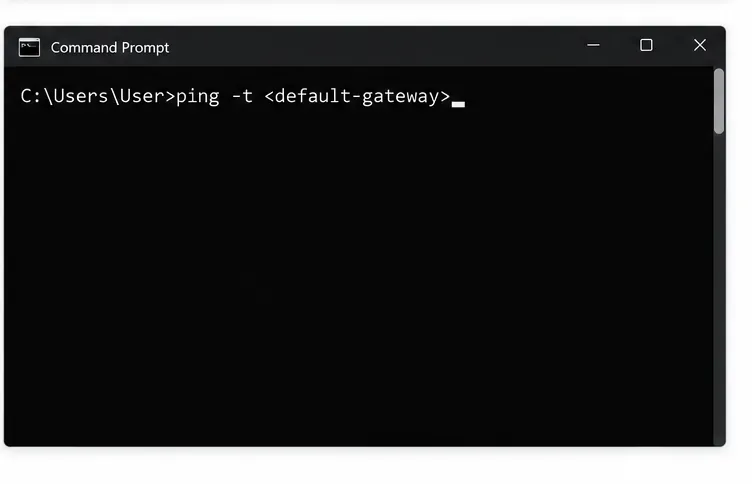
The Default Gateway line from ipconfig identifies the local router address used for a basic connection check.
6. Check whether latency is already unstable inside your home
On Windows, open Command Prompt and run ipconfig. Find Default Gateway under the adapter you are using. Then run ping -t YOUR-GATEWAY-ADDRESS, replacing the words with that address; do not type the placeholder literally. Keep the window open while reproducing the problem, then press Ctrl + C to stop and view the summary.
If replies to the router itself show timeouts or large spikes during the match, the problem may be on the PC-to-router link or in the router. Repeat over Ethernet if you can. If the router replies stay steady while the game still rubberbands, that narrows the issue toward the internet path, game server, or game client; it does not prove which one is responsible. A ping to your router is not a measurement of ping to the NA match server.
Replace the placeholder with the Default Gateway value from your own ipconfig output before pressing Enter.
7. Use route tracing carefully, and update the network driver if indicated
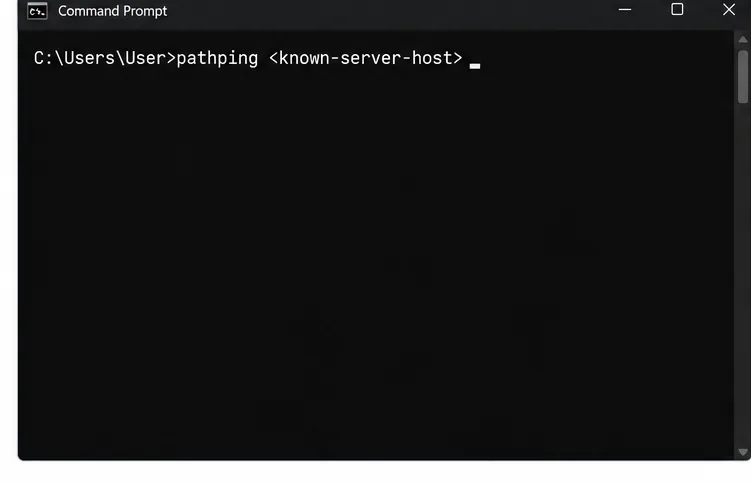
If Hi-Rez support or the game’s official diagnostics provide a server hostname or IP address, Windows pathping can collect information about latency and packet loss along a route. Run pathping KNOWN-SERVER-HOST only after replacing the placeholder with a confirmed target. Do not guess an address from an unrelated website or old forum post.
Route traces are clues, not perfect game measurements. Game traffic may use a different protocol or path, and some routers deprioritize or ignore diagnostic ping requests. Loss shown at one intermediate hop does not by itself prove that hop is dropping the game’s packets; look for loss that continues through later hops and share the full output with support.
If the problem started after a Windows, router, or adapter update, check the PC, motherboard, or network-adapter manufacturer’s support page for a suitable network-driver update. Hi-Rez recommends keeping network drivers current. Avoid third-party driver-updater utilities, and do not reset the entire Windows network stack before recording the symptoms you observed.
Pathping can help examine a known route, but its output is not a direct reading of SMITE match traffic.
8. Send useful evidence to Hi-Rez or your ISP
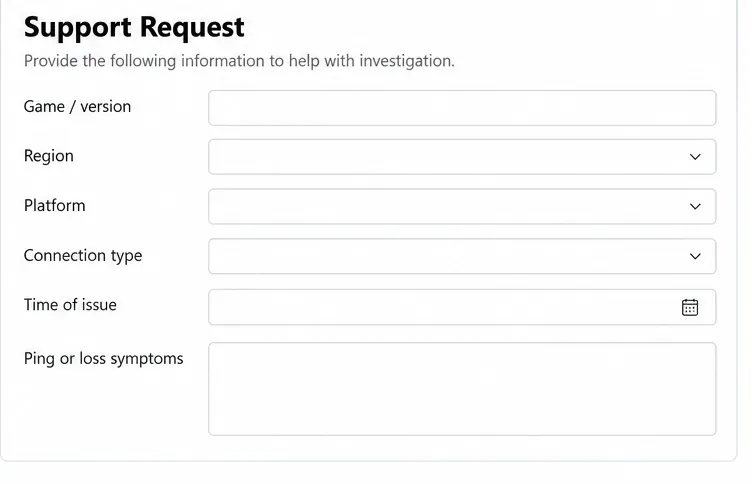
Contact Hi-Rez through its support site if the problem affects SMITE across more than one home-network test, especially if the official status page shows no relevant incident. Give support your game version, platform, region, approximate times with time zone, whether Ethernet changes the result, and whether the issue also appears in other games. Hi-Rez asks players to include a detailed description and any relevant error messages.
Contact your ISP when router pings are stable but latency or loss appears farther along the route, or when several devices experience the same disruption. Include a short ping or pathping capture only if support asks for it, and redact public IPs or other identifying details before posting logs publicly.
A support request is easier to investigate when it includes the game version, region, connection type, time, and observed symptoms.
Common fixes that are often misunderstood
“My speed test is fast, so the game route must be fine.” A speed test measures a different destination and emphasizes throughput. Keep a record of in-match behavior and test the local gateway separately.
“Changing DNS will lower match ping.” DNS can affect finding or connecting to a service, but it usually does not change the latency of an established match session. First check the route and local stability.
“A VPN always fixes bad routing.” A VPN changes the route and can help or hurt depending on the ISP path and VPN endpoint. Do not treat it as a guaranteed fix; compare it only as a controlled test if allowed by the game and support guidance.
“Every rubberband means the NA servers are broken.” The symptom can come from the PC-to-router link, shared household traffic, the ISP route, the game service, or a combination. Check the official status page, compare Ethernet and Wi-Fi, and record when the issue occurs.
Research checked October 8, 2026. Hi-Rez’s PC troubleshooting guide is dated October 31, 2024. Server incidents, game menus, and platform support can change; check the live Hi-Rez status page and the support article for the version you play.