Home
» 🎮 Esports
»
How to Hide Active History From Friends in Honor of Kings
How to Hide Active History From Friends in Honor of Kings
Quick answer: If “active history” means friends can see you online, open Honor of Kings’ in-game Settings and look for a Privacy or Features & Privacy section, then an Online Status control. If your version offers an Invisible, Offline, or similarly private option, select it and confirm. If you mean your recent match record, that is separate: hiding an online indicator does not automatically hide match history or profile statistics.
Example scenario (illustrative only): Maya has finished a match and wants to play alone without appearing available to her friends. She changes the online-status visibility if her client provides that control. She then checks her profile separately, because match records and current presence are different kinds of information. This example is not a report of a test or a guaranteed result.
The limitation matters: Honor of Kings’ public privacy policy, last updated December 16, 2025, recognizes online/offline status and gameplay profile information, and says some profile functions can be managed in settings. It does not publish a current, universal menu path or confirm that every region and game build has an invisible option. Treat the menu labels below as places to look, not a promise that every screen will match.
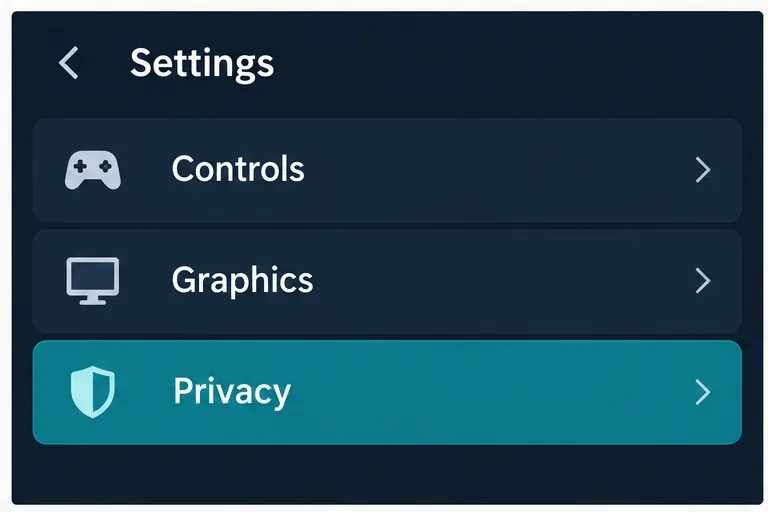
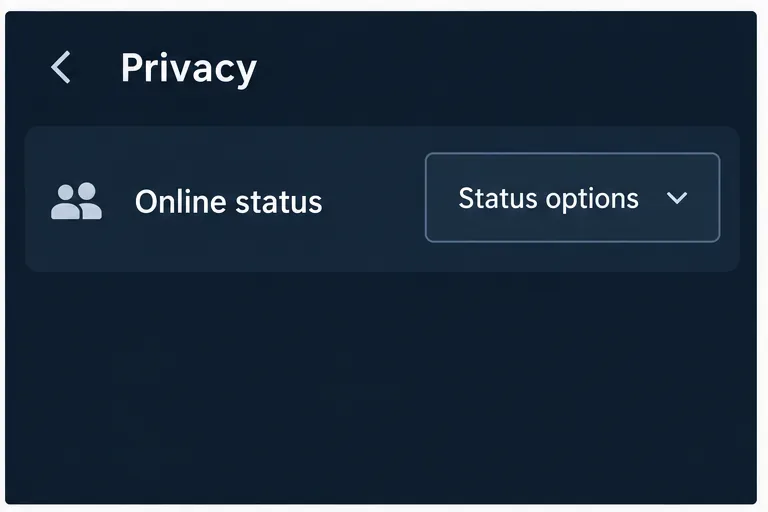
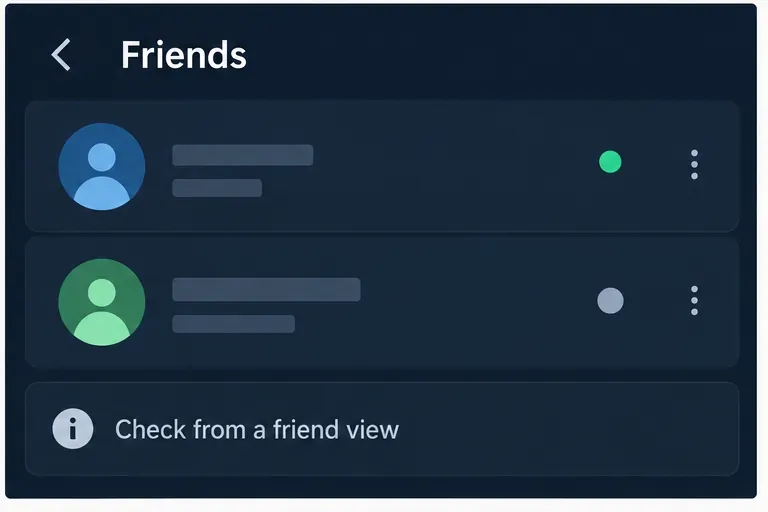
The interface panels below are conceptual examples to show which settings to look for; they are not exact screenshots of a current Honor of Kings client.
First, decide what you want friends to stop seeing
Players may use “active history” to mean either a live online indicator or evidence of recent matches. These are not the same privacy setting. Online status is a presence signal: it can show whether the account appears active in a friend or social view. Match history is a record of games, results, or profile performance. The official policy describes both online/offline status in friend-related information and past gameplay statistics on player profiles. So first identify what a friend is actually seeing: a green or active indicator, an updated match record, or a profile statistic.
Friends see you online now: look for an Online Status or presence visibility setting.
Friends can inspect recent games: look for a separate match-history or profile-visibility control, if your build provides one.
You shared activity through HOK Camp or another linked service: review that service separately; an in-game presence setting may not control a separate profile or post.
How to hide your online status in the game
1. Open the privacy controls from the main lobby
From the game lobby, open Settings (often represented by a gear), then inspect Privacy or Features & Privacy. Find a row or menu named Online Status, Presence, or a similar phrase. The label and location can differ by client version, language, and region. The official public documentation confirms that Honor of Kings uses online/offline status, but does not document this exact tap sequence, so use the setting names visible in your own app rather than following a screenshot from another region as if it were exact.
The first conceptual panel highlights Privacy in a Settings list; in your client, look for the corresponding privacy section.
If you cannot find a privacy section, use the in-game support entry or the official Honor of Kings support site to ask about your region and current build. Do not assume that deleting the app, logging out, or removing a friend changes what the game profile displays.
2. Change the online-status option only if it is available
Open the Online Status control and review the choices shown in your client. If it offers Invisible, Offline, Hide Status, or another option that explicitly says friends will not see your presence, select that option and confirm any prompt. Some versions may offer only a limited set of presence states, or may not expose an invisibility choice at all. The official policy does not confirm the exact wording, feature availability, duration, or usage limits for the current global client.
The second conceptual panel shows where an Online status control might appear; choose only an option whose in-game description matches your goal.
Do not rely on old claims about a fixed weekly quota or a specific number of hidden hours unless the game itself displays that rule in your current client. If there is no explicit private status choice, consider the status unavailable on your build and contact support instead of using third-party apps or account-sharing workarounds.
3. Check match history as a separate setting
Return to Privacy or open your profile settings and look for a distinct control related to match history, game records, profile visibility, or performance data. Change it only if the option clearly controls the information you want to hide, and read its description before saving. If no such control appears, do not assume that switching your online status also hides past matches. The policy says profile information and user content may be visible to other users, that some profile functions can be managed in settings, and that HOK Camp can display match history or performance information. It does not say every client has a “hide match history” toggle.
The profile example separates presence from Match history to reinforce that each may require its own visibility control.
If you use HOK Camp, review its profile and sharing controls separately from the game client. The official policy describes HOK Camp features for viewing or sharing match data and performance. That does not establish that every account uses HOK Camp or that its settings mirror the game’s settings. The useful action is to check the surface where the information appears and adjust that surface’s own controls, if offered.
4. Verify from a friend’s view, then note what remains visible
After saving, return to the lobby and check whether your own client shows a changed status label. For a stronger check, ask a trusted friend to look at your entry in their friends list without sharing account credentials. Confirm the presence indicator and match record separately. A status that appears offline to a friend is not proof that all activity, profile information, or match results are hidden everywhere.
The final conceptual panel illustrates verifying the presence indicator from a friend’s view while keeping other profile information distinct.
If friends still see you online, make sure you changed the status in the account and region you actually play on, confirm the setting was saved, and check the exact wording again. If they see your match history but not your online marker, the presence setting may be working while the profile remains visible. Report the client version, device platform, region, setting label, and what remains visible when contacting official support.
What this setting can—and cannot—promise
Changing a presence option, when offered, is meant to affect the online signal controlled by that option. It is not a guarantee of complete anonymity. The game’s privacy policy notes that players may choose to share gameplay information with friends or related services, and that profile information can be visible to other users. A match you play with someone, content you post, or information displayed through another service may therefore be outside the scope of an online-status control.
For Maya in the example, the practical goal is not to erase every record; it is to avoid appearing available while she plays solo. She checks for a current privacy control, changes only an option that clearly describes presence, and separately reviews match-history visibility. If the current client offers no such setting, the honest answer is that a universal hiding option cannot be confirmed from the public official documentation. Use the game’s support channel for a version-specific answer rather than trusting outdated instructions or promising that “invisible” hides everything.
Official references
Honor of Kings’ official Privacy Policy was last updated December 16, 2025. It describes online/offline status, profile and gameplay information, and some settings-based controls, but does not provide a step-by-step guide to hiding active status. For help specific to the current client, use official Honor of Kings Support.