Home
» 🎮 Esports
»
How to Fix the Heroes of the Storm Graphics Device Error on Startup
How to Fix the Heroes of the Storm Graphics Device Error on Startup
If Heroes of the Storm stops at launch with a graphics-device message, start by identifying which graphics adapter the game can see. Then update that adapter’s driver from its manufacturer, check that a desktop monitor is connected to the graphics card, and use Battle.net’s repair option if the graphics checks do not resolve the crash. Reinstalling the game is usually a poor first move because it will not fix an unsupported GPU, a disabled adapter, or a driver problem.
This guide is for Windows PCs. Error wording can vary: a graphics initialization failure, a device-unavailable message, and a crash after the Play button do not necessarily have the same cause. Treat the exact message and any error code as clues, not as proof of one diagnosis.
Before troubleshooting: identify the graphics device
A graphics processing unit (GPU) is the hardware that renders the game. A PC may list more than one adapter: an integrated GPU built into the processor and a discrete GPU installed separately. A laptop can switch between them automatically. The display driver is the software that lets Windows and the game communicate with the GPU.
Start with a quick inventory so you know what you are changing:
Close Heroes of the Storm and the Battle.net desktop app.
Press Windows key + R, type dxdiag, and press Enter.
Open the Display tab (or each Display tab if more than one appears). Note the adapter name, driver date, and driver version. Do not share a full system report publicly unless you have removed personal details.
Write down the exact error message and whether it appears before or after the game window opens.
The Display panel shows which adapter and driver Windows reports; compare these details before installing a driver.
Check the Heroes of the Storm system requirements published by Blizzard against your hardware. Blizzard notes that requirements may change, so use the current table rather than relying on an old forum post or a remembered minimum. If Windows lists only Microsoft Basic Display Adapter, an adapter is missing, or a device has a warning icon, investigate the driver or hardware detection before changing game settings.
Step 1: install the correct graphics driver
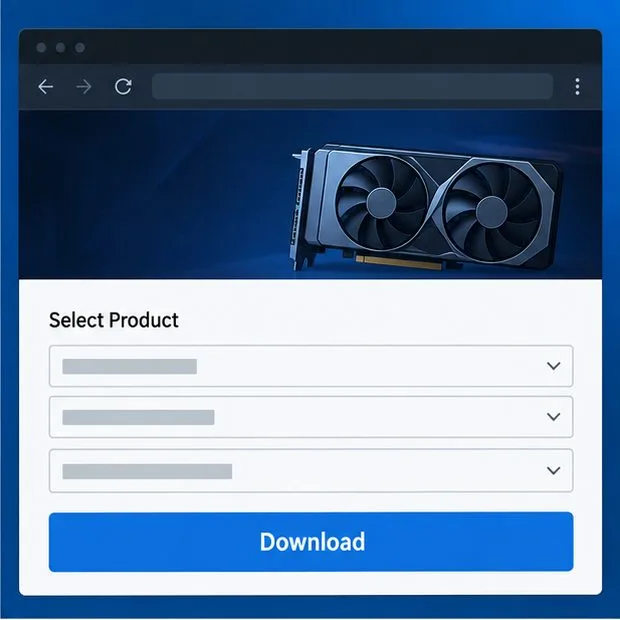
Get the driver from the company that makes your GPU—NVIDIA, AMD, or Intel—or from your laptop or PC manufacturer if it supplies a customized driver. A driver is not the same thing as the Battle.net game update. Avoid third-party driver download sites and driver-updater utilities; they can supply the wrong package or add unrelated software.
Use the adapter name from DxDiag or Device Manager to identify the manufacturer and model.
Open that manufacturer’s official driver page. Select the exact product family and Windows version; do not guess based only on a laptop’s brand.
Install the recommended compatible driver, restart Windows if prompted, and launch Battle.net again.
If the error began immediately after a driver update, note the current version and use the GPU maker’s official rollback or previous-driver instructions. Do not install an old version from an unofficial mirror.
Blizzard’s driver and operating-system update guidance explains why outdated drivers can cause game problems and where to find driver information. A driver that Windows Update calls “up to date” is not always the newest package offered by the GPU or computer manufacturer. Conversely, the newest package is not automatically the best choice if it does not support an older adapter.
Choose a driver by the exact GPU model and operating system on the manufacturer’s official support page.
Step 2: make sure Heroes of the Storm uses the intended GPU
On a laptop with both integrated and discrete graphics, the game may launch on the lower-power adapter. If the laptop manufacturer’s graphics software offers per-app GPU selection, set Heroes of the Storm to the higher-performance adapter, then fully exit and relaunch the game. Settings names and menus vary by hardware and Windows version, so follow the instructions for your specific GPU rather than applying a menu path from another PC.
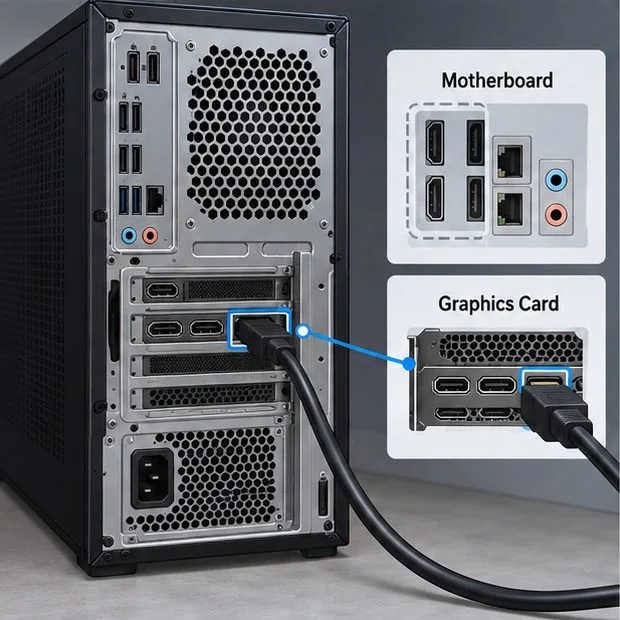
On a desktop with a separate graphics card, check the monitor cable at the back of the computer. It should connect to a port on the graphics card, usually lower on the case, rather than to the motherboard’s display ports. This check only applies if your computer has a separate card; compact PCs and some desktops use integrated graphics alone. Shut the computer down before moving cables, and do not force a connector.
For a desktop with a discrete graphics card, connect the monitor to the card’s own video output.
Step 3: repair the game files
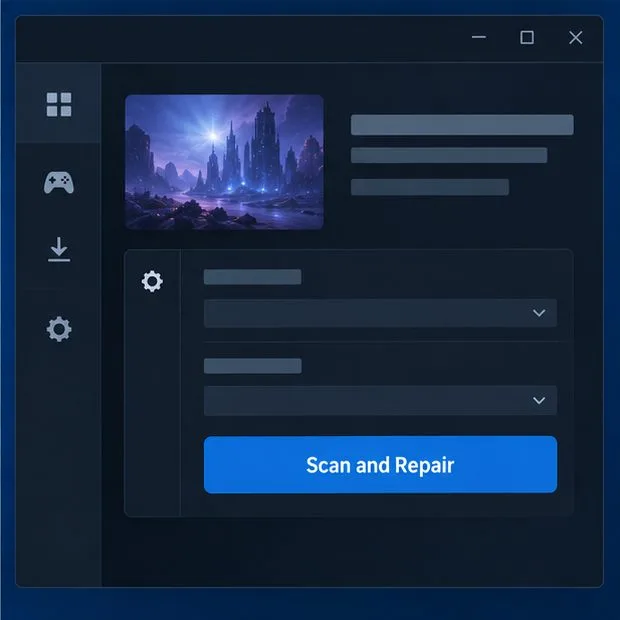
If Windows recognizes the GPU and its driver is installed, check for damaged or incomplete game files. In the Battle.net desktop app, select Heroes of the Storm, open the options menu beside the Play button, and choose Scan and Repair if that option appears. Let the scan finish before starting the game again. The app’s layout can change, so consult Blizzard’s Battle.net game repair instructions if you do not see the control.
Use the launcher’s repair action to check game files after confirming the graphics adapter and driver.
A repair scan can correct damaged game data, but it cannot make an unsupported graphics device compatible. Likewise, uninstalling and reinstalling the game may leave a driver or device-detection problem untouched. Save a reinstall for cases where repair fails or the installation itself remains damaged.
Step 4: remove temporary conflicts and test one change at a time
Restart Windows after a driver change, then test the game once with other graphics-heavy programs closed. Temporarily exit overlays, screen recorders, hardware-monitoring tools, and GPU-tuning utilities if they are running. If the GPU is overclocked, restore its manufacturer defaults before testing. These are diagnostic checks: if closing one program changes the result, re-enable tools one at a time to identify a conflict instead of permanently disabling everything.
Do not download replacement DLL files, edit the registry based on a random fix, or disable antivirus protection as a routine graphics fix. Do not repeatedly switch graphics APIs or add command-line arguments copied from old posts unless Blizzard documents them for the exact error you have. Unsupported workarounds can make the symptoms harder to diagnose.
Step 5: confirm whether the problem is fixed
After each change, launch the game from Battle.net and check whether it reaches the login or main menu without the graphics-device message. If it does, close and reopen the game once more to check that the change persists. If the same error returns, record the exact message, error code, GPU model, driver version, Windows version, and the step that changed immediately before the failure. That information is more useful to support staff than simply saying the game will not start.
Illustrative example: Jordan has a laptop that lists Intel integrated graphics and a discrete NVIDIA adapter. Heroes of the Storm shows a graphics initialization error before reaching its menu. Jordan first records both adapters and driver versions, checks the official requirements, updates the appropriate driver from its manufacturer, and selects the discrete GPU using the laptop’s supported control panel. If the error remains, Jordan repairs the game through Battle.net and tests with overlays closed. This is a hypothetical troubleshooting path, not a report of a real test or guaranteed outcome; the deciding evidence is which adapter the system recognizes and whether the exact error changes.
When the error points to compatibility or hardware
If the GPU is below the currently published minimum, the adapter is no longer supported by its manufacturer, or the game explicitly says the graphics device is unsupported, settings changes may not solve the startup failure. A driver can improve compatibility within a device’s supported capabilities, but it cannot add a graphics feature the hardware lacks. On macOS, an error specifically requiring a Metal-capable device is a compatibility message; Windows driver steps in this guide do not apply.
If Windows cannot detect the graphics card at all, the device shows a persistent hardware error, or other games also trigger display-driver resets, stop treating this as a Heroes-only file problem. Check the computer or GPU manufacturer’s troubleshooting guidance, then contact Blizzard support or the device maker with the error details and a DxDiag report. The goal is a repeatable launch with the expected GPU and driver active; if those are verified and the game still fails, the remaining cause may need case-specific support.