Home
» 🎮 Esports
»
How to Fix the Overwatch 2 “Rendering Device Has Been Lost” Crash
How to Fix the Overwatch 2 “Rendering Device Has Been Lost” Crash
Example scenario: Alex is in a match when Overwatch 2 freezes, the display briefly goes black, and the game closes with “Your rendering device has been lost.” The same crash happened twice this week, and Alex remembers updating the graphics driver a few days earlier. This is an illustrative example, not a report of a real test or player result. It gives us a practical way to work through the likely causes without assuming one fix will fit every PC.
The message usually points to a graphics-device timeout, not a specific Overwatch setting. Windows can detect that the GPU or its driver stopped responding and try to reset the graphics stack. A driver problem is one possibility, but overheating, unstable overclock settings, background software, power delivery, or failing hardware can produce similar symptoms. Follow the steps in order, change one thing at a time, and retest in a low-stakes mode before returning to competitive matches.
Interface note: The images below are illustrative software mockups for orientation, not captured screenshots. Launcher, Windows, GPU-vendor, and game menus can look different across versions and devices.
What should you check first?
Write down when the crash happens and what changed recently. Does it occur while launching, loading a map, after several minutes, or only when another app is open? Note recent driver, Windows, game, or hardware changes. Alex’s recent driver update is a useful lead, but timing alone does not prove the driver caused the crash.
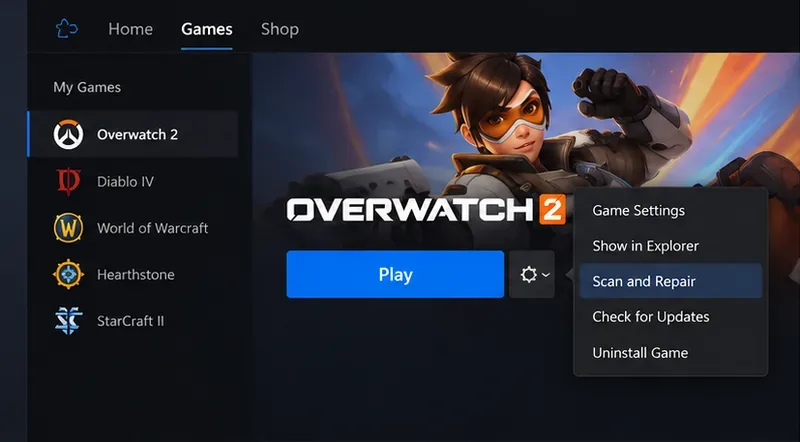
A launcher menu shows a Scan and Repair option for the selected game; menu placement can change between Battle.net versions.
1. Repair Overwatch 2’s game files
Start with the least disruptive check. In the Battle.net desktop app, select Overwatch 2 and open the options menu beside the Play button. Choose Scan and Repair, then start the scan. Let it finish before launching the game again. If you play through a different store, use that store’s built-in verify or repair function instead.
This step can fix damaged or incomplete game files. It will not repair a graphics driver, cooling problem, or unstable GPU. Alex can use it to rule out a game-file issue before changing system settings. Avoid deleting folders by hand as a first response; a repair scan is safer and easier to undo.
A clean desktop is a useful starting point for a test with capture and overlay apps closed.
2. Close overlays and background tools for one test
Exit screen recorders, performance overlays, GPU tuning utilities, RGB control apps, and other tools that hook into games. Examples include chat overlays or capture software, depending on what is installed. Do not uninstall them yet. Close them normally, restart Overwatch 2, and see whether the crash returns.
For Alex, the useful result is a comparison: does the crash still happen with those tools closed? If it stops, reopen one tool at a time on later tests to identify a conflict. If it continues, that does not prove the hardware is faulty; it simply makes an overlay conflict less likely.
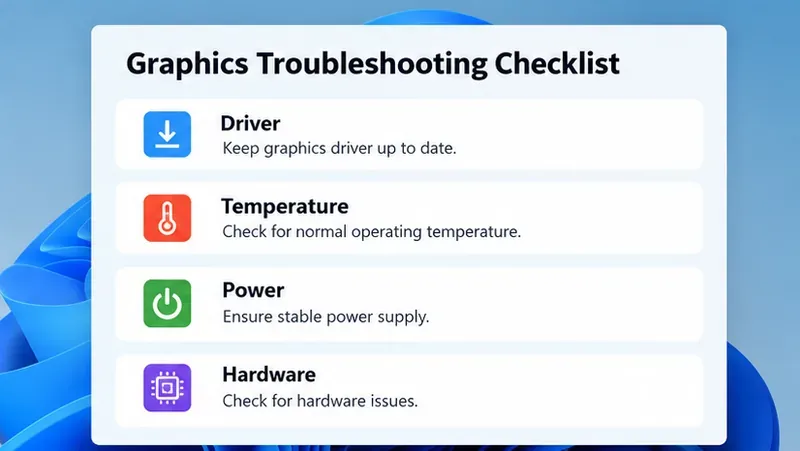
A short checklist helps keep the remaining possibilities in view after basic software checks.
3. Return GPU tuning to default settings
If you use a GPU overclock, undervolt, custom power limit, or automatic tuning profile, temporarily return the card to its default settings with the manufacturer’s software. Also remove CPU or memory overclocks only if you know how to restore the original profile safely. Do not change several BIOS values at once.
Overclocking can make a system unstable even if other games seem fine. Alex should note the original profile before resetting it, then test Overwatch 2 at stock settings. If the PC is already at factory defaults, skip this step rather than installing tuning utilities just to change settings.
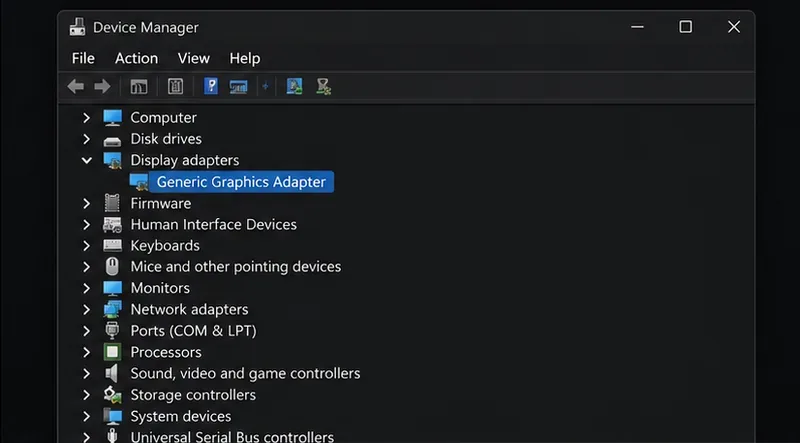
In Device Manager, expand Display adapters to identify the graphics adapter before updating its driver.
4. Update the graphics driver from the correct source
Identify the GPU vendor and exact model first. Download the driver from NVIDIA, AMD, Intel, or the computer manufacturer’s support page for a laptop or prebuilt system. Follow that provider’s installation instructions, restart Windows, and test the game. Avoid third-party driver download sites and “driver updater” bundles.
Windows Device Manager can check for a driver, but it may not offer the newest game-ready package. For a laptop with switchable graphics, check the laptop maker’s guidance as well: the system may rely on both integrated and discrete graphics drivers. Alex should update only the driver that matches the installed hardware and keep a note of the version and date, so a later rollback is possible.
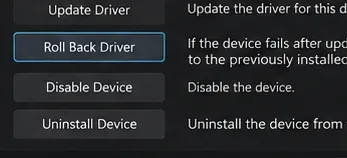
Windows may offer Roll Back Driver in the adapter’s Driver tab; the option appears only when a previous driver is available.
5. Roll back only when the timing points to a recent driver change
Because Alex noticed the crash after a driver update, rolling back is a reasonable next test if updating again did not help. In Windows, open Device Manager, expand Display adapters, right-click the GPU, choose Properties, and open the Driver tab. If Roll Back Driver is available, follow the prompts and restart the PC.
Windows may disable this option when it has no previous driver package. In that case, use the GPU or PC maker’s official archive to install a known compatible earlier driver, following the vendor’s steps. Do not install a random old version just because a forum post mentions it; the correct stable version depends on the hardware and current software.
A graphics settings panel illustrates the kind of controls that may reduce rendering load; exact options and labels vary by game.
6. Temporarily reduce graphics load
For a diagnostic test, lower graphics quality and cap the frame rate below the monitor’s maximum refresh rate if the game offers that control. Use the game’s own settings, apply one change at a time, and note the original values so you can restore them. The mockup above is generic and does not document Overwatch 2’s current menu labels.
If a lower load makes the crash less frequent, that is a clue, not a final repair. It may point toward driver stability, heat, power, or a hardware margin issue. If the crash happens at the same point regardless of settings, restore the original values and continue with the other checks rather than lowering quality indefinitely.
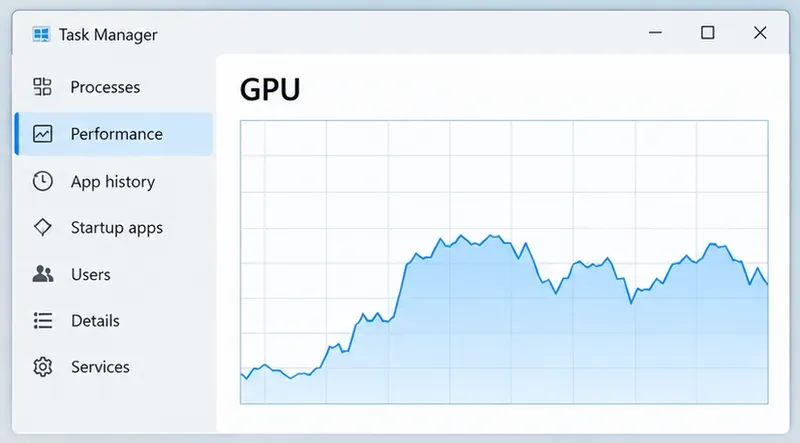
Task Manager can show GPU activity during a test, but utilization alone does not identify the cause of a rendering-device crash.
7. Check temperature, cooling, and power symptoms
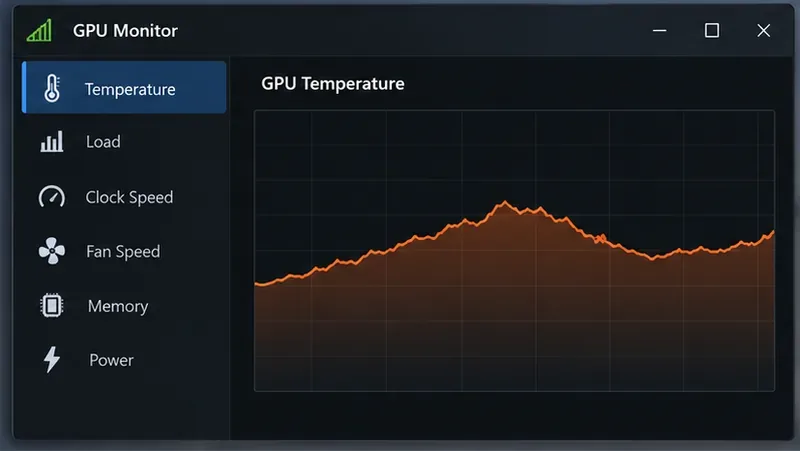
Use a trusted sensor from the GPU or PC manufacturer to watch GPU temperature while the game runs. Compare readings with the operating limits published for the exact GPU model; there is no single safe temperature target for every card. Make sure the case vents are unobstructed and fans can spin freely. Never open a power supply or touch internal components while the PC is powered.
Also watch for clues beyond the game: a black screen across both monitors, a full-system restart, unusual fan behavior, or similar crashes in other demanding games. Those symptoms can suggest a system-level issue. A Task Manager graph shows activity, not temperature; use the appropriate sensor for thermal readings.
A temperature trend can help show whether heat rises as a session continues; this generic graph is not a real measurement.
8. Escalate if the crash continues
If the crash persists after repair, a clean test without overlays, default GPU settings, and a suitable driver change, stop cycling through random fixes. Record the GPU model, Windows version, driver version, crash timing, and whether other games or applications also fail. Note whether the display recovers, the whole PC restarts, or only Overwatch 2 closes. These details make a support request more useful.
Repeated black screens, crashes in multiple games, visible artifacts, or a burning smell warrant a pause in gaming and help from the PC or GPU manufacturer or a qualified repair technician. Do not keep stress-testing a system that is shutting down or showing signs of physical trouble. Microsoft’s TDR registry keys are intended for driver development and testing; Microsoft says end users should not manipulate them. Increasing a timeout value can hide a symptom without fixing the underlying problem.
How can you tell whether the fix worked?
Retest in the same kind of situation where the crash used to occur, but start with Practice Range or another low-stakes mode. Let the game run long enough to cover the usual failure window. If it stays stable, restore any temporary graphics changes one at a time and retest after each change. If the error returns after one specific change, you have a stronger lead. If there is no repeatable pattern, keep the notes and share them with official support.
For Alex, a driver rollback that removes the crash in several comparable sessions would make the recent driver a plausible cause, but it would not prove every rendering-device error has the same fix. If the crash continues at default GPU settings and without overlays, the next step is a vendor or technician review rather than registry edits or repeated reinstalls.
Research checked October 8, 2026. Driver versions, game menus, and vendor troubleshooting steps can change; use the current support instructions for your specific GPU and PC.