Home
» 🎮 Esports
»
How to Fix Halo Infinite Async Compute Crashes on PC
How to Fix Halo Infinite Async Compute Crashes on PC
Halo Infinite loads normally, but a match freezes and the game suddenly closes to the desktop. If the crashes began after you enabled Async Compute, the most useful first test is to turn that setting off and replay the same situation. Keep everything else unchanged so the result tells you something.
Disabling Async Compute is a troubleshooting test, not a guaranteed fix. Driver problems, damaged game files, unstable hardware tuning, and game-specific bugs can produce similar symptoms. Follow the checks below from simple settings changes to repair and diagnostic reporting.
This guide was checked against official support documentation on October 8, 2026. No single current PC configuration was tested for this article. The interface illustrations show relevant controls rather than results from a crash investigation.
What Async Compute does—and why the crash needs investigation
Async Compute, short for asynchronous compute, lets a supported GPU, or graphics processing unit, overlap computation with graphics work. Halo Support describes the feature in its game settings guide.
It is a workload scheduling feature, so its benefit depends on the GPU and workload. NVIDIA's technical explanation of asynchronous compute discusses both useful overlap and cases where resource contention reduces performance. That explains why the setting needs evaluation; it does not establish the cause of a particular Halo crash.
The current official pages reviewed here do not confirm a universal Async Compute crash affecting every GPU. Avoid assuming an old workaround applies unchanged to your current driver and game build.
1. Turn off Async Compute and restart Halo Infinite
At the main menu, press F1 to open the Control Panel, or press Esc from the main menu.
Select Settings, then the Video tab.
Find Async Compute in the PC graphics options and clear its checkbox.
Exit Halo Infinite normally, then launch it again.
Clear the Async Compute checkbox, restart Halo Infinite, and retest the same activity.
Restarting gives the comparison a consistent starting point. Repeat the map, mode, or campaign section where the crash occurred. If the setting was already off, skip this test and continue below. If the game crashes before you can reach Settings, move directly to the driver and file-repair checks; do not download someone else's configuration file.
A single successful match is encouraging but inconclusive. If several comparable sessions work with Async Compute off, leave it disabled while investigating. You can compare it again after a relevant update, but there is no need to deliberately trigger more crashes just to prove the relationship.
2. Check the game version, GPU, and graphics driver
Close Halo Infinite and allow your launcher to finish pending updates. Halo Support's update instructions cover Steam, the Xbox app, and Microsoft Store. In the Xbox app, check Library and Manage installs; in Microsoft Store, check Library for updates.
Next, identify the graphics hardware and driver:
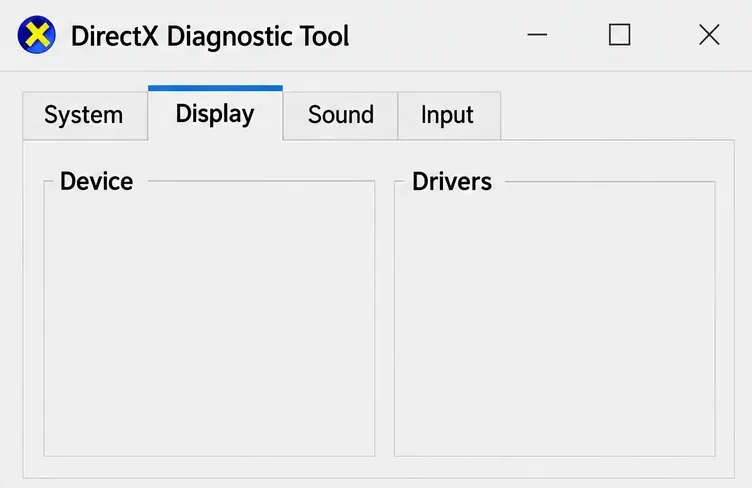
Open Windows Start, type dxdiag, and press Enter.
In the DirectX Diagnostic Tool, open Display.
Record the GPU name and driver version. On systems with multiple graphics devices, check the relevant display tabs.
Use the Display tab to identify your GPU and installed graphics driver.
Compare your system with Halo Support's PC hardware and driver guidance. Its published minimum includes a Radeon RX 570 or GeForce GTX 1050 Ti and at least 4 GB of VRAM, the GPU's dedicated video memory. Meeting that minimum does not guarantee stability at high settings.
Use the official NVIDIA driver download page or AMD driver support page for the correct hardware. Follow the installer instructions and restart Windows when requested. Driver recommendations change, so check the live Halo page instead of treating an old version number as permanent advice.
If the crash started immediately after a driver update, record both versions and investigate the manufacturer's documented release issues. Avoid cycling through unrelated old drivers without a clear comparison plan.
3. Verify or repair the installed game files
File corruption can cause crashes without an error message, according to Halo Support's PC file-corruption guide. Close the game and use the repair method for the launcher that installed it.
Steam
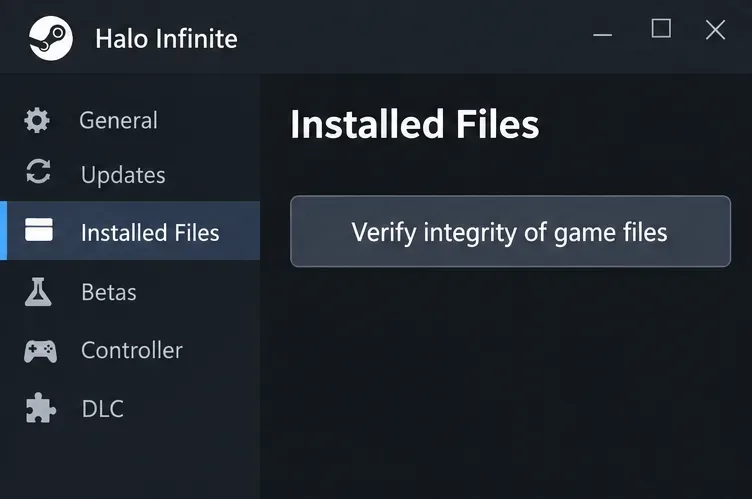
In Library, right-click Halo Infinite and select Properties.
Open Installed Files.
Select Verify integrity of game files and let the process finish.
Restart the PC and retest.
Steam can verify the installation before you consider reinstalling the game.
Older Halo instructions call this section Local Files. Steam's official verification guide covers checking an installation when a game crashes or has missing content.
Xbox app or Microsoft Store
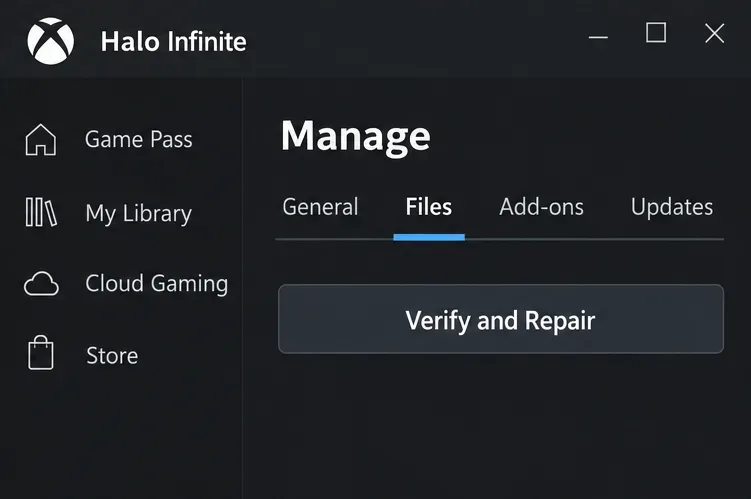
In the Xbox app, select Halo Infinite, open its More actions menu, choose Manage > Files, and select Verify and Repair. Launch the game after the check finishes.
Use Verify and Repair for the installation managed by the Xbox app.
For a Microsoft Store installation, Windows may expose a Repair option under the app's Advanced options. In Windows 11, look under Settings > Apps > Installed apps. Availability varies by app and installation, as Microsoft's app repair instructions explain. Use the Xbox app's repair route when that is the available management method.
Remove any unofficial game-file modifications you introduced. Halo Support warns that modified files can cause performance problems and crashes. Reinstallation is a later option if repair fails; preserve relevant settings and confirm your save synchronization before uninstalling.
4. Reduce graphics workload with one change at a time
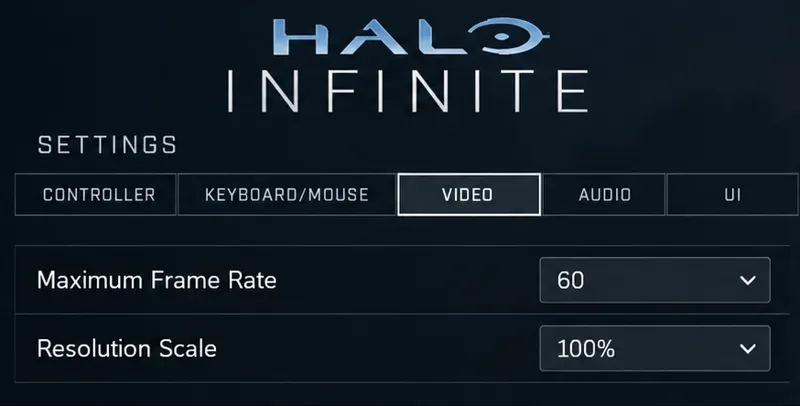
Keep Async Compute off during these comparisons. Start by lowering Maximum Frame Rate to a target your system normally sustains. For example, 60 FPS is a reasonable diagnostic starting point on a system struggling at a higher cap; it is not a required setting for every PC.
A lower frame-rate cap is one diagnostic change to test while keeping other settings unchanged.
If necessary, test a lower Resolution Scale or reduce Texture Quality next. Lower resolution trades sharpness for less rendering work, while lower texture quality trades texture detail. Restart after changing texture quality. Avoid changing the entire preset and several individual controls simultaneously.
If lower settings improve stability, they provide a useful temporary configuration. They do not establish that Async Compute caused the original crash or that the GPU is faulty. Record which adjustment changed the outcome.
5. Return custom GPU tuning to defaults
If you have applied an overclock or undervolt, temporarily restore the GPU's default tuning. An overclock raises operating frequencies; an undervolt reduces voltage. This check removes a custom configuration from the comparison rather than assuming it caused the problem.
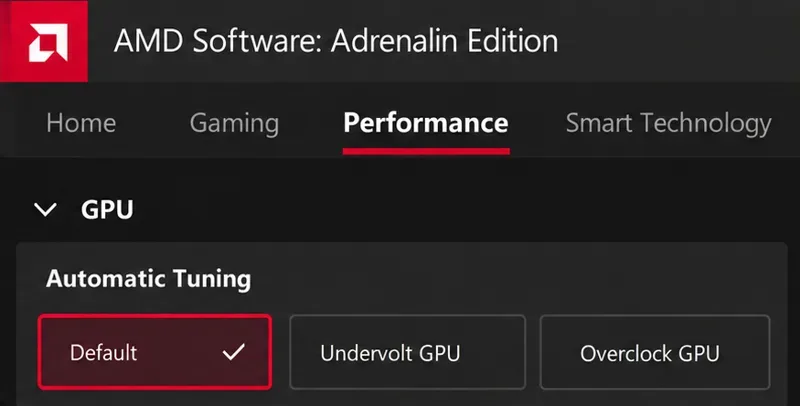
For supported Radeon configurations, AMD Software offers Performance Tuning with a Default option. Follow AMD's GPU tuning documentation and save your custom profile beforehand if you need to retain it. Controls vary with hardware and software version.
Return custom Radeon GPU tuning to Default for a comparison run.
For another tuning utility, use its documented reset procedure. Close optional recording or monitoring tools for a comparison run if you normally use them. That is a general isolation test, not evidence that a particular overlay is responsible. Keep security protections enabled.
6. Collect evidence if the crash continues
Check Halo Support's multiplayer known issues for a symptom matching your map or activity. The reviewed list includes particular Forge crash scenarios, showing why context matters more than a generic crash label.
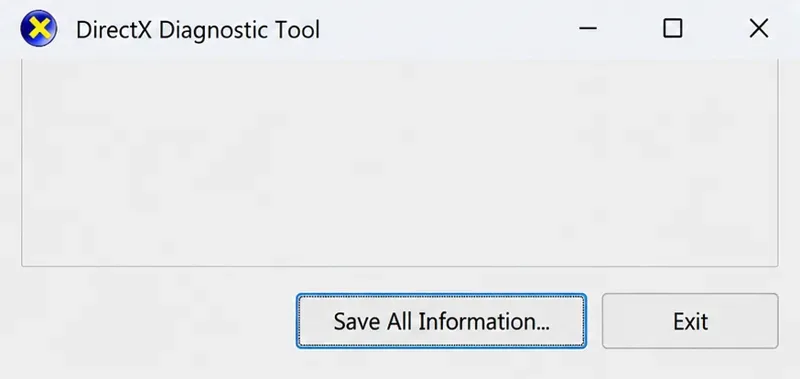
For a support report, open dxdiag again and choose Save All Information to create the diagnostic text file.
Save the diagnostic text file to attach to a Halo Support crash report.
Open Windows Control Panel, search for problem reports, and choose View all problem reports. If a recent Halo Infinite entry is available, open it and use Copy to clipboard. Include that text with the diagnostic file and reproduction steps, following Halo Support's crash-report instructions.
Open the problem-report history to look for an available Halo Infinite crash entry.
State whether the application closed, the display went black, or the entire PC restarted. Those are different symptoms. Include your launcher, GPU, driver version, Async Compute state, and the checks already completed. If multiple games also crash, broaden the investigation to the graphics driver or system hardware with the appropriate manufacturer.
How to verify the fix
Use comparable sessions rather than checking only whether the main menu opens:
Replay the activity that previously triggered the crash.
Keep the same map, resolution, and background applications where practical.
Test across several sessions, including a fresh launch after restarting Windows.
Record whether the crash returns and whether performance remains acceptable.
If Async Compute off remains stable, keep that configuration. If repair or a driver change was needed too, describe the outcome accurately: the combined changes improved stability, and the specific cause remains uncertain. A repeatable record gives you—and Halo Support—a stronger basis for the next decision.