Home
» 🎮 Esports
»
How to Fix TFT Mobile Frame Drops in Late-Game Boards
How to Fix TFT Mobile Frame Drops in Late-Game Boards
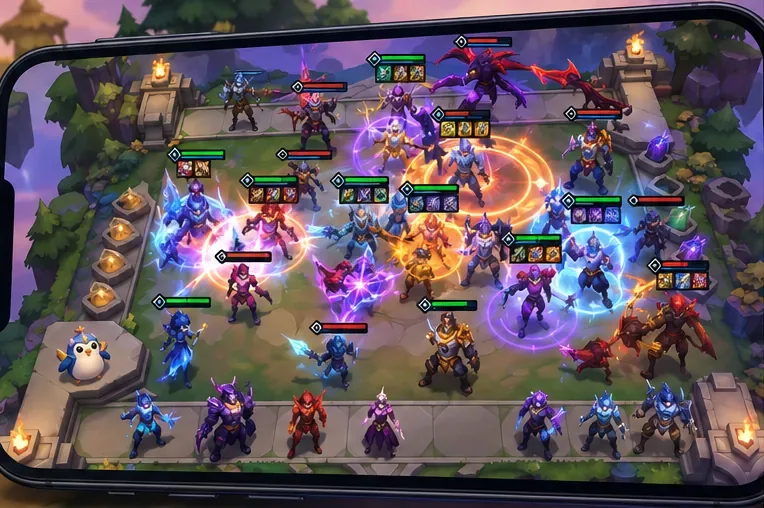
If Teamfight Tactics runs smoothly while you build your team but starts to stutter when the last few players’ boards collide, the phone may be struggling to render a busier fight. That can feel like a game or internet problem, but frame-rate drops and connection lag are different symptoms. Work through the checks below in order: start with quick, reversible changes, then test the game’s graphics option and device temperature before considering a reinstall or support ticket.
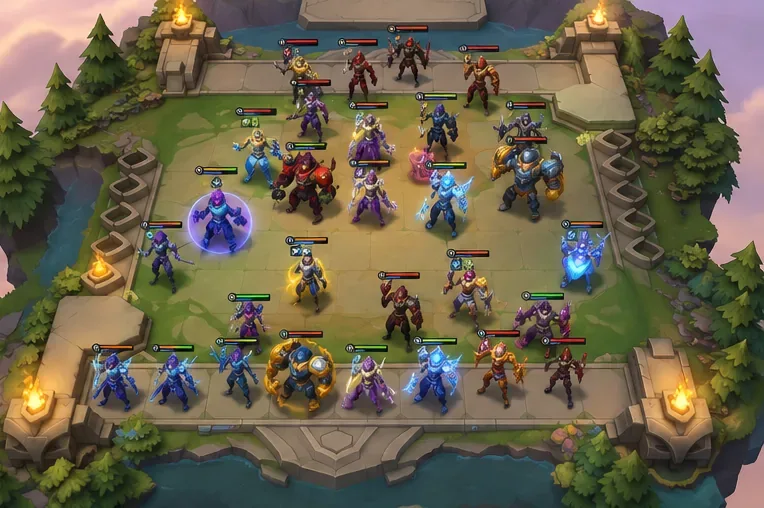
A busy late-game board with many units and spell effects, the kind of scene to watch during a frame-rate check.
First, is it a frame-rate drop or network lag?
Watch what actually slows down. With a frame-rate problem, animations look uneven or briefly freeze, even when you are only watching the board. Touches may also feel delayed because the display is not updating smoothly. With connection lag, the picture can remain fluid while shop actions, transitions, or reconnection take longer to respond. This distinction is a practical diagnostic, not a Riot-provided in-game test; the mobile client does not expose a universal FPS readout for every device.
Switching from cellular data to Wi-Fi can help with network delay, but it will not make a phone render a heavy combat scene faster. Conversely, lowering graphics quality can help a rendering bottleneck but will not repair a weak connection. If the board animation itself judders, continue with the device and graphics checks. If animation looks normal and only online actions stall, check your connection and Riot’s service status separately.
How to reduce TFT Mobile frame drops, from easiest to hardest
1. Close other apps, then relaunch TFT
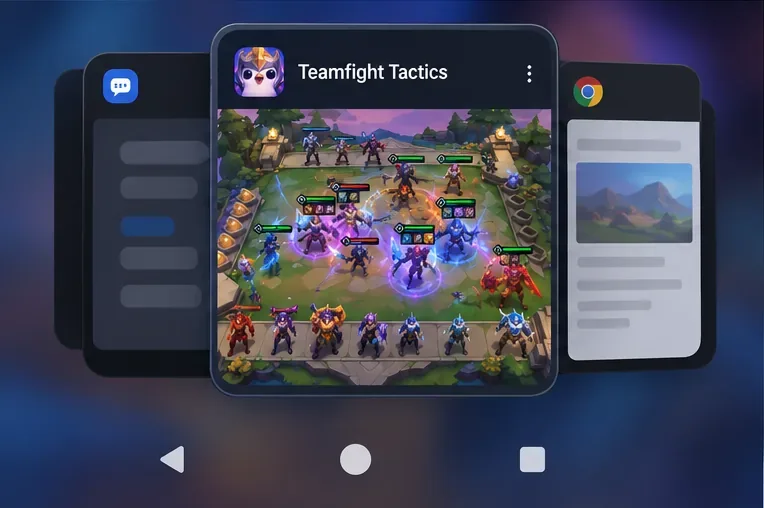
Quit apps you are not using, especially games, video, camera, or screen-recording apps. Riot’s mobile troubleshooting guidance explains that running apps use memory and recommends closing them when a game has trouble running. Then force-close TFT and open it again. If that does not change anything, restart the phone once. Restarting clears a temporary stuck app state; it does not increase the phone’s permanent performance limit.
A recent-apps screen shows TFT alongside other open apps; close unused apps before relaunching the match.
2. Install the latest TFT update before changing more settings
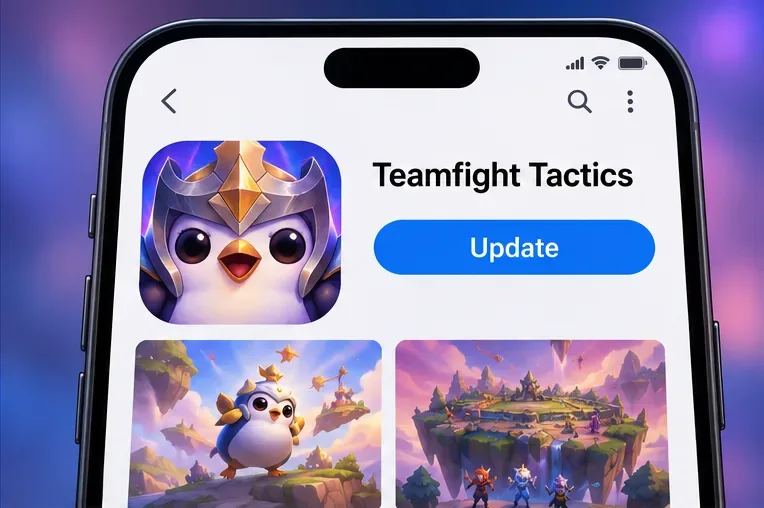
Open the App Store or Google Play and check whether TFT has an update. Riot’s support guide lists app updates and device restarts among its basic mobile troubleshooting steps. If the update is available, install it, reopen the game, and see whether the problem remains. Check your phone’s operating-system update page too, but avoid starting a major OS update immediately before a match or while the phone has low battery.
Patch changes can matter here. As of October 7, 2026, Riot’s latest published TFT notes are for patch 18.4, dated October 6. The notes do not call out a mobile frame-rate fix. Earlier, patch 18.1 introduced a mobile “Performance Mode” graphics setting and said it had been improved for lower-spec devices. Patch 18.2 described updates aimed at frame times, visual-effect cleanup, memory use, and Android thermal throttling. These notes show that Riot has worked on performance paths, but they do not identify the cause of an individual phone’s stutter or guarantee that one setting will solve it.
The store listing displays Teamfight Tactics and an Update button; check for a current app build before retesting.
3. Turn on Performance Mode if your current client offers it
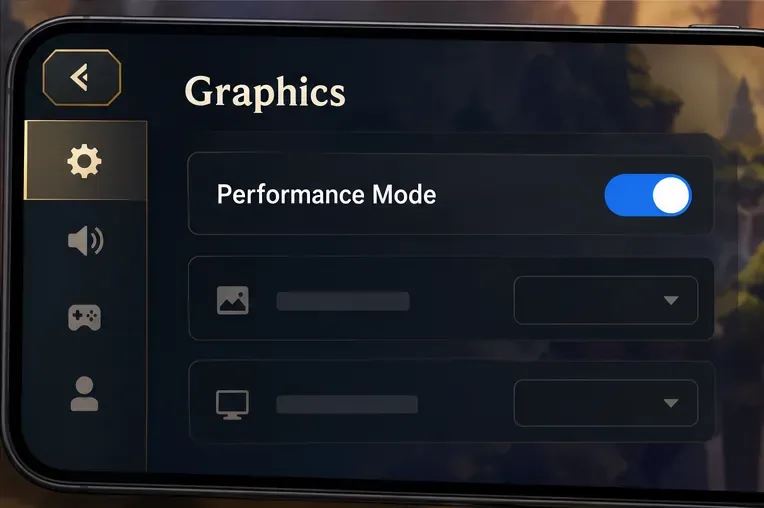
Open TFT’s settings and look under its graphics options for “Performance Mode.” If the toggle is available, enable it and run a fresh match. Riot identifies this as a mobile graphics setting and says its patch 18.1 improvements were intended to help lower-spec devices maintain frame rate. Expect a possible reduction in visual detail in exchange for performance headroom; Riot does not promise a particular FPS or that every device will feel smoother.
Settings screens and availability can vary with the client and platform. If you cannot find Performance Mode, do not assume you missed a hidden menu. Update the game first, then consult Riot Support if the option is still absent. Avoid changing several graphics and battery settings at once: one change at a time makes it easier to tell what helped.
The graphics panel highlights Performance Mode; the exact menu appearance can vary by client version.
4. Let a hot phone cool before the next test
If the stutter appears only after a long session, or the phone feels noticeably warm, close the game and let the device return to a comfortable temperature. For a clean test, play unplugged if practical, remove a thick insulating case, and avoid running other demanding apps in the background. Do not put a phone in a refrigerator or freezer; sudden temperature changes and moisture can damage electronics.
Heat is only one possible clue. Riot’s patch 18.2 notes specifically mention improved Android thermal-throttling decisions, showing that device temperature is part of the mobile performance picture. That does not prove your phone is throttling. If performance is equally poor from a cool start, move on to the controlled retest rather than repeatedly waiting between rounds.
A phone rests unplugged with its screen off while it cools before another match.
5. Retest the same way and record what changed
Start a new match after each adjustment and pay attention to the same point in play: a crowded late-game combat. Compare how smooth the board animation looks and whether the hitching begins at the same time. Keep the phone, network, graphics option, and approximate temperature consistent where possible. Do not use a different board or connection for each test and then credit a single setting; too many changed conditions make the result hard to interpret.
A simple improvement is enough to guide the next step: fewer visible pauses during the late fight suggests the change helped on that device, while identical stutter suggests it did not. TFT does not provide a standard FPS counter on all mobile platforms, so judge consistency by visible animation rather than inventing a number. Repeat once in another match before deciding a fix worked, since one unusually busy combat or a background task can skew the comparison.
Use another late-game board as a repeat observation; look for fewer animation hitches rather than a specific FPS target.
6. Reinstall only after checking account access
If the app is up to date, the phone has been restarted, background apps are closed, Performance Mode has been tested where available, and the issue remains, a reinstall is a later troubleshooting option. Before uninstalling, make sure you can sign in to the Riot Account linked to your progress. Riot warns that uninstalling can erase app data and that it may be unable to recover an account that was never upgraded to a Riot Account. If you are unsure whether your account is linked, resolve that first rather than risking access to your progress.
When should you contact Riot Support?
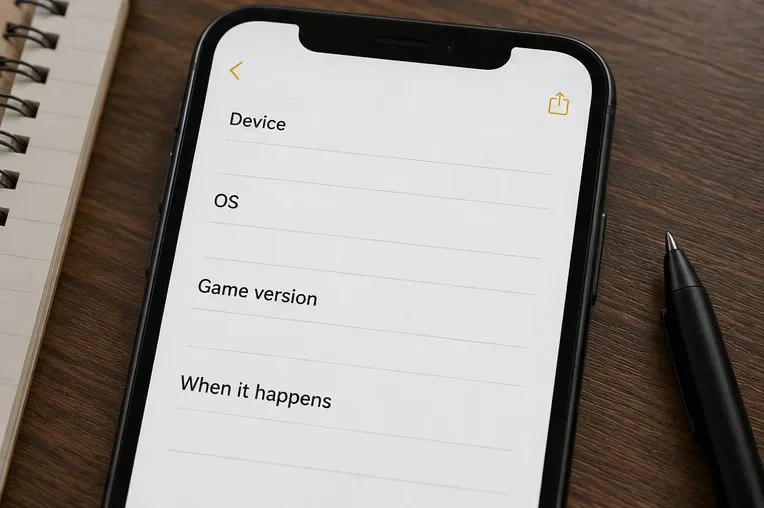
Ask support for help if the frame drops happen repeatedly after these checks, the game closes during combat, or the issue began immediately after a specific update and continues on a cool, otherwise idle phone. Include the phone model, operating-system version, TFT version, whether Performance Mode is available, when in a match the slowdown starts, and which steps you already tried. A short screen recording can help show the pattern if your phone can record without making performance worse.
A short note captures the device, OS, game version, and timing details to include in a support request.
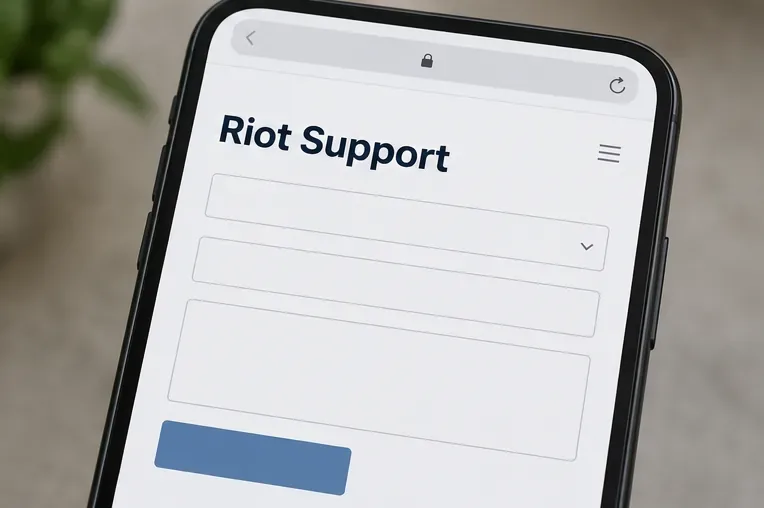
Riot’s mobile troubleshooting page provides a route to submit a ticket after basic steps fail. Describe the symptom precisely: “the board animation stutters in late-game combat” is more useful than “the game is slow.” If the image is smooth but online actions lag, say so; it points support toward a different class of problem.
A support form is the next step when repeatable frame drops persist after basic checks.
What should count as a successful fix?
After making one change at a time, play another match and compare the late-game board with your earlier observation. A useful result is fewer visible pauses during combat, without new crashes or overheating—not a guaranteed frame rate or a promise that every end-game board will be perfectly smooth. If the game still slows down only when many effects fill the screen, the device may be reaching a graphics, memory, or thermal limit that a settings toggle cannot remove. Keep Performance Mode on if it improves your experience; if it makes no difference, restore your preferred graphics option and send Riot Support the details you recorded.