How to Check Real-Time Server Latency in the PUBG HUD

Enable PUBG’s network statistics HUD to monitor ping and packet loss in a match. See where to find it, what the numbers mean, and what they cannot diagnose.
If explosions, sprinting, equipment use, or cinematic moments make Halo Infinite feel too shaky or smeared, the two settings to change are Screen Shake and Blur. Halo Support currently documents both under the game’s Sensory settings, and both can be reduced from their default intensity to 0%. Halo’s own competitive-settings guide also recommends 0% for both options.
The short version is: open Settings, go to Video, find the Sensory section, then set Blur to 0% and Screen Shake to 0%. The same Sensory controls are also available from the Accessibility tab. The steps below use the current Halo Support documentation checked in October 2026.
| Setting | Recommended value | What it changes |
|---|---|---|
| Blur | 0% | Removes the adjustable radial blur used during effects such as explosions, sprinting, equipment use, and cinematics. |
| Screen Shake | 0% | Minimizes camera movement during high-impact events such as explosions, equipment use, and cinematics. |
| Exposure | Optional: 0% for fewer bright flashes | Reduces intense full-screen exposure effects. |
| Full Screen Effects | Optional: 0% for a cleaner image | Reduces other screen-covering effects such as shield-recharge or equipment visuals. |
| Speed Lines | Optional: Disabled | Removes the white streaks shown while sprinting. |
| Sharpening | Start near the default 60% | Controls edge and texture crispness; this is not a motion-blur control. |
These values match the official Halo Support descriptions, while the 0% competitive recommendations for Blur, Screen Shake, Exposure, and Full Screen Effects come from Halo Support’s recommended competitive settings.
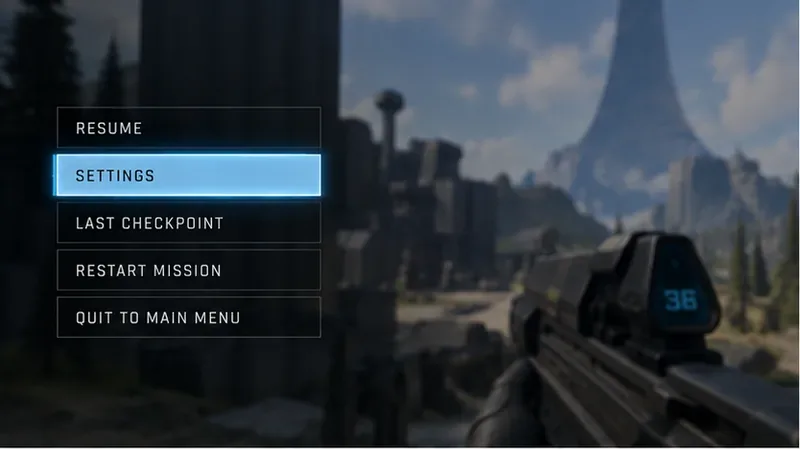
From gameplay, open the Pause Menu or Control Panel and choose Settings. Halo Support lists F1 as a keyboard shortcut from in-game contexts, while Esc can be used from the main menu. On a controller, press the Menu button. You can confirm the current navigation details in the official Halo Infinite Game Settings guide.
Select the Video tab, then scroll to the Sensory group. Halo Support places Blur and Screen Shake in this section. If you are using a controller, LB and RB cycle through settings tabs; on keyboard, the official guide lists E and Q for tab switching, or you can use the mouse.
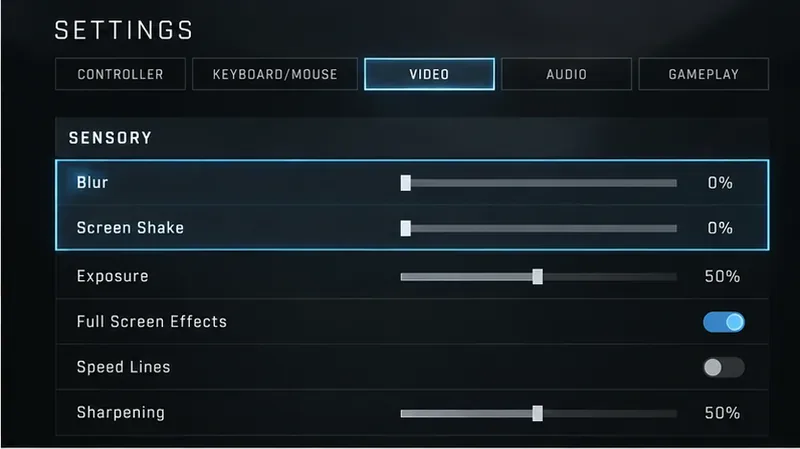
Move Blur all the way down to 0%. Halo Support describes this setting as radial blur that can appear during explosions, sprinting, cinematic sequences, and equipment use. Setting it to 0% is the clearest choice if your goal is to remove that motion-smearing effect as much as the game allows.
Do not confuse this with Depth of Field. Depth of Field is a separate Video option that controls out-of-focus blur in scenes. If you still see intentional background defocus in certain situations, lowering Blur alone may not remove every type of softness on screen.
Move Screen Shake to 0%. This control changes the intensity of camera movement during high-impact events. At 0%, the adjustable shake is minimized, which is useful if you want a steadier image for aiming, competitive play, or comfort.
Halo’s accessibility documentation says both Blur and Screen Shake can be adjusted down from a default of 100%. The official Halo Infinite accessibility features page also lists these controls under Sensory.
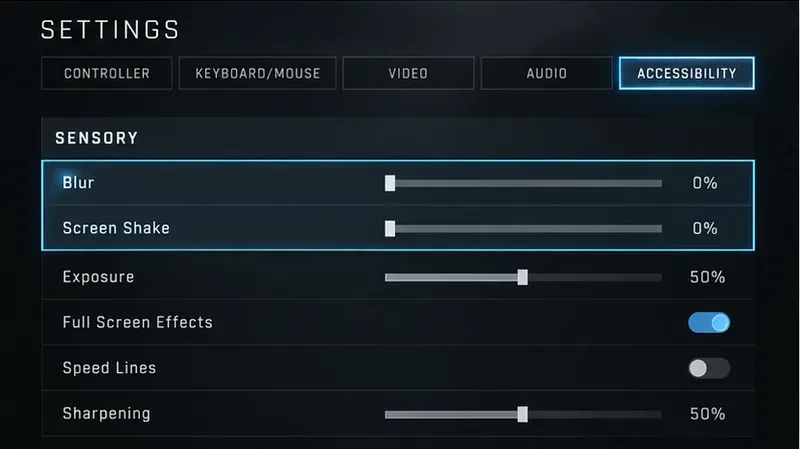
If your goal is simply to stop shaking and radial blur, changing the two settings above is enough. However, some players who describe the picture as “blurry,” “busy,” or “hard to track” are reacting to several visual effects at once rather than only motion blur.
Exposure controls the intensity of bright full-screen effects, including flashes tied to explosions, equipment, and cinematics. Full Screen Effects controls other effects that cover much of the display, such as shield-recharge or equipment visuals. Speed Lines controls the white streaks shown while sprinting. None of these is the same setting as Blur or Screen Shake, but reducing them can make the presentation calmer.
For a stripped-down competitive setup, Halo Support currently recommends Exposure 0%, Full Screen Effects 0%, and Speed Lines Disabled alongside Blur 0% and Screen Shake 0%. That does not mean every player should use those values. Campaign players who prefer stronger visual feedback may want to leave some effects enabled.
Sharpening is not a blur-off switch. Halo Support describes it as a control for the crispness of edges and texture details, with a documented range from 0% to 100% and a default of 60%. Increasing it can make edges look more pronounced, but it does not cancel camera shake or radial blur. Excessive sharpening can also make fine detail look harsh, so it is better to solve motion effects with Blur and Screen Shake first, then adjust Sharpening only if the final image looks too soft or too crisp.
After setting Blur and Screen Shake to 0%, return to gameplay and test a few situations that normally trigger the effects. Sprint, use equipment, stand near an explosion at a safe distance, or replay a visually intense campaign moment. You should see less radial smearing and less camera movement than with the default Sensory values.
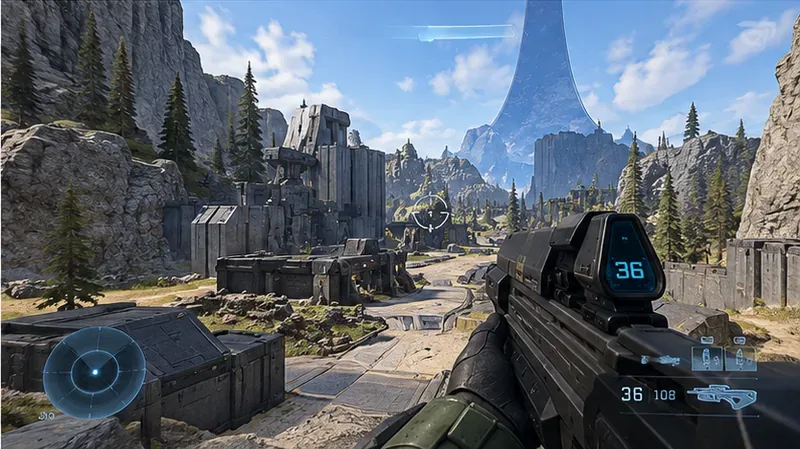
Use this checklist if the image still feels uncomfortable:
A 0% Screen Shake setting is intended to minimize the adjustable high-impact camera movement, but it should not be interpreted as a promise that every animation in Halo Infinite becomes perfectly static. Weapon animations, camera transitions, movement animation, recoil feedback, cinematics, and other authored motion can still be visible because they are not necessarily controlled by the Screen Shake slider.
There is also historical context worth separating from the current behavior: during Halo Infinite’s technical preview, 343 Industries acknowledged a bug where some screen shake remained even when the setting was at 0%. That statement referred to the preview period, not evidence that the same bug is currently present. If you suspect a present-day settings bug, verify your sliders first, restart the game, and then check Halo Support for a current known issue rather than relying on old preview reports.
For most players specifically searching for a way to turn off shake and blur, the most direct setup is Blur 0% and Screen Shake 0%. If you also want the least visually busy presentation, the official competitive baseline adds Exposure 0%, Full Screen Effects 0%, and Speed Lines Disabled. Leave Sharpening near its default initially, then fine-tune it after you have tested the game at your normal resolution and display settings.
The important distinction is that Halo Infinite separates several sensory effects into individual controls. Change the setting that matches the problem you actually see: Blur for radial smearing, Screen Shake for impact-driven camera movement, Exposure for flashes, Full Screen Effects for broad overlays, and Speed Lines for sprint streaks. That gives you a cleaner result without disabling more visual feedback than you want.
Enable PUBG’s network statistics HUD to monitor ping and packet loss in a match. See where to find it, what the numbers mean, and what they cannot diagnose.
Learn how to import VALORANT crosshair codes, compare presets with manual settings and spectator copy, and fix common import issues.
Choose Dota 2 minimap size, hero icons, team colors, and background settings by readability, fewer misclicks, and clear results on your own display.
Fix Fortnite texture pop-in on PC with official steps for GPU drivers, file verification, DirectX 12, high-resolution textures, VRAM, SSDs, and stutter.
Learn what Heroes of the Storm minimap size and position options are verified, improve readability, and choose camera-click controls that suit you.
Set Super Smash Bros. Ultimate Quickplay to prefer hazards-off stages. Follow the Preferred Rules menu steps and learn why matchmaking may not always honor them.
Enable Server Latency and Packet Loss in Warzone to monitor connection quality, read the overlay, and use recurring spikes to guide troubleshooting.
Learn how to carry from mid lane in League of Legends by setting up waves, choosing safe roam windows, reading side lanes, and converting pressure into objectives.
Fix Minecraft Evoker spell problems with a safe vanilla test, version checks, log review, and a step-by-step way to isolate mod or datapack conflicts.
Fix PUBG stuck on Initializing on Steam with a focused checklist for PC service notices, launch options, game files, downloads, and connection issues.








