How to Check Real-Time Server Latency in the PUBG HUD

Enable PUBG’s network statistics HUD to monitor ping and packet loss in a match. See where to find it, what the numbers mean, and what they cannot diagnose.
If repeated friend invites are cluttering your Brawl Stars inbox, use the in-game Block Friend Requests setting. Supercell’s April 2026 release notes place this control in the Friends menu. Turning it on is intended to stop new friend requests from reaching your account; it is different from silencing a phone notification sound.
In Brawl Stars, a friend request is an invitation another player sends to connect in the game. A notification is an alert from the game or your device that tells you something happened. The block setting changes whether requests can come in. Your phone’s notification controls only change alerts shown by the operating system and may leave the in-game request feature untouched.
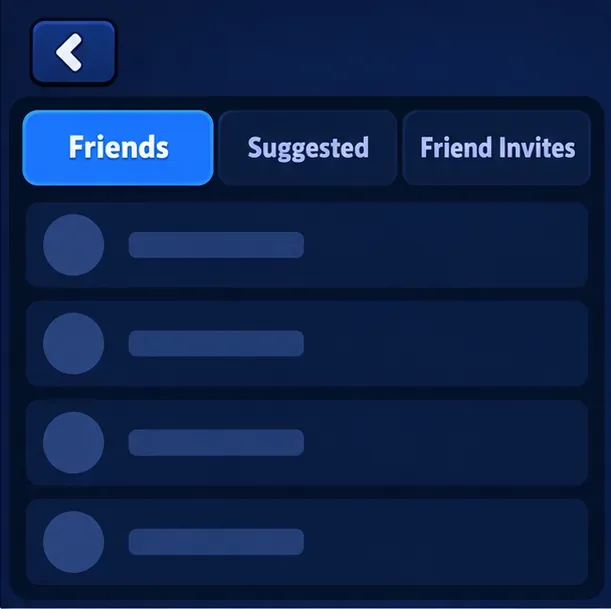
Open the game and use the Friends area, rather than starting in your phone’s Settings app. Supercell’s current Friends support page describes the main-screen Friends button and three tabs: Friends, Suggested, and Friend Invites. The official April 2026 notes add a setting in the Friend menu called “Block Friend Requests.” The support page does not yet spell out every tap in that newer menu, so the exact icon or placement can vary with the game version.
If you cannot see the setting, first make sure Brawl Stars has finished updating through the App Store or Google Play, then reopen the game. A feature can appear in a different place after a menu redesign, so look inside the Friends menu and its settings rather than assuming it is a general account-profile or phone-notification option.
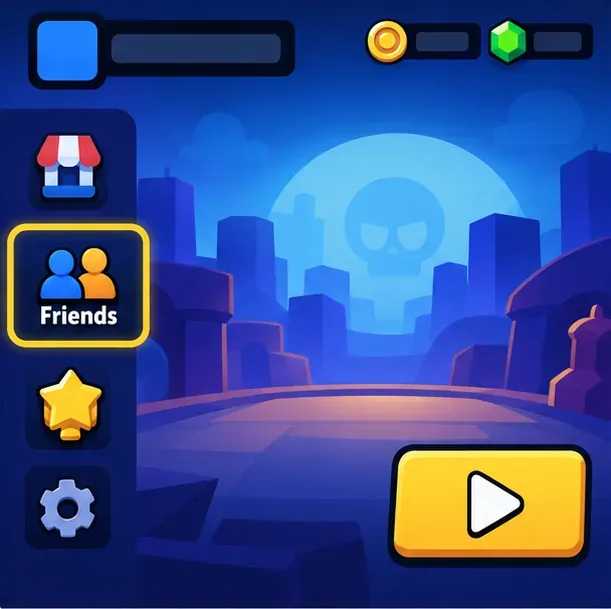
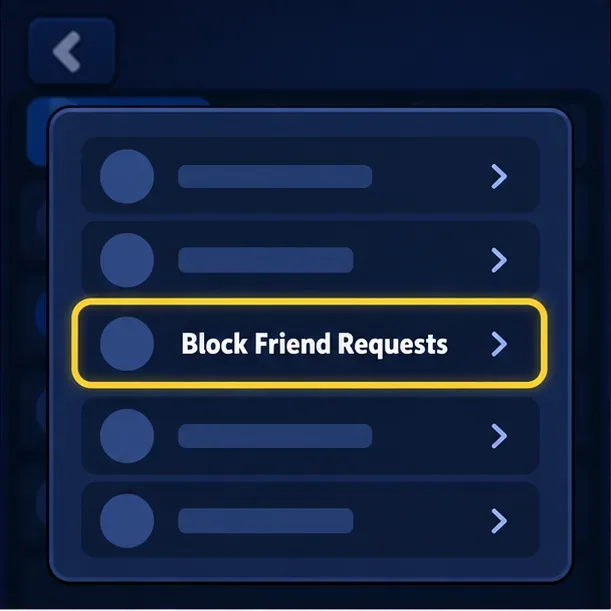
Follow this route in the game. Button art can differ between devices or updates, but the setting name to look for is Block Friend Requests.
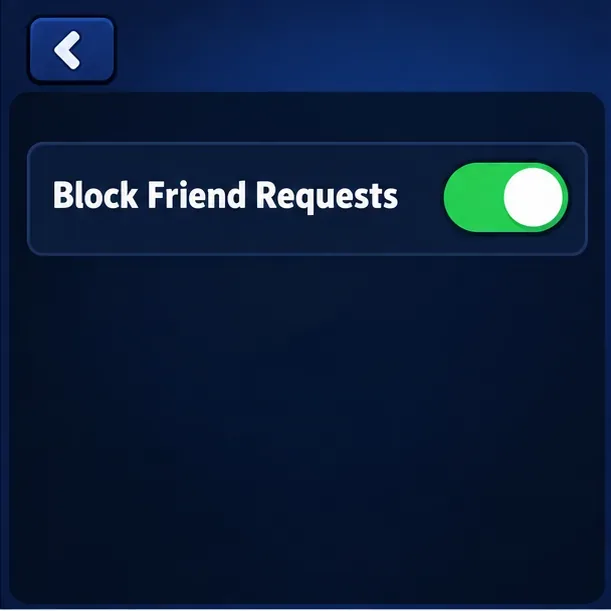
Return to the setting and check that it is still enabled. That is the clearest on-device confirmation available to you. Then check the Friend Invites tab later: new requests should no longer arrive while blocking is on. This is a practical check, not a guarantee about invitations that were already pending before you changed the setting. Review or clear any existing requests separately if the game still shows them.
Supercell’s Friends support page says players can receive up to 20 pending friend invites at a time. It also explains that requests can come from several places, including the end-of-match screen. That is why turning off a phone banner or sound may not solve a crowded in-game invite list; the request source and the alert are separate things.
If your goal is simply to stop banners, sounds, or vibration while still allowing people to send requests, use your device’s notification controls for Brawl Stars. On iPhone, review the app’s notification settings in iOS Settings; on Android, review Brawl Stars under the system’s app notification settings. The exact labels depend on your operating system version. This controls device alerts and does not necessarily block a request from appearing inside the game.
Conversely, if you enable Block Friend Requests, you may still see unrelated Brawl Stars notifications such as event or shop alerts, depending on your device settings. The request-blocking option is specifically for friend requests; it is not a master “mute the game” switch.
Update the game and reopen it, then look in the Friends menu rather than the general Settings screen. Supercell introduced the setting as part of its April 2026 social-menu improvements. If it still does not appear, the available layout may differ for your version or account. Check the official Friends support page or contact Supercell Support from inside the game instead of relying on a third-party app or a supposed “secret code.”
Check whether the requests were already pending before you enabled the block. If the control seems not to save, turn it off and back on from the in-game Friends menu, then close and reopen Brawl Stars and recheck the switch. Supercell previously documented a bug in which changing “Block Friend Requests” from the Supercell ID menu did not apply to the in-game setting. That older patch note is a reason to make the change inside Brawl Stars and verify the in-game state; it does not establish that the old bug is still present.
That is expected when only device alerts were disabled. Return to Friends and enable Block Friend Requests if your aim is to stop incoming invites. If you want to keep requests available but reduce interruptions, leave the request setting off and adjust only the phone’s notification permissions.
Menu names and placement can change in future updates. The official reference checked for this guide is Supercell’s April 2026 release notes; its general Friends support page also documents the Friends button, tabs, and invitation limits.
Sources: Supercell’s April 2026 Brawl Stars release notes; Supercell Support: Friends; Supercell patch notes documenting an earlier Supercell ID setting issue.
Enable PUBG’s network statistics HUD to monitor ping and packet loss in a match. See where to find it, what the numbers mean, and what they cannot diagnose.
Learn how to import VALORANT crosshair codes, compare presets with manual settings and spectator copy, and fix common import issues.
Choose Dota 2 minimap size, hero icons, team colors, and background settings by readability, fewer misclicks, and clear results on your own display.
Fix Fortnite texture pop-in on PC with official steps for GPU drivers, file verification, DirectX 12, high-resolution textures, VRAM, SSDs, and stutter.
Learn what Heroes of the Storm minimap size and position options are verified, improve readability, and choose camera-click controls that suit you.
Set Super Smash Bros. Ultimate Quickplay to prefer hazards-off stages. Follow the Preferred Rules menu steps and learn why matchmaking may not always honor them.
Enable Server Latency and Packet Loss in Warzone to monitor connection quality, read the overlay, and use recurring spikes to guide troubleshooting.
Learn how to carry from mid lane in League of Legends by setting up waves, choosing safe roam windows, reading side lanes, and converting pressure into objectives.
Fix Minecraft Evoker spell problems with a safe vanilla test, version checks, log review, and a step-by-step way to isolate mod or datapack conflicts.
Fix PUBG stuck on Initializing on Steam with a focused checklist for PC service notices, launch options, game files, downloads, and connection issues.








