How to Check Real-Time Server Latency in the PUBG HUD

Enable PUBG’s network statistics HUD to monitor ping and packet loss in a match. See where to find it, what the numbers mean, and what they cannot diagnose.
Quick answer: Clash Royale does not have a separately documented clan-chat notification switch in the official help material reviewed for this guide. On Android, open Settings > Notifications > App notifications > Clash Royale and turn the game’s notifications off. On iPhone, open Settings > Notifications > Clash Royale and turn off Allow Notifications. Those controls stop notifications from the whole game. If you only want to stop banners, change the alert style instead where your phone offers that option.
This distinction matters because “pop-up” can describe two different things: a banner delivered by Android or iOS, or an unread marker/chat alert that appears only after Clash Royale is open. Phone notification settings control system alerts from the app. They do not erase an unread clan-chat count inside the game.
If the alert appears over another app, on the lock screen, or in the phone’s notification shade, it is a device notification. Use the Android or iPhone steps below. If the message appears only in Clash Royale—such as a chat badge, dot, or unread count—changing system notification permissions will not remove that in-game indicator. Open the Clan tab and review the chat; if the marker remains after the message is read, it may be a separate game display issue.
Supercell’s official Clan Chat Filter help page describes a profanity filter in Settings. That filter changes how offensive words appear; it is not presented as a notification control. The help page does not give a confirmed path for muting clan-chat alerts specifically. So do not mistake a chat filter for a mute switch.
Android’s menu names vary by phone maker and Android version, but Google documents the app-level route as Settings, Notifications, App notifications, then the app. The same page notes that some devices let you switch off selected notification categories rather than every alert.
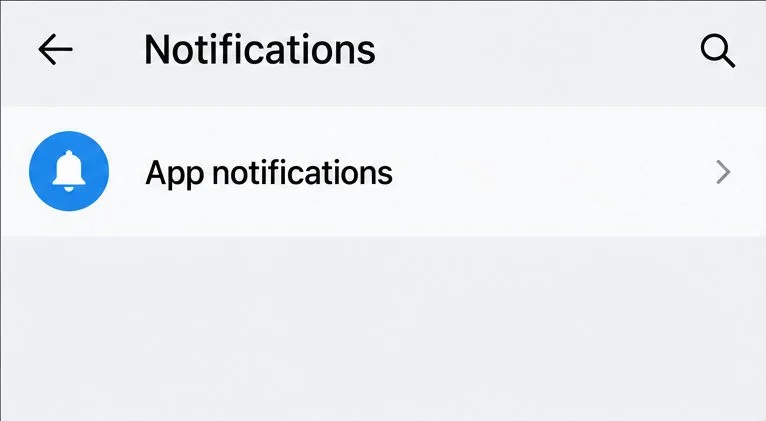
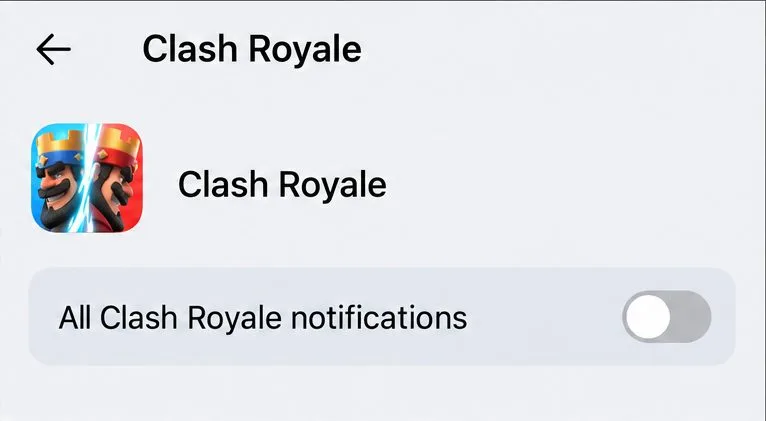
Trade-off: this blocks every system notification the game sends, not only clan chat. You may also stop seeing other game alerts. It does not delete messages, remove you from a clan, or change your account. To restore alerts later, return to the same screen and turn the switch back on.
Possibly, depending on the device and the notification types Clash Royale exposes. If your phone shows a separate category that clearly matches the alert, you can turn off that category. Otherwise, Android may let you make an alert silent or disable its pop-up behavior. Google explains that a silent alert can still remain in the notification shade; it simply does not make a sound or vibrate. Menu labels and available controls differ, so do not assume a “Clan Chat” category exists.
For the quickest route, press and hold an incoming Clash Royale notification and tap its settings control. If a clearly named clan-chat category is shown, turn that category off. If you see only the general Clash Royale switch, choose between keeping all game alerts or turning them all off.
Apple provides per-app controls for whether notifications appear and where they appear. To stop all Clash Royale alerts, disable the app’s permission. To remove only banner pop-ups while keeping alerts elsewhere, leave notifications enabled and deselect Banners.
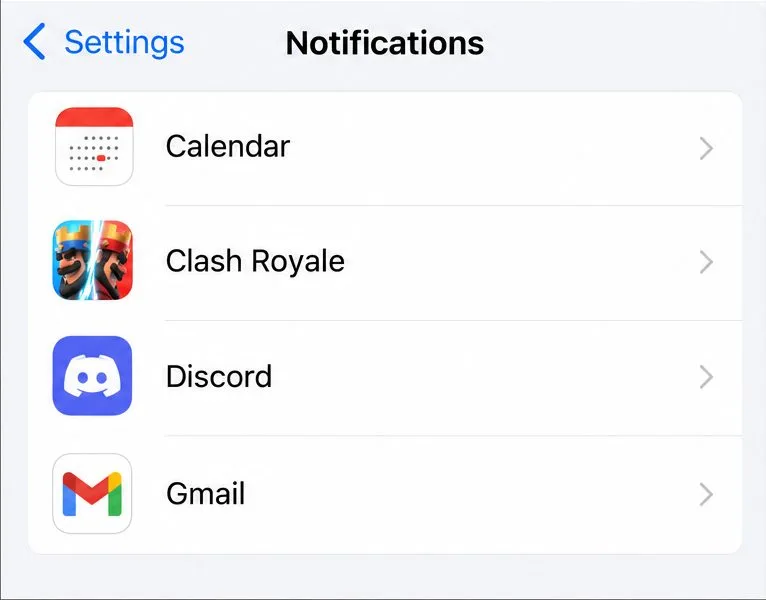
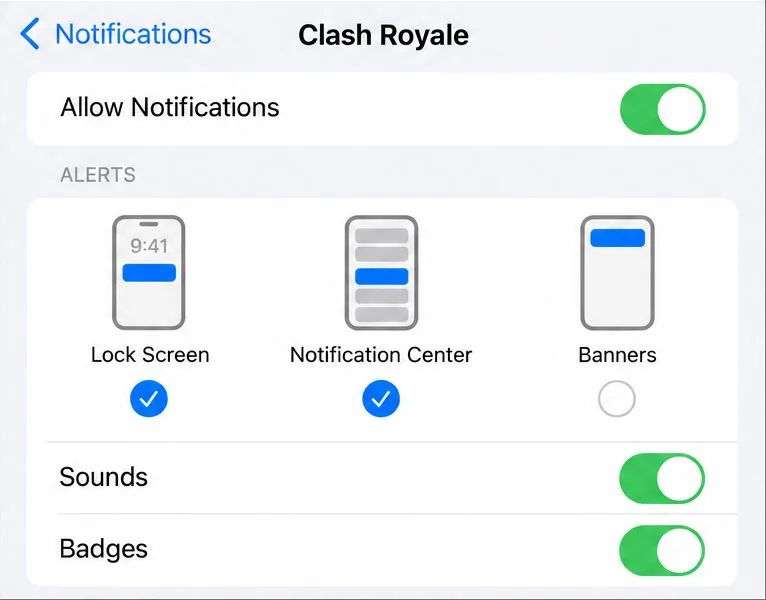
To stop only banners, keep Allow Notifications on and, under the alert locations, tap Banners so it is no longer selected. You can keep Lock Screen or Notification Center selected if you still want to check alerts later. If your aim is fewer interruptions rather than no banners at all, this is the more selective choice.
One common mix-up is to open Clash Royale’s chat filter and expect the alerts to stop. Supercell describes that setting as a text filter. Another is to disable notifications for the whole app while expecting to keep other game alerts; the master switch does not make that distinction. Choose the narrower category or banner control only if your device actually shows it.
After saving the setting, leave Clash Royale in the background and wait for the next ordinary game alert, if one arrives. Confirm whether the banner is gone and whether the notification still appears in Notification Center or the Android shade. If all alerts stopped but you wanted to hide banners only, re-enable the app notifications and adjust the alert style. If an unread count still appears only after opening the game, the phone setting is working on system alerts; the remaining marker is in-game.
These instructions reflect Apple and Google’s current general notification controls as checked on October 7, 2026. Android wording can vary by manufacturer. Supercell’s available public support material may change, and it does not establish that every version or device has the same notification categories.
Enable PUBG’s network statistics HUD to monitor ping and packet loss in a match. See where to find it, what the numbers mean, and what they cannot diagnose.
Learn how to import VALORANT crosshair codes, compare presets with manual settings and spectator copy, and fix common import issues.
Choose Dota 2 minimap size, hero icons, team colors, and background settings by readability, fewer misclicks, and clear results on your own display.
Fix Fortnite texture pop-in on PC with official steps for GPU drivers, file verification, DirectX 12, high-resolution textures, VRAM, SSDs, and stutter.
Learn what Heroes of the Storm minimap size and position options are verified, improve readability, and choose camera-click controls that suit you.
Set Super Smash Bros. Ultimate Quickplay to prefer hazards-off stages. Follow the Preferred Rules menu steps and learn why matchmaking may not always honor them.
Enable Server Latency and Packet Loss in Warzone to monitor connection quality, read the overlay, and use recurring spikes to guide troubleshooting.
Learn how to carry from mid lane in League of Legends by setting up waves, choosing safe roam windows, reading side lanes, and converting pressure into objectives.
Fix Minecraft Evoker spell problems with a safe vanilla test, version checks, log review, and a step-by-step way to isolate mod or datapack conflicts.
Fix PUBG stuck on Initializing on Steam with a focused checklist for PC service notices, launch options, game files, downloads, and connection issues.








