Home
» 🎮 Esports
»
How to Turn Off Allied Chat Permanently in Heroes of the Storm
How to Turn Off Allied Chat Permanently in Heroes of the Storm
When allied chat fills with arguments, repeated messages, or callouts you do not need, it can make a match harder to follow. Heroes of the Storm has a global text-chat preference for messages from teammates. Turn that preference off in the Social options, then verify it remains off after you leave the menu. The setting is reversible: “permanently” means it stays disabled until you change it again, not that the choice is locked to your account forever.
What the allied-chat setting controls
Allied chat is text sent by players on your team during a match. Blizzard’s archived patch notes introduced an “Enable Allied Chat” checkbox in Social Options for enabling or disabling teammates’ in-game chat messages. In later player discussions on Blizzard’s own forum, the label is often described as “Enable team chat.” The exact wording can vary by client version or localization, so look for the team or allied chat checkbox rather than assuming every menu uses the same phrase. See Blizzard’s patch notes describing the allied-chat option and the Blizzard forum discussion about disabling chat.
This is a client preference that disables allied text chat globally. It is different from muting one teammate from the in-game Score Screen, and it does not necessarily turn off every communication channel. Voice chat, pings, party messages, and whispers may have separate controls. Blizzard’s overview of Heroes of the Storm voice communication treats voice as a separate feature.
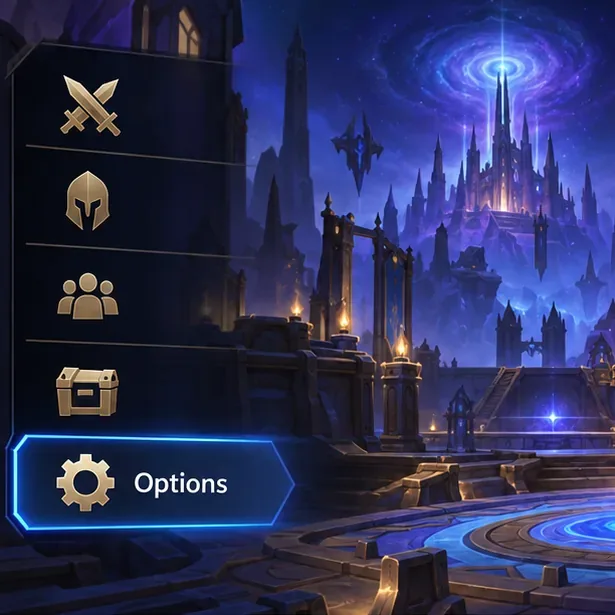
The main menu illustration highlights Options, where the Social settings are located.
Before you change it
Use the game’s Options menu rather than relying on a temporary mute. You do not need to change your account, install another program, or edit configuration files. If you are in a match, finish or leave it before changing global preferences; this keeps the menu work separate from an active game. The option applies to allied text messages, so leave it enabled if you still want to read team chat.
Menu wording and layout may vary slightly between client versions. The instructions below describe the setting confirmed in Blizzard’s patch notes and in Blizzard-hosted player-support discussions. If you cannot find the option, first check the Social tab carefully and look for “Allied Chat” or “Team Chat.” Do not confuse it with voice-chat controls.
Turn off allied chat in Heroes of the Storm
1. Open Options
From the main menu, open Options. If you are already in a match, you can open the in-game menu, but changing the preference from the main menu makes it easier to inspect and confirm the setting afterward.
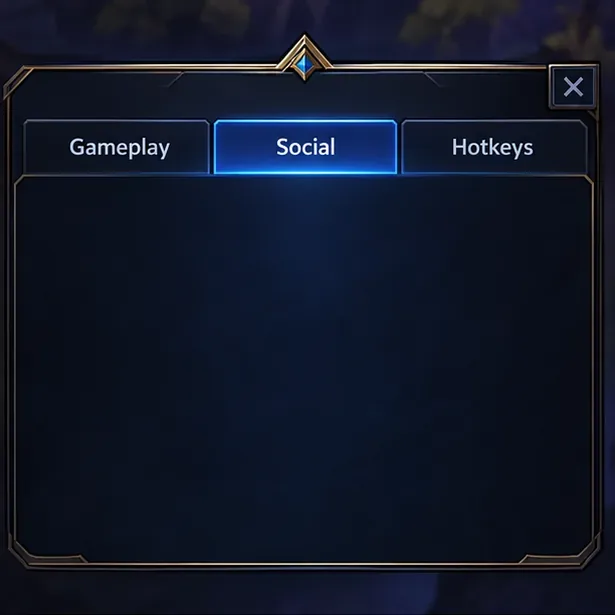
In the Options window, select the Social tab to find communication preferences.
2. Select the Social tab
At the top of the Options window, choose Social. A tab is a labeled section in a settings window; selecting it changes which preferences are shown. Scan the page for a checkbox related to enabling allied or team chat.
3. Clear the allied or team chat checkbox
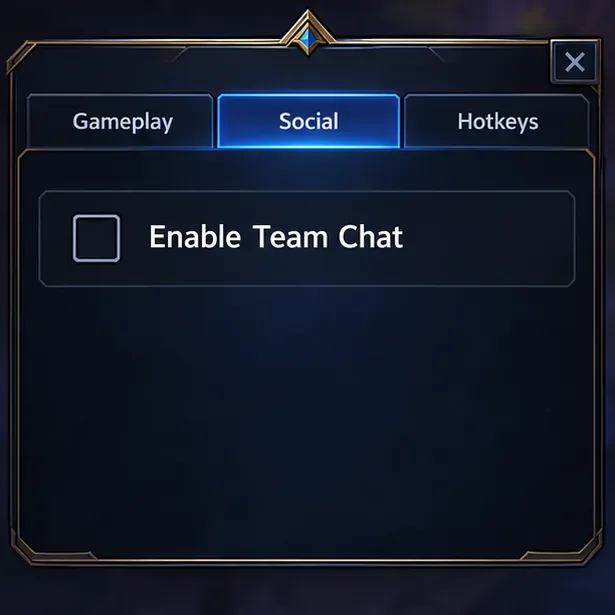
Click the checkbox next to Enable Allied Chat or Enable Team Chat, depending on the label displayed by your client. A checked box means the option is on; an empty box means allied text chat is disabled. If the menu provides an Apply, Accept, or equivalent confirmation button, select it before closing Options. If no such button appears, close the menu normally so the client can keep the change.
The empty checkbox indicates that team text chat is turned off in this settings illustration.
4. Reopen the setting and verify it stayed off
Close Options, open it again, and return to Social. Check that the allied/team chat box is still empty. For a stronger check, start or join a later match and confirm that allied text messages no longer appear. Do not use an old message already visible in the interface as proof that the setting failed; close and reopen the relevant view before judging the result.
If you only want to mute one teammate
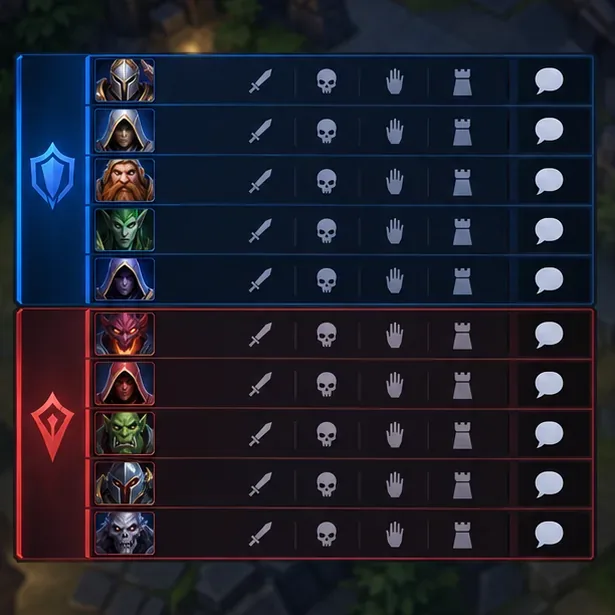
If the issue is one player rather than all allied chat, use the per-player mute control instead. Blizzard’s patch notes describe muting an individual teammate through the speech-bubble icon at the far right of that player’s row on the in-game Score Screen, opened with Tab. That action targets a specific player; it is not a substitute for the global Social preference. The exact icons or placement can shift with interface updates, so use the row belonging to the player you intend to mute.
The scoreboard illustration shows a speech-bubble control beside each player row for individual muting.
Troubleshooting when chat still appears
The box is checked again: Reopen Social, clear the checkbox once more, and use the menu’s confirmation button if one is shown. Then close and reopen Options to check whether the change was retained.
You cannot find the setting: Confirm you are in Options > Social, not a voice-chat menu. Look for both “allied” and “team” wording. If your client is localized, the translated label may not match the English wording.
You still hear teammates: The allied-chat checkbox concerns text chat. Check voice communication controls separately if you want to stop hearing voice, and do not assume that changing text chat affects voice, pings, whispers, or party chat.
Only one player is disruptive: Use the scoreboard’s individual mute control. Disabling the global setting hides allied text from the whole team, including useful coordination.
The preference repeatedly resets: Restart the game client and check the setting again. If it continues to revert, consult Blizzard’s official support channels rather than editing game files or downloading third-party “chat blockers.” The public sources cited here confirm the setting exists, but do not establish a current, universal fix for every case where a preference fails to persist.
Final check
To confirm the change, return to Options > Social and make sure the allied/team chat checkbox remains empty after closing and reopening the menu. Then check again in a subsequent match. If team text is gone but voice or other communication remains, that is consistent with the controls being separate. Re-enable the checkbox whenever you want allied text chat back.