How to Check Real-Time Server Latency in the PUBG HUD

Enable PUBG’s network statistics HUD to monitor ping and packet loss in a match. See where to find it, what the numbers mean, and what they cannot diagnose.
The most useful way to test a LAN adapter for Super Smash Bros. Ultimate is to check three layers: confirm the Switch is actually using a wired connection, run Nintendo’s connection test, and monitor the local network path over time before checking real matches. Each test answers a different question. A successful speed test alone does not prove a connection is steady, and a clean ping from a computer does not prove that the Switch’s USB adapter itself is faultless.
| Test | What it can tell you | Main limitation | Best for |
|---|---|---|---|
| Switch connection test | Whether the console reaches Nintendo’s services, plus NAT type and reported download/upload speeds | It is a brief check, not a continuous record of packet loss or latency variation. | Confirming the console is online and checking NAT-related matchmaking issues |
| Ping the home router from a wired computer | Whether the computer’s local Ethernet path to the router is responding consistently | It does not directly test the Switch’s USB adapter unless the same adapter is connected to and supported by that computer. | Checking a cable, router port, or local network segment |
| Play several Smash matches | Whether the full console-to-game experience feels stable during actual play | Other players, matchmaking, and the route beyond your home can affect the result. | Deciding whether the setup is good enough for online play |
For a fast check, begin with the Switch test. If the issue is intermittent, add a longer router ping and then observe several matches. Nintendo’s connection test reports connection success, NAT type, and transfer speeds; its published result fields do not include a continuous latency or packet-loss history. Nintendo’s instructions for the Internet Connection Test.
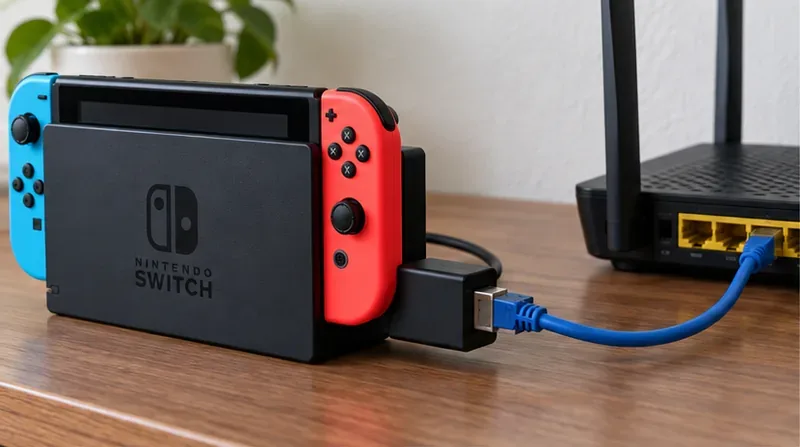
Use the correct dock and adapter for your Switch model. The original dock without an Ethernet jack needs a compatible USB LAN adapter. The Switch OLED dock has a built-in LAN port, so a separate adapter is not needed for that dock. Nintendo says the console must be in TV mode for the wired connection procedure; Switch Lite requires a compatible licensed accessory to add wired networking. Nintendo’s LAN adapter installation instructions.
Connect the adapter to the dock, then connect an Ethernet cable from the adapter to a numbered LAN port on the router. Do not use the router’s WAN or Internet port for the console cable. Check both ends for a firm fit. If you use the OLED dock’s built-in port, connect the cable directly to that port. These details matter because the console cannot test a link that is not physically connected to the router.
On the HOME Menu, open System Settings > Internet > Internet Settings. Select Wired Connection, then choose the option to connect over the wired connection if it is offered. Nintendo’s setup procedure says the console runs a connection test after you select the wired connection. If the wired option is unavailable or the connection fails, reseat the adapter and cable, confirm the router port is a LAN port, and try another router LAN port before changing advanced network settings.
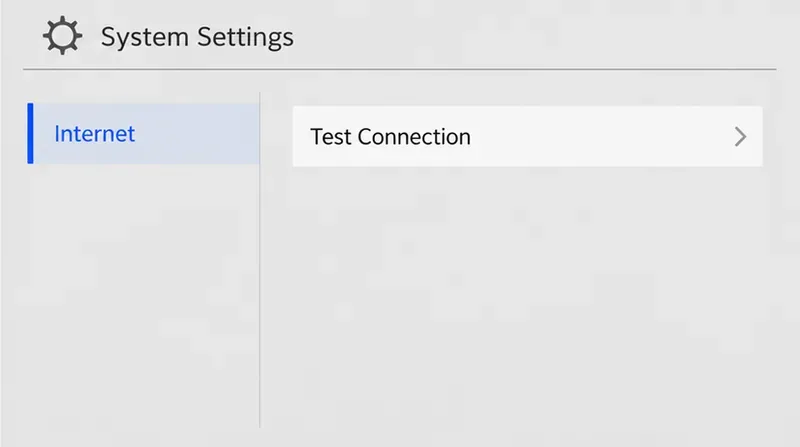
Go to System Settings > Internet > Test Connection. Record the result, NAT type, download speed, and upload speed. Repeat the test a few times, including once when other people are using the home network, if that reflects how you normally play. Repeated success confirms that the console can reach Nintendo’s services during those checks, but the results are still snapshots; they do not show what happened between tests.
NAT type is useful when matchmaking or connecting to other players is the issue. Nintendo describes NAT Type A as best for peer-to-peer communication and Type F as unable to complete peer-to-peer communication. NAT is about how devices connect through the network; it is not a rating of moment-to-moment stability. Do not treat high download speed or a favorable NAT letter as proof that a match will never lag.
If you have a Windows computer, connect it to the same router using the same Ethernet cable and router port you used for the Switch. Open Command Prompt and enter ipconfig. Find the Default Gateway address for the active Ethernet connection. Then run ping -t [DefaultGateway], replacing the bracketed text with that address, such as ping -t 192.168.1.1 if that is the gateway shown on your computer. Let it run for several minutes, then press Ctrl+C to view the summary.
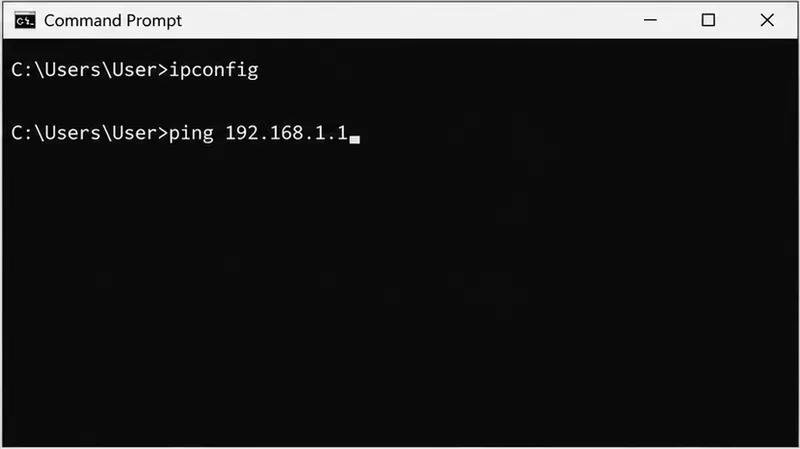
Microsoft documents using ipconfig to find the Default Gateway and pinging that address to check the computer-to-router connection. A repeated timeout or loss on this local test points toward the local path: cable, port, router, computer network adapter, or its connection. It does not identify which component is responsible by itself. If the computer’s ping is clean, that supports the local path working for that computer, but it cannot certify the Switch adapter. To test the actual Switch and adapter together, rely on the console checks and real play. Microsoft’s Windows ping troubleshooting steps.
Once the wired connection is selected, play a few matches under similar conditions and note the time, whether other household devices were busy, and whether you saw freezes, disconnects, or error messages. Repeat at another time if the problem comes and goes. Change one thing at a time—for example, swap only the Ethernet cable or router port—so the comparison is meaningful. A practice match or Battle Arena can help you observe play without treating one opponent’s connection as a controlled network test.
Nintendo’s troubleshooting page for an Ultimate online-battle error says the console may be unable to continuously send or receive data, and lists slow or unstable network conditions among possible causes. So a successful console test followed by recurring match disconnects is a reason to compare the local ping, the wired setup, and match conditions—not proof that the adapter is the only cause. Nintendo’s support note for the Ultimate online-battle connection error.
Use the Switch test when you need the console’s own connection status and NAT result. Use a wired computer ping when you want a low-cost check of the cable-and-router path over time. Use real Smash matches to judge the end-to-end experience. For the strongest practical comparison, keep the router, match conditions, and time of day as similar as you can, change one connection component at a time, and write down the result. There is no universal ping or speed cutoff in these tests that guarantees a lag-free match; the useful signal is whether the same setup repeatedly shows local loss, console connection failures, or disruptive match behavior.
Enable PUBG’s network statistics HUD to monitor ping and packet loss in a match. See where to find it, what the numbers mean, and what they cannot diagnose.
Learn how to import VALORANT crosshair codes, compare presets with manual settings and spectator copy, and fix common import issues.
Choose Dota 2 minimap size, hero icons, team colors, and background settings by readability, fewer misclicks, and clear results on your own display.
Fix Fortnite texture pop-in on PC with official steps for GPU drivers, file verification, DirectX 12, high-resolution textures, VRAM, SSDs, and stutter.
Learn what Heroes of the Storm minimap size and position options are verified, improve readability, and choose camera-click controls that suit you.
Set Super Smash Bros. Ultimate Quickplay to prefer hazards-off stages. Follow the Preferred Rules menu steps and learn why matchmaking may not always honor them.
Enable Server Latency and Packet Loss in Warzone to monitor connection quality, read the overlay, and use recurring spikes to guide troubleshooting.
Learn how to carry from mid lane in League of Legends by setting up waves, choosing safe roam windows, reading side lanes, and converting pressure into objectives.
Fix Minecraft Evoker spell problems with a safe vanilla test, version checks, log review, and a step-by-step way to isolate mod or datapack conflicts.
Fix PUBG stuck on Initializing on Steam with a focused checklist for PC service notices, launch options, game files, downloads, and connection issues.








