How to Enable Quick Cast on Press in Heroes of the Storm

Set Heroes of the Storm abilities to Quick Cast On, learn the difference between On and On Release, and test the setup before using it in a combo.
Want an ability to fire the moment you press its hotkey? In Heroes of the Storm, that behavior is called Quick Cast On. It removes the extra confirmation click used by standard casting, which can make a sequence of abilities feel more direct. You still need to aim: for a targeted spell, the game uses your cursor position when you press the key.
Quick Cast is a control preference, not a combo button. It does not choose a target, guarantee a hit, or make every ability behave the same way. Start by changing one familiar ability, learn how the setting handles aiming, and then expand it to other abilities if it suits you.
Quick Cast determines when an ability is confirmed and how much aiming feedback you get before it is sent.
Blizzard’s Hotkey and Quick Cast improvements describe global and per-ability settings and these cast modes. Some abilities are instant or have special behavior, so their options may be fixed or may not match a simple aimed projectile. Check the ability in the game rather than assuming every spell follows the same rule.
Choose a hero and ability you already understand. A frequently used, straightforward skill shot is a useful first test because you can see whether the cursor aim and timing make sense. Avoid starting with a high-impact ultimate, a long-range rescue, or a precision skill you are still learning. If you use multiple heroes, remember that a per-hero setting can differ from the global default.
Also check where your cursor normally sits during a fight. Quick Cast On commits to that position at key press. If the cursor is over a minion, terrain, or an unintended direction, the spell may go there immediately. Moving the cursor near the expected target before pressing the ability key is part of the technique.
Menu wording and layout can vary slightly by game version or localization. If you do not see the setting, look under Hotkeys for “Quick Cast Settings,” then check whether you are viewing the correct hero in the per-ability selector.
Use Try Mode or a low-pressure match to verify the input. Place the cursor on open ground, tap the chosen ability key once, and watch for the expected cast without a follow-up mouse click. For a directional skill, repeat while aiming in a different direction. If the preview disappears on key press and the ability fires, that is the intended Quick Cast On behavior.
Next, rehearse a short sequence slowly: position the cursor, press the first ability, reposition if needed, then press the next ability. The aim is to learn the timing and cursor movement, not to mash every key at once. A combo can fail because an ability is unavailable, the target is out of range, the cursor is misplaced, or the next action was pressed before the game could accept it. Quick Cast does not remove cooldowns, cast times, charges, or other ability rules.
A global On setting is simple and consistent. It can suit players who want the same immediate response for most abilities and are comfortable aiming before each key press. Its tradeoff is that abilities needing careful placement also commit immediately.
Per-ability settings offer more control. You might use On for a familiar, repeatable spell and On Release for an area skill whose preview helps you place it. Keep Off for an ability when you prefer a separate click to confirm. The best choice depends on the ability’s targeting and the feedback you need; there is no universal setting that improves every hero.
Blizzard also documents separate hotkey categories for Quick Cast and Quick Cast On Release. These can be useful for players who want a temporary alternate cast input, but they are optional. A new player can start with the Quick Cast Settings dropdowns and the ability’s normal hotkey.
Once these checks work in a safe practice setting, use the same cursor-first habit in a match. Change only a few settings at a time; that makes it easier to tell whether a new cast mode actually fits your timing and aim.
See Blizzard’s Hotkey and Quick Cast improvements announcement and the March 29, 2016 patch notes for the documented settings path and per-ability options. These references describe the interface and behavior introduced in that update; menu labels may vary slightly across localizations.
Set Heroes of the Storm abilities to Quick Cast On, learn the difference between On and On Release, and test the setup before using it in a combo.
Find practical PC keybinds for hip-fire leaning in Rainbow Six Siege, compare Q/E and mouse-button layouts, and learn how to test conflicts before a match.
Change Hearthstone’s language on PC through Battle.net Game Settings. Learn when language files download, how this differs from app language and region, and what to try if the update stalls.
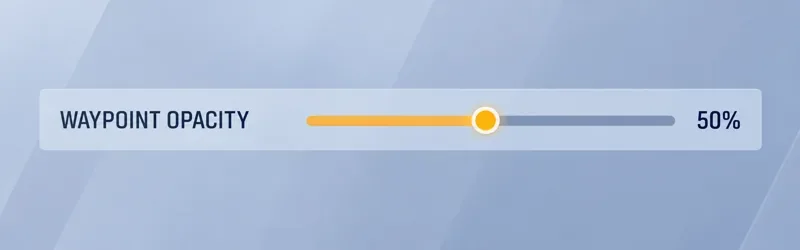
Start with 50% waypoint opacity in Overwatch 2, then adjust for objective visibility, map familiarity, and marker clutter without losing essential cues.
Compare VALORANT’s yellow, purple, and red enemy outlines. Learn which color to test first, where to change it, and how to check visibility across maps and effects.
Find a practical PUBG PC keybind setup for quick over-the-shoulder aim, clean ADS transitions, and shoulder-side swaps without conflicting with lean controls.
Set the right stick to Tilt Attack in Smash Ultimate, then tune stick jump and sensitivity around your play style. Follow a quick training-mode check to confirm your inputs.
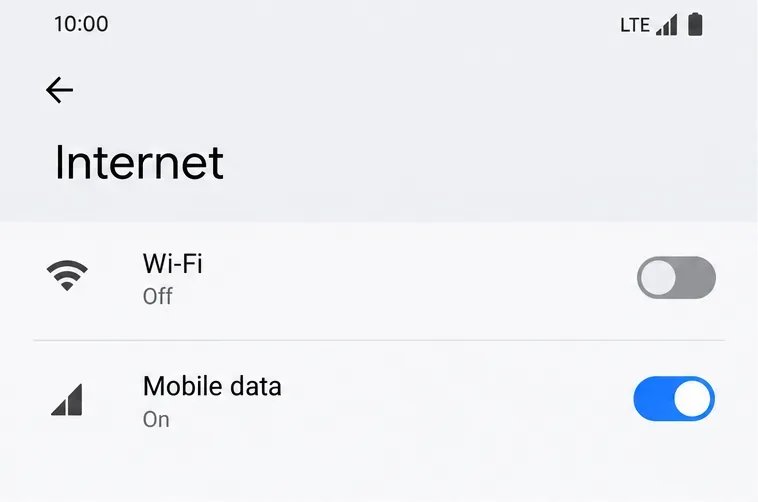
Fix Free Fire high ping on mobile data with practical connection checks, LTE vs. 5G tests, background download fixes, and tips for reporting persistent lag.
Brawl Stars opens to a black screen on your iPad? Try these safe checks for the app, connection, iPadOS, and updates before reinstalling or contacting Supercell.
Learn how to clear Free Fire’s cache on Android, what iPhone users can do, and how to avoid deleting game data while troubleshooting lag.