Home
» 🎮 Esports
»
How to Save Custom Stage Training Presets in Smash Ultimate
How to Save Custom Stage Training Presets in Smash Ultimate
How to Save Custom Stage Training Presets in Smash Ultimate
Short answer:Super Smash Bros. Ultimate lets you save a custom arena in Stage Builder, but its standard Training mode does not save a named preset that bundles a custom stage, fighter positions, damage, and opponent behavior. To restore a practice situation on a custom stage, use the unofficial Ultimate Training Modpack: it adds a Custom Stage tab and offers five save-state slots for supported fighter data. You still manage the arena, fighter snapshot, and training-menu options separately.
Documentation checked October 17, 2026. The project's release page currently marks v7.1.1 as the latest release; its notes include a fix for crashes when saving or loading states. The v6.0.0 notes introduced custom-stage access in Training and configurable save-state buttons. Check the help text in your installed version because bindings can be changed. The modpack is community software, not a Nintendo eShop feature, and requires a compatible modded Switch setup.
What a “training preset” can and cannot save
It helps to separate three pieces of a drill. A custom stage is the arena you build and save. A save state is the modpack's snapshot of supported fighter information, including position, facing direction, damage, fighter type, and certain character charge levels. Training settings control options such as CPU behavior, damage handling, mirroring, and which slot is selected.
Those pieces do not become one named package. A save state does not recreate the stage geometry, and the stage file does not remember where the fighters stood. The modpack documents five state slots that persist between game launches, while its menu selections are kept separately in the modpack configuration. Keep a short setup note with each slot so you can identify the whole drill.
What you want to keep
Where it is saved
What to expect
Custom arena
Stage Builder
Re-select it when starting a session
Fighter positions and supported state
Modpack save-state slot 1–5
Loads the saved fighter snapshot
CPU and other training options
Modpack menu configuration
Managed separately from a state slot
One named bundle of stage, fighters, and options
No documented built-in preset package
Use a written preset card
Step 1: Build and save the custom stage
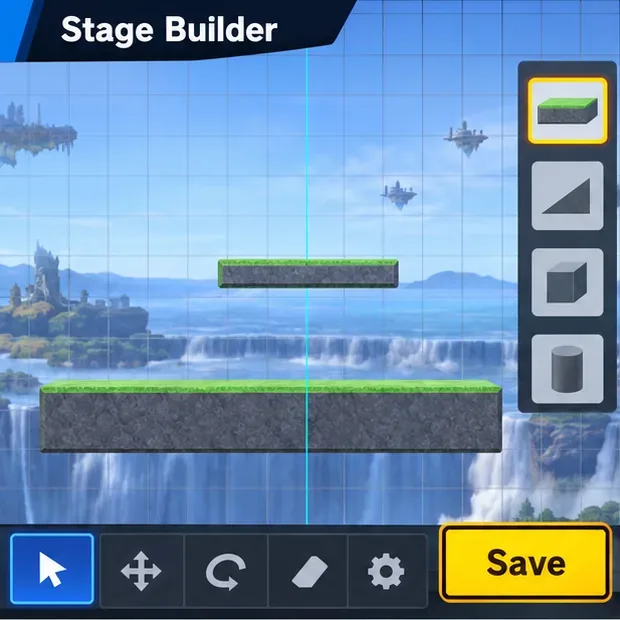
From the main menu, open Games & More > Stage Builder, create the arena, and use the editor's save control. Nintendo added Stage Builder to Games & More in version 3.0.0. For a first drill, keep the layout simple: a flat floor and one platform are easier to use as reference points than a large obstacle course. Give the stage a distinct name such as “Platform Practice 01” so it is easy to spot later.
Illustrative Stage Builder view: save the arena as its own custom-stage file.
The saved stage is its own object. You can reuse it without saving any fighter positions, and replacing a save-state slot later does not edit the arena. For Nintendo's update note about Stage Builder, see the official Super Smash Bros. Ultimate update history.
Step 2: Open Training with custom-stage support
In an unmodified game, the standard Training stage selector does not provide the modpack's custom-stage workflow. You can still play a local match on a saved custom stage for movement or spacing practice, but you will need to rebuild a Training situation manually when you return to the built-in Training mode.
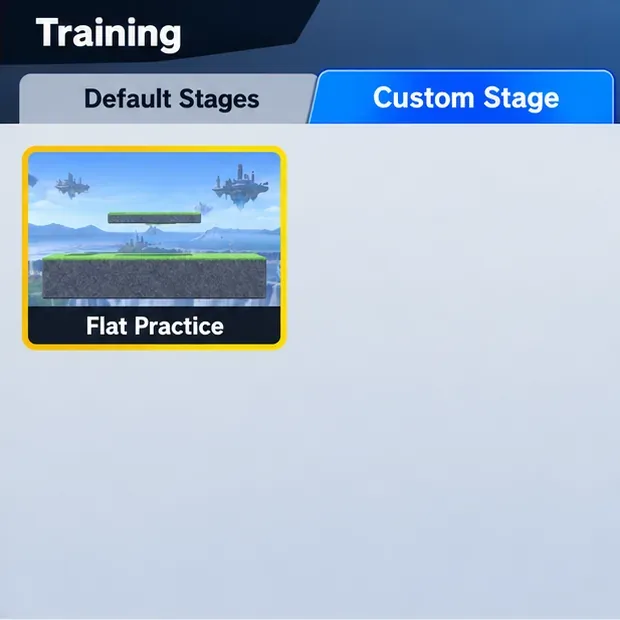
With the Training Modpack active, open Training and choose the Custom Stage tab, then select your saved arena. The feature is documented in the modpack's release notes; it is not a hidden option in vanilla Training. If the tab is missing, check that the modpack loaded and that your installed version includes custom-stage support. The project's official releases page lists current builds, and the v6.0.0 release notes record when the Custom Stage tab and new button configuration were added.
Illustrative stage-selection panel: choose the saved arena from the Custom Stage tab when the modpack is active.
Step 3: Set the drill and choose a save-state slot
Select both fighters, set their damage, and move them to the starting positions you want to practice. Use clear landmarks—such as the center of the floor or the edge of the raised platform—and face the fighters the way your drill requires. Save an idle starting moment first; it is easier to recognize and verify than a state captured during a hit or animation.
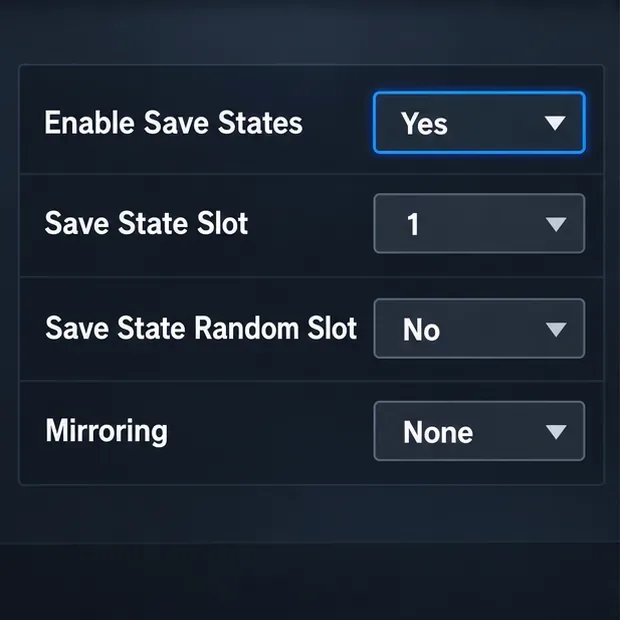
Open the modpack menu with the shortcut shown by your installed build. In Save State Settings, turn on Enable Save States, select a Save State Slot from 1 through 5, and turn Save State Random Slot off while setting up. For a repeatable drill, set Mirroring to None. If you want the same percentages every time, enable saving damage and select the saved damage option for each fighter instead of Default or Random.
Illustrative settings panel with a fixed slot selected and random loading and mirroring turned off.
The modpack's README lists five slots and says they persist between game loads. It documents fighter positions, damage, facing direction, fighter type, and certain character-specific charge levels as save-state data. Review the full save-state settings documentation for supported options; not every move effect or object in a match is a promise of a complete scene snapshot.
Step 4: Save, reload, and check the result
With the fighters in the intended starting situation, use the save-state command. The v6.0.0 release notes give L + D-pad Down as the default save input and L + D-pad Up as the default load input. These are raw controller inputs, and the button combinations are configurable, so read the menu's help text if your controller behaves differently. Older documentation may show the previous Shield-and-taunt combination.
Move the fighters away from their starting spots, then use the load command for the same slot. Check that both positions, facing directions, and damage match your preset card. If they do, leave and reopen the game, load the same stage and fighters, and test the slot again before relying on it for a long practice session. Stage selection remains separate: choose the custom stage first, then load the fighter state.
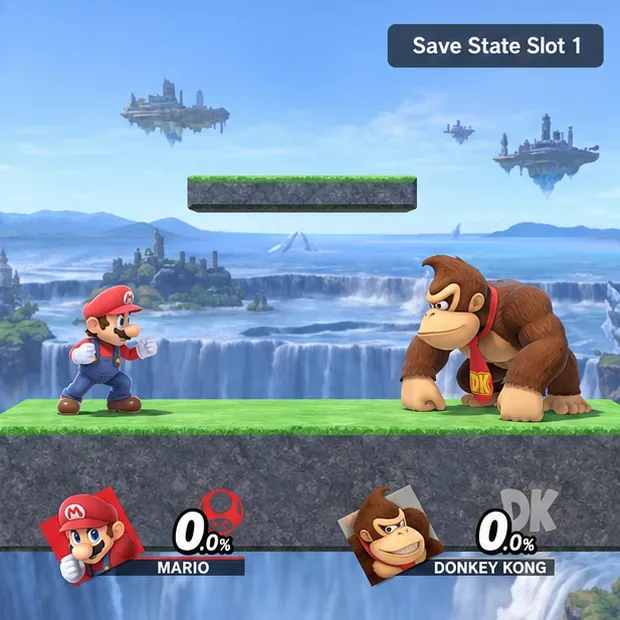
Illustrative practice setup: the state slot is associated with the fighters' starting situation, not the arena file.
Make a small preset card for each slot
Keep notes in a text file or beside your controller setup. For example:
Slot 1 — Platform Practice 01: Mario vs. Donkey Kong; both at 0%; floor center; facing each other; Save Damage on; random slot off; mirroring None; CPU set to stand still.
Use a separate card for each saved state and update it whenever you overwrite a slot. This makes the notes useful whether you use the modpack's snapshots or the unmodified game's manual workaround.
Quick fixes when the setup changes
The custom stage is missing: confirm you saved it in Stage Builder and that the modpack is running a version with the Custom Stage tab. Standard Training does not provide this modded selector.
The wrong drill loads: check the selected slot and make sure random-slot loading is off. Avoid saving until you know which slot is selected, because a save overwrites that slot.
Damage is different: check the global Save Damage option and each fighter's damage-load choice. Random damage or Default can produce a different percentage than the saved value.
The fighters appear on opposite sides: set Mirroring to None before saving or loading the drill.
Saving or loading crashes: compare your version with the current official release notes. v7.1.1 lists fixes for save/load crashes, though that does not guarantee every setup issue is resolved.
The practical answer is to save the arena in Stage Builder, save the fighters in a modpack state slot, and write down the related menu settings. That gives you a repeatable Smash Ultimate custom-stage training setup without implying that the game stores all of it as one named preset.