Home
» 🎮 Esports
»
How to Restore a Lost Clash Royale Account With Supercell ID
How to Restore a Lost Clash Royale Account With Supercell ID
How to Restore a Lost Clash Royale Account With Supercell ID
If you can still open the email linked to your profile, you can usually restore a lost Clash Royale account with Supercell ID by signing in from the game and entering a fresh verification code. Supercell ID uses email codes rather than a reusable password. If you cannot access that inbox, start a recovery request through Clash Royale’s in-game Help and Support so Supercell can check that you own the profile.
The steps work on iPhone, iPad, and Android, although menu labels may differ by app version. The screens below are illustrative mockups, not captures of a live account. Supercell’s About Supercell ID guide explains how the service keeps game progress available across mobile devices.
Choose the right Clash Royale account recovery route
You can access the linked email: sign in with that address and the newest code. This is the quickest way to load the saved profile.
You cannot access the email: contact Support inside Clash Royale. Be ready to provide details that help identify the account and verify ownership.
A new or low-level profile appearing after a phone change or reinstall does not, by itself, prove that the old progress was deleted. It may mean the game is currently signed in to a different Supercell ID. Check the email and profile before creating or changing anything.
Restore the account with your linked email
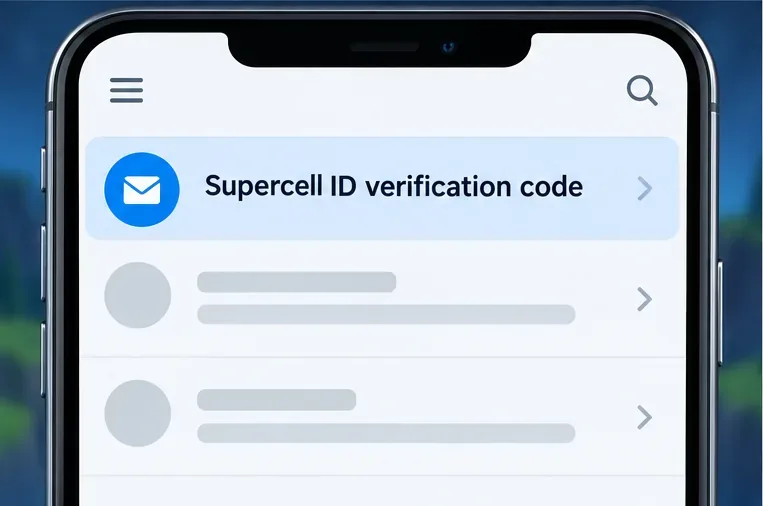
Find the email address attached to the lost profile. Search every inbox you may have used for “Supercell ID.” Check spam, junk, promotions, archived mail, and any filters. Older Supercell messages can help you identify the right address, but use the inbox that was linked to this Clash Royale profile.
Search your mail for “Supercell ID” to identify which inbox has received account messages; no active code is shown.
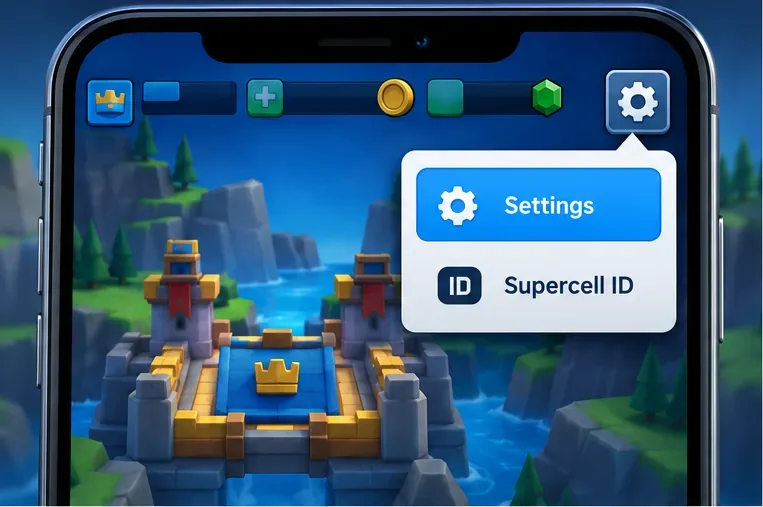
Open Supercell ID in Clash Royale. Launch the game, tap the Settings gear, and choose Supercell ID. If another profile is already open, use the account sign-in or switching option offered in that menu, then select the existing Supercell ID you want to recover.
This illustrative screen points to the Settings gear and Supercell ID entry; the actual layout can vary by app version.
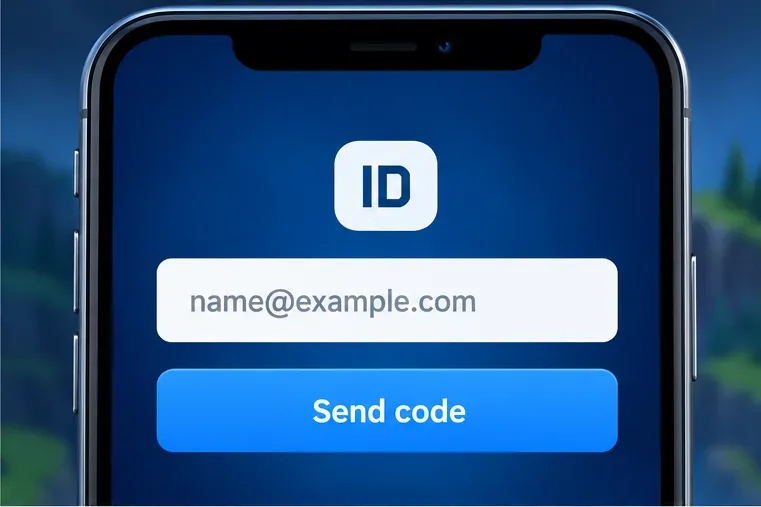
Request a verification code. Enter the linked email address and ask Supercell to send a fresh code. There is no Supercell ID password to reset; the code is the sign-in step. Do not enter an email just because it is the one currently signed in on your phone.
Enter the email linked to the missing profile and request a fresh verification code.
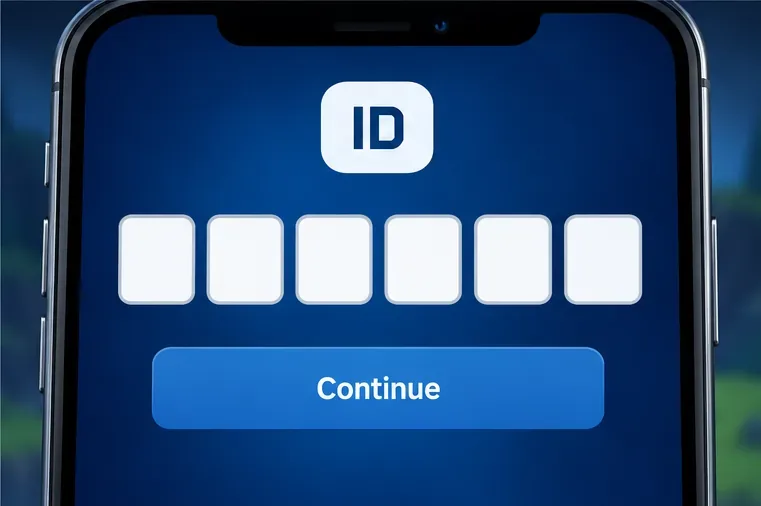
Enter the newest code and check the profile. Open that inbox, search for “Supercell ID,” and enter the most recent code in the game. Then confirm the player name, Player Tag, Arena, and other progress match your old account. Supercell says only the latest code works; its verification-code troubleshooting guide also says three incorrect code entries can prevent new codes for 24 hours, so stop guessing if you have mistyped repeatedly.
Use the newest code from Supercell; the illustration contains no active verification code.
If the game loads the wrong profile, switch through the Supercell ID controls and try another email you may have used. Avoid making account changes until the correct progress is on screen. Supercell’s Clash Royale lost-account guide describes signing in from the in-game Supercell ID menu when you can access the linked email.
If you lost access to the linked email
Use Support rather than trying to change the address from an account you cannot verify. Supercell’s current help instructions route email-access problems through a message started in the game. The menu wording can vary: you may see Help and Support or Help and Info, followed by a contact or “Leave a message” option.
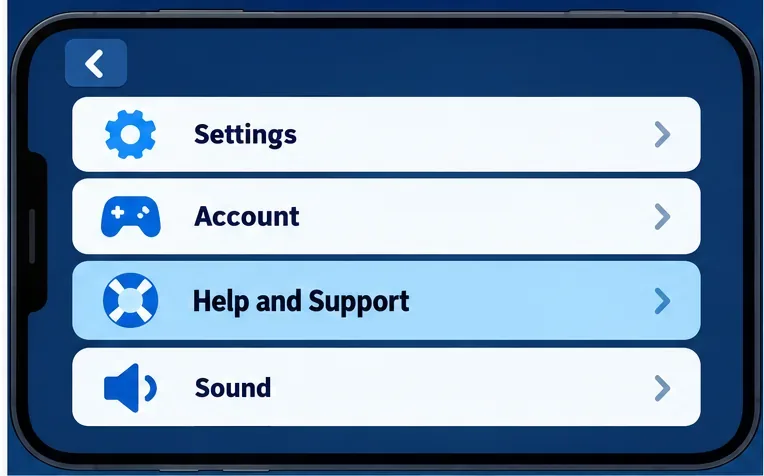
Open in-game Help and Support. Start Clash Royale, open Settings, and tap Help and Support. If the current version labels it Help and Info, use that entry instead.
Open the game’s help section so your recovery request starts through Supercell’s official in-game support route.
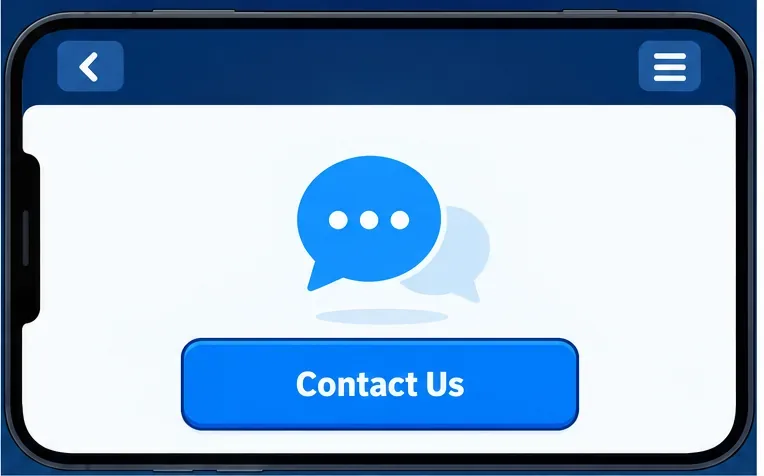
Start a message with Support. Tap the contact button near the top of the help screen or open its menu and choose the message option. Explain that you lost access to the email linked to your Supercell ID and want to recover your own Clash Royale profile.
Choose the contact option shown in your help screen; exact labels and placement may vary.
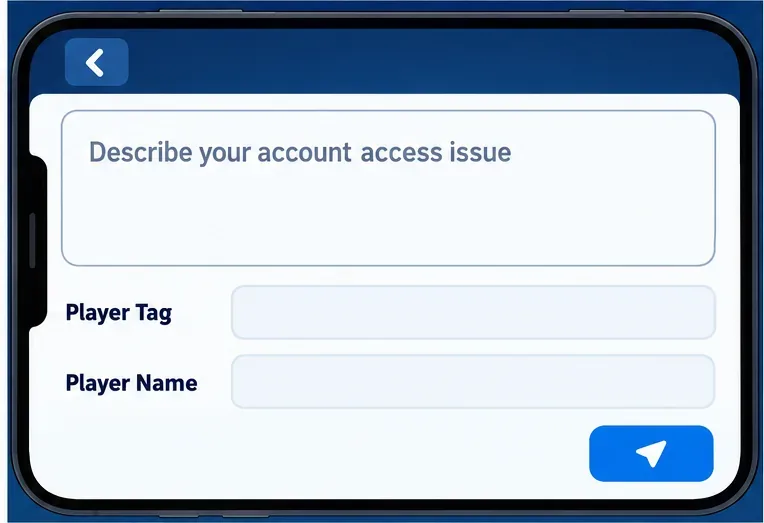
Prepare accurate account details. Include your player name and Clash Royale Player Tag if known, approximate XP level, current or most recent clan, and transaction IDs for purchases on that account, if any. A Player Tag helps Support locate a profile but is not proof of ownership by itself. If you cannot see it, an in-game friend may be able to view your profile; Supercell’s Player Tag guide lists ways to find it. Support may ask you for a new email address that is not already connected to another Supercell ID.
Share accurate ownership details if Support requests them; menu and form layouts can differ from this mockup.
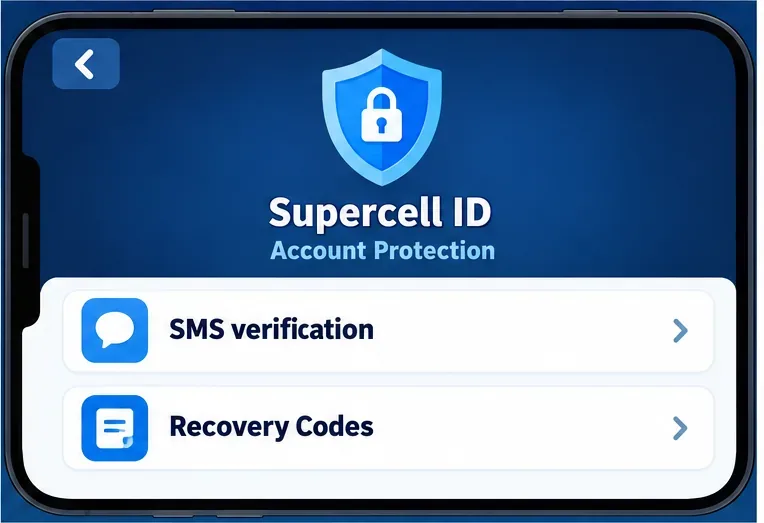
Complete the ownership check in the official conversation. If Account Protection was enabled before you lost access, Supercell Support may use SMS verification or a Recovery Code to help verify you. If it was not enabled, provide the requested account history truthfully and consistently; Support decides whether the evidence is enough to restore access.
If Account Protection was enabled before access was lost, these options may help Support verify ownership.
Only respond to a support conversation you started through the game’s Help and Support section. Supercell warns that scammers impersonate Support and says it will not contact you unexpectedly for a login code. Do not share passwords, full payment-card numbers, or email sign-in codes with anyone. For Account Protection verification, follow the prompts only inside your official in-game support ticket and never send a code to someone who contacted you first. See Supercell’s account-safety guidance.
When a Supercell ID code does not arrive
Check that the email is spelled correctly and is the one connected to the missing profile.
Search all folders for “Supercell ID,” including spam and junk, and review any email rules that might move automated messages.
If you requested more than one code, use only the newest message. If you entered the wrong code three times, wait 24 hours before requesting another.
If Supercell displays an unsupported-email warning, follow its instructions to use a supported address during an authorized email change or Support recovery. Do not create a separate Supercell ID as a substitute for restoring the old one.
For a linked-email change, Supercell says you can use the in-game Supercell ID settings when you can verify the current address. If you cannot access it, contact Support. Review the official Supercell ID email-change instructions before moving the account to a different inbox.
After you recover your Clash Royale account
Confirm the player name and progress, then make sure the connected email is one you can keep accessing. If the account offers Account Protection, consider enabling it and store its Recovery Codes somewhere private and recoverable. Availability can depend on account eligibility and region; check Supercell’s Account Protection guide for the current rules. Keep your Player Tag and purchase receipts in a private place, and do not post them publicly.
Quick recovery checklist
Search every likely inbox for “Supercell ID.”
Open Clash Royale Settings and sign in through the Supercell ID menu.
Enter the newest email verification code and confirm the profile details.
If the inbox is gone, start a message from in-game Help and Support.
Prepare the Player Tag, name, XP level, clan, and purchase transaction IDs if available.
Use SMS verification or a Recovery Code only if Account Protection was already enabled and Support requests it in your official ticket.
Supercell Support must verify ownership before it can restore access or change a linked email. Accurate details and a message opened from inside Clash Royale give the recovery team the information it needs to review your case.