How to Play Fortnite on a Chromebook (2026)
Yes, you can play Fortnite on a Chromebook in 2026 by streaming it through a cloud gaming service. Epic currently lists NVIDIA GeForce NOW, Xbox Cloud Gaming, and Amazon Luna as Chromebook options. The game runs on a remote server and streams to Chrome, so you do not install Fortnite or the Epic Games Store on ChromeOS. Choose a service available in your region, sign in, connect the Epic account you use for Fortnite, and launch a session.
Cloud play needs a steady internet connection and can feel less responsive than a local PC or console. Service availability, account rules, subscription access, and session limits vary by provider and country. The instructions below focus on the browser route and point out where the providers differ.
Can you play Fortnite on a Chromebook?
Epic says the Epic Games Store does not support Chromebook installation. Its current Chromebook guidance directs players to cloud gaming instead. That means your Chromebook displays the stream and sends your keyboard, mouse, or controller input while the cloud service runs the game. You need an internet connection for the entire session; an offline Chromebook cannot stream Fortnite.
Epic lists three services for Chromebook play: GeForce NOW, Xbox Cloud Gaming, and Amazon Luna. Which one is the best choice depends on what is available where you live, what account you already use, and whether the service supports your preferred controller. Check the provider's current terms before signing up because plans and regional coverage can change.
What you need before you start
- A Chromebook with ChromeOS and a current Chrome browser. Update ChromeOS from Settings > About ChromeOS > Check for updates if an update is available.
- A stable home network. For GeForce NOW, NVIDIA lists at least 15 Mbps for 720p at up to 60 FPS and 25 Mbps for 1080p at 60 FPS. NVIDIA recommends wired Ethernet or 5 GHz Wi-Fi and specifies less than 80 ms of latency to its data center. Those are GeForce NOW figures, not universal promises for every service.
- An Epic Games account. You will also need the sign-in account required by your selected cloud gaming service.
- Optional: a controller supported by that service. Keyboard and mouse may work in browser sessions, but controller compatibility is provider-specific.
NVIDIA's published Chromebook requirements for GeForce NOW are at least 4 GB of RAM and Chrome 77 or newer. Those are GeForce NOW requirements only; there is no single ChromeOS version or device-age cutoff that applies to all three services.
Choose a cloud gaming service
| Service | What to know | Start here |
|---|---|---|
| NVIDIA GeForce NOW | Runs in Chrome on supported Chromebooks. You need an NVIDIA account and an Epic Games account. Membership features and session limits depend on the current plan and region. | GeForce NOW in your browser |
| Xbox Cloud Gaming | Fortnite is available as a free-to-play cloud game in supported regions. Xbox says a paid Game Pass subscription is not required for Fortnite, but you still need a Microsoft account and browser access. | Xbox Cloud Gaming |
| Amazon Luna | Epic lists Luna as another Chromebook option. Check Luna's current availability and access terms for your country before choosing it. | Epic's Chromebook service list |
Fortnite itself is free to play, but that does not mean every cloud service or membership feature is free. Xbox's current support page confirms that Fortnite can be played through its browser without an Xbox Game Pass subscription; access and availability can still depend on region and account eligibility.
How to play Fortnite on a Chromebook
-
Step 1: Update ChromeOS and check your network
On the Chromebook, open Settings > About ChromeOS, select Check for updates, and restart if ChromeOS asks you to finish an update. Connect to a reliable Wi-Fi network or Ethernet. If you plan to use GeForce NOW, compare your connection with NVIDIA's Chromebook requirements: 15 Mbps for 720p or 25 Mbps for 1080p, plus low latency to an NVIDIA data center. A speed test measures bandwidth, but it does not guarantee a low-latency route to the gaming server.
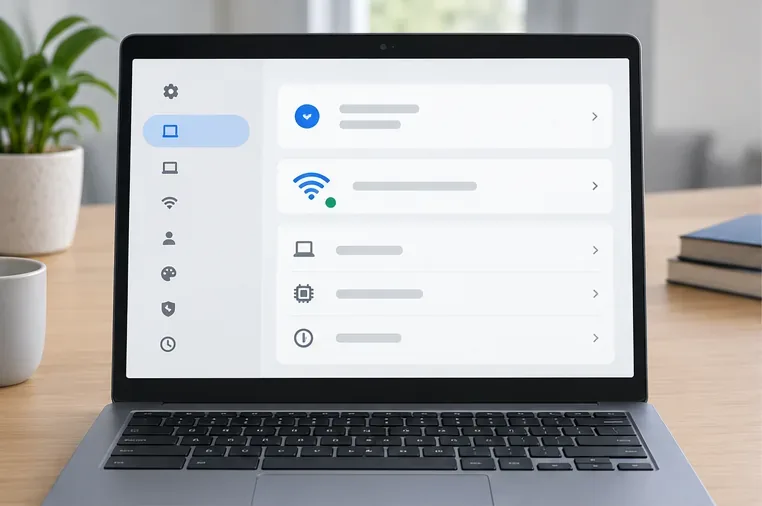
Check that ChromeOS is up to date and the Chromebook has a stable network connection. -
Step 2: Open one of the supported services in Chrome
Open the official site for GeForce NOW or Xbox Cloud Gaming. For Amazon Luna, follow the Luna link from Epic's Chromebook guide and confirm the service is offered in your country. Use the official service website and its browser instructions; do not download Chromebook installers from unrelated sites.
If you are unsure which service to try first, choose one that is officially available in your region and supports a controller you already own. Xbox Cloud Gaming is a straightforward first try if Fortnite is available to your account, since Xbox lists Fortnite as playable without a paid Game Pass plan.
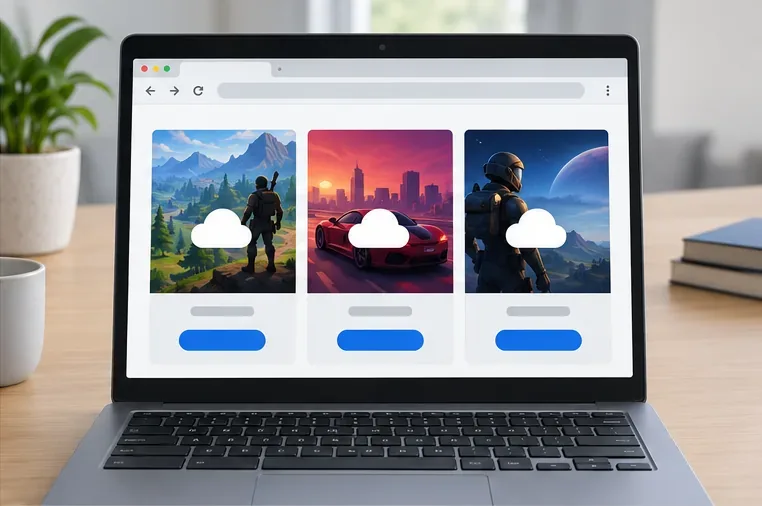
Cloud gaming catalogs look different by provider; search the service for Fortnite. -
Step 3: Sign in and use the correct Epic Games account
Sign in to the cloud service with its requested account, then search its game catalog for Fortnite. When the service asks you to connect or sign in to Epic Games, use the same Epic account that holds your Fortnite progress and items. If you use different Epic accounts on other platforms, pause and confirm which one is linked before continuing. Epic notes that progress and purchases are associated with the linked Epic account, while V-Bucks do not transfer across every platform.
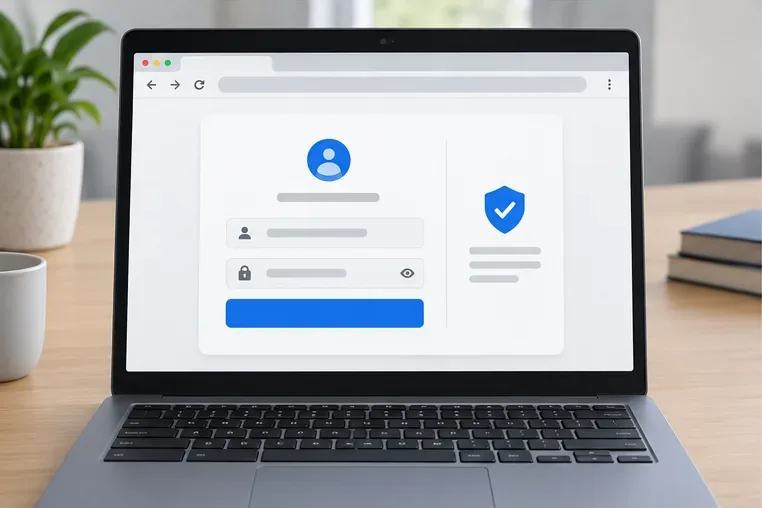
Use the Epic Games account that is already linked to your Fortnite progress. -
Step 4: Launch Fortnite and begin the stream
Choose Fortnite in the catalog and select the provider's play or launch control. Wait for the cloud session to start; a queue or setup screen can appear depending on the provider and plan. Once the game opens, use the on-screen prompts to continue. You do not need to download the PC game files to your Chromebook, but the session will use your internet connection throughout.
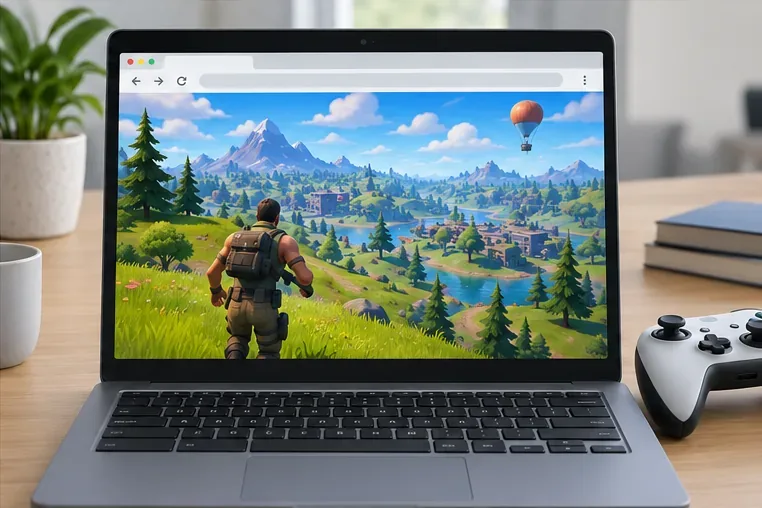
Fortnite appears in the browser as a live stream from the cloud gaming service. -
Step 5: Connect a controller or set up your input
For a controller, connect it by USB or pair it in Settings > Bluetooth, then check that the cloud service recognizes it. NVIDIA lists Xbox Wireless, PlayStation DualShock 4, and PlayStation DualSense controllers for GeForce NOW on Chromebook. Xbox's browser support currently lists the Xbox Wireless Controller as its officially supported browser controller. Other devices may work, but check the provider's current compatibility list before buying one.
A Chromebook's built-in keyboard and trackpad or an external mouse can also be convenient when the selected provider and game support them. If an input does not respond, try a supported controller and review the service's device guidance. You can adjust Fortnite's controls and sensitivity in the in-game settings once the session is running.
Make Fortnite cloud gaming smoother
- Use Ethernet or 5 GHz Wi-Fi. NVIDIA recommends these for GeForce NOW. Sit near the router if you are using Wi-Fi.
- Pause large downloads and streams. Other devices using the same connection can compete for bandwidth.
- Lower stream quality if video stutters. Try a lower resolution such as 720p, then raise it after the stream stabilizes.
- Close unused tabs and apps. This can free system resources for Chrome to decode the video stream.
- Check the service and region. If Fortnite is missing or a session will not start, verify the provider supports your account's country and check its current service status.
Common Chromebook Fortnite problems
The stream is blurry or keeps freezing
Move closer to the router or switch to 5 GHz Wi-Fi or Ethernet. Pause other downloads and lower the stream resolution. If your internet speed looks sufficient but aiming still feels delayed, the connection route or latency may be the problem; raw Mbps alone does not measure responsiveness.
Fortnite does not appear in the game catalog
Check Epic's current Chromebook service list and confirm that the provider supports your country. Try the official service page in an updated Chrome browser, then sign out and back in if the catalog appears incomplete.
My controller is connected but Fortnite ignores it
Reconnect it, reload the cloud session, and confirm the controller is listed as supported for browser play on that provider. USB can help identify whether the issue is Bluetooth pairing or service compatibility.
Frequently asked questions
Can you play Fortnite on a Chromebook for free?
Fortnite is free to play. Xbox confirms that Fortnite can be streamed from its browser without a paid Game Pass subscription in supported regions. Cloud service availability, account requirements, and plan limits still vary, so check the provider you choose.
Can you install Fortnite directly on ChromeOS?
Epic's support page says the Epic Games Store does not support Chromebook. The supported Chromebook route Epic currently lists is cloud gaming through GeForce NOW, Xbox Cloud Gaming, or Amazon Luna.
Will my skins and progress show up?
They should appear when you use the Epic Games account linked to your other Fortnite platform accounts. Epic says purchases and progress are shared through the linked account, with V-Bucks as an exception because they do not transfer across every platform.
Official references
- Epic Games: How to play Fortnite on Chromebook
- Epic Games Store: Chromebook installation support
- NVIDIA: GeForce NOW system requirements
- Xbox Support: Free-to-play cloud games
- Google: Update ChromeOS
- Epic Games: Fortnite progress and purchases across platforms
- Xbox Support: Controllers for cloud gaming









