How to Play Dota 2 on Mac (2026 Guide)
To play Dota 2 on Mac, install the macOS version through Steam, then launch a tutorial or bot match to learn the basics. The game is free to play, and Valve lists macOS support on its Steam store page. Before downloading, check that your Mac meets the published requirements: macOS 10.15 or later, a dual-core Intel processor, 4 GB of memory, a Metal-capable GPU, broadband internet, and 60 GB of available storage. Those are Valve’s stated minimums; a newer Mac is not automatically a guarantee of smooth performance.
One compatibility detail matters for newer machines: Valve’s current requirements list an Intel processor and do not explicitly name Apple silicon. That means the listing does not confirm a native Apple silicon version or guarantee compatibility on every M-series Mac. Check the current Steam listing on the Mac you plan to use before relying on it. The official Dota 2 page on Steam is the source for the current platform and storage requirements.
Dota 2 Mac requirements
The current Dota 2 Mac requirements shown by Steam are:
| Requirement | Valve’s published macOS minimum |
|---|---|
| Operating system | macOS 10.15 or newer |
| Processor | Dual-core Intel processor |
| Memory | 4 GB RAM |
| Graphics | Metal-capable GPU; Valve lists AMD GCN-based or newer, NVIDIA Kepler-based or newer, and Intel HD 4000 or newer |
| Internet | Broadband connection |
| Storage | 60 GB available space |
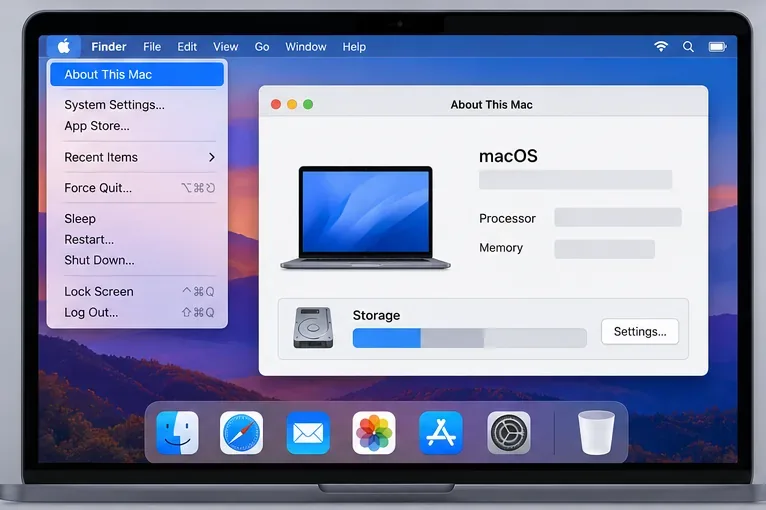
The 60 GB figure is the available-space requirement shown by Steam, not a promise about the size of the download. Leave additional room for macOS, Steam, and future game updates. To inspect your setup, choose Apple menu > About This Mac. On recent macOS versions, open System Settings > General > About for system details and System Settings > General > Storage to see free space. Apple’s Mac system information guide explains where to find those details.
How to install and play Dota 2 on Mac
Step 1: Check your Mac and free storage
Confirm your macOS version, processor or chip, memory, and available disk space. Compare them with the table above. If you use an Apple silicon Mac, note that Valve’s published minimum names Intel; do not assume the store listing certifies native M-series support. If Steam does not offer the Mac version for your system, do not download a Windows installer or rely on an unofficial compatibility wrapper.
Step 2: Download Steam for macOS
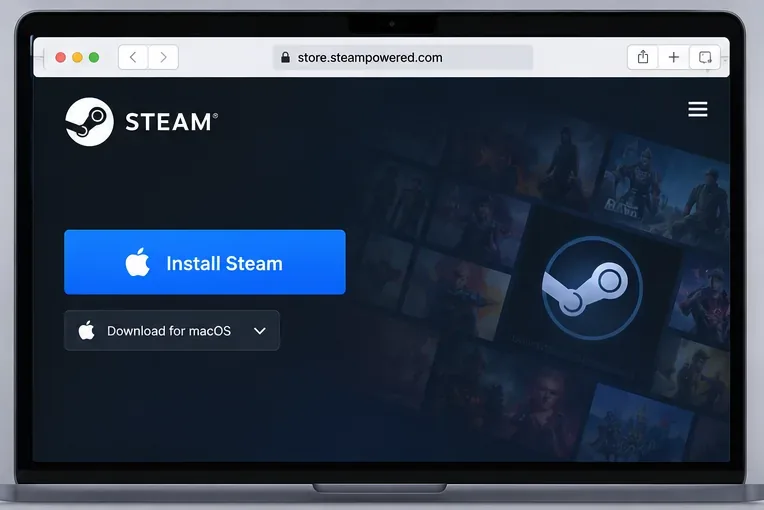
Go to Steam’s official download page to install Steam for Mac and choose the macOS installer. Open the downloaded file and follow the on-screen steps to place Steam in Applications. Start Steam, then sign in to an existing account or create one. The account is free; Steam may ask you to confirm your email or set up account security.
Step 3: Add Dota 2 to Steam and install it
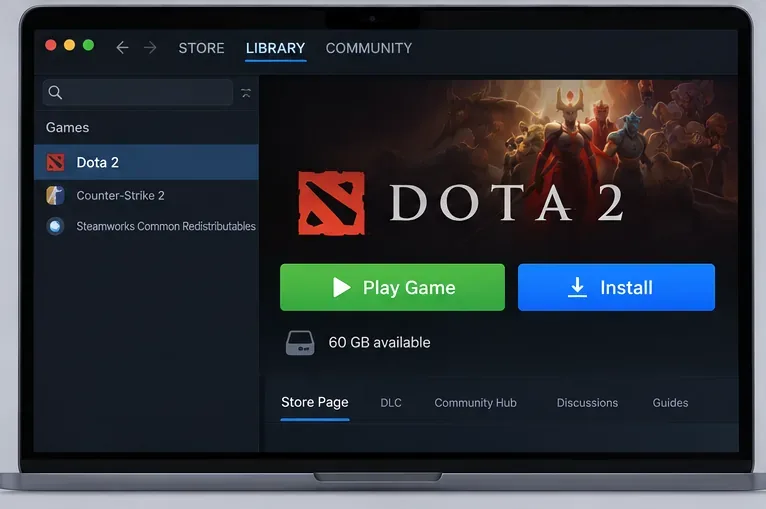
In Steam, search the store for Dota 2 or open its official store page. Select Play Game to add the free game to your account, then open Library, choose Dota 2, and select Install. Pick a drive with at least 60 GB free and let Steam finish downloading and verifying the game files. Steam handles updates through the client, so check that the game is up to date before starting a match.
Step 4: Launch the game and learn the basics
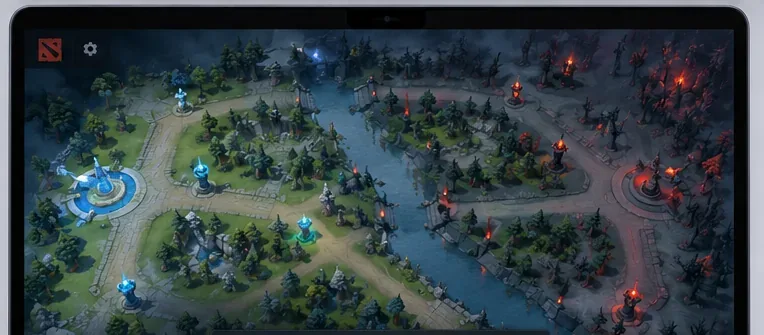
When installation finishes, select Play in Steam. If you are new to the game, start with the in-game tutorial, hero demo, or a match against bots before entering matchmaking. Valve’s store page specifically recommends co-op versus bots as a way to learn. Dota 2 is a five-player team game: work with your teammates, push through the lanes, and destroy the opposing team’s Ancient. The tutorial helps you learn movement, abilities, items, and objectives without needing to understand every hero first.
Mac performance tips
- Start with the default graphics settings. If the game feels choppy, lower the display resolution or effects quality in Dota 2’s video settings, then adjust one option at a time.
- Keep the Mac cool. Close demanding background apps and, on a MacBook, connect power for a long session. If the case is hot or fans are running hard, pause and let the machine cool.
- Use a steady connection. Dota 2 requires internet access. A reliable Wi-Fi signal or Ethernet connection can help with disconnects; graphics settings will not fix network latency.
- Leave launch options alone initially. Older guides may recommend renderer flags or other launch commands. Start with Steam’s default configuration and only add a command if current Valve support instructions call for it.
Troubleshooting Dota 2 on Mac
Dota 2 will not install or launch
Check that the Mac meets Steam’s current listed requirements and has at least 60 GB available. Restart Steam, install any available macOS and Steam updates, and try again. If the download completes but the game fails to start, open Dota 2’s Steam properties and use Installed Files > Verify integrity of game files. On Apple silicon, remember that the current requirements table does not explicitly certify M-series compatibility; a failed launch may be a platform-support issue rather than a setting you missed.
The game runs slowly or feels laggy
If movement and animation stutter, lower resolution and effects, quit resource-heavy apps, and check whether the Mac is overheating. If the picture is smooth but commands arrive late or players disconnect, troubleshoot the internet connection instead. Try a closer Wi-Fi access point or Ethernet where available.
Frequently asked questions
Is Dota 2 free on Mac?
Yes. Dota 2 is free to play through Steam. The Steam page notes optional in-game purchases; you do not need to buy the game to install it.
Does Dota 2 officially support Apple silicon?
Valve’s published Mac requirements currently specify a dual-core Intel processor and do not explicitly list Apple silicon. Treat M-series compatibility as unconfirmed by that requirements table and check the current Steam page and install behavior on your Mac.
How much storage should I leave free?
Steam lists 60 GB of available space for Dota 2 on macOS. Keep more free if possible so the game and Steam can update without filling the drive.
Do I need Windows, Boot Camp, or an emulator?
No Windows installation is needed when you use the Mac version offered through Steam on a compatible Mac. Install the game from its Steam page and use the Mac client; avoid unofficial downloads.









