How to Ping in League of Legends (2026 Guide)
To ping in League of Legends, hold Alt or Ctrl, then left-click the terrain or minimap to open Smart Ping. Keep the mouse button down, drag toward the alert you want, and release to send it. Press G for a simple ping or V for a caution ping. Those are the current controls in Riot’s guide; G no longer opens the radial wheel.
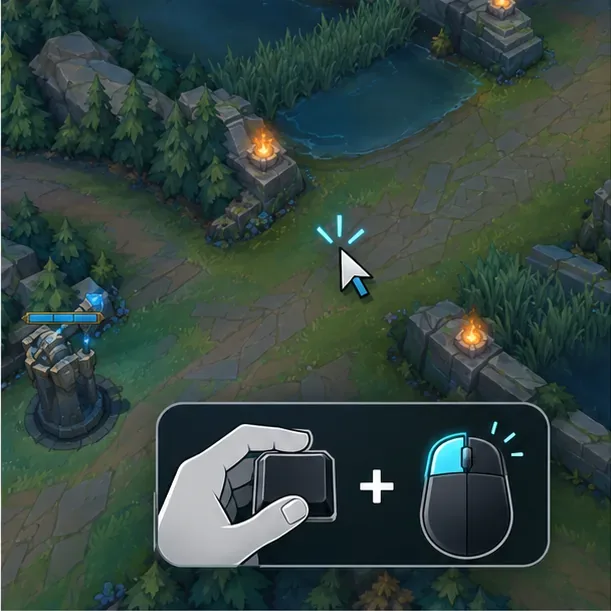
How to use the Smart Ping wheel
- Choose the place. Move your cursor to the relevant point on the main terrain or the minimap. Put the marker where the information is useful: for example, an enemy’s last known location, a route you are taking, or an area that needs vision.
- Open the wheel. Hold Alt or Ctrl and left-click. Keep the mouse button held while the radial menu is open. You can use the same method on the terrain or the minimap.
- Select an alert. Drag the cursor out from the center toward the ping you mean. Read the label or icon in the live wheel rather than relying on old directional instructions; Riot’s current guide describes choosing by dragging toward the alert.
- Send or cancel. Release the left mouse button to send the selected ping. If you changed your mind, right-click to cancel the wheel.
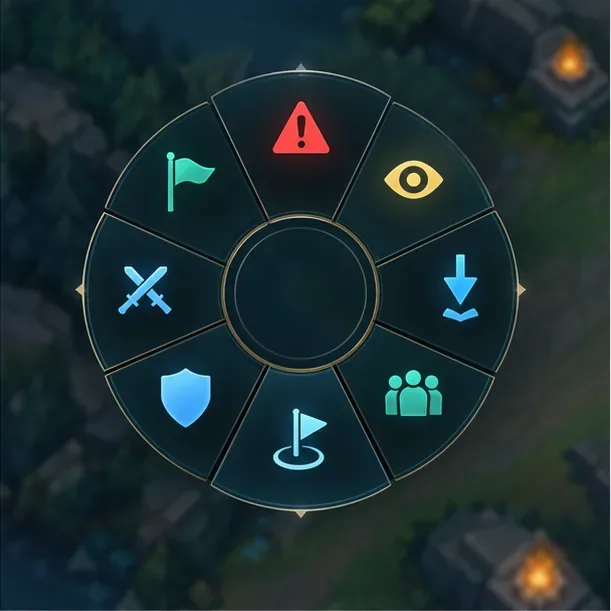
What the eight Smart Pings mean
Use the alert that tells teammates what action or information you intend to communicate. The eight current Smart Ping options are:
| Ping | When to use it |
|---|---|
| Retreat | Warn allies to back away from a location or disengage. Older guides may call this the Danger ping. |
| Push | Signal that teammates should advance or pressure a lane. |
| On My Way | Show where you are rotating so allies can coordinate around your arrival. |
| All-In | Call for a committed fight or an aggressive play. |
| Assist Me | Ask nearby teammates for help at a particular spot. |
| Need Vision | Ask for ward coverage around an area or approach. |
| Enemy Missing | Warn that an opponent is no longer visible in lane or at their last known location. |
| Enemy Vision | Tell your team that enemy vision is present or relevant in the marked area. |
These are quick team callouts, so a ping should communicate one clear thing. For example, use Enemy Missing near the lane an opponent left, then add On My Way only if you are actually moving to help. Avoid sending repeated alerts when one well-placed ping already communicates the call.
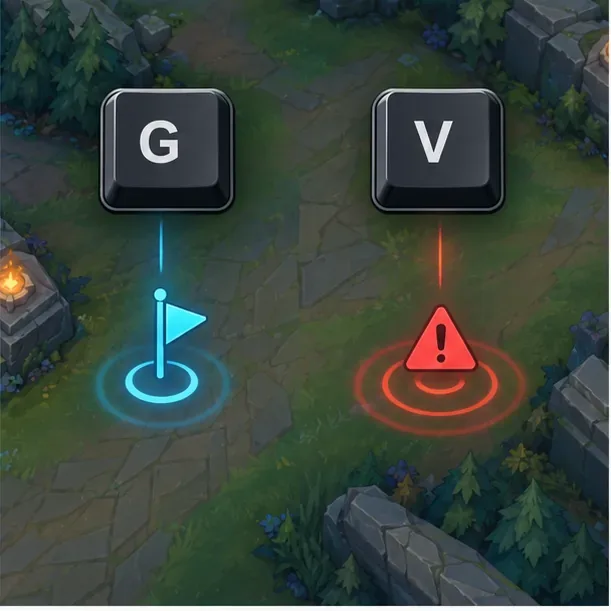
Quick pings: G and V
You do not need to open Smart Ping for every callout. Tap G to send a simple ping at your cursor location. Tap V to send a Caution ping when you want a quick warning. These are separate shortcuts from the radial menu: hold Alt or Ctrl and left-click when you need a specific alert such as Enemy Missing, On My Way, or Need Vision.
Some older guides describe G as the key that opens a four-choice wheel or describe Danger as one of the wheel’s current names. Riot’s current support page lists eight Smart Pings, says to open the wheel with Alt or Ctrl plus left-click, and identifies G and V as simple and caution pings. If your controls have been customized, check the in-game Hotkeys or Controls settings for your assigned bindings.
Ping the minimap and objectives
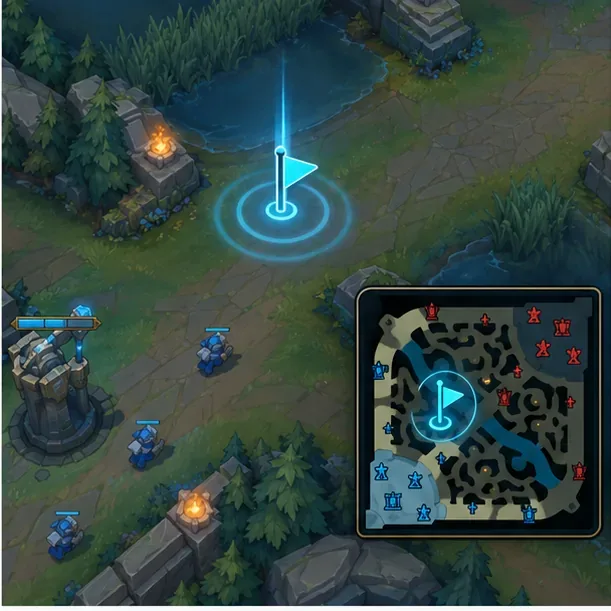
Smart Pings work on both the terrain and the minimap. The terrain is useful when you can point directly to an enemy or a fight; the minimap is often faster when you need to mark a distant lane, jungle entrance, or objective area without moving your camera. Riot says teammates receive an associated sound and can see the ping on both the terrain and minimap for a short time, so place it where the team can act on it.
Objective pings also help coordinate decisions around Dragon, Baron, and Rift Herald. Riot’s support guide says pinging a major objective can start a team vote; if an objective has not spawned yet, the All-In ping may be needed to begin the call. Use a ping to raise the decision, then let the team respond instead of covering the map in repeated alerts.
If pinging is not working
- The wheel does not open: hold Alt or Ctrl while left-clicking. Tapping G sends a simple ping; it does not open the Smart Ping wheel in the current guide.
- The wrong alert is selected: keep the mouse button held and drag clearly toward the intended segment before releasing. Use the option’s live label or icon rather than memorized screen directions.
- You want to close the wheel: right-click to cancel without sending the selected alert.
- Your key behaves differently: confirm the key bindings in the game’s Hotkeys or Controls settings; a custom binding can differ from the defaults listed here.
- You meant network latency: “ping” can also mean your connection delay. Press Ctrl+F in-game to show latency; Riot lists the binding under Options > Hotkeys > Display > Toggle FPS Display.
Frequently asked questions
What is the default ping key in League of Legends?
G sends a simple ping and V sends a Caution ping. To open the eight-alert Smart Ping wheel, hold Alt or Ctrl and left-click. Custom key bindings can change these controls.
How do I ping that an enemy is missing?
Open Smart Ping over the lane or last known position, drag to Enemy Missing, and release the mouse button. The marker communicates that an opponent is no longer visible; it does not guarantee the enemy is still at that exact spot.
Can I ping the minimap?
Yes. Riot says the ping controls work on the terrain and minimap. Point to the relevant map location, open the wheel, and choose the alert you want.
Where can I check Riot’s current instructions?
Read Riot Games’ Smart Ping guide. Riot’s Patch 12.22 notes explain the expanded tactical wheel and vision alerts.
Remember the current controls: hold Alt or Ctrl and left-click for a specific Smart Ping, press G for a simple ping, and press V for Caution. Choose the alert that gives teammates useful information, then let the callout do its job.









