Home
» 🎮 Esports
»
How to Mute Tactician Emotes and Reduce Sound Effects in TFT
How to Mute Tactician Emotes and Reduce Sound Effects in TFT
How to Mute Tactician Emotes and Reduce Sound Effects in TFT
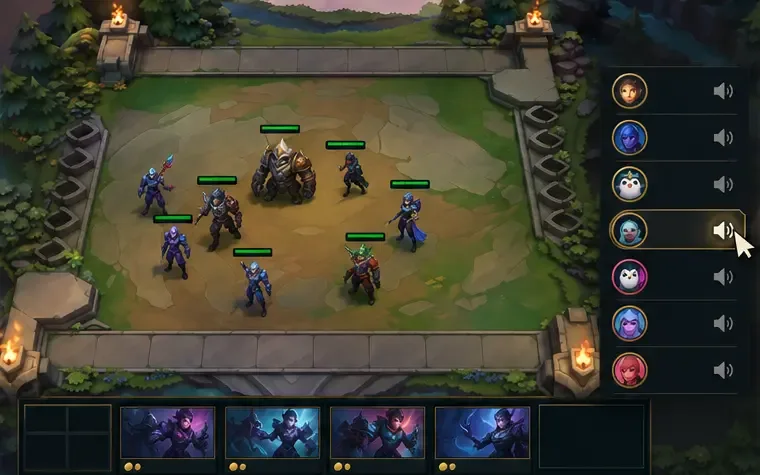
To mute one player's emote reactions in TFT on PC, click that player's speaker icon during a match. To quiet recurring cosmetic sounds, lower the in-game sound-effects control if your version has a separate one. To silence all audio from the game while keeping music or a call running, mute the active game app in Windows Volume mixer. These controls affect different things: muting a player does not guarantee that every Tactician animation or cosmetic sound will disappear.
Riot's TFT Player Reporting Guide says the PC speaker control mutes that player's messages, pings, and emote reactions. Riot does not describe it as a universal mute for all visual animations, Booms, finishers, or sound effects. The options below let you choose how much audio to reduce without expecting a communication setting to do more than it is documented to do.
What you want to quiet
Start here
What else changes
One opponent's reaction spam
Mute that player from the match list on PC
Their messages and pings are muted too
Some recurring cosmetic noises
Lower a separate sound-effects control, if present
Other sounds in that category may get quieter
All TFT audio on Windows
Mute the active game app in Volume mixer
Music and useful game audio are muted as well
Your own Tactician's manual actions
Avoid triggering its action controls
Automatic sounds may still play
The interface images below are illustrative examples. Menu names and placement can vary with the game and Windows version.
Mute one player's emote reactions on PC
During a match, find the player list.
Click the speaker icon on the row for the player whose reactions you want to mute.
Watch for that player's next reaction and confirm whether the distracting sound also stops.
Click the speaker icon beside the player whose reactions you want to mute.
Riot documents the effect of this control as muting a player's messages, pings, and emote reactions. That makes it the narrowest option when you want to stop one opponent's reactions but keep normal match sound. Remember that you also lose that player's pings and messages, which can matter in modes where you coordinate with a teammate.
The guide covers the PC workflow and says TFT's in-game reporting feature is available to PC users. It does not give a current equivalent path for muting another player on mobile, so don't assume the PC speaker icon has a matching mobile control. If your version offers a mobile mute option, read its description before relying on it.
Lower TFT sound effects without muting the whole game
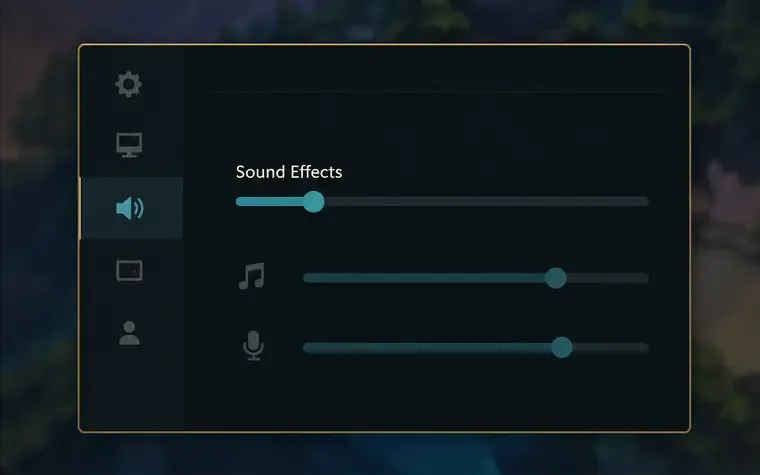
Open the settings in the running match and look for the audio or sound controls. If your build shows a separate Sound Effects slider, lower it a little, then listen for the same Tactician sound in another round. Adjust one control at a time so you can tell what changed. If a particular effects slider is set to zero, other game sounds assigned to that category may be lost too.
If a separate Sound Effects control appears in your version, lower it gradually and test the same sound.
Riot's live-build accessibility feature list identifies Multiple Volume Controls for TFT. It does not publish a complete list of current slider labels or map each cosmetic sound to a particular channel. So use a separate effects setting as a practical adjustment to test, not as a promise that every dance, movement sound, Boom, or finisher will follow it.
If music is the problem, change the music control if one is available. If a vocal-sounding effect is distracting, don't assume it belongs to a voice category; listen after changing one slider and check the result. Restore the original value if the change removes sounds you still want.
Mute all TFT audio in Windows Volume mixer
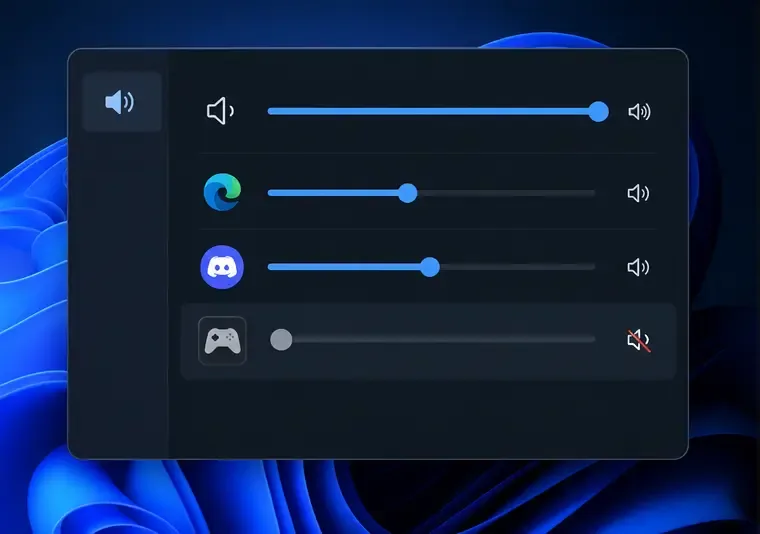
When you want the match to be silent but still want audio from a browser, music player, or voice call, use per-app volume control. With the game producing sound, open Start > Settings > System > Sound > Volume mixer. In Windows 11, you can also right-click the taskbar's volume icon and open Volume mixer. Under Apps, locate the app that is playing the match audio, then mute it or set its slider to zero.
Mute the app that produces the match audio; leave other app sliders unchanged.
Microsoft confirms that Volume mixer has individual app volume controls and that an app can be muted independently. If you are unsure which row belongs to TFT, make a small temporary change to one likely game-app slider and check whether the match sound changes. The app's displayed name can vary. Keep the match running while checking, since an app that is not currently producing sound may not appear in the list.
This mutes the selected app's whole audio output, including its music and useful cues. It does not pause the match or hide visual reactions. If you only need the effect reduced, an in-game category control is more selective. On mobile, the device's media-volume buttons are a broader fallback and may affect other media; they are not a per-game control.
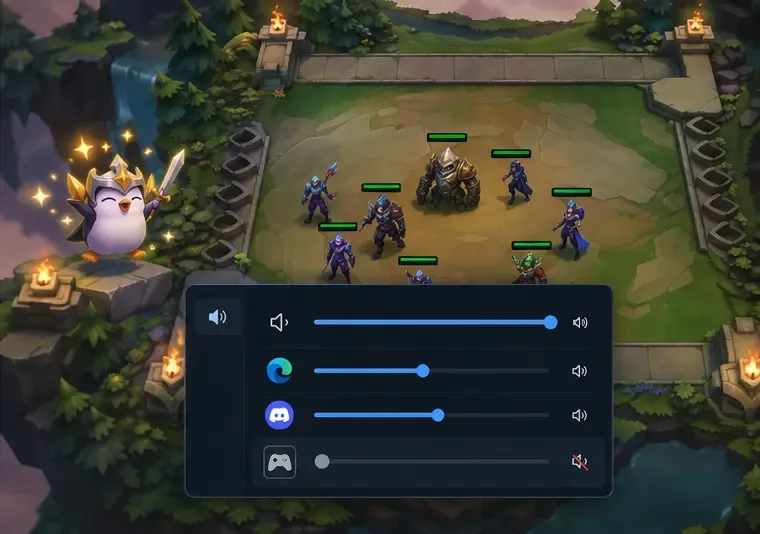
Application muting silences game audio while the match and its visual animations remain on screen.
Reduce sounds from your own Tactician
If the noise comes from your own avatar, muting an opponent will not help. Riot's Tacticians Guide says PC players can trigger Tactician actions with Ctrl + 1, 2, or 3; on mobile, the action icon is in the upper-left corner. Avoiding a manual action can stop you from triggering that action again, but it will not necessarily remove idle, movement, or automatic cosmetic sounds.
Some Tactician cosmetics have additional visual or audio moments: Riot notes that Chibis may have a Boom or finisher, while Unbound Tacticians can have custom emotes, animations, and finishers. Switching to a Tactician you already own can help you tell whether one cosmetic is the source. There is no need to buy another cosmetic just to test an audio workaround, and the official sources reviewed here do not identify a dedicated Tactician-only volume slider.
Check what changed
Test the same distraction after each adjustment instead of judging from a quiet pause. Look for these separate results:
Player mute: The selected player's reactions, messages, and pings are suppressed; ordinary match audio should remain.
Effects control: The sound you are checking is quieter, while other sounds in the same category may also change.
Windows app mute: TFT audio stops while a different app remains audible; visual emotes and animations can still appear.
Your own actions: A manually triggered action stops when you don't trigger it, but automatic sounds may continue.
If you used Windows Volume mixer as a temporary fix, raise the app slider or unmute it when you want game audio back. If an effect seems unaffected by the in-game slider, note the platform, game version, Tactician, action, and the setting you changed before contacting Riot Support. As of October 17, 2026, the official guides cited above document player muting and separate volume controls, but do not promise a single switch that removes all Tactician audio and animation.