Home
» 🎮 Esports
»
How to Lower Ping in VALORANT Without a VPN
How to Lower Ping in VALORANT Without a VPN
If VALORANT feels delayed, a VPN is not the first fix to try. Start by finding out whether the problem is consistently high ping, sudden ping spikes, packet loss, or low frame rate. Each points to a different cause. Riot’s troubleshooting guidance recommends checking in-game network stats, restarting network equipment, testing Ethernet, and tracing the route to a Riot endpoint. These steps can improve a poor connection when the cause is local congestion or a bad route, but they cannot remove the delay caused by distance to a game server or an issue outside your internet provider’s network.
A VPN sends your traffic through another network route. That can sometimes change a specific routing problem, but it can also add distance and delay. The steps below diagnose and improve the connection directly, without relying on a VPN.
What should you measure before changing anything?
Ping, also called network round-trip time (RTT), measures how long data takes to travel from your PC to the game server and back. VALORANT also displays packet loss, which means some network data did not arrive successfully. A steady ping with little or no packet loss usually feels better than a lower average ping that jumps around. Frame rate is different: low FPS is a computer performance problem, not a network ping problem.
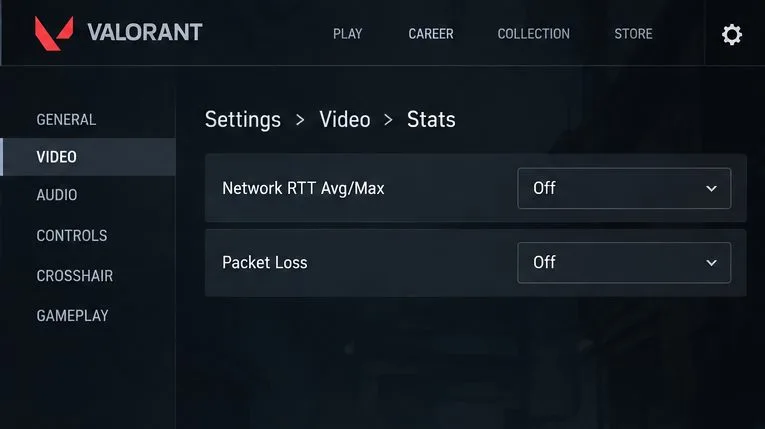
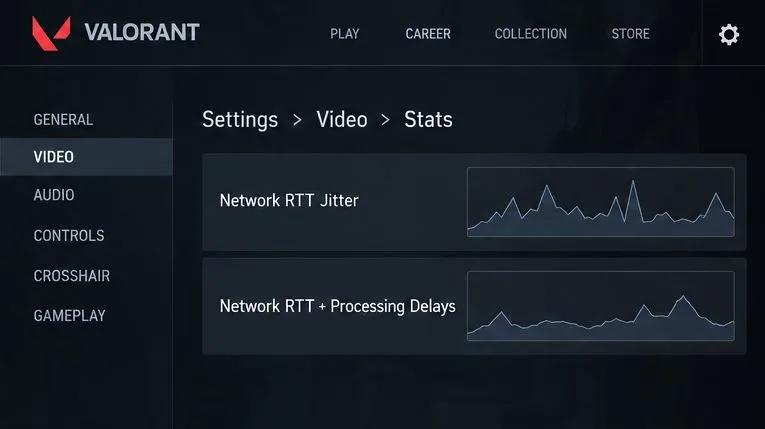
Riot’s VALORANT instability guide directs players to Settings > Video > Stats for performance graphs and stats. Turn on Network RTT Avg/Max and incoming/outgoing Packet Loss, or the available equivalent options in your current client. Play a short session and note the numbers and whether they spike. Menu labels can change between patches, so use the stats that are actually available in your client. The graph labels shown below help identify the diagnostics; graph shapes are not measurements from a real match.
Open VALORANT’s Video and Stats settings to display Network RTT and packet-loss information during a match.Network RTT Jitter and Network RTT + Processing Delays help distinguish unstable timing from a high average ping; judge the live graphs in your own client.
Six steps to lower or stabilize VALORANT ping without a VPN
1. Choose the closest available game server
If your VALORANT lobby lets you compare server locations before queueing, choose the nearby location with the lowest stable ping for your group. Avoid selecting a distant server just because it sometimes shows a lower number for a moment; compare it more than once. A nearby server is usually the best starting point because network traffic still has to travel physically between your home and the data center.
Your account’s region of residence and the server used for a particular match are related but are not the same setting. Changing account details is not a routine ping tweak. If the game consistently places you in an unexpected region, use Riot Support’s region and account help rather than changing account information at random. If all available nearby servers show similarly high ping, continue with the connection checks below.
2. Switch to Ethernet and pause competing traffic
When possible, connect your PC directly to the router with an Ethernet cable. A wired link removes Wi-Fi interference and signal strength from the path between your PC and router. If Ethernet is impractical, move closer to the access point, use a less congested Wi-Fi band if your router offers one, and avoid playing through a weak repeater or crowded public network.
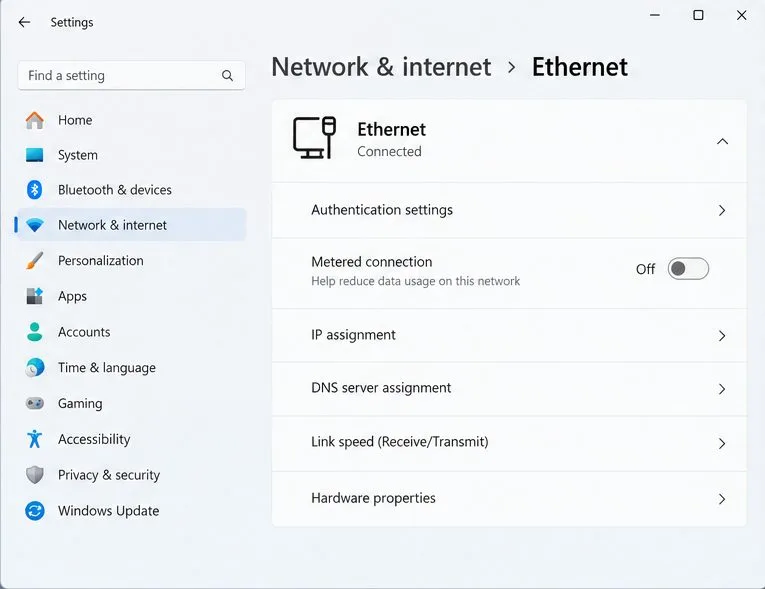
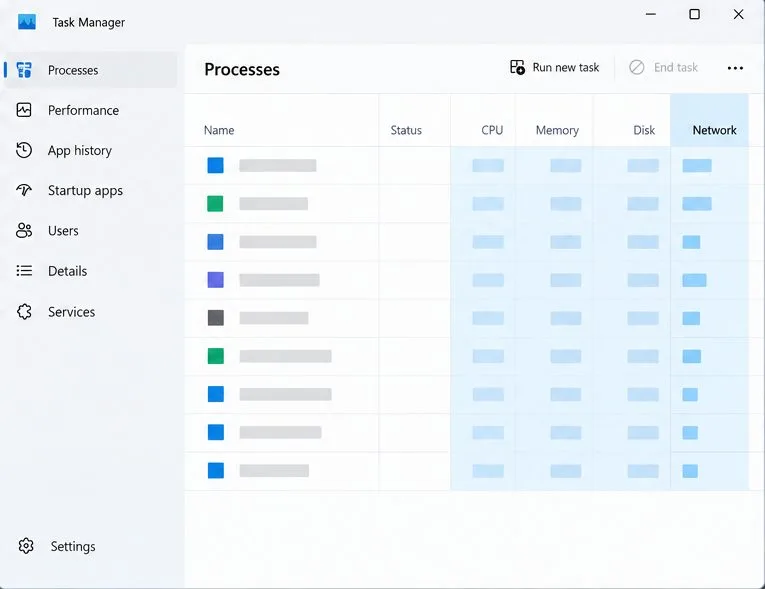
Pause large downloads, cloud backups, game updates, and video streams on your PC and other devices sharing the connection. In Windows Task Manager, the Network column can help identify processes using data. Close only applications you recognize and do not end Windows or security processes just to reduce a number. If a wired connection improves the match, the main issue was likely the wireless link or local network conditions—not a need for a VPN.
Windows 11 shows the wired Ethernet connection as Connected; verify the PC is actually using the cable while you test the game.Use Task Manager’s Network column to spot active downloads or sync activity that may be using bandwidth while you play.
3. Restart the router and modem
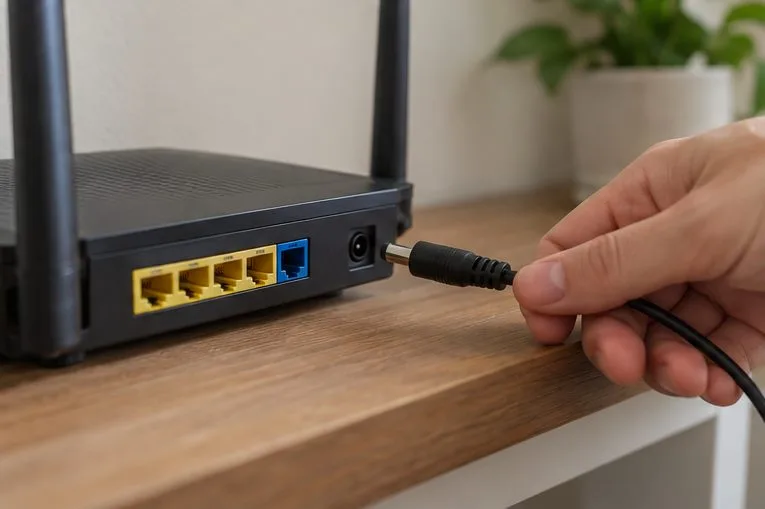
Restarting network equipment can clear a temporary connection problem. Exit VALORANT, then restart your router and modem using the manufacturer’s normal procedure. If they are separate devices, power them back on in the order recommended by your internet provider. Wait until the connection is fully restored before launching the game again. Do not repeatedly unplug equipment during an update or while its status lights indicate that it is still starting.
Retest the same server after the network comes back. If ping improves for a while and then rises again at busy hours, note those times; recurring evening congestion may require your internet provider to investigate. A router restart cannot repair a damaged line or change the physical distance to Riot’s server.
Restart the router using its normal power procedure, then wait for the internet connection to return before retesting VALORANT.
4. Compare the game with a basic connection test
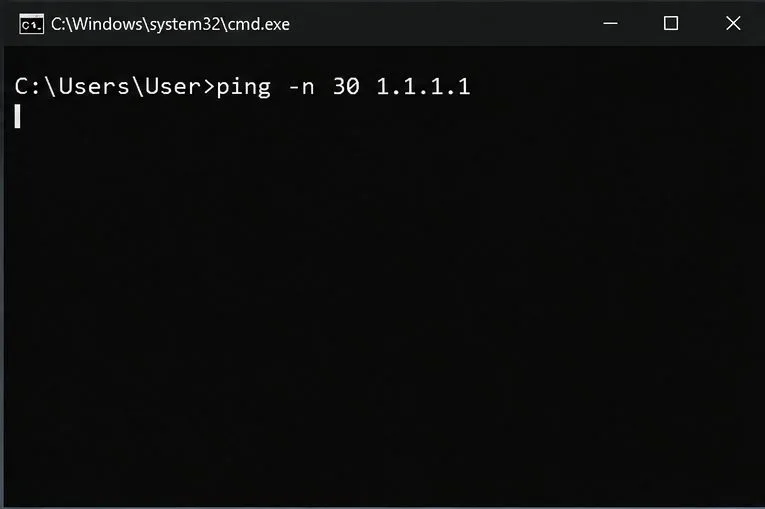
A simple ping to a public internet address can tell you whether latency is elevated beyond VALORANT, but it is only a comparison. It does not measure the exact route to a VALORANT match, and some networks handle diagnostic ping traffic differently from game traffic. On Windows, open Command Prompt and run ping -n 30 1.1.1.1. Compare the average and variation with the in-game RTT you recorded. If both are poor on Ethernet, the problem may be on your home network or internet-provider connection. If the public test is steady but VALORANT remains high, the route to Riot or the selected game server deserves more attention.
A Windows ping command can provide a general connection comparison; its result is not the same as VALORANT match ping.
5. Use Riot’s Tracert instructions when the game route stays poor
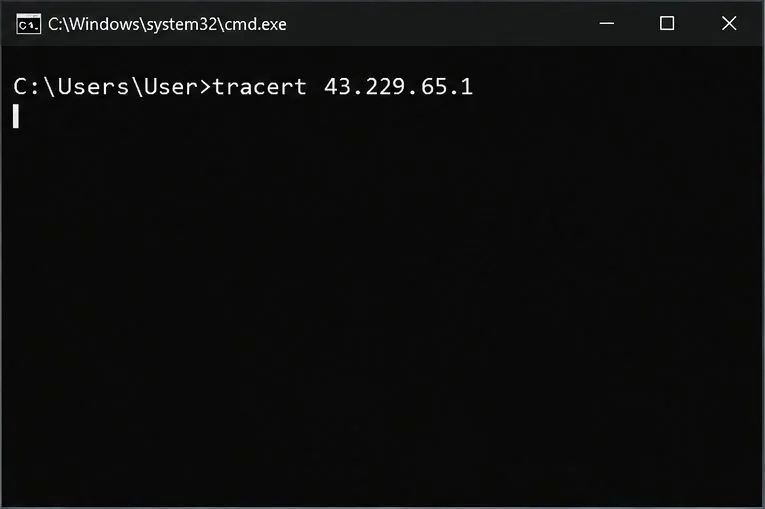
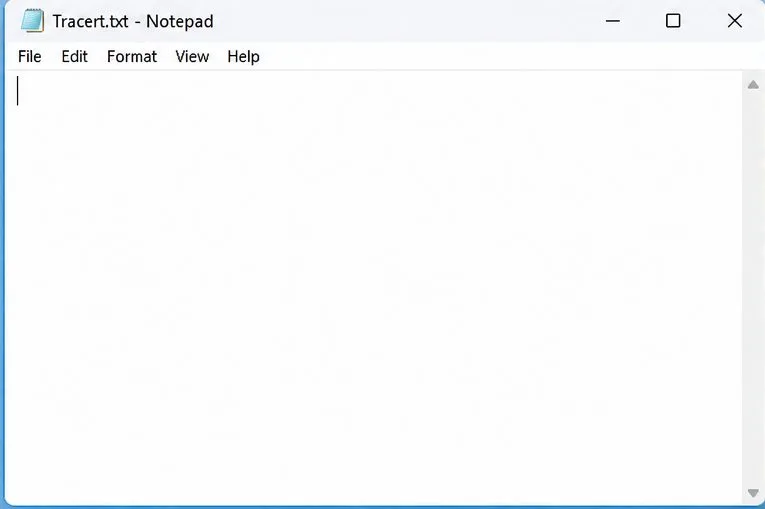
tracert is a Windows utility that lists the network hops toward a destination. Riot’s official guide provides region-specific endpoints and commands. For example, Riot lists 43.229.65.1 for the Asia Pacific endpoint; players elsewhere should use the endpoint for their region in the guide, rather than copying the AP address. In Command Prompt, the basic AP test is tracert 43.229.65.1. Riot’s full command can save the output to a desktop file named Tracert.txt.
A trace can take several minutes. One or two asterisks on a hop do not automatically prove a fault, because a router may simply decline to answer diagnostic requests. Look for a pattern: if delay becomes high at a hop and remains high on later hops, save the trace and share it with your ISP or Riot Support. Do not assume that one unanswered hop means that exact router is broken.
Riot lists this endpoint for an Asia Pacific route trace; use the regional endpoint that matches your server, and treat the image as a command example rather than a test result.After the route test completes, open the generated Tracert.txt file; its actual contents depend on your connection and should be reviewed before contacting support.
6. Use network buffering only for jitter or loss symptoms
If your average RTT is acceptable but packet loss or jitter makes movement erratic, try VALORANT’s Network Buffering option if it is available in your client. Riot lists this as a troubleshooting step for network problems. Buffering can smooth uneven packet arrival, but it may add a small amount of processing delay; it does not shorten the physical route or lower the underlying ping. Test it in a few matches and keep it only if the connection feels more consistent.
How to tell whether the fix worked
Compare several matches on the same nearby server, ideally at a similar time of day. A useful improvement is a lower and steadier Network RTT, fewer noticeable spikes, and packet loss staying near zero. If the average is unchanged but packet loss disappears, the connection may still feel substantially better. If the in-game RTT is stable but aiming or movement remains choppy, check the client FPS graph and PC performance instead of continuing to change network settings.
What you see
What to try next
High ping on every nearby server
Use Ethernet, restart the router, compare a public ping, then ask your ISP about the route.
Ping spikes or packet loss on Wi-Fi only
Test Ethernet, improve Wi-Fi signal, and reduce local network congestion.
Stable network RTT but low FPS
Check VALORANT’s client FPS graph and close resource-heavy applications.
High ping only to one region or game server
Choose a closer available server and use Riot’s region-specific Tracert instructions.
When to contact your ISP or Riot Support
Contact your internet provider if high latency or packet loss appears on Ethernet across more than one service, especially if it returns at predictable times. Give support the time of day, whether you were wired, the in-game RTT and packet-loss observations, and the Tracert file. Contact Riot Support if the general connection is stable but the route to VALORANT remains poor across nearby servers. Riot’s current network-instability guidance recommends router restart, wired testing, checking other internet destinations, Tracert diagnostics, and contacting the ISP with the resulting details.
There is no setting that can guarantee a lower ping on every network. If your connection already has a direct, stable route to the nearest available game server, the remaining latency may be caused by distance or upstream routing beyond your home. In that case, the most useful outcome is a stable connection with minimal packet loss—not an unverified tweak that promises a particular number.