How to Check Real-Time Server Latency in the PUBG HUD

Enable PUBG’s network statistics HUD to monitor ping and packet loss in a match. See where to find it, what the numbers mean, and what they cannot diagnose.
Illustrative example: Imagine Jordan, a fictional Fortnite player with a 144 Hz monitor. His PC reports a steady-looking average frame rate, but aiming feels delayed during busy fights. This is a hypothetical example, not a real test or testimonial. It helps show why one setting rarely fixes every kind of delay: the cause could be a low display refresh rate, an overloaded GPU, an unstable frame rate, a peripheral connection, or network ping.
To lower input delay on a Fortnite PC, first make sure Windows is using the monitor’s intended refresh rate and the dedicated graphics card. Then reduce rendering load if the game is struggling, test V-Sync and a realistic frame cap, and enable NVIDIA Reflex if your GPU supports it. Change one setting at a time and compare the same kind of match. These adjustments can improve responsiveness, but no setting guarantees a particular latency on every PC.
“Input delay” usually means the time between a mouse or keyboard action and the visible response on screen. That local path includes the device, game, CPU/GPU render queue, and display. Ping is network latency: the time data takes to travel between your PC and a Fortnite server and back. A player can have low ping but still feel sluggish controls, or responsive local controls while experiencing a high ping. Epic defines ping in milliseconds and notes that congestion, routing, and the match server can change it. If your crosshair and camera feel delayed even in an offline or Creative test, start with PC settings. If builds or opponents update late while local movement feels smooth, inspect the connection separately.
For Jordan’s example, assume the display supports 144 Hz, Fortnite sometimes falls below that rate during action, and the connection is otherwise stable. He should write down the current resolution, refresh rate, frame-rate limit, V-Sync state, rendering mode, and whether the delay happens all the time or only in demanding scenes. He should also note the in-game ping. Those notes create a baseline. They do not prove a cause, but they make it easier to see whether one controlled change helped.
Use the following order so that each test has a clear purpose. Menu wording can change between Fortnite and Windows updates. The images are schematic interface illustrations, not screenshots of a tested game build; check the labels shown in your own version.
A high-refresh monitor can still run at a lower setting if Windows is configured incorrectly. In Windows 11, open Settings > System > Display > Advanced display, select the gaming display, and check the refresh rate. Choose the highest rate supported at your current resolution and connection. The choices depend on the display, cable, port, and graphics hardware, so do not select a value that your monitor does not support. If a laptop is connected to an external monitor, make sure you are checking the display used for Fortnite.
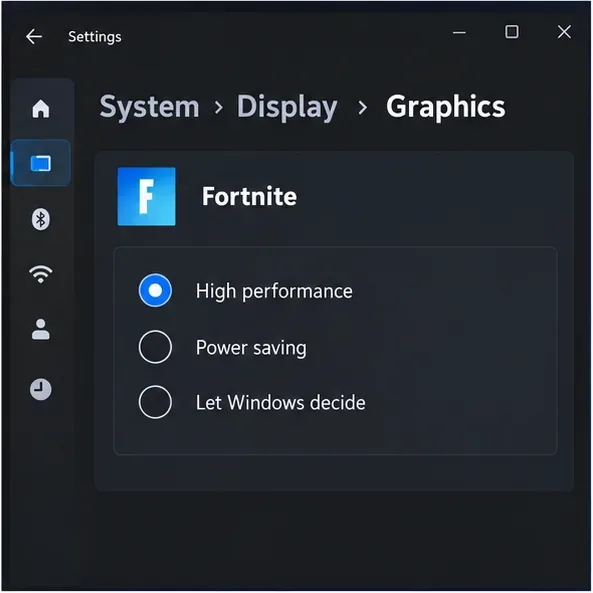
If the PC has both integrated and dedicated graphics, assign Fortnite to the high-performance GPU. Epic’s current PC guidance uses Settings > System > Display > Graphics, then the Fortnite application’s options and High performance. Restart the game after changing the preference. On a desktop with one GPU, this setting may not be available or may not change anything. Jordan checks the actual display and the Fortnite GPU selection before touching advanced tuning.
Official references: Microsoft’s refresh-rate instructions and Epic’s Fortnite PC performance guidance.
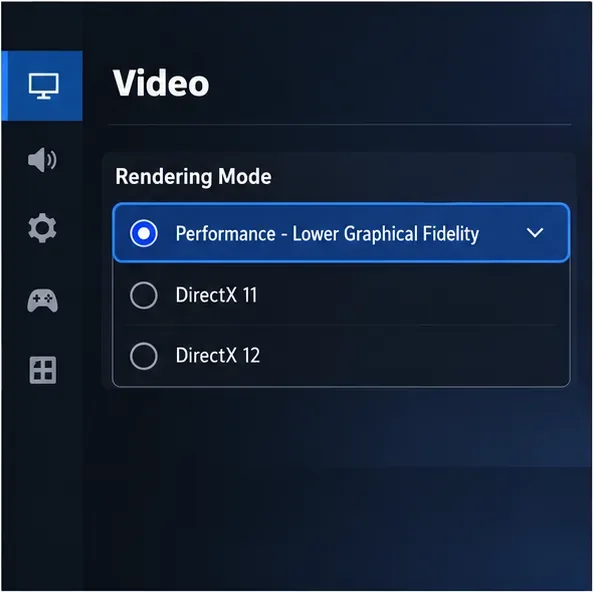
Fortnite’s Performance - Lower Graphical Fidelity rendering mode is an option for players who need more frames or smoother performance on less powerful hardware. Epic’s instructions place it under the game’s Video settings, in the Display section’s Rendering Mode control. Apply the change and restart Fortnite. This mode reduces graphical fidelity; it is not a guaranteed input-delay switch and may not be the best visual choice for a PC that already holds its target frame rate.
Jordan can test Performance mode if his frame rate drops in fights. If he prefers the appearance of DirectX rendering modes and the PC remains stable, he can keep his original mode and lower the most demanding graphics options instead. Close unnecessary downloads and heavy background applications while testing. Avoid changing every graphics option at once: if the result improves or worsens, he should know which adjustment caused it.
See Epic’s instructions for enabling Performance mode. The option may trade image quality for performance, and its effect depends on the PC.
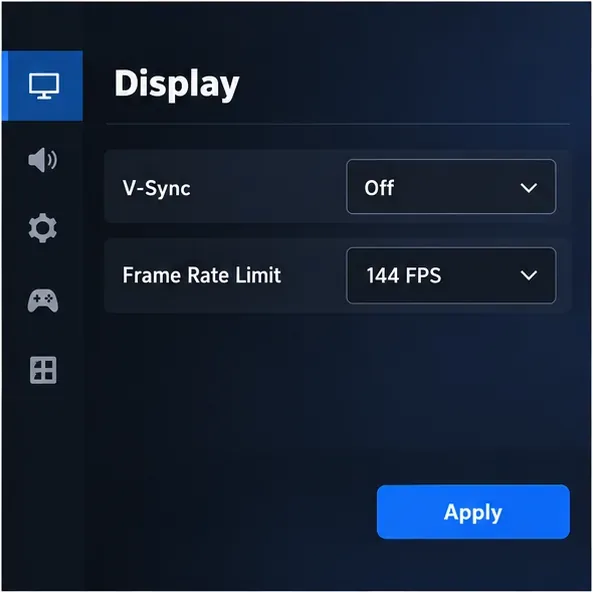
V-Sync synchronizes game output with the monitor to reduce screen tearing. Epic explains that Fortnite’s V-Sync can limit FPS to match the display refresh rate; turning it off allows a different frame-rate limit to be selected, but Epic warns that manual FPS changes can introduce stuttering or drops. For competitive play, test V-Sync off and compare responsiveness, but watch for tearing. If tearing becomes distracting, restore the earlier setting or review the monitor’s variable refresh rate (VRR) support and the settings recommended for that display.
Do not assume that an unlimited frame rate is automatically best. A frame cap that the PC can sustain may feel more consistent than a very high cap accompanied by repeated drops, heat, or fan noise. Jordan can start by testing a cap at or near the monitor’s supported refresh rate if the PC holds it reliably; if not, he can compare a lower stable cap. The 144 FPS shown in the illustration is an example for this fictional setup, not a universal recommendation. Test the change in an actual match, because the lobby can use a different limit. Fortnite’s exact available caps depend on its current settings and build.
Official steps for these controls are in Epic’s FPS limit and V-Sync guide. If a change causes stutter or frame drops, return to the prior values and test a different cap.
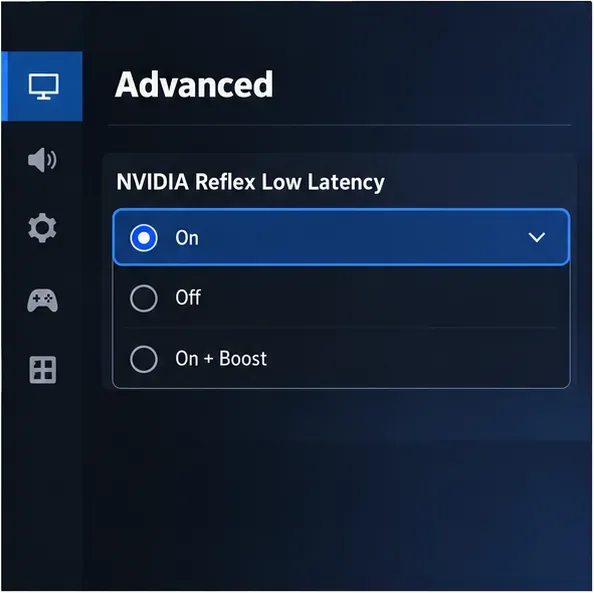
On a supported NVIDIA GeForce system, open Fortnite’s Video settings, find NVIDIA Reflex Low Latency, and test On. NVIDIA says Reflex is integrated into Fortnite to help the game engine submit rendering work more efficiently and reduce system latency. NVIDIA lists GeForce GTX 900-series and newer GPUs as supported in its Fortnite guidance. If the control is absent, do not install unofficial tools to force it; use the other settings in this guide.
Some GeForce RTX systems also show On + Boost. NVIDIA describes Boost as overriding GPU power-saving features to maintain higher performance and lower latency. It can use more power and produce more heat, so compare it with plain On and monitor temperatures, especially on a laptop. Jordan starts with On, tests the same kind of scenario, then tries On + Boost only if the option is available and the PC stays within acceptable temperatures.
See NVIDIA’s Fortnite Reflex setup notes. Reflex addresses PC system latency; it does not lower network ping or compensate for a struggling CPU, unstable frame rate, or slow display.
If the settings are correct but aiming still feels delayed, test the mouse or controller directly. Connect a wireless receiver to a front or rear motherboard USB port rather than a hub, charge the device, and temporarily compare it with a wired connection if available. Keep the polling-rate setting at a value the PC handles reliably; raising it blindly is not a universal fix. Check that the mouse is not moving through a remote desktop session, capture tool, or other software layer that adds processing.
For a laptop, test while plugged into its charger and use Windows’ performance-focused power mode if available. Performance modes can increase power use and heat. If the laptop becomes hot and performance falls after several minutes, reduce rendering load or improve cooling rather than raising every power setting. Windows and laptop-maker options vary by device, so compare behavior instead of assuming one plan is best.
If Jordan’s camera and aiming respond immediately but opponents teleport, builds appear late, or the ping number spikes, graphics settings are unlikely to solve the main issue. Epic recommends testing with Ethernet where possible, reducing large downloads or uploads on the same connection, and checking ping, packet loss, and jitter. Its support page notes that routing and server location can affect results, and that a region preference may affect queue times or match quality. Avoid treating a lower graphics preset as a network fix.
Jordan should restart Fortnite after changes that require it, then play the same mode for several minutes and compare the same actions: quick turns, edits, and repeated shots. Check whether the frame rate stays near the chosen cap, whether stutters or tearing appear, and whether the game’s ping is stable. Change one setting at a time and keep a simple record of the before-and-after values. If the result is worse, restore the previous setting. This is more useful than copying a pro player’s full settings because hardware, monitor refresh rate, and personal tolerance for tearing or visual quality differ.
Start with the free checks: Windows refresh rate, high-performance GPU selection, and Fortnite’s frame-rate behavior. Then test Performance mode only if the PC needs more consistent frames, compare V-Sync and a sustainable cap, and enable Reflex when supported. These steps can reduce avoidable delay, but they cannot guarantee a specific millisecond improvement or eliminate latency caused by hardware limits, display processing, peripherals, or the network.
Enable PUBG’s network statistics HUD to monitor ping and packet loss in a match. See where to find it, what the numbers mean, and what they cannot diagnose.
Learn how to import VALORANT crosshair codes, compare presets with manual settings and spectator copy, and fix common import issues.
Choose Dota 2 minimap size, hero icons, team colors, and background settings by readability, fewer misclicks, and clear results on your own display.
Fix Fortnite texture pop-in on PC with official steps for GPU drivers, file verification, DirectX 12, high-resolution textures, VRAM, SSDs, and stutter.
Learn what Heroes of the Storm minimap size and position options are verified, improve readability, and choose camera-click controls that suit you.
Set Super Smash Bros. Ultimate Quickplay to prefer hazards-off stages. Follow the Preferred Rules menu steps and learn why matchmaking may not always honor them.
Enable Server Latency and Packet Loss in Warzone to monitor connection quality, read the overlay, and use recurring spikes to guide troubleshooting.
Learn how to carry from mid lane in League of Legends by setting up waves, choosing safe roam windows, reading side lanes, and converting pressure into objectives.
Fix Minecraft Evoker spell problems with a safe vanilla test, version checks, log review, and a step-by-step way to isolate mod or datapack conflicts.
Fix PUBG stuck on Initializing on Steam with a focused checklist for PC service notices, launch options, game files, downloads, and connection issues.








