How to Install VALORANT on PC: Step-by-Step Guide (2026)
To install VALORANT on a Windows PC, download the installer from Riot’s official website, run it to set up the Riot Client and Vanguard, sign in to a Riot Account, then let the client download the game. The exact download size and wait time change with updates and your connection, so use the client’s current progress display rather than older fixed estimates. This guide covers the PC installation; Riot also offers separate console downloads for PlayStation 5 and Xbox Series X|S.
Start at the official VALORANT download page. Avoid third-party installers. Before you begin, check that your Windows version and hardware meet Riot’s current requirements.
Check the current VALORANT PC requirements
Riot’s PC specs page lists the following baseline and performance tiers. The minimum tier targets 30 FPS, the recommended tier targets 60 FPS, and the high-end tier targets 144+ FPS. The listed memory baseline is 4 GB RAM and 1 GB VRAM.
| Tier | Processor | Graphics |
|---|---|---|
| Minimum (30 FPS) | Intel i3-540 or AMD Athlon 200GE | Intel HD 4000 or AMD Radeon R5 220 |
| Recommended (60 FPS) | Intel i3-4150 or AMD Ryzen 3 1200 | NVIDIA GeForce GT 730 or AMD Radeon R7 240 |
| High-end (144+ FPS) | Intel i5-9400F 2.90 GHz or AMD Ryzen 5 2600X | NVIDIA GTX 1050 Ti, AMD Radeon R7 370, or Intel Arc A310 |
The operating-system requirement is Windows 10 (Build 19041 or later) or Windows 11, 64-bit, with SSE 4.2 or AVX support. On Windows 11, Riot also requires TPM 2.0 and UEFI Secure Boot. See Riot’s current VALORANT PC specs for the latest list.
To check Windows and basic hardware details, open Settings > System > About. For graphics details, press the Windows key, type dxdiag, and open the DirectX Diagnostic Tool; check its Display tab. On Windows 11, you can type tpm.msc to check TPM status and search for System Information to view Secure Boot State. If a firmware requirement is missing, use your PC or motherboard maker’s instructions before changing UEFI settings.
Storage note: Riot’s public specs page does not give a fixed installation-size figure. Game files change as patches arrive, so avoid relying on old claims such as a specific 22 GB download or 8 GB free-space requirement. Check the available space on the drive you plan to use and leave room for updates.
If you still use Windows 10, note that Microsoft ended standard support on October 14, 2025, and no longer provides routine security updates for it. Riot’s current VALORANT specs still list Windows 10 Build 19041 or later, but Microsoft recommends moving to a supported Windows version. Read Microsoft’s Windows 10 end-of-support notice.
How to install VALORANT step by step
The interface images below are visual guides. Riot may change the wording or layout in later client versions.
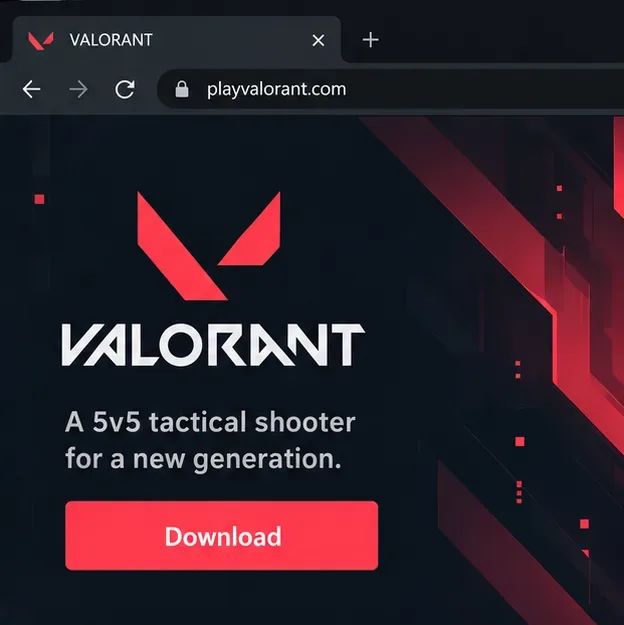
Step 1: Download the installer from Riot
- Open the official download page in your browser.
- Select Download for PC and save the installer. If the browser asks where to save it, choose a folder you can find again, such as Downloads.
- When the download finishes, open the file from your browser’s download list or the Downloads folder. If you are unsure whether the file is legitimate, return to the official page and download it again rather than opening a copy from an unfamiliar site.
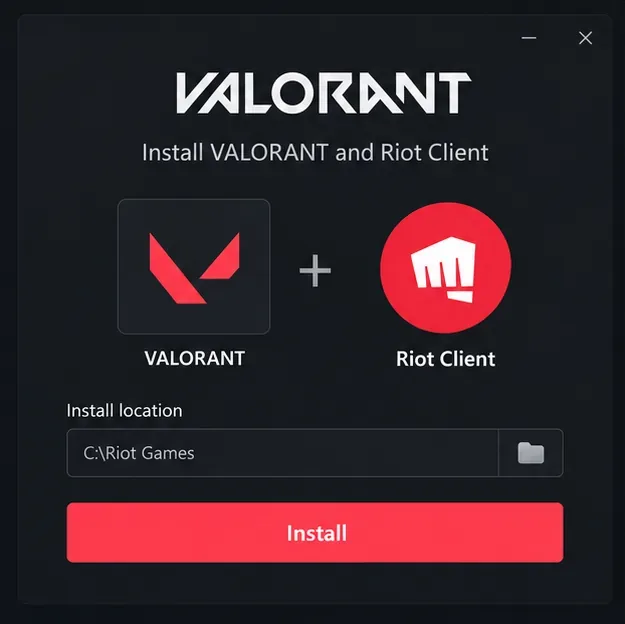
Step 2: Run setup and choose where to install
Follow the installer prompts to install VALORANT and the Riot Client. Review the destination folder before continuing; use a drive with enough free space for the game and future updates. Windows may show a User Account Control prompt because the setup needs permission to install required components. Confirm only when the publisher and installer match Riot Games/VALORANT. Do not bypass a Windows security warning for a file you did not get from Riot.
Riot Vanguard, VALORANT’s anti-cheat software, is installed as part of the PC setup. Allow the installer to finish instead of closing it while files or services are being added.
Step 3: Sign in or create a Riot Account
When the Riot Client opens, sign in with your Riot Account. If you have used another Riot game, try that account first. If you are new, use the account-creation option and follow Riot’s prompts to register. Keep your login details private and verify that you are entering them in the official Riot Client or on a Riot-owned website.

Step 4: Start the full game download
After sign-in, find VALORANT in the Riot Client and select Install. If the client asks you to confirm a destination, select the drive you checked earlier. The client then downloads the game files and applies any current updates. Keep the PC connected to the internet and avoid shutting down the computer while the installer is working.
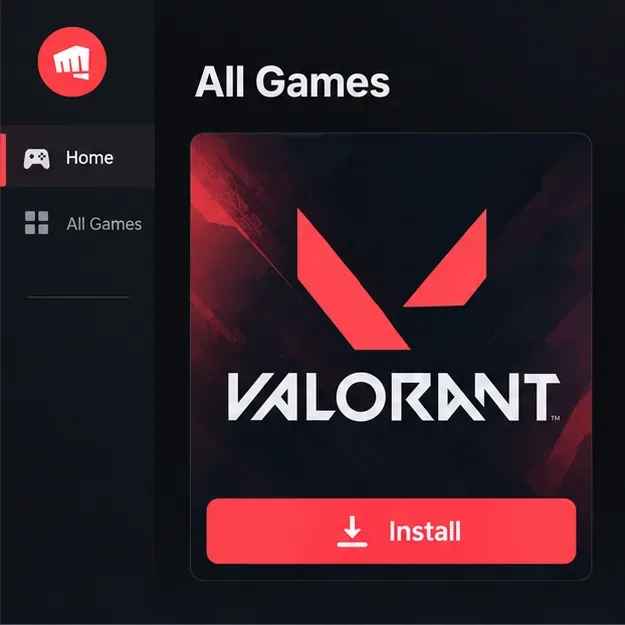
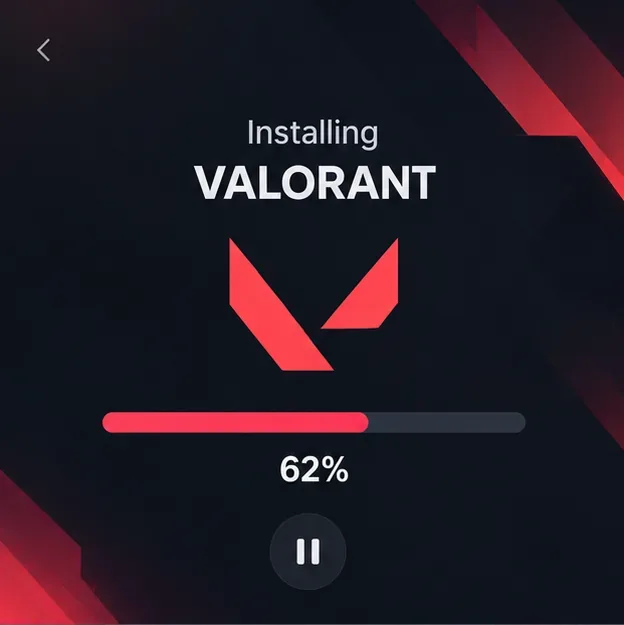
There is no reliable universal install time: it depends on your connection, the current patch, and your PC. The Riot Client’s progress indicator is the best guide. If it appears paused, give it a little time first; a patch may be unpacking or verifying files.
Step 5: Restart if prompted, then launch the game
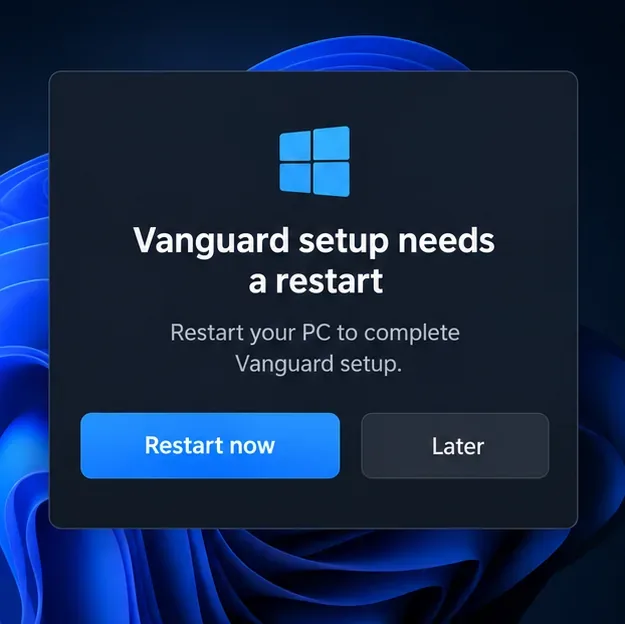
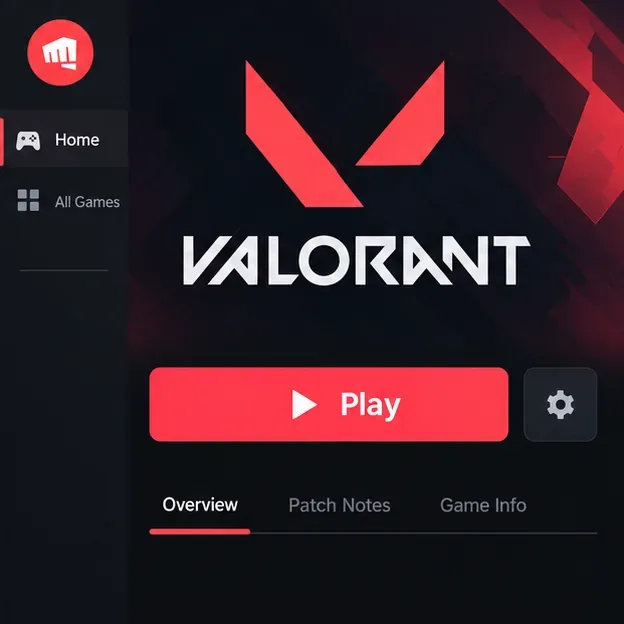
Vanguard may ask you to restart Windows before VALORANT can launch. Save open work and restart if you see that prompt. After Windows starts again, open the Riot Client, sign in if necessary, and select Play on the VALORANT page. Let the first launch finish any remaining setup or update checks before entering a match.
Fix common VALORANT installation problems
The installer or download stops responding
Close the Riot Client from its window and system-tray menu, restart Windows, and reopen the client. Confirm that your selected drive still has free space and that Windows is up to date. If the issue continues, use Riot’s VALORANT Player Support for current troubleshooting steps. Avoid deleting Riot folders or disabling security software as a first fix.
Vanguard reports a restart or security requirement
Restart once if Vanguard requests it. On Windows 11, verify that TPM 2.0 and UEFI Secure Boot are enabled. Microsoft explains how to check TPM 2.0; Microsoft explains Secure Boot on Windows. Firmware menus differ by PC maker, so follow the manufacturer’s instructions. If your system already meets the requirements and the error remains, check Riot Support for the exact error code instead of changing unrelated BIOS settings.
The client says your operating system is unsupported
Return to the specs table and confirm that Windows is 64-bit and meets Riot’s listed build requirement. Older Windows versions, unsupported builds, virtual machines, and cloud-gaming environments may not meet the game’s requirements. Install supported Windows updates, then restart the PC and try the client again.
Frequently asked questions
Is VALORANT free to download?
Yes. VALORANT is free to play. Optional cosmetic purchases are separate from installing the game.
How much space does VALORANT need?
Riot does not list a fixed current disk-space number on its PC specs page. The installed size can change with updates, so check the client’s current installer information and keep extra room available for patches.
Can I install VALORANT on Mac?
Riot’s current platform page offers PC, PlayStation 5, and Xbox Series X|S options; it does not list a macOS client. The steps above apply to Windows PC. For console setup, use the official VALORANT platform page and select your console.









