How to Install League of Legends on Windows and Mac (2026)
To install League of Legends, download the official installer from Riot, run it on Windows or copy the app into Applications on Mac, then let the Riot Client download and patch the game. Sign in with a Riot Account when prompted. The download is free; its size and completion time vary with the current patch, your connection, and your computer.
This guide covers the current Windows and macOS installation steps, Riot’s published system requirements, and practical fixes for common setup problems. Use the official download page so you get the correct installer for your platform and region.
Before you install: check your PC or Mac
Riot’s system requirements page was updated on September 22, 2026. Check it before downloading if your computer is older, because the prior article’s macOS 10.14 and 7–9 GB download estimates are no longer dependable. Riot’s current listed minimums include:
| Platform | Current minimum requirements listed by Riot |
|---|---|
| Windows | Windows 10 (Build 19041 or later) or Windows 11, 64-bit; Intel Core i3-530 or AMD A6-3650; 2 GB RAM; 1 GB VRAM; DirectX 11 feature level 11_0; and 16 GB free storage. Windows 11 requires TPM 2.0 to be enabled. |
| Mac | macOS 12; Apple M1; a Metal-capable GPU; 8 GB unified memory; and 40 GB available storage. |
These are minimums, so meeting them does not guarantee smooth performance. Riot says Intel Mac users may still be able to play, while support is focused primarily on Apple Silicon. The official League of Legends system requirements include the full recommended specifications and can change as the game is updated.
Make sure you have enough free storage for the game and future patches. You do not need to reserve exactly the download size quoted by an older guide: Riot’s installer and the installed files change over time.
How to install League of Legends step by step
-
1. Download the official League of Legends installer
Open Riot’s League of Legends download page. Choose Download for Windows or Download Mac Installer, then save the file in a location you can find, such as Downloads. If the page offers a region or language selection, choose the one that matches the account and server region you intend to use.
Download only from Riot’s site. Avoid third-party installers and old copies of the setup file, since they may be outdated or unsafe.
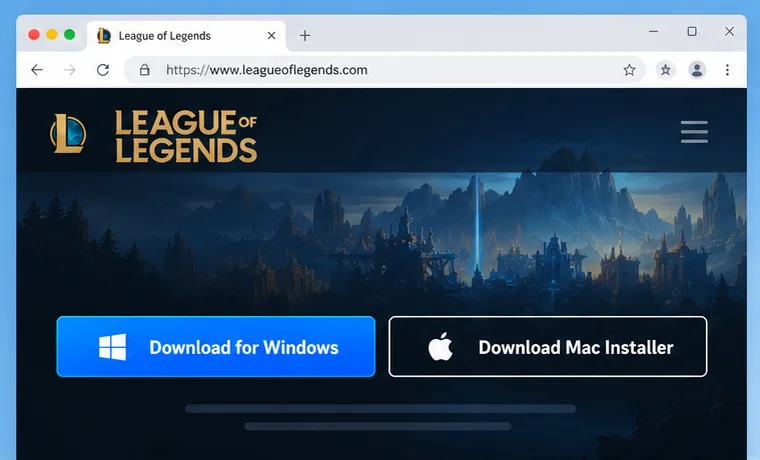
Illustrative view of the official download choices; the page layout can vary by region. -
2. Run the installer for your operating system
On Windows
Open the downloaded
.exefile from Downloads. If Windows displays a User Account Control prompt, confirm that the publisher is Riot Games before allowing the installer to continue. Follow the setup prompts and keep the default install location unless you have a specific reason to choose another drive. Leave the Riot Client and League files together in the location selected by the installer.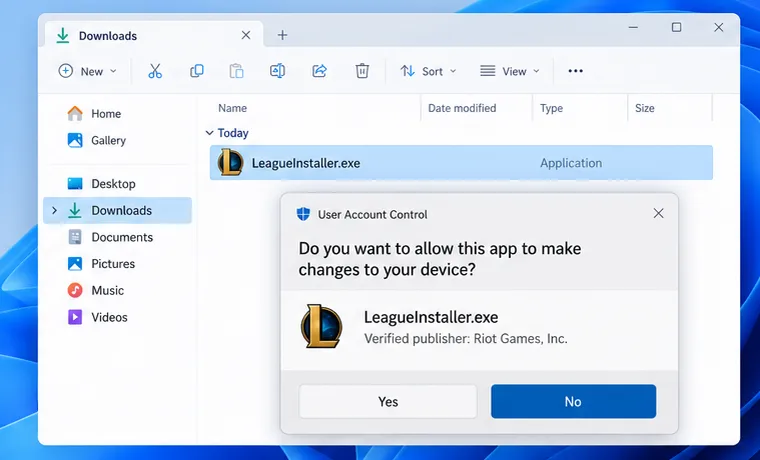
On Windows, open the installer downloaded from Riot and confirm the publisher in the permission prompt. On Mac
Open the downloaded
.dmgfile. In the window that appears, drag League of Legends.app into the Applications folder. Close the disk image, open Applications in Finder, and launch League from there. Riot specifically cautions Mac users not to run the app directly from the mounted disk-image window.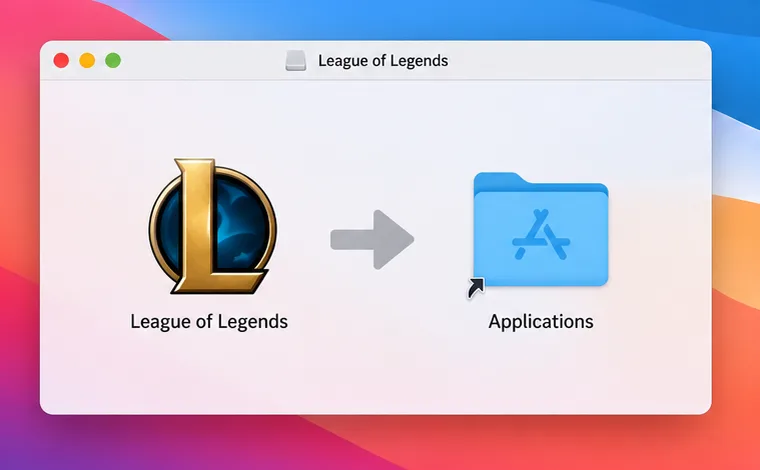
On Mac, drag League of Legends into Applications before opening the app. -
3. Let the Riot Client download and patch the game
The Riot Client opens and obtains the current League of Legends files. Keep the computer online and allow the patching process to finish. A new install can take longer than an older estimate if the current patch is larger or your internet connection is slow. Avoid force-quitting the client while it is updating; if progress stops, use the troubleshooting steps below instead of deleting folders by hand.
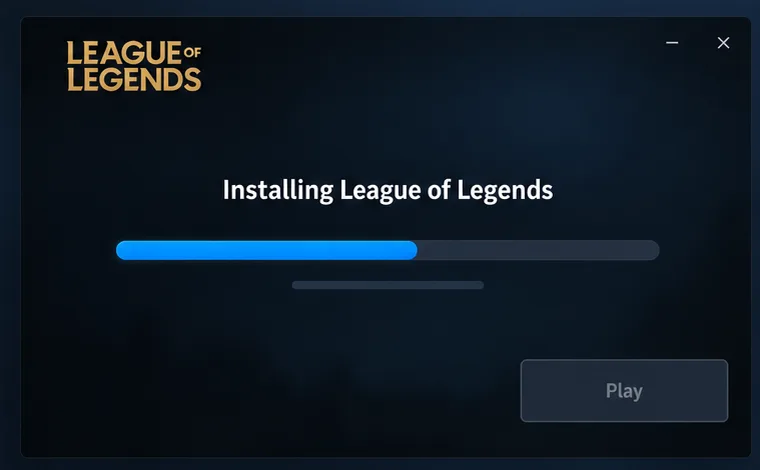
Let the Riot Client finish installing or patching before you try to launch the game. -
4. Sign in or create a Riot Account
When the client asks you to sign in, use the Riot Account you want associated with League of Legends. If you already play another Riot game, try your existing account first. New players can follow the account-creation link in the client or on Riot’s website. Keep your password private and follow Riot’s on-screen verification prompts.
-
5. Launch League of Legends
After the client finishes patching, select the option to play or launch League. If the Play control is unavailable, the update may still be running or the computer may not meet a current system requirement. First wait for the client to finish and then recheck the requirements above. New players can start with the in-client tutorial or another beginner-friendly practice option before entering a competitive queue.
The images above are illustrative; button names and window layouts can vary by region, operating system, and client update.
Fix common League of Legends installation problems
The installer will not open
Confirm that you downloaded the Windows or Mac installer from Riot’s official page and that the download completed. On Windows, if a permissions error appears, close the client and try opening the official installer with administrator permissions. Check available storage and verify that your Windows version is supported. On Mac, confirm that you copied the app into Applications before launching it.
The patch is stuck or repeatedly fails
Check that your internet connection is stable and that the computer has free storage. Fully quit and reopen the Riot Client, then allow it to check for updates again. If the issue continues, follow Riot’s official patching-issues guide. Riot’s support articles also recommend the Riot Repair Tool for collecting logs and helping repair or reinstall League. Do not turn off security software or remove Riot folders unless Riot Support’s instructions for your specific issue tell you to do so.
The game will not launch after installation
Recheck the operating-system, graphics, and storage requirements. Windows needs DirectX 11 feature level 11_0; Mac needs a Metal-capable GPU. Restart the computer after operating-system or graphics-driver updates, then launch League from the Riot Client. If the files may be damaged, use Riot’s official reinstall instructions or submit a ticket through Riot Support.
League of Legends installation FAQ
Is League of Legends free to install?
Yes. Riot offers League of Legends as a free download and free-to-play game. Optional in-game purchases are separate from installing the client.
How long does the installation take?
There is no reliable fixed time. It depends on your connection, the current patch, and the speed of your computer. The initial setup may finish quickly, but the client still needs to download and apply the game files.
How much space does League of Legends need?
Riot currently lists 16 GB of free storage for Windows and 40 GB for Mac. Keep additional room available for operating-system temporary files and later game updates.
Can I install League of Legends on Linux?
Riot lists Windows and macOS as supported operating systems. Linux, SteamOS, and similar systems are not officially supported, so this Windows-and-Mac guide does not cover unofficial workarounds.









