How to Check Real-Time Server Latency in the PUBG HUD

Enable PUBG’s network statistics HUD to monitor ping and packet loss in a match. See where to find it, what the numbers mean, and what they cannot diagnose.
If you want to hide your username in Fortnite, the setting you probably need is not in the regular HUD customization menu. Epic currently places display-name privacy controls under Account and Privacy > Gameplay Privacy. The key option is Hide Your Display Name From Stream Snipers. Epic says this can hide your display name in supported experiences, although some experiences may not allow it.
That distinction matters because Fortnite also has a separate Game UI section for HUD elements such as the minimap, health information, ping indicators, reticle, ammo information, and damage feedback. If your goal is specifically to keep your account name from appearing to other players or on a stream, changing ordinary HUD visibility is not the same thing as changing display-name privacy.
Yes, with an important limitation. Epic documents a setting called Hide Your Display Name From Stream Snipers under Gameplay Privacy. Turn it on if your goal is to reduce exposure of your display name while playing or streaming. Epic also warns that some Fortnite experiences do not allow your display name to be hidden, so this is not a universal guarantee across every island or mode.
If instead you want to hide the names of other players from what appears on your screen or stream, Fortnite provides separate display-name controls. Epic documents Hide Other Display Names On Your Stream for streaming privacy, and it also documents a regular-gameplay option that can replace names of players outside your party or squad with a generic label.
Open the in-game menu, then choose Settings. Epic's current support instructions list these menu buttons by platform: Esc on PC/Mac, Options on PlayStation, Menu on Xbox, + on Nintendo Switch, and the Menu button followed by the gear icon on Android.
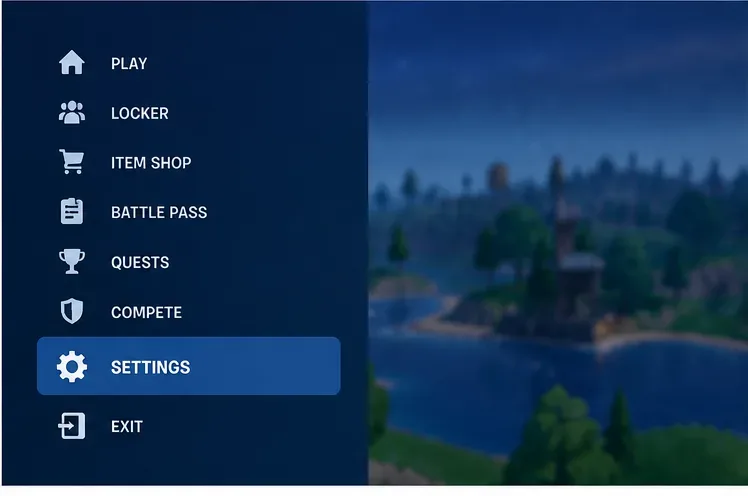
In Settings, navigate to Account and Privacy. Epic's privacy documentation places social and gameplay privacy settings in this area rather than in the Game UI HUD tab.
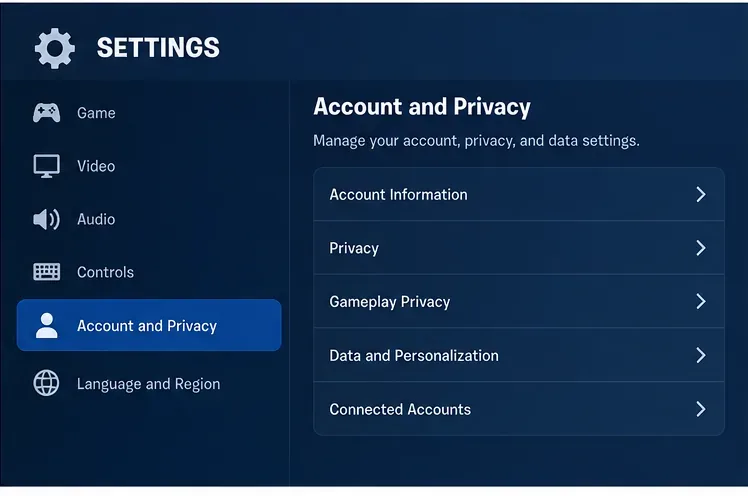
Scroll to Gameplay Privacy, then turn on Hide Your Display Name From Stream Snipers. According to Epic, this is the setting intended to hide your own display name as part of its streamer-privacy protections. Keep in mind that individual experiences can override or disallow this behavior.
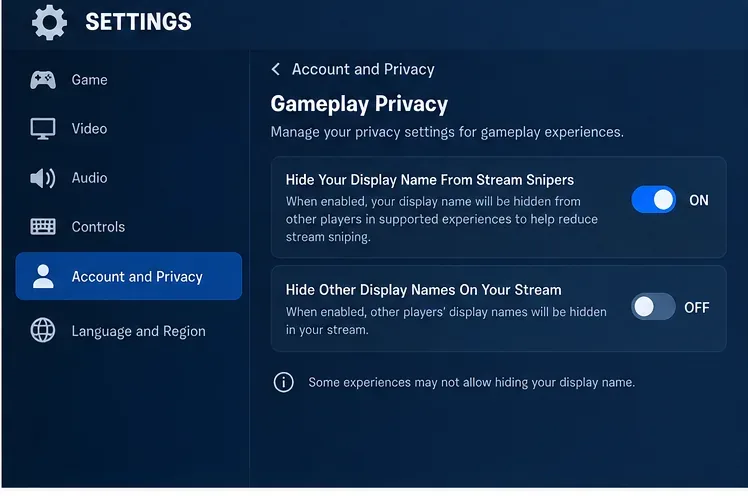
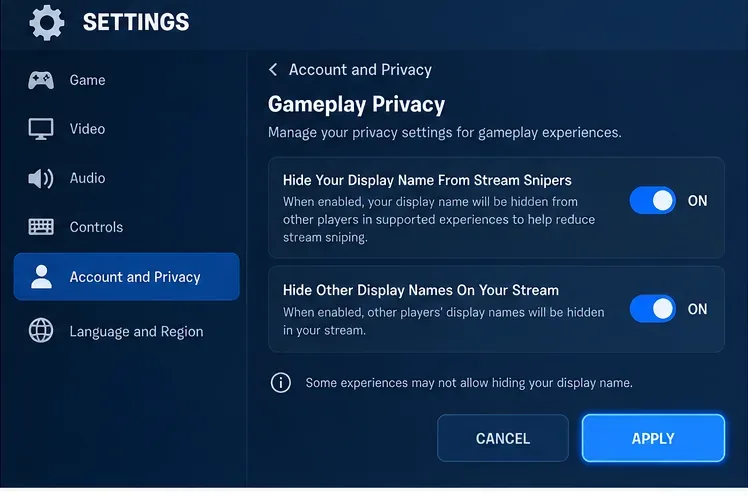
Choose Apply to save the setting. If you are streaming and also want other players' names concealed in your broadcast, you can turn on Hide Other Display Names On Your Stream before applying the changes.
Not exactly. This is where the wording of the question can be misleading. Epic's support page for HUD customization describes Game UI as the place to control general HUD elements such as health, minimap, ping information, reticle, ammo information, and damage feedback. Epic does not describe that menu as the place to toggle your account display name.
So if you are trying to remove a username label that appears in a specific location on your own screen, first identify what you are actually seeing:
Fortnite separates this from hiding your own name. Epic's stream-sniping support page says Hide Other Display Names On Your Stream can be enabled to conceal other players' display names in your stream. Epic also documents Hide Other Display Names During Regular Gameplay: when enabled, names of players who are not in your party or squad can be replaced with a generic player label.
This is useful if your goal is privacy in recorded clips, livestreams, or public gameplay footage. It is also worth checking the setting before assuming a missing player name is a bug: if you cannot see other players' display names, Epic specifically recommends checking Gameplay Privacy first.
The most important reason is that the setting has limits. Epic explicitly notes that some experiences do not allow players to hide their display name. Fortnite includes Battle Royale, creator-made islands, UEFN experiences, and other modes that can have different UI or nameplate rules.
There is also a difference between hiding a display name from ordinary presentation and removing the account identity from Fortnite's systems. Epic's older Anonymous Mode documentation made clear that account information could still be associated with player reports. In other words, privacy display settings should not be treated as a way to make an account untraceable to Epic's moderation or reporting systems.
If the setting appears to do nothing, try this sequence:
No. Changing a display name changes the name associated with your account; it does not replace the privacy toggle. Epic says its display name is the name shown when playing on PC, Nintendo, and mobile, while PlayStation and Xbox can show the platform account's gamertag instead. Epic also currently limits Epic Games display-name changes to once every two weeks.
If your objective is temporary privacy during gameplay or streaming, the Gameplay Privacy setting is the more direct tool. Changing your account name is a broader account-level action and can have different effects depending on the platform you use.
| Goal | Setting or area to check |
|---|---|
| Hide your own display name for streamer privacy | Account and Privacy > Gameplay Privacy > Hide Your Display Name From Stream Snipers |
| Hide other player names on a stream | Hide Other Display Names On Your Stream |
| Hide names of non-party/squad players in normal gameplay | Hide Other Display Names During Regular Gameplay |
| Hide or change minimap, health, reticle, ammo, or similar HUD elements | Settings > Game UI |
| Control nameplates in a creator-made island | May depend on the Creative/UEFN experience's own nameplate settings |
Epic's current instructions for streamer privacy are available in Epic Games Support: How can I stop Stream Snipers while playing Fortnite?. For the distinction between privacy controls and standard HUD controls, see Epic Games Support: How do I customize my HUD in Fortnite?. Epic also documents its broader privacy navigation in How can I manage my privacy settings in Fortnite?.
For display-name behavior across platforms, see Where can I find my Epic Games Display Name? and How to change your Epic Games display name.
To hide your username in Fortnite, go to Settings > Account and Privacy > Gameplay Privacy and enable Hide Your Display Name From Stream Snipers, then apply the change. Do not look for this control in the normal Game UI HUD menu. If your real goal is to hide other players' names, reduce HUD clutter, or remove nameplates in a creator-made experience, those are separate settings with different limitations.
Enable PUBG’s network statistics HUD to monitor ping and packet loss in a match. See where to find it, what the numbers mean, and what they cannot diagnose.
Learn how to import VALORANT crosshair codes, compare presets with manual settings and spectator copy, and fix common import issues.
Choose Dota 2 minimap size, hero icons, team colors, and background settings by readability, fewer misclicks, and clear results on your own display.
Fix Fortnite texture pop-in on PC with official steps for GPU drivers, file verification, DirectX 12, high-resolution textures, VRAM, SSDs, and stutter.
Learn what Heroes of the Storm minimap size and position options are verified, improve readability, and choose camera-click controls that suit you.
Set Super Smash Bros. Ultimate Quickplay to prefer hazards-off stages. Follow the Preferred Rules menu steps and learn why matchmaking may not always honor them.
Enable Server Latency and Packet Loss in Warzone to monitor connection quality, read the overlay, and use recurring spikes to guide troubleshooting.
Learn how to carry from mid lane in League of Legends by setting up waves, choosing safe roam windows, reading side lanes, and converting pressure into objectives.
Fix Minecraft Evoker spell problems with a safe vanilla test, version checks, log review, and a step-by-step way to isolate mod or datapack conflicts.
Fix PUBG stuck on Initializing on Steam with a focused checklist for PC service notices, launch options, game files, downloads, and connection issues.








