How to Check Real-Time Server Latency in the PUBG HUD

Enable PUBG’s network statistics HUD to monitor ping and packet loss in a match. See where to find it, what the numbers mean, and what they cannot diagnose.
To hide your Competitive stats in Overwatch 2, change Career Profile Visibility to Private. From the main menu, open Options, select Social, then choose Private in the Career Profile Visibility control. This limits access to your Career Profile; it does not hide your BattleTag or every rank and progression element shown elsewhere in the game.
The menu illustrations below show the labels to look for. Their spacing may vary by platform, localization, or client update, so follow the text in your current game if the layout looks different.
| Setting | Who can view your Career Profile | Use it when |
|---|---|---|
| Public | Players outside your friends list and group can view it. | You want other players to inspect your profile or progression. |
| Friends Only | Your Overwatch friends can view it. | You want to share stats with friends while limiting access from other players. |
| Groups Only | Players grouped with you can view it. | You want profile access limited to your current group. |
| Private | Your profile is hidden from other players. | You do not want other players to inspect your Competitive record or profile pages. |
For the narrowest visibility, use Private. If your goal is simply to stop strangers from browsing your rank history while keeping it available to teammates or friends, Friends Only or Groups Only may fit better. These options change who can open your profile; they do not delete match history or alter your Competitive rank.
From the Overwatch 2 main menu, open Options using the gear/menu control shown on your platform. If you are already in a match, you can open the pause menu and enter Options there. The visual cue below is the gear icon beside the Options label.
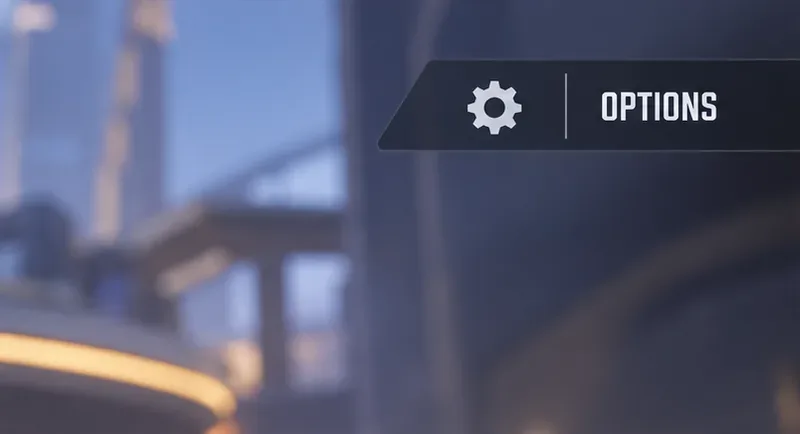
In Options, move to the Social tab. Blizzard has historically placed profile visibility among the Social settings, and current Overwatch privacy features are also grouped with social controls. The label should be visible in the tab row even if the rest of the screen differs from the illustration.
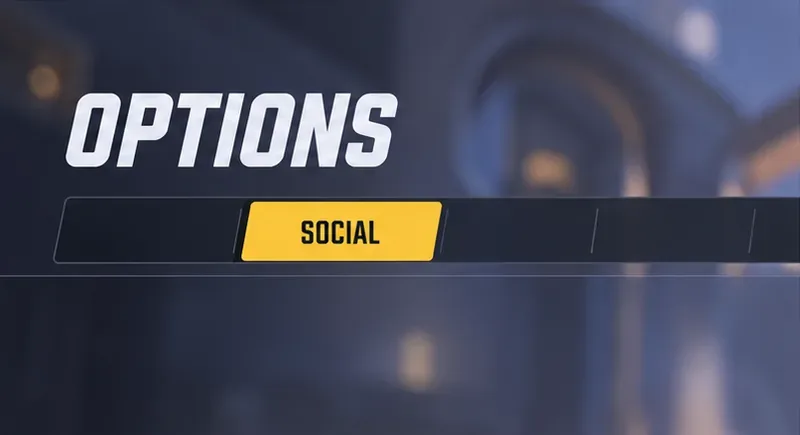
Find Career Profile Visibility, open its selector, and choose Private. If you prefer to share with a smaller audience rather than hide the profile from everyone else, select Friends Only or Groups Only instead. Check the displayed value after selection; do not assume the change was applied just because the menu opened.
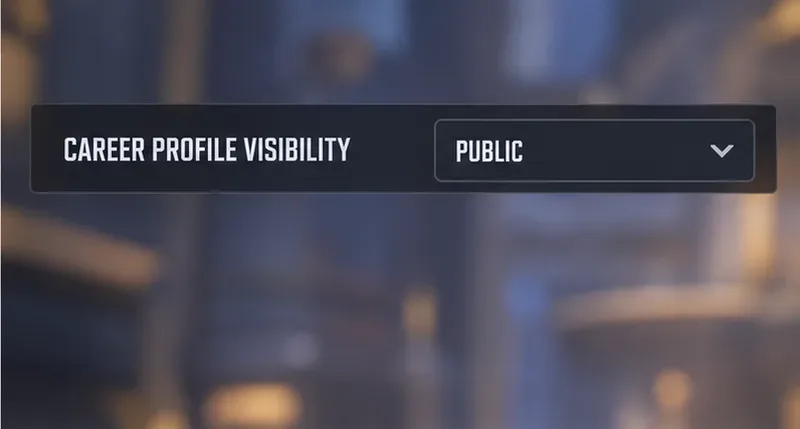
Back out of Options, reopen the Social tab, and confirm that the row still reads Private. To check what other players see, ask someone outside the allowed audience to look up your profile in-game. Depending on the client version, the game may hide the View Career Profile action or show that the profile cannot be viewed. If the setting reverts, change it again, restart the client, and check once more.
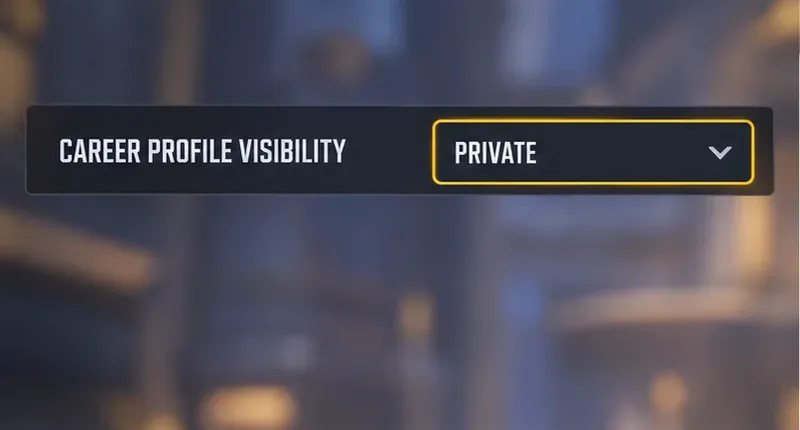
Career Profile Visibility controls whether other players can open your profile. That matters if you want to keep Competitive history, hero statistics, and progression pages from being browsed through your profile. Blizzard’s Player Progression announcement explains that badges and progression can be displayed in the Career Profile and that related display choices are managed through Social options. The current profile also contains newer progression features; Blizzard’s December 2025 patch notes, for example, added Challenger Score to the Career Profile.
Private does not make you anonymous in a match. Your BattleTag and your profile’s privacy are separate. If you want to obscure your name in lobbies, use the separate Hide My Name privacy feature. Blizzard says this substitutes a generated name for your BattleTag during the match, while actual BattleTags remain available through the Social Menu afterward. Your platform account name, voice, chat, and behavior are not made anonymous by setting the Career Profile to Private.
Also separate are the newer social privacy controls for leaderboards and live replays. Blizzard’s June 30, 2026 patch notes describe a Hide Leaderboard Live Replay option under Social → Privacy → Leaderboards for players on leaderboards. That control is about live replay access; it is not the same as hiding your Career Profile.
Blizzard introduced Career Profile visibility under Options → Social and has added newer profile and privacy features since then. The exact menu grouping can shift as the client changes, but the key setting remains the one labeled Career Profile Visibility. For current information on profile progression and related privacy tools, consult Blizzard’s Player Progression overview, its Hide My Name announcement, and the June 30, 2026 patch notes. The underlying interface may change in future updates, so verify the setting inside your current client.
Enable PUBG’s network statistics HUD to monitor ping and packet loss in a match. See where to find it, what the numbers mean, and what they cannot diagnose.
Learn how to import VALORANT crosshair codes, compare presets with manual settings and spectator copy, and fix common import issues.
Choose Dota 2 minimap size, hero icons, team colors, and background settings by readability, fewer misclicks, and clear results on your own display.
Fix Fortnite texture pop-in on PC with official steps for GPU drivers, file verification, DirectX 12, high-resolution textures, VRAM, SSDs, and stutter.
Learn what Heroes of the Storm minimap size and position options are verified, improve readability, and choose camera-click controls that suit you.
Set Super Smash Bros. Ultimate Quickplay to prefer hazards-off stages. Follow the Preferred Rules menu steps and learn why matchmaking may not always honor them.
Enable Server Latency and Packet Loss in Warzone to monitor connection quality, read the overlay, and use recurring spikes to guide troubleshooting.
Learn how to carry from mid lane in League of Legends by setting up waves, choosing safe roam windows, reading side lanes, and converting pressure into objectives.
Fix Minecraft Evoker spell problems with a safe vanilla test, version checks, log review, and a step-by-step way to isolate mod or datapack conflicts.
Fix PUBG stuck on Initializing on Steam with a focused checklist for PC service notices, launch options, game files, downloads, and connection issues.








