How to Check Real-Time Server Latency in the PUBG HUD

Enable PUBG’s network statistics HUD to monitor ping and packet loss in a match. See where to find it, what the numbers mean, and what they cannot diagnose.
Warzone packet-burst stuttering can look like a graphics problem: your character freezes briefly, skips ahead, or seems to respond late. The useful first question is whether the game is losing connection quality or whether the PC is dropping frames. A packet-burst warning is a clue, not a diagnosis. Server status, ping, local network congestion, Wi-Fi interference, and PC performance can all affect how smooth a match feels.
Work through the checks below in order and test after each meaningful change. A good result is fewer or no packet-burst warnings during comparable matches, less rubber-banding, and normal responsiveness. There is no single setting that can guarantee this: a server or internet route outside your home can still be the cause.
Watch what happens at the same time as the hitch. Rubber-banding, delayed hit registration, or a network warning appearing with the freeze points toward a connection problem. If the game image hitches but your movement and other players do not snap or lag, and the network indicators remain steady, investigate frame rate, shader loading, or graphics performance instead.
If the current Warzone interface offers latency or packet-loss telemetry, turn it on temporarily and observe several matches. Menu names and available indicators can change between updates, so use the options that actually appear in your version. Compare the readout during a smooth moment and during a hitch; one brief spike is not enough to identify the source. A speed test can show whether your connection has usable bandwidth, but a high download result alone does not prove the route to a game server is stable.
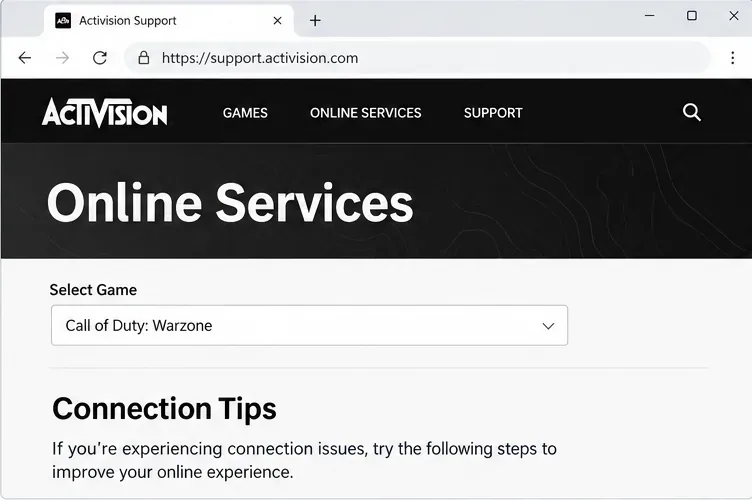
Before changing router settings, check Activision Online Services and select Call of Duty: Warzone. Also check the network status for the platform or launcher you use, such as Steam, Battle.net, or Xbox on PC. Activision’s connection guidance recommends checking game service status first; if an outage or alert is posted, local PC tweaks are unlikely to resolve it.
If the status is clear, fully exit Warzone and its launcher, reopen them, and check for a game update. Activision’s current Call of Duty patch notes and Warzone known-issues page can help you see whether a recent update or active issue is relevant. Status pages do not always report every brief or region-specific interruption, so repeat the check if symptoms change.
Activision recommends wired Ethernet for online play because Wi-Fi reliability and bandwidth can vary. If your PC is on Wi-Fi, connect it to the router with an Ethernet cable if practical, then test the same mode again. Do not change several router settings at once; a direct comparison between Wi-Fi and wired play is more useful.
If Ethernet is not available, move closer to the router and reduce obstacles between the PC and access point. Pause large downloads, cloud backups, video streams, and other bandwidth-heavy activity on your PC and home network for one test session. Activision notes that sharing a connection, streaming, and downloads can consume capacity needed by gameplay. These changes may reduce congestion, but they cannot repair packet loss occurring farther along the ISP route or on a game service.
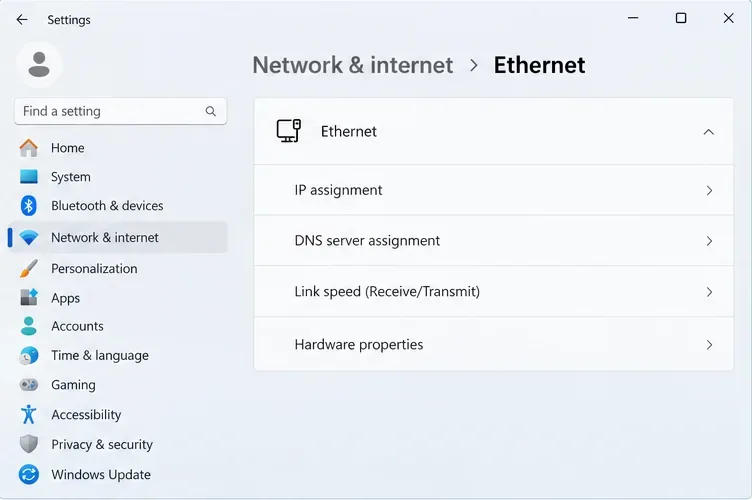
Check that the Ethernet cable is firmly connected at both ends and, if possible, try another cable or router port. Microsoft’s Ethernet troubleshooting guide recommends checking both connectors and swapping a cable if another is available. In Windows 11, you can view the connection under Settings > Network & internet > Ethernet. The exact page layout can differ by Windows version.
Save any active work, close the game, and restart the router using its normal power procedure. If you have a separate modem, restart it according to your ISP’s instructions, then wait for the internet connection to return before launching Warzone. Activision lists restarting the router as a basic connection check. Avoid pressing a factory-reset button: it can erase the router’s configuration and is not the same as a restart.
After the network is back, launch the game and test a comparable mode or session. If a restart helps only briefly, or every device on the home network becomes slow at the same time, the cause may be the router, line, or ISP. If only Warzone is affected, note the time, mode, platform, and any in-game connection indicators before contacting support.
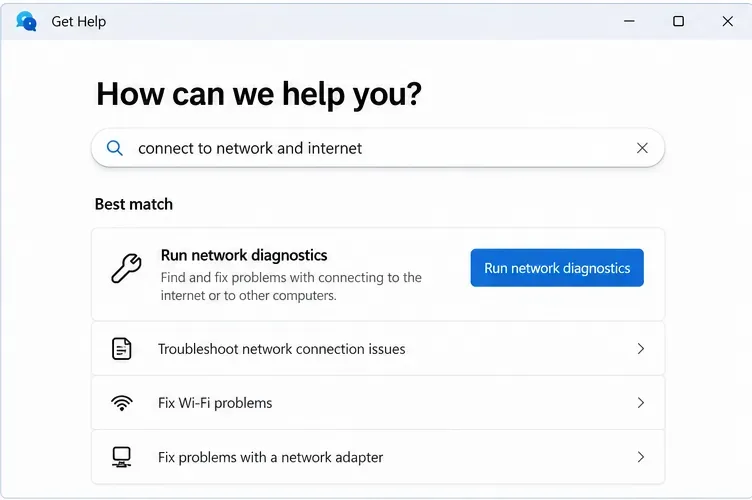
If the issue continues, use Windows’ built-in network troubleshooter instead of installing an unverified “lag fixer.” On Windows 11, open the Get Help app and search for connect to network and internet, then run the network diagnostics it offers. Follow the prompts, restart the PC if Windows requests it, and test Warzone again. Microsoft explains this flow in its Windows troubleshooters guide.
If Windows reports a network-adapter problem, install driver updates through Windows Update or the PC or adapter manufacturer’s official support page. Avoid third-party driver-updater utilities. If the game hitch occurs without network warnings and other games run smoothly, check Activision’s Warzone PC troubleshooting page for current Windows, graphics-driver, and shader-preloading advice. That page was updated March 11, 2026 when checked for this article; use its current version rather than relying on old driver numbers.
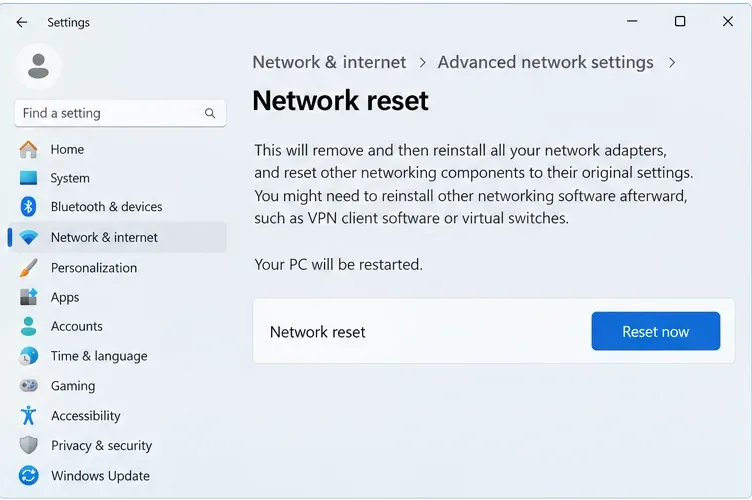
Windows 11 has a Network reset option under Settings > Network & internet > Advanced network settings. Microsoft says this removes installed network adapters and reinstalls them with default settings after the PC restarts. It can also mean reinstalling or configuring VPN software and virtual switches again. Try the less disruptive checks first, save any connection details you need, and use Network reset only when the adapter or Windows network configuration still appears to be the problem.
After the reset, reconnect to your network, restore any required VPN or virtual-switch setup, and test Warzone before making more changes. If the stutter remains and the game still shows connection warnings, undo any optional network changes you made and ask your ISP to check for line or routing problems. If other players or the service-status page point to a Warzone-side issue, report it to Activision and wait for service updates rather than repeatedly resetting Windows.
If wired play and reduced household traffic improve Warzone, keep those changes and test before adjusting anything else. If every device is affected, contact your ISP. If only Warzone is affected despite stable local connectivity, check Activision’s service and known-issue pages and submit a support report with the time and symptoms. If the network indicators stay stable while frame rate drops, switch to PC-performance troubleshooting: packet-burst fixes cannot resolve a GPU, shader, or frame-time problem.
Enable PUBG’s network statistics HUD to monitor ping and packet loss in a match. See where to find it, what the numbers mean, and what they cannot diagnose.
Learn how to import VALORANT crosshair codes, compare presets with manual settings and spectator copy, and fix common import issues.
Choose Dota 2 minimap size, hero icons, team colors, and background settings by readability, fewer misclicks, and clear results on your own display.
Fix Fortnite texture pop-in on PC with official steps for GPU drivers, file verification, DirectX 12, high-resolution textures, VRAM, SSDs, and stutter.
Learn what Heroes of the Storm minimap size and position options are verified, improve readability, and choose camera-click controls that suit you.
Set Super Smash Bros. Ultimate Quickplay to prefer hazards-off stages. Follow the Preferred Rules menu steps and learn why matchmaking may not always honor them.
Enable Server Latency and Packet Loss in Warzone to monitor connection quality, read the overlay, and use recurring spikes to guide troubleshooting.
Learn how to carry from mid lane in League of Legends by setting up waves, choosing safe roam windows, reading side lanes, and converting pressure into objectives.
Fix Minecraft Evoker spell problems with a safe vanilla test, version checks, log review, and a step-by-step way to isolate mod or datapack conflicts.
Fix PUBG stuck on Initializing on Steam with a focused checklist for PC service notices, launch options, game files, downloads, and connection issues.








