How to Check Real-Time Server Latency in the PUBG HUD

Enable PUBG’s network statistics HUD to monitor ping and packet loss in a match. See where to find it, what the numbers mean, and what they cannot diagnose.
If VALORANT opens but never moves past its loading screen, first check whether Riot is reporting an outage. If services are working, work through the steps below in order and test the game after each change. Riot’s dedicated loading-screen guidance, updated September 21, 2026, recommends restarting the PC, performing a clean boot, checking the firewall, and troubleshooting the connection before contacting Player Support.
This guide is for the Windows PC version. A loading spinner by itself does not identify the cause: the client may be waiting on a service, a network response, a background program, or a local game component. If the screen shows a specific VAN code, write it down and use Riot’s launch-error guide or Vanguard error lookup for that code.
Record what you can see: whether the Riot Client opens, whether the game window appears, whether the loading animation moves, and whether an error code or message appears. This small distinction helps you describe the fault accurately if you need a support ticket. Avoid repeatedly reinstalling the game before checking the service and basic connection.
Open the Riot Games Service Status page and select VALORANT and your region. Look for an incident or scheduled maintenance affecting login, game services, or the platform. If Riot reports an active issue, local changes to your PC are unlikely to clear a server-side problem; wait for the incident to be resolved and check the status page again.
A green status page is useful, but it cannot rule out every brief or region-specific issue. If there is no listed incident, continue with local troubleshooting.
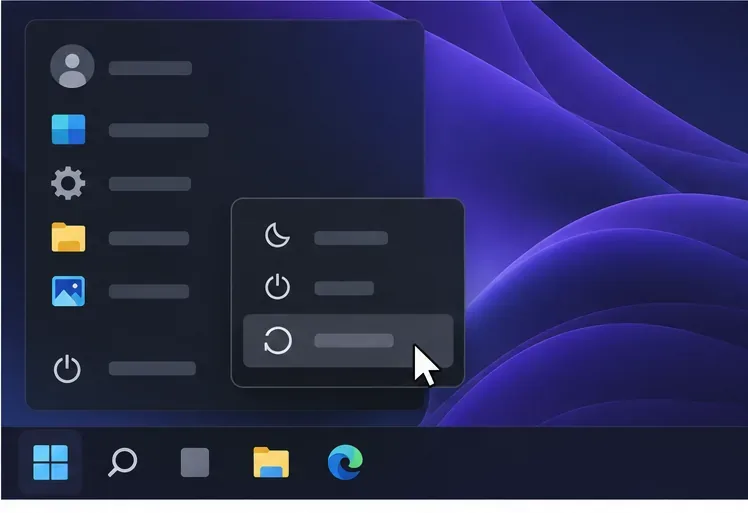
Close VALORANT and the Riot Client. If the client remains in the Windows system tray, right-click its icon and choose Exit. Then restart Windows from the Start menu. A restart clears temporary processes and is Riot’s first recommended fix for an infinite loading screen.
After Windows returns, open the Riot Client normally, allow any pending update to finish, and launch VALORANT once. Don’t repeatedly click Play while the first launch is still working; doing so can leave multiple processes open and make it harder to tell whether the restart helped.
If the problem began after a game or system update, check Windows Update and install pending updates, then restart if Windows asks. Riot’s PC connection guidance also recommends keeping Windows current. If the game window is black, crashes during startup, or the issue began after a graphics update, check the current driver from your GPU maker: NVIDIA, AMD, or Intel. Use the manufacturer’s official update utility or support page for your model; Riot’s graphics-driver guide explains how to identify the card and find its vendor’s update page.
A graphics-driver update is not a guaranteed fix for every loading screen. Make one change at a time and test again. Avoid third-party “driver updater” downloads, and do not uninstall a working driver unless a Riot or GPU-maker guide specifically calls for a clean reinstall.
A clean boot starts Windows with nonessential startup services disabled so you can see whether another program is interfering. Riot’s current guide says to press Windows + R, enter msconfig, open the Services tab, check Hide all Microsoft services, choose Disable all, re-enable the vgc service, and apply the change before restarting.
Try VALORANT once in that state. If it loads, a background service is a likely factor. Re-enable services in small groups to find the conflict, paying attention to overlays, hardware monitoring tools, VPN/network utilities, and third-party security software. When finished, return Windows to normal startup using Microsoft’s reset instructions. Follow Riot’s clean-boot instructions carefully; keep Hide all Microsoft services selected before disabling services.
First, if you use a VPN or proxy, disconnect it and try again. Riot says these can cause connection issues. If possible, test once over Ethernet; a wired connection removes Wi-Fi interference as one variable. Restarting the router can also help if other services are struggling, but it will briefly disconnect everyone using it.
Next, confirm that the firewall or security software allows VALORANT, the Riot Client, and Vanguard to communicate. Prefer adding the official Riot executables to the firewall’s allowed-app list over turning protection off. Riot’s firewall guide lists the current program paths and cautions that a firewall should be disabled only for troubleshooting; if you briefly disable one to test, turn it back on immediately afterward. If the issue continues, use Riot’s PC connection guide for DNS and adapter steps rather than changing several network settings at once.
One useful comparison is to try another trusted network, such as a phone hotspot, only long enough to test the login screen. If VALORANT loads there but not on your usual network, that points toward the router, DNS, firewall, or ISP path; it does not prove which one is responsible.
Vanguard is Riot’s anti-cheat software. If you see a VAN error, Vanguard fails to start, or the earlier steps do not help, reinstalling Vanguard is a reasonable next test. Close Riot games and the Riot Client, uninstall Riot Vanguard from Windows Installed apps, and restart the PC. Then open the Riot Client and follow its prompt to reinstall Vanguard; restart again if requested.
Do not remove random folders or run manual service-deletion commands as a first fix. Riot’s Vanguard instructions include advanced manual removal for specific cases. Use those only if the standard uninstall fails and you understand the steps. Reinstalling Vanguard may require a restart before VALORANT can launch.
Use Riot Client’s built-in repair tool before reinstalling: sign in, open your profile menu, choose Settings, select VALORANT, and click Repair. This tool can repair missing or corrupted files. If repair fails and the loading screen persists, follow Riot’s official uninstall-and-reinstall guide. Reinstallation can take time and uses additional bandwidth, so save it for a persistent issue after checking service status, restarting, background programs, firewall, and connection.
Do not delete AppData or Riot folders just because a loading screen is stuck. Riot’s clean-uninstall steps remove local game data, and some folders may contain settings or other Riot Client files. Follow the exact procedure for VALORANT in Riot’s reinstall guide if you reach this stage.
If VALORANT still will not pass the loading screen, submit a ticket through Riot Support. Include your Windows version, region, when the issue started, the last screen you see, any error code, and which steps you tested. Say whether the result changed after a restart, clean boot, Ethernet connection, or another network.
If Support asks for logs, use the Riot Repair Tool and attach its ZIP file, or follow Riot’s VALORANT log instructions. Don’t post account credentials or authentication codes in a ticket or public forum.
After each step, launch from the Riot Client and check whether the game reaches the main menu without returning to the same loading screen. If it gets farther but then shows an error, record the exact message and switch to the troubleshooting page for that code. If the same screen remains, undo temporary changes such as firewall or clean-boot settings before moving on, then continue to the next step. This gives Support a clear record and avoids leaving security or startup settings altered after the test.
Riot’s current infinite-loading instructions focus on restart, clean boot, firewall, network troubleshooting, and a support ticket with logs. If your symptoms include a specific error or began after a particular patch, use the matching official article because the correct fix can depend on that detail.
Enable PUBG’s network statistics HUD to monitor ping and packet loss in a match. See where to find it, what the numbers mean, and what they cannot diagnose.
Learn how to import VALORANT crosshair codes, compare presets with manual settings and spectator copy, and fix common import issues.
Choose Dota 2 minimap size, hero icons, team colors, and background settings by readability, fewer misclicks, and clear results on your own display.
Fix Fortnite texture pop-in on PC with official steps for GPU drivers, file verification, DirectX 12, high-resolution textures, VRAM, SSDs, and stutter.
Learn what Heroes of the Storm minimap size and position options are verified, improve readability, and choose camera-click controls that suit you.
Set Super Smash Bros. Ultimate Quickplay to prefer hazards-off stages. Follow the Preferred Rules menu steps and learn why matchmaking may not always honor them.
Enable Server Latency and Packet Loss in Warzone to monitor connection quality, read the overlay, and use recurring spikes to guide troubleshooting.
Learn how to carry from mid lane in League of Legends by setting up waves, choosing safe roam windows, reading side lanes, and converting pressure into objectives.
Fix Minecraft Evoker spell problems with a safe vanilla test, version checks, log review, and a step-by-step way to isolate mod or datapack conflicts.
Fix PUBG stuck on Initializing on Steam with a focused checklist for PC service notices, launch options, game files, downloads, and connection issues.








