How to Fix Valorant Lag & High Ping (2026 Guide)
If VALORANT lag shows up as a rising ping number, packet loss, or rubber-banding, start with your server and network. If the game looks choppy while ping stays steady, focus on FPS and PC performance. Work through the six checks below in order, changing one thing at a time so you can tell what helped. Lowering graphics can improve frame rate, but it cannot reduce network ping.
First, identify the kind of lag
Open VALORANT's in-game stats under Settings > Video > Stats and temporarily show Client FPS, network round-trip time, and packet loss if those options are hidden. Compare the numbers while the problem is happening:
- High or unstable ping: your PC's route to the game server is delayed or fluctuating.
- Packet loss: some game traffic is not reaching its destination reliably; Wi-Fi interference, congestion, or a network route can be involved.
- Low or dropping FPS: the PC is struggling to render frames. This is a performance issue, not high ping.
- Brief freezes or stutters: note whether FPS or ping changes at the same moment. A steady ping with a hitch points away from the network.
Riot separates high-latency symptoms from low frame rate and stuttering in its PC connection troubleshooting guide. A short Practice Range or custom-game check is useful for comparing changes without disrupting a ranked match.
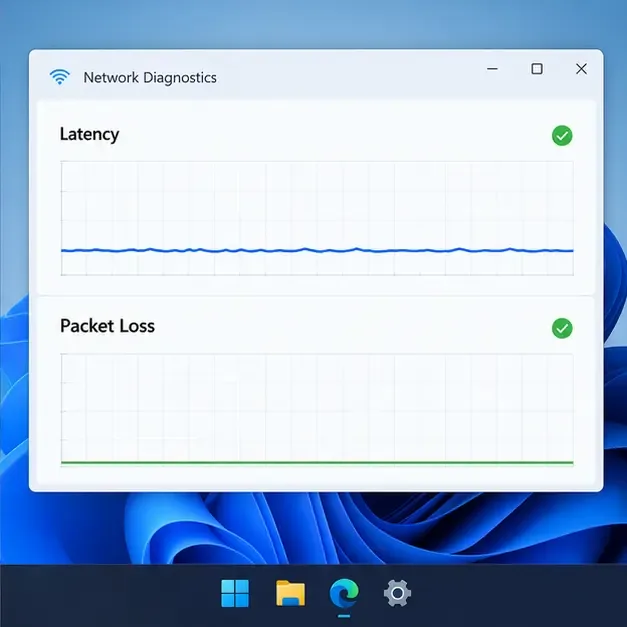
Six ways to fix VALORANT lag and high ping
Step 1: Check Riot service status and your connection symptoms
Before changing Windows settings, check the Riot Games Service Status page and choose VALORANT and the region you play in. If Riot reports an active incident, local tweaks will not repair the affected service; wait for the incident to clear and test again.
If every device in your home is slow or dropping its connection, investigate the router or contact your internet provider. If only VALORANT is affected, continue with the server and game-specific checks below. Write down your usual ping, whether packet loss appears, and whether the issue happens at a particular time.
Step 2: Pick the best available VALORANT datacenter
In the lobby, open the server selector and compare the ping shown for the available datacenters. Choose the lowest stable reading, not simply the server that looks closest on a map. The list is limited to your account's shard; Riot says you cannot use this control to change shards. You can select a server when playing solo or when you are the party leader.
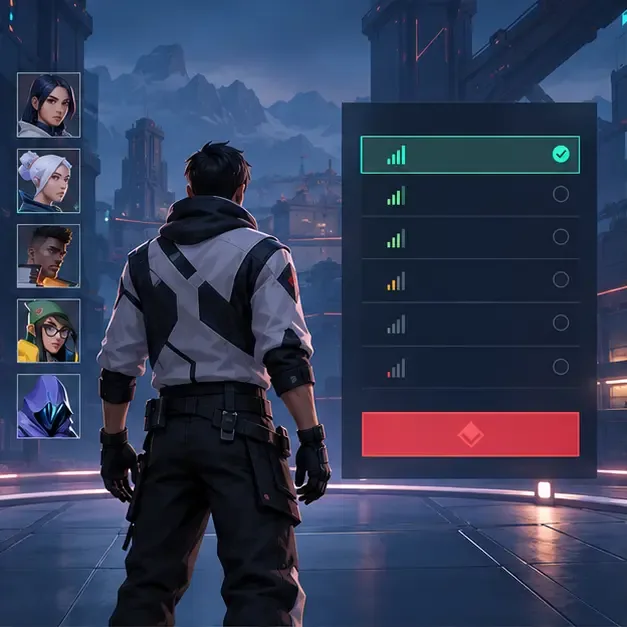
Riot's Server Select guide explains who can change servers and why selecting a datacenter does not change your shard.
Step 3: Stabilize your home network
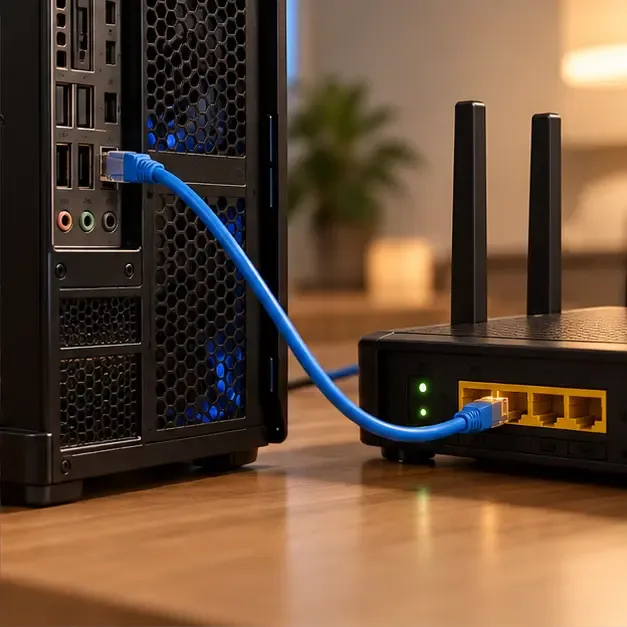
If you are on Wi-Fi, connect your PC directly to the router or modem with Ethernet and test another match. A wired connection removes wireless distance and interference from the PC-to-router link. Check both ends of the cable if the connection remains unstable.
If Ethernet is not practical, move closer to the router, keep it in an open location, and try the less congested Wi-Fi band supported by your router and PC. A 5 GHz connection can be useful nearby, but its signal may weaken faster through walls than 2.4 GHz. Pause large downloads, cloud backups, video streams, and game updates on devices sharing the connection while you test.
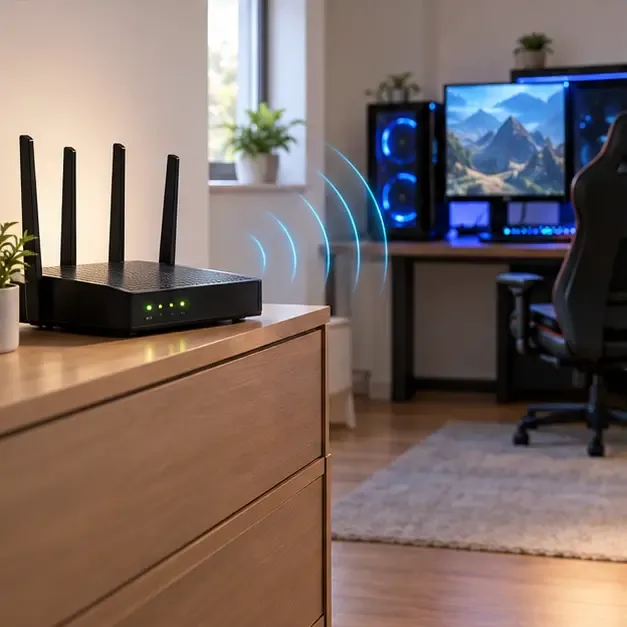
If the connection still spikes, power off the modem and router for at least 30 seconds, turn them back on, wait for service to return, and test again. Riot lists wired networking, reducing other network activity, and power-cycling the modem and router among its basic connection checks; none guarantees a specific ping reduction.
Step 4: Remove VPN, proxy, or Windows network problems
Temporarily disconnect from a VPN or proxy and compare the same server again. These services can add another network route or interfere with connectivity, so Riot recommends turning them off while diagnosing high latency. If you must use one, keep it only if your own repeat test shows a more stable result.
For connection trouble beyond VALORANT, run the Windows network troubleshooter and make sure Windows and your router firmware are current. Riot also lists resetting TCP/IP and testing a public DNS provider as later troubleshooting options. Use them only when simpler steps fail or when you have broader connection or name-resolution problems; DNS changes are not a reliable way to lower ping in an active match. Record custom network settings first and restore them if the connection gets worse. Do not disable IPv6, turn off the firewall, or change network-adapter offload options as a generic gaming tweak. If you suspect the firewall, confirm that the Riot Client and VALORANT are allowed rather than disabling protection.
See Riot's current connection troubleshooting steps for the supported order and its links to network reset, DNS, and firewall instructions.
Step 5: Fix low FPS and frame-time drops
If ping is steady but FPS drops, open Settings > Video > Graphics Quality and lower demanding quality settings a few at a time. Test a match or Practice Range after each change; do not assume every PC needs every option set to Low. Lower settings can make frame delivery smoother on a system that is GPU- or CPU-limited, but they do not fix high ping.
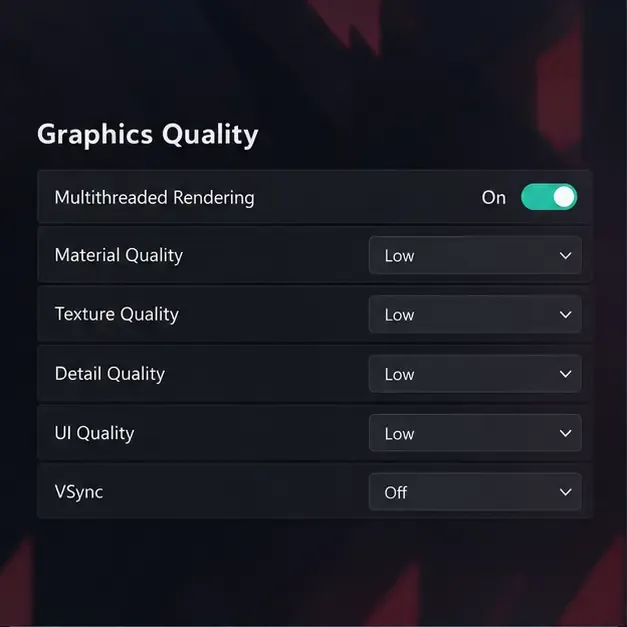
VSync controls how frames are presented to the display, not the network route. Turning it off can avoid an FPS cap but may introduce visible tearing; compare both settings if tearing or responsiveness is bothering you. Riot's refresh-rate and VSync guide explains the trade-off.
Check that your PC meets Riot's current VALORANT system requirements, then update the graphics driver using the official utility or support page for NVIDIA, AMD, or Intel. Avoid third-party driver-download sites. Riot's graphics driver instructions show how to identify the GPU and find the manufacturer's updater.
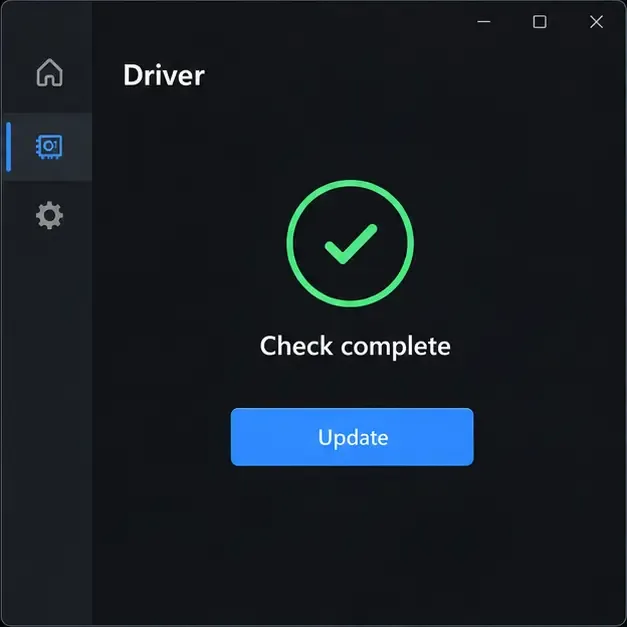
On a higher-spec PC, Riot says Multithreaded Rendering can improve CPU performance and graphics quality. The option is under Settings > Video > Graphics Quality; check Riot's hardware guidance before toggling it.
Step 6: Close competing apps and check the active GPU
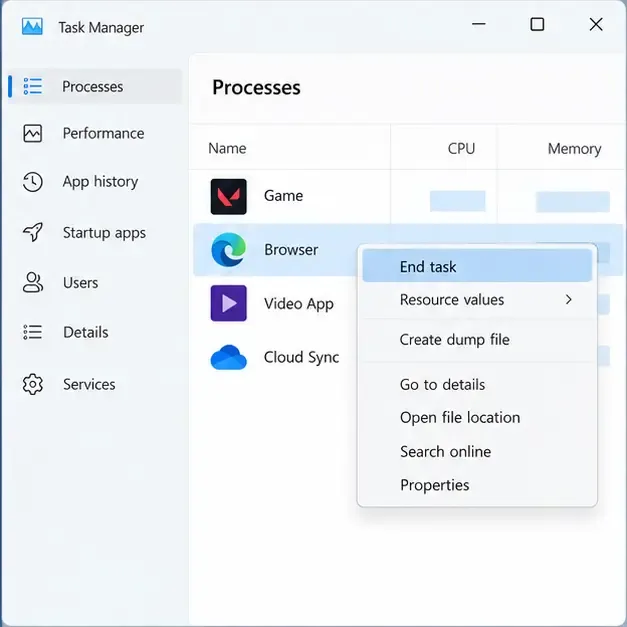
Open Task Manager with Ctrl + Shift + Esc and sort by CPU, memory, GPU, or network use. Close only apps you recognize and do not need during the match, such as a browser stream, recording utility, cloud sync, or an overlay that is causing trouble. Leave Windows services, antivirus protection, and unfamiliar processes alone. A clean boot is a later diagnostic if the problem appears only when certain background software is running.
On a laptop with integrated and discrete graphics, check whether VALORANT is assigned to the intended GPU. In Windows 11, open Settings > System > Display > Graphics, choose the game, then select High performance if Windows assigned it to the power-saving GPU. This setting affects rendering performance, not ping, and may not appear on every PC.
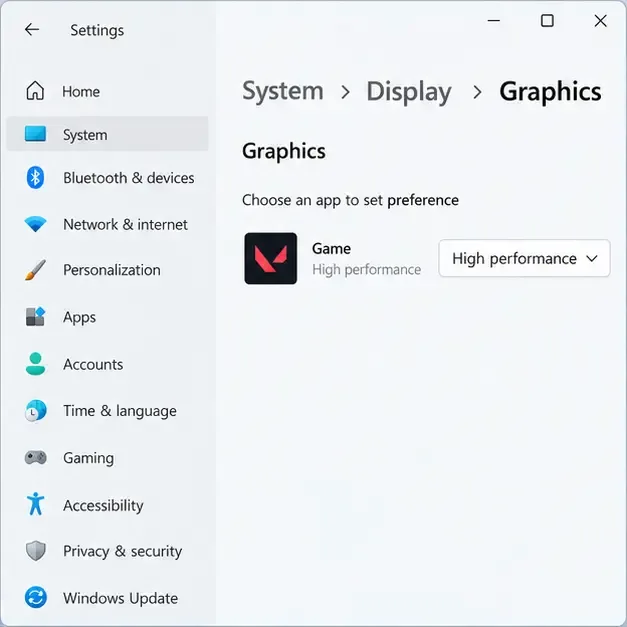
Microsoft documents this per-app preference under Display > Graphics in Windows 11 graphics settings. Also check that laptop vents are clear and the device is not running on a restrictive battery mode if performance declines after it heats up or unplugged.
Quick diagnosis: which fix should you try?
| What you notice | Start here |
|---|---|
| Ping is high but FPS is steady | Check Riot status, compare datacenters, test Ethernet, then review VPN and ISP routing. |
| Ping or packet loss jumps during play | Pause shared downloads, improve the Wi-Fi link or use Ethernet, and restart the modem/router. |
| Ping is stable but the game looks choppy | Lower graphics settings, update the GPU driver, and close resource-heavy apps. |
| Only VALORANT has connection problems | Check the server selector and firewall permissions, then follow Riot's connection guide. |
| Every device or game is affected | Check the router/modem and ask your ISP to investigate the connection. |
Frequently asked questions
Does lowering graphics settings reduce VALORANT ping?
No. Lower graphics can improve FPS and frame consistency when the PC is struggling to render the game. Ping measures network delay to the server, so troubleshoot the datacenter, Wi-Fi/Ethernet link, VPN, and ISP route for high latency.
Should I use a VPN to get lower ping?
Test VALORANT with the VPN off first. Riot notes that VPNs and proxies can cause connection problems. A VPN is not a standard ping fix; only keep it if repeated comparisons show it improves your route without adding instability.
What if VALORANT still lags after these steps?
Note your datacenter, time of day, ping and packet-loss readings, whether FPS also drops, and whether other devices are affected. If the issue persists, submit a ticket through VALORANT Player Support. Attach logs if support requests them; Riot's log collection guide explains how.









