How to Check Real-Time Server Latency in the PUBG HUD

Enable PUBG’s network statistics HUD to monitor ping and packet loss in a match. See where to find it, what the numbers mean, and what they cannot diagnose.
You find a ranked match, accept the confirmation, and then TEKKEN 8 drops back to the menu with a network message—or closes with “The UE-Polaris Game has crashed and will close.” These symptoms can happen at the same point in matchmaking, but they do not automatically have the same cause. The fastest way to troubleshoot is to check whether the game actually crashed, rule out a current update or maintenance issue, test the connection, and then repair the PC installation if the crash is specific to Steam.
Important distinction: “UE-Polaris” is associated with TEKKEN 8’s PC game process. If Windows shows a fatal error and closes the game, treat it as a client crash that happened during matchmaking. If the game stays open but says it could not connect to an opponent or server, start with the online service and network checks. Network steps alone will not repair damaged game files, and verifying files will not resolve scheduled maintenance.
Write down the exact wording and what happened immediately before it appeared. Did the game close to the desktop, freeze, or remain open at the title screen? Did the error appear before a match was found, after you accepted the match, or while the opponent’s stage was loading? Those details help separate a Polaris fatal error from a declined connection, a matchmaking timeout, or an online-service interruption.
Check TEKKEN’s official news for update and maintenance announcements. As of October 7, 2026, the latest official update notice I could verify was Ver. 3.02.02, dated September 10, 2026. It fixed, among other items, a case where the left stick could not operate the match-confirmation dialog. The notice does not say that it fixes every Polaris crash or general matchmaking failure. During announced maintenance, online content is unavailable, so wait until the posted window is over before changing your PC or router.
There is also a separate matchmaking behavior to know about: Ver. 3.02.01 says that if the match-found confirmation dialog closes without a Yes or No selection, matchmaking pauses. If you are not seeing a crash or network error, return to the automatically opened dialog or close the Practice Menu as the notice describes. Do not confuse a paused search with Polaris.
Exit TEKKEN 8 fully, restart Steam or the console, and install any pending game or system update. Make sure every player in a cross-platform session is on a compatible current game version. Then relaunch TEKKEN 8 and try one match. Avoid launching multiple matchmaking attempts in quick succession while the game is still reconnecting.
If you are on PC and the error only happens when accepting a match, try a short offline session first. If offline play also crashes, a general client or graphics stability problem becomes more likely. If offline play is stable and only online matchmaking fails without closing the game, focus next on the network and online-service path. This comparison narrows the possibilities, but it cannot identify a server-side or account-side problem by itself.
Check the game’s official notices again if the problem started right after an update. Bandai Namco sometimes publishes fixes specifically for matchmaking dialogs, but a change to a confirmation dialog should not be assumed to resolve an unrelated Polaris fatal error.
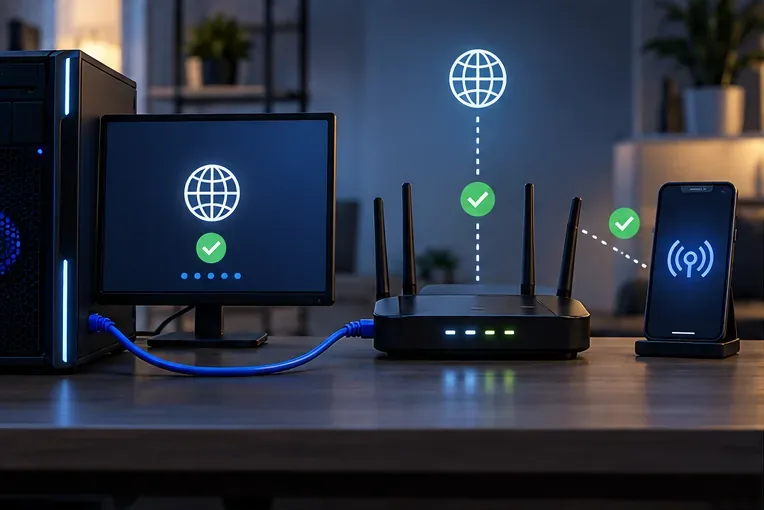
On PC, connect directly to the router with Ethernet if possible. If you already use Ethernet, try Wi-Fi briefly; on a console, compare the current connection with another trusted network only if it is practical. Restart the modem and router using the manufacturer’s normal instructions, then restart the game. Pause large downloads or streams for the test so they do not compete with the match connection.
If matchmaking works on one connection but not another, the difference points toward the router, ISP route, Wi-Fi quality, or a network filter. It is evidence about the connection path, not proof that a particular port or DNS setting is wrong. Do not copy random port-forwarding lists or factory-reset a router as a first response. Keep any test changes reversible.
If you use a VPN, proxy, packet filter, or network-level ad blocker, temporarily test without it and restore it afterward. Do not leave security software or the firewall disabled. On Windows, check whether your security product has blocked the legitimate TEKKEN 8 process; if so, use the product’s instructions to allow the specific game app. Avoid creating broad exclusions or opening inbound ports unless Bandai Namco or the software maker gives platform-specific instructions.
For a console connection-only error, also check the platform’s own network test and service status. A console will not display the PC process name “Polaris-Win64-Shipping.exe,” so if the game stays open and only matchmaking fails, troubleshoot it as a network or online-service issue rather than applying Steam file steps.
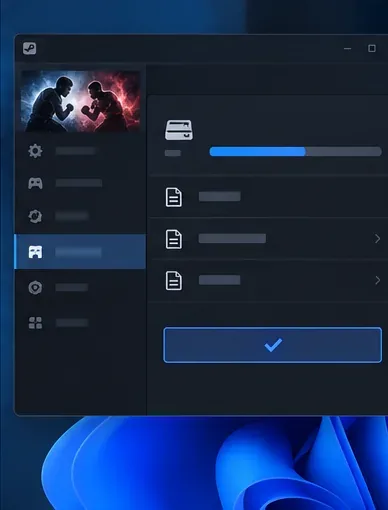
If the exact UE-Polaris fatal error closes the Steam version, verify the installed files before reinstalling. In Steam, open Library, right-click TEKKEN 8, choose Properties, select Installed Files, and choose Verify integrity of game files. Steam checks the local installation and replaces files that need repair. Steam notes that some files can fail verification normally because they are local configuration files; a small number of such files is not by itself proof that verification failed.
After verification, restart the PC and test again. If the crash continues, temporarily remove mods and disable overlays or tuning utilities one at a time, then retest. This controlled approach helps identify a conflict without making several unrelated changes at once. Avoid editing the registry, deleting arbitrary folders from the game directory, or changing BIOS CPU features based on community anecdotes; these can create new problems and are not established universal fixes.
Review Windows Security or your antivirus quarantine if the Polaris executable is reported as blocked. Only allow a file that belongs to your legitimate Steam installation, and prefer a narrow application permission over disabling protection or opening a network port. Microsoft explains that allowing a specific app is generally safer than opening a port, and Steam’s support page documents the file verification procedure.
Contact Bandai Namco support if the error persists after the appropriate checks, especially if the same failure occurs on more than one connection or the game repeatedly closes with a Polaris fatal error. Include your platform, game version, Windows build if relevant, CPU and GPU, driver versions, the exact error text, when it occurs, and whether offline play or another network changes the result. A short video or a screenshot of the error can help. Do not post account passwords, payment information, or private login tokens in a public forum.
For a Steam file or client issue, Steam Support can also help with file verification and the platform installation. For an online service issue, use TEKKEN’s official news and Bandai Namco’s support portal rather than relying on a workaround posted for a different patch or hardware configuration.
After each change, repeat the same short test: launch the current game version, enter the same matchmaking mode, accept one match, and note whether the error appears before or after the confirmation screen. A successful result means the game remains open, the match loads, and you can finish the match without the Polaris dialog or network failure. If one network works and another does not, keep that result in your support request. If file verification stops the crash but matchmaking still fails, continue with the network and service checks instead of repeating the file repair.
These steps can isolate common client and connection causes, but they cannot guarantee a fix for a current server issue, an account-specific problem, or a game defect that requires a patch.
Enable PUBG’s network statistics HUD to monitor ping and packet loss in a match. See where to find it, what the numbers mean, and what they cannot diagnose.
Learn how to import VALORANT crosshair codes, compare presets with manual settings and spectator copy, and fix common import issues.
Choose Dota 2 minimap size, hero icons, team colors, and background settings by readability, fewer misclicks, and clear results on your own display.
Fix Fortnite texture pop-in on PC with official steps for GPU drivers, file verification, DirectX 12, high-resolution textures, VRAM, SSDs, and stutter.
Learn what Heroes of the Storm minimap size and position options are verified, improve readability, and choose camera-click controls that suit you.
Set Super Smash Bros. Ultimate Quickplay to prefer hazards-off stages. Follow the Preferred Rules menu steps and learn why matchmaking may not always honor them.
Enable Server Latency and Packet Loss in Warzone to monitor connection quality, read the overlay, and use recurring spikes to guide troubleshooting.
Learn how to carry from mid lane in League of Legends by setting up waves, choosing safe roam windows, reading side lanes, and converting pressure into objectives.
Fix Minecraft Evoker spell problems with a safe vanilla test, version checks, log review, and a step-by-step way to isolate mod or datapack conflicts.
Fix PUBG stuck on Initializing on Steam with a focused checklist for PC service notices, launch options, game files, downloads, and connection issues.








