Home
» 🎮 Esports
»
How to Fix the StarCraft: Remastered Unable to Join Game Room Error
How to Fix the StarCraft: Remastered Unable to Join Game Room Error
If StarCraft: Remastered displays “Unable to join game” when you enter a multiplayer room, first check whether the problem affects one room or every room. A single room may be full, closed, or no longer available; a failure across several rooms points more toward the game client or your network. Test a second room before changing firewall or router settings.
A game room is the pre-match lobby where players gather before a match. StarCraft: Remastered can connect players through Blizzard’s online service, while a local area network (LAN) match uses devices on the same local network. This guide focuses on joining online rooms on PC. The exact cause cannot be determined from the error text alone, so work through the checks in order and stop when a test changes the result.
Before you troubleshoot
Note the exact message, whether it happens with one room or many, and whether you can still enter the game’s multiplayer area. Ask the host to confirm that the room is still open, has a free player slot, and is using the expected map or mode. If you are joining by invitation or password, verify the invite and password with the host. These checks help separate a room-specific problem from a connection failure.
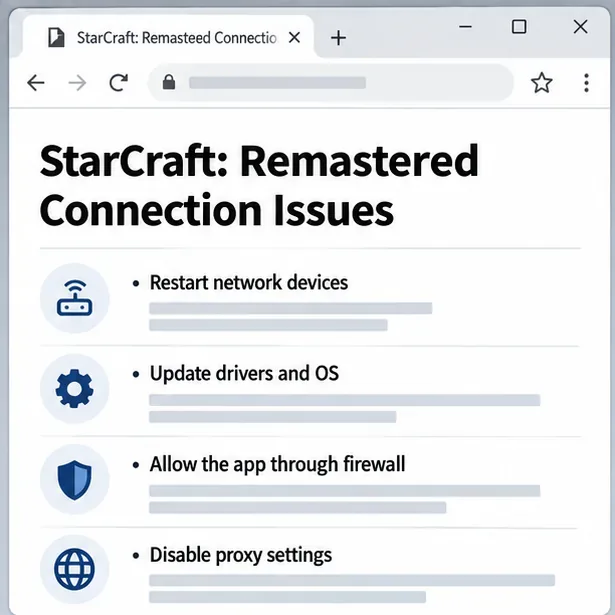
Blizzard’s StarCraft: Remastered connection support article recommends checking service notices, restarting network equipment, updating the operating system and drivers, allowing the Blizzard application through security software, and disabling proxy settings. The article is a general connection guide rather than a room-specific diagnosis; menu names can differ slightly by operating system and game version.
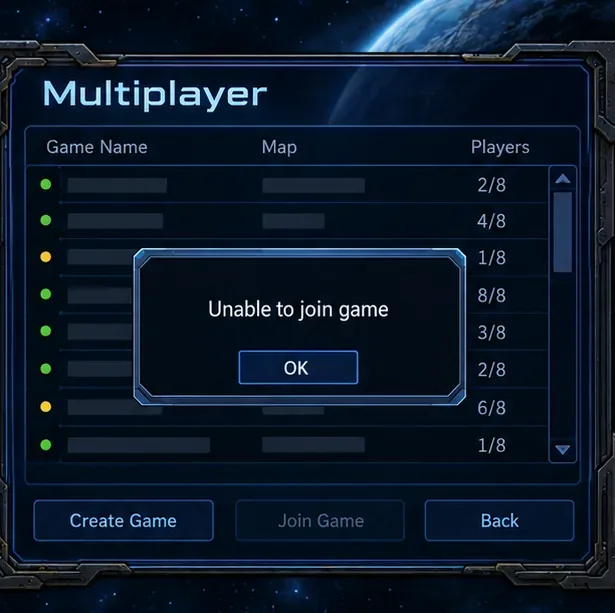
A schematic game-room screen illustrates the error. It is not a capture of a live match or a specific room.
How to fix the error step by step
1. Test a different room
Try joining another active room, preferably one with visible open slots. If only one room fails, ask its host to create a new room and send a fresh invitation. If every room fails, keep troubleshooting your client or connection. When joining a friend, confirm both players are in the same online service area and that the host has not closed or changed the room while you were connecting.
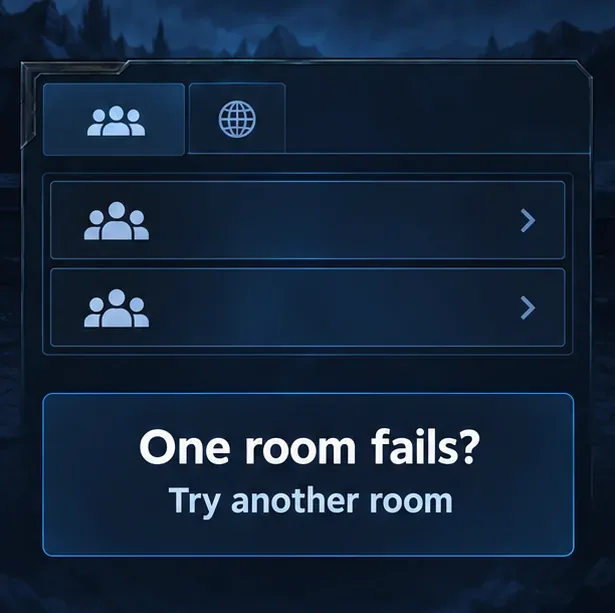
Use a second room as a comparison; the interface is a schematic, not an exact game screenshot.
2. Refresh the game and check for service or update problems
Exit StarCraft: Remastered and the Battle.net app completely, then start Battle.net again and let it finish any update before launching the game. Check Blizzard’s official customer-support notices for maintenance or a service disruption. If other Battle.net games also cannot connect, that makes a local game-room problem less likely. Avoid reinstalling the game as your first step; it takes longer and does not resolve router or service-side issues.
Install available system updates before testing again; the screen is a schematic guide, not a captured Windows session.
3. Restart the network and simplify the connection
Close bandwidth-heavy downloads, cloud backups, and streaming on the same connection for a short test. Restart your modem and router using their normal power procedure, wait for the connection to return, and relaunch the game. If you are on Wi-Fi, try a wired Ethernet connection or move closer to the router. Blizzard’s support guide recommends restarting network devices and optimizing a wireless connection when troubleshooting StarCraft: Remastered connectivity.
If possible, test the same account on a second computer on the same network, or test your computer using a different trusted network. A problem that follows the account or occurs for everyone may point away from your PC; a problem limited to one computer suggests checking that computer’s firewall, background software, or proxy configuration.
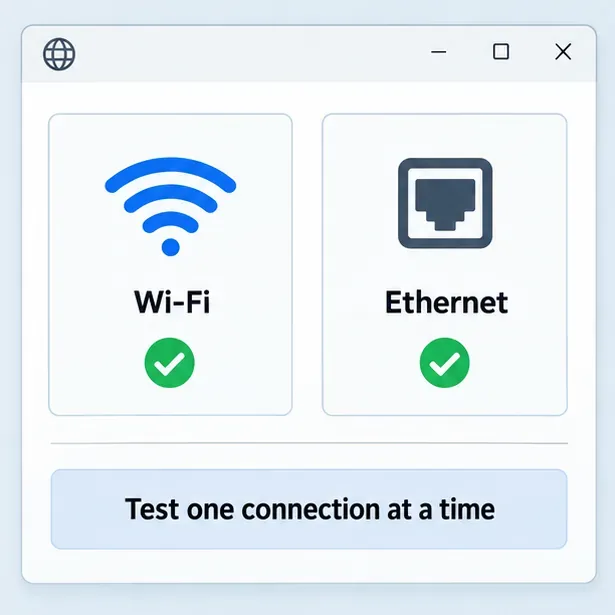
Compare Wi-Fi and wired Ethernet separately to see whether the connection type changes the result.
4. Check firewall permissions without turning the firewall off
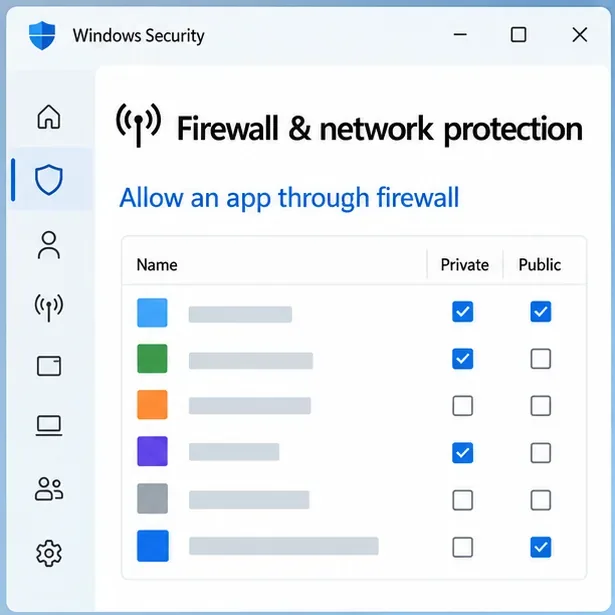
Security software can block a game’s network traffic. On Windows, open Windows Security > Firewall & network protection > Allow an app through firewall. Check whether StarCraft: Remastered or the Blizzard app is listed and allowed on the network profile you actually use. If an entry is missing, use Microsoft’s instructions to add the genuine installed app. Do not approve an unknown executable.
Do not switch off the firewall as a permanent fix. Microsoft recommends allowing an app through the firewall instead of opening a port when that meets the need, and warns that opening ports can reduce device security. If you use third-party security software, check its application rules too. For a brief test, disconnect from a VPN or disable a manually configured proxy, then try a room again; restore your usual settings if the test makes no difference.
Use Windows Security’s app exception path to check whether the game is allowed; this screen is a schematic, and the firewall should stay enabled.
5. Test the “Prefer port 6112” option only if the basic checks fail
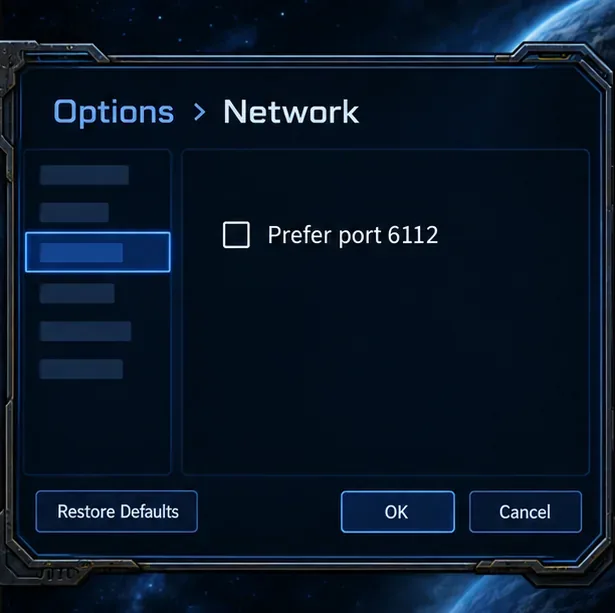
StarCraft: Remastered has a network option called Prefer port 6112, found under Options > Network. A September 2026 discussion on Blizzard’s StarCraft technical-support forum explains that enabling it asks the game to prefer that specific port for a direct player connection, while disabling it lets the game use other available ports for that connection. The discussion also notes that restrictive network setups may still route traffic through a proxy.
Because routers and security policies differ, treat this as a controlled test rather than a universal fix. Change the checkbox once, restart the game, and try the same type of room. If the result gets worse, restore the original setting. If you see a message that your connection must be routed through a proxy, that message is a clue about the network path, not proof that port forwarding is the answer.
The “Prefer port 6112” option appears under Options > Network in StarCraft discussions. The surrounding screen is schematic, not an exact game screenshot.
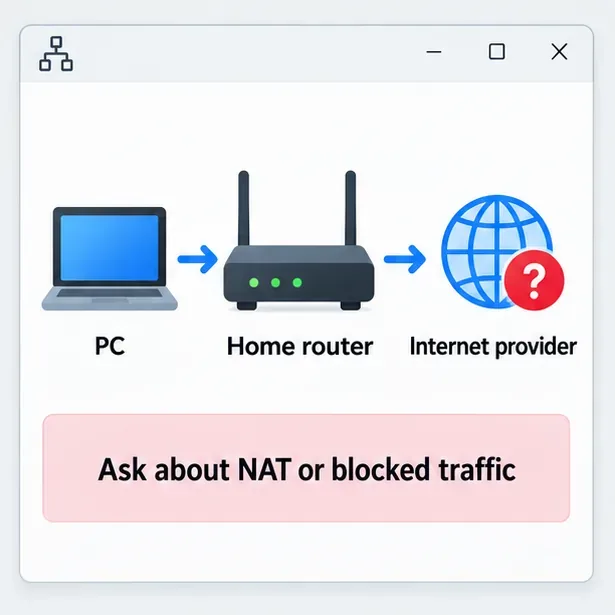
If the error persists across rooms and the game reports proxy routing, contact your network administrator or internet provider and ask whether the connection uses carrier-grade NAT (CGNAT), restrictive NAT, or blocked peer-to-peer traffic. NAT is the router or provider process that lets multiple devices share an internet connection; CGNAT means the provider also shares a public address among customers. These are possible causes, not conclusions you can draw from “Unable to join game” alone.
Avoid copying random port-forwarding rules from old forum posts. Blizzard’s support article does not provide a current universal port-forward list for this specific error, and router changes can expose your PC to unsolicited traffic. If your network administrator recommends a change, use the router manufacturer’s current instructions, make one change at a time, and remove any rule that does not help.
If local checks do not help, ask your network administrator or ISP whether NAT or traffic restrictions apply; this is a conceptual diagram.A schematic summary of the checks described in Blizzard Support; it is not a screenshot of Blizzard’s support page.
Common mistakes to avoid
Assuming every room is broken: test more than one room and ask the host to reopen a room that may have closed or filled.
Turning off all security software: check the app permission and use a short, controlled test instead of leaving protections disabled.
Changing several network settings at once: test one change, then retry, so you can identify what affected the result.
Forwarding ports because a forum post says so: port needs and NAT behavior vary, and opening ports has security tradeoffs.
Reinstalling before testing the network: a clean install cannot fix a service interruption, a closed room, or an ISP-level restriction.
How to confirm the fix
After a change, restart StarCraft: Remastered and try a newly opened room with an available slot. A successful join confirms that the immediate problem is gone, but it does not prove which single setting caused it if you changed several things together. If only one room still fails, return to the host and check that room’s status. If all rooms remain inaccessible after the basic checks, collect the exact error text, your operating system, whether you use Wi-Fi or Ethernet, and whether another network works before contacting Blizzard Support or your ISP.