How to Check Real-Time Server Latency in the PUBG HUD

Enable PUBG’s network statistics HUD to monitor ping and packet loss in a match. See where to find it, what the numbers mean, and what they cannot diagnose.
If SMITE 2 closes during startup and opens an Unreal Engine crash report, the report means the game process stopped before it finished launching. It does not identify the cause on its own. The failure may involve damaged game files, an outdated or unstable graphics driver, an overlay or background utility, unsupported hardware, or a game-side bug. Work through these checks in order, testing the launch after each change so you can tell which one mattered.
As of October 8, 2026, Steam still labels SMITE 2 as an Early Access game and provides the current store listing and system requirements. I did not find an official SMITE 2 notice confirming one universal fix for this exact startup crash. Hi-Rez’s PC troubleshooting page is explicitly filed under its original SMITE game, so its SMITE-specific directions should not be treated as confirmed SMITE 2 fixes. Use the current game listing, official driver sources, and SMITE 2 support channels below; the best result may depend on your PC and the game build installed.
Open Steam and let any pending SMITE 2 update finish before changing Windows or graphics settings. Then check for available Windows updates using Microsoft’s Windows Update instructions, restart the PC once, and try to launch the game again. This ensures Steam is not trying to start an older build after an interrupted update, closes stuck launcher or game processes, and gives pending system updates a chance to finish. A Windows update is not a guaranteed game fix, and it will not repair a developer-side defect.
Compare your computer with the minimum hardware currently shown on the SMITE 2 Steam store page. At the time checked, Steam lists 64-bit Windows 10, an Intel Core i5-9400F or AMD Ryzen 4500U processor, 8 GB of RAM, an NVIDIA GTX 1630, AMD RX 6400, or Intel Arc A380 graphics card, and 30 GB of available storage as minimum requirements. These published requirements are a starting point, not a guarantee: a PC that meets them can still crash because of a driver, memory pressure, or a game issue. If your system is below the listed graphics or memory minimum, changing launch settings is unlikely to provide a dependable fix.
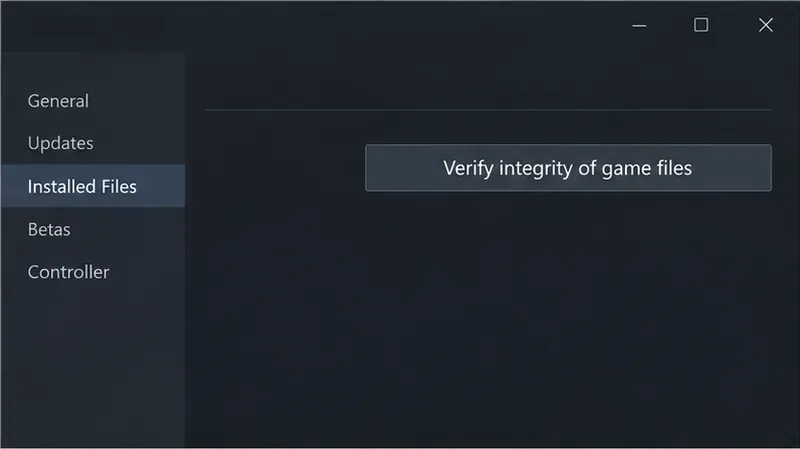
Missing or damaged files can stop an Unreal Engine game before its main menu appears. Steam provides a built-in verification check for games that crash. In your Library, right-click SMITE 2 and select Properties. Open Installed Files, then select Verify integrity of game files. Let the check complete. If Steam replaces or downloads files, wait until the download queue is clear, restart Steam if needed, and launch the game again.
A successful verification means Steam found no remaining file mismatch, or finished replacing files it could repair. It does not rule out a graphics driver problem, a conflict with an overlay, or a bug in the current build. If the crash is unchanged after verification, move on rather than repeating the same scan.
Do not delete folders from the SMITE 2 installation directory based on generic Unreal Engine advice. Some files are rebuilt by the game, but other folders can contain important configuration or anti-cheat components. Steam verification is a safer first repair because it compares the installed game files with Steam’s expected files.
A graphics driver helps Windows and the game communicate with the GPU. If it is old, partially installed, or recently changed, it can be involved in a startup crash. Identify your graphics card in Windows Device Manager or Task Manager, then get a driver from its manufacturer: NVIDIA driver downloads or AMD drivers and support. Intel graphics users should use Intel’s official driver support for their exact adapter or their PC manufacturer’s driver page, especially on laptops with switchable graphics.
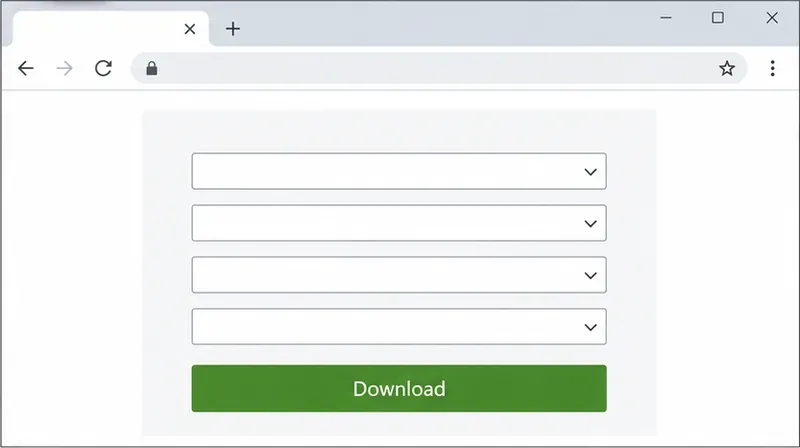
Install a driver intended for your exact graphics model and operating system, then restart Windows before testing. If the problem started immediately after a driver update, note the current version and consult the GPU or computer maker’s official support guidance before rolling back. Avoid third-party driver-download sites and automatic “driver updater” utilities, which can install the wrong package.
For one controlled test, close optional overlays and capture tools before launching SMITE 2. This can include the Steam overlay, Discord overlay, GPU recording or performance overlays, and other programs that hook into games. Close one group at a time and test. If the game now reaches its menu, re-enable the tools individually to identify a conflict. If closing overlays changes nothing, turn them back on and continue; this test is diagnostic, not proof that overlays caused the crash.
Also temporarily return CPU or GPU overclocks and undervolts to the computer or component maker’s default settings if you have changed them. Do not adjust voltage, BIOS settings, or power limits unless you understand those controls. A stable default configuration is useful as a comparison; if it makes no difference, restore only changes you can confidently manage.
If the crash repeats, record the exact text shown in the Unreal crash window, including any error or exception code and the time it occurred. If the window offers a report identifier, save it. Do not assume an error code points to a single fix without checking it against a current Hi-Rez support response.
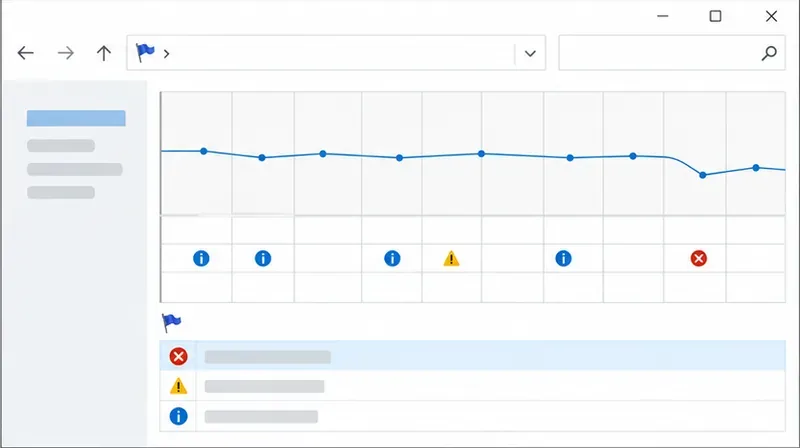
Windows can show whether it recorded an application failure. Open Start, search for View reliability history, and inspect the time of the last launch attempt. A red failure marker or SMITE 2 entry can provide a faulting module or technical details. Note what Windows actually reports; a generic “stopped working” entry is not enough to diagnose a GPU or memory fault by itself.
Submit the details through the Hi-Rez Support Center or use the support and bug-report links from the official SMITE 2 site. Include your Windows version, CPU, GPU, RAM, driver version, whether the crash happens before or after the launcher, the complete error text, the Reliability Monitor entry, and the troubleshooting steps you already tried. If a crash report file is requested, attach the file specified by support instead of posting it publicly; reports can contain system details.
After each step, test one normal launch and check whether SMITE 2 reaches its main menu without reopening the crash report. If it does, launch it once more after closing and reopening Steam to make sure the result persists. If the crash returns only when a particular overlay is enabled, leave that utility off while you seek an update from its developer. If the game still fails after a clean game-file check and a current compatible driver, stop making unrelated Windows or registry changes and send the evidence to Hi-Rez.
These steps can identify common local causes, but they cannot repair a crash in the current game build or a defect in the Unreal Engine code used by SMITE 2. Because the game is still marked Early Access on Steam, a crash that begins immediately after a patch may require a developer-side fix. Check the official SMITE 2 news and support pages for a relevant update before repeating local repairs.
Enable PUBG’s network statistics HUD to monitor ping and packet loss in a match. See where to find it, what the numbers mean, and what they cannot diagnose.
Learn how to import VALORANT crosshair codes, compare presets with manual settings and spectator copy, and fix common import issues.
Choose Dota 2 minimap size, hero icons, team colors, and background settings by readability, fewer misclicks, and clear results on your own display.
Fix Fortnite texture pop-in on PC with official steps for GPU drivers, file verification, DirectX 12, high-resolution textures, VRAM, SSDs, and stutter.
Learn what Heroes of the Storm minimap size and position options are verified, improve readability, and choose camera-click controls that suit you.
Set Super Smash Bros. Ultimate Quickplay to prefer hazards-off stages. Follow the Preferred Rules menu steps and learn why matchmaking may not always honor them.
Enable Server Latency and Packet Loss in Warzone to monitor connection quality, read the overlay, and use recurring spikes to guide troubleshooting.
Learn how to carry from mid lane in League of Legends by setting up waves, choosing safe roam windows, reading side lanes, and converting pressure into objectives.
Fix Minecraft Evoker spell problems with a safe vanilla test, version checks, log review, and a step-by-step way to isolate mod or datapack conflicts.
Fix PUBG stuck on Initializing on Steam with a focused checklist for PC service notices, launch options, game files, downloads, and connection issues.








