How to Check Real-Time Server Latency in the PUBG HUD

Enable PUBG’s network statistics HUD to monitor ping and packet loss in a match. See where to find it, what the numbers mean, and what they cannot diagnose.
If Rocket League shows “Call package HAS failed,” start by checking the Epic Games server status, then narrow the problem by where it happens: during launch, while signing in, or when joining matchmaking. Epic’s current support pages do not identify this exact wording as a named Rocket League error, so there is no verified single cause or guaranteed one-step fix. The safest approach is to use the platform-specific checks below and stop when the original action works consistently.
These steps focus on symptoms that can look similar, such as a failed connection, a stalled login, or damaged local game files. They do not assume that the error is caused by your internet connection. Record your platform and the exact moment the message appears; those details help you choose the right branch and give support useful evidence if the issue continues.
Epic’s Rocket League support currently documents several connection messages, including “Not Logged in to Rocket League Servers” and “Unknown error while communicating with Rocket League Servers,” but its public troubleshooting pages do not list “Call package HAS failed” as an exact error. That means the phrase alone cannot confirm whether the failed request came from the game, the platform, or a temporary service response. Use the steps below to identify the symptom instead of treating an unverified cause as fact.
If the message appears before the main menu, prioritize a full restart, correct system time, and a file check on PC. If the game opens but online features fail, first check service status and connectivity. If only one platform or account is affected, include that information when you contact support.
Open the Epic Games public status page and look for Rocket League or related online-service incidents. A service problem can block sign-in, parties, or matchmaking even when your local connection is working. A green status display is only a snapshot; refresh it if the error continues, and check the incident history for a newly reported issue.
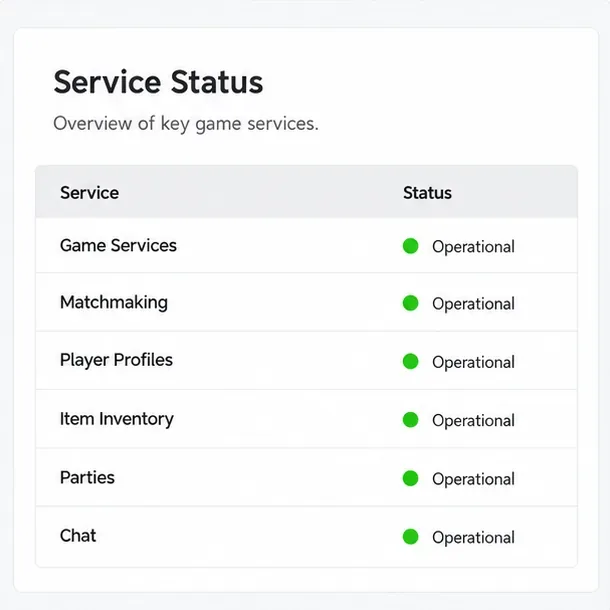
What success looks like: If Epic reports an active issue, wait for the status to recover and then retry the same action once. Avoid reinstalling or changing router settings during a confirmed outage. If the status page shows no incident, continue with the local checks; an all-clear does not rule out an account, regional, or device-specific issue.
Close Rocket League completely, not just to the console home screen or PC desktop, then reopen it. If you are on a console, use the platform’s power menu to turn it off and back on. On PC, close the game and its launcher, wait a few seconds, then start the launcher again. A restart clears a stuck session without deleting progress.
Next, confirm that your device’s date, time, and time zone are correct and set automatically where that option is available. Epic specifically recommends checking system time for certain Epic Online Services connection errors. A clock that is significantly out of sync can interfere with secure server communication.
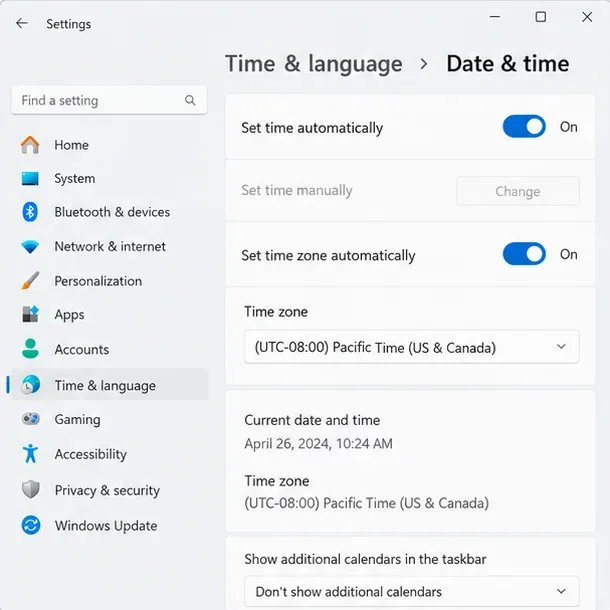
On Windows, open Settings > Time & language > Date & time, turn on automatic time and time zone if available, and use Sync now if that control appears. On PlayStation, Xbox, or Nintendo Switch, use the platform’s own date-and-time settings. Menu wording can differ by system software version, so follow the console maker’s current instructions if you cannot find the option.
What success looks like: The clock shows the correct local date and time after restarting, and the same login or matchmaking action proceeds. If the clock was already correct and the error returns, move on rather than repeatedly toggling time settings.
If Rocket League launches but fails when you sign in, join a party, or search for a match, test another online service on the same device. If that also fails, restart your modem or router according to its manufacturer’s directions. When possible, test one session over a wired connection or a different network. This comparison can show whether the problem follows the home network, but it cannot prove the cause by itself.
On PC, temporarily disconnect a VPN or proxy only if you normally use one and can safely reconnect it afterward. Do not download unknown “network fix” tools, disable security software permanently, or change port-forwarding rules as an early step. Epic’s platform-specific Rocket League connection troubleshooting guide for PC lists checks in a safer order, including service status, region, router restart, and cache.
For console players, consult the matching official Nintendo Switch connection guide or Xbox connection guide. Use the PlayStation guide linked from Epic’s platform connection troubleshooting page. Keep the region setting on a suitable nearby region or Recommended/Automatic option if available; forcing a distant region can add delay rather than fix a login problem.
What success looks like: The game signs in and can complete a party or matchmaking action on the same network. If other devices work but Rocket League does not, continue with game-specific steps. If the game works on another network, the local network path is a stronger lead; contact your internet provider or follow the router maker’s guidance before making advanced changes.
A failed package request does not prove that an installation file is damaged, but verifying the install is a low-risk check when the error started after a crash, interrupted update, or missing-file warning. Epic says its verification process checks for damaged or changed files and repairs them without affecting saved data.
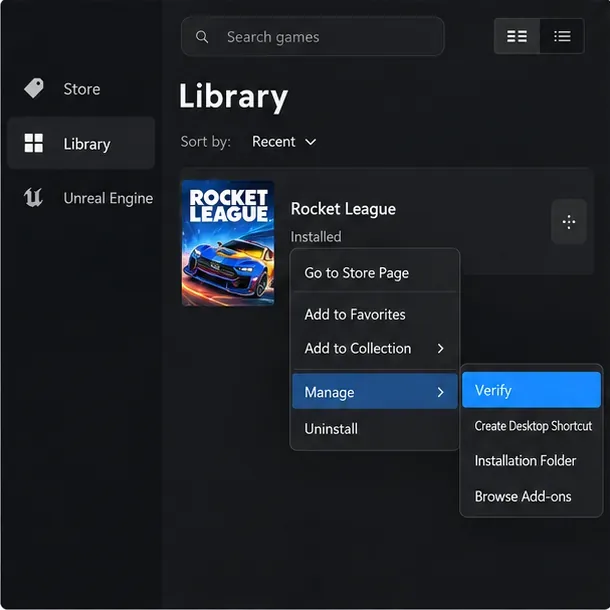
In the Epic Games Launcher, open Library, find Rocket League, select the three-dot menu, choose Manage, and select Verify. Wait for validation to finish before launching the game. If you installed Rocket League through Steam, use Steam’s built-in option to verify the integrity of the game files instead; launcher menus differ, so do not follow Epic Launcher menu steps in Steam.
What success looks like: The verification completes, the launcher returns to its normal ready state, and Rocket League starts without a file warning. If the exact error appears only when connecting online after files verify successfully, prioritize the service, account, and network checks rather than repeating Verify.
Epic’s Rocket League troubleshooting guidance includes deleting the game cache for some connection and startup problems. On Windows, first close Rocket League. In File Explorer, navigate to Documents > My Games > Rocket League > TAGame, then delete the Cache folder. Restart the game so it can create a fresh cache.
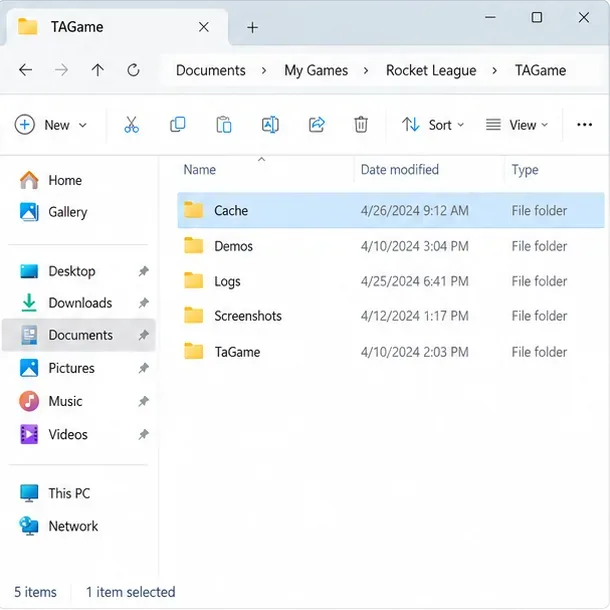
Do not delete the entire Rocket League folder or the SaveData folder as a substitute. Cache cleanup is a targeted troubleshooting step, and the folder path can vary if your Documents folder is redirected or the game is installed under a customized Windows profile. If you cannot find this exact path, use File Explorer search for the Rocket League folder or consult Epic’s current instructions rather than deleting similarly named files.
What success looks like: Rocket League recreates the cache and reaches the menu or online service normally. If nothing changes after one clean restart, stop clearing the cache repeatedly and use the symptom to decide whether to contact support.
Console cache steps are different from deleting the PC cache folder. Follow the instructions for your exact console model; do not use a factory reset for this error. Epic’s guide explains that clearing the PS4 cache does not delete saved data. Its PS5 instructions use Safe Mode to clear the system software cache, while Xbox and Switch have separate procedures.
See Epic’s guides for clearing the PS4 cache, clearing the PS5 cache, and finding cache instructions for other devices. If the game still fails but other games connect normally, do not delete Rocket League saved data without first reading Epic’s save-data guidance; local settings and training data may be affected even when online inventory is associated with an account.
After each change, repeat the same action that originally triggered the message: launch, sign in, join the party, or start matchmaking. A useful result is that the action completes and continues to work after one full game restart. If the message disappears once but returns immediately, the issue is not confirmed fixed.
Contact Epic Games Player Support if the exact error persists after the relevant checks, especially if the status page is clear and other online services work. Include a screenshot, your platform and launcher, whether the game reaches the main menu, the step that triggers the error, and what you already tried. Do not include your password, full payment details, or authentication codes.
Because Epic’s public documentation does not identify this exact message, support may need the platform and context to classify it. The steps above can isolate common service, clock, network, cache, and file problems, but they cannot repair an account-side restriction or an unreported server issue. Let the observed result guide the next step instead of repeating changes that have already failed.
Enable PUBG’s network statistics HUD to monitor ping and packet loss in a match. See where to find it, what the numbers mean, and what they cannot diagnose.
Learn how to import VALORANT crosshair codes, compare presets with manual settings and spectator copy, and fix common import issues.
Choose Dota 2 minimap size, hero icons, team colors, and background settings by readability, fewer misclicks, and clear results on your own display.
Fix Fortnite texture pop-in on PC with official steps for GPU drivers, file verification, DirectX 12, high-resolution textures, VRAM, SSDs, and stutter.
Learn what Heroes of the Storm minimap size and position options are verified, improve readability, and choose camera-click controls that suit you.
Set Super Smash Bros. Ultimate Quickplay to prefer hazards-off stages. Follow the Preferred Rules menu steps and learn why matchmaking may not always honor them.
Enable Server Latency and Packet Loss in Warzone to monitor connection quality, read the overlay, and use recurring spikes to guide troubleshooting.
Learn how to carry from mid lane in League of Legends by setting up waves, choosing safe roam windows, reading side lanes, and converting pressure into objectives.
Fix Minecraft Evoker spell problems with a safe vanilla test, version checks, log review, and a step-by-step way to isolate mod or datapack conflicts.
Fix PUBG stuck on Initializing on Steam with a focused checklist for PC service notices, launch options, game files, downloads, and connection issues.








