How to Check Real-Time Server Latency in the PUBG HUD

Enable PUBG’s network statistics HUD to monitor ping and packet loss in a match. See where to find it, what the numbers mean, and what they cannot diagnose.
Illustrative scenario: Maya loads into an Apex Legends match and sees the packet-loss warning icon while her character stutters during a fight. She is on Wi-Fi, but that alone does not prove the router is the cause. The warning can point to a problem somewhere between her device and the game server, including a busy or faulty data center. This example is hypothetical, not a real test or player report.
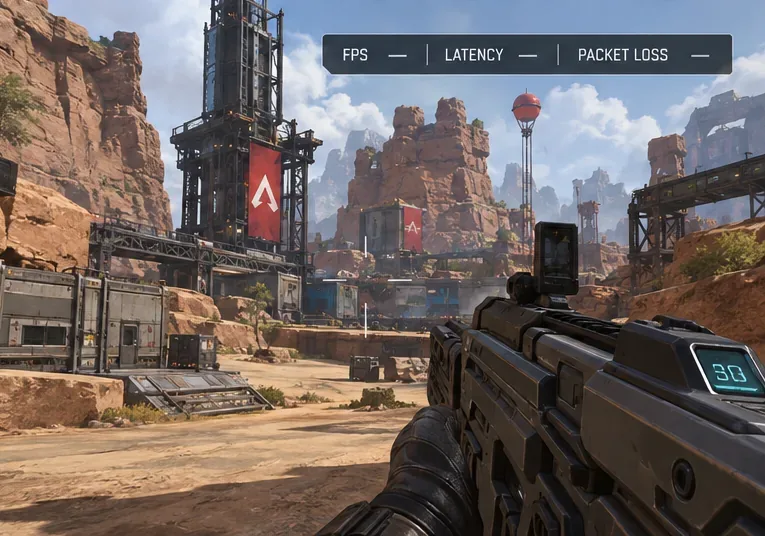
Start by turning on Apex’s Performance Display so you can see whether packet loss is being reported, then check the selected data center and EA’s server status. If the problem follows every data center, it may be server-side. If it improves on Ethernet or after pausing other home network activity, focus on the local connection. EA’s help article recommends these checks and explains that the game display can show FPS, latency, and packet loss. See EA’s Apex Legends packet-loss troubleshooting guide.
Packet loss means some game data packets fail to complete the trip between your platform and the data center. EA says packet loss can cause lag and make an opponent’s position appear out of date. The icon is a useful warning, but it does not identify the exact point where packets were lost. EA’s current help page explains the in-game Performance Display and data-center checks; it does not document every icon threshold or a diagnostic meaning for each icon design.
What to do: turn on Performance Display and look at the packet-loss reading during more than one match. If the icon appears but the reading is not clear, note when it happens and continue with the server and network checks below. Do not assume that changing a graphics option will fix a network warning.
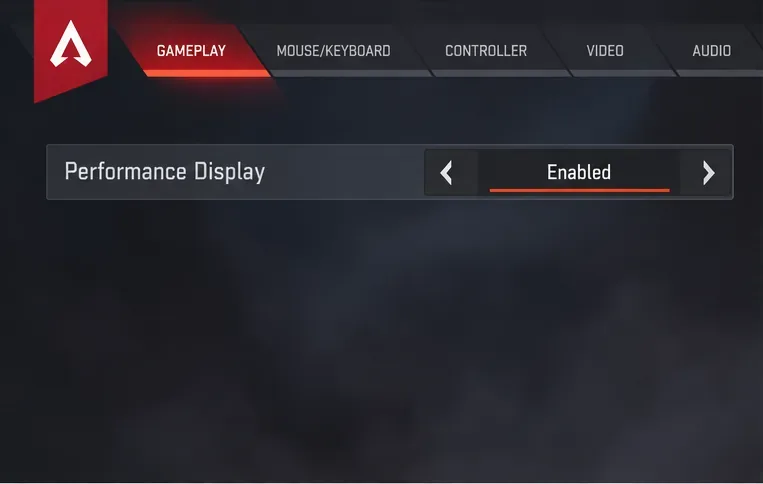
Open Settings, select the Gameplay tab, and turn on Performance Display. EA says this display can show frames per second, latency, and packet loss. Play a match or enter the mode where you usually see the icon, then note whether the packet-loss reading rises at the same time. Record the approximate time, mode, and data center too; that makes it easier to compare later or explain the pattern to your internet provider.
A single short spike does not show whether the cause is your home network, your ISP’s route, or the game server. Repeated spikes across multiple sessions are more useful evidence. If you only want to check a current outage, go to step 3 before changing router settings.
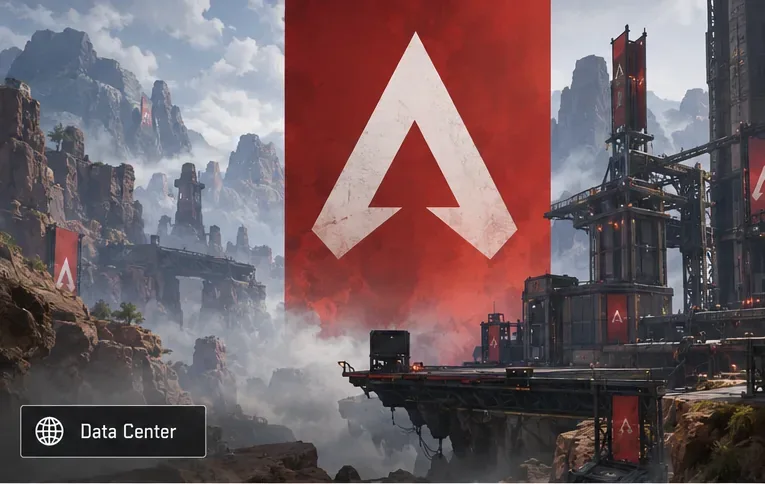
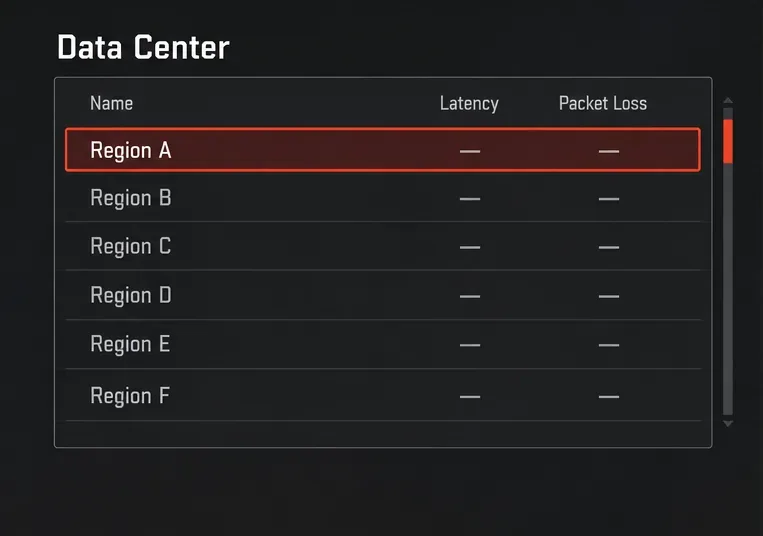
At the launch screen, do not select Continue yet. Choose Data Center in the lower-left corner, then review the listed regions and their latency and packet-loss readings. EA recommends choosing the data center closest to your location because a farther one can increase latency and packet loss. The available locations and menu details can vary by region or game update.
What to do: try the closest suitable data center and check the reading again in a match. If its value is poor, compare another nearby option rather than jumping to a distant region just because it briefly shows a better number. Readings can change, and a remote server may feel worse even when its menu value looks tempting.
If packet loss appears across all nearby data centers, or several players in the same region report it at the same time, a server or network-route issue becomes more plausible. It is still not certain from the icon alone. EA has documented cases in which network equipment connecting players to servers caused packet loss even when the game servers themselves were operating, as described in its Apex server and netcode developer deep dive. That is why restarting a home router cannot solve every match-wide problem.
What to do: check the EA server status page and EA’s official Apex updates. If EA reports a service issue, wait for service to recover and check again before making advanced changes at home. If status appears normal, continue to the local connection checks.
EA lists Wi-Fi interference, other people using the same network, background applications, and a router that is blocked or far away as possible causes of connection problems. This is where Maya can test her original assumption: rather than concluding “Wi-Fi is definitely the cause,” she can temporarily connect her PC or console to the router with Ethernet and compare matches under similar conditions.
What to do: change one factor at a time and watch the Performance Display. If packet loss stops only when Ethernet is connected, focus on Wi-Fi placement, interference, or router settings. If the same pattern persists on Ethernet, continue to the restart and provider checks.
Close Apex completely and relaunch it, then test again. If the issue continues, restart the router. EA’s general connection guide says to unplug the router, wait about a minute, reconnect it, and try again. If you use a separate modem and router, follow the equipment maker’s instructions for restarting both.
What to do: restart once, then compare the same Performance Display fields in a new match. A restart may clear a temporary router or session problem, but it will not repair an ISP routing problem or an outage at a data center. Avoid a factory reset as an early step; it can erase custom network settings and is not the same as a routine restart.
If the warning continues across nearby data centers, multiple sessions, and a wired connection, contact your internet provider. Share the times it occurred, the data center selected, the in-game packet-loss readings, and whether other online services were affected. Ask them to check for line faults or packet loss on the route. You can also contact EA Support if the evidence points to Apex or a particular data center.
What to do: keep the notes from step 1 and avoid changing several advanced settings before the provider reviews them. That gives support teams a clearer pattern to investigate.
| Claim | What is known | Useful next step |
|---|---|---|
| “The icon proves my Wi-Fi is broken.” | Not by itself. EA identifies both local-network causes and server or data-center issues. | Compare nearby data centers, then test Ethernet. |
| “A fast speed test means packet loss cannot happen.” | Download speed and packet delivery reliability are different measurements. | Use the in-game Performance Display while the warning appears. |
| “Turning on Performance Display fixes the connection.” | It reports FPS, latency, and packet loss; it is a diagnostic display. | Use its readings to choose the next troubleshooting step. |
| “Changing DNS or reinstalling the game is the first fix.” | EA’s Apex guide starts with the display, data center, server status, and connection checks. Those steps better isolate a packet-loss problem. | Work through the checks above before changing advanced settings. |
Use Performance Display in several matches after each change. The goal is for packet loss to stay absent or lower and for the warning to stop recurring under the same conditions. If the icon returns only on one data center, avoid that location and report the pattern. If it follows you across data centers but disappears on Ethernet, keep investigating the wireless network. If it persists across wired matches and other devices also have issues, contact your ISP. No single menu option can promise a fix because packet loss can occur on different parts of the route.
EA support information was checked on October 7, 2026. Menu names may change with game updates and can differ by platform.
Enable PUBG’s network statistics HUD to monitor ping and packet loss in a match. See where to find it, what the numbers mean, and what they cannot diagnose.
Learn how to import VALORANT crosshair codes, compare presets with manual settings and spectator copy, and fix common import issues.
Choose Dota 2 minimap size, hero icons, team colors, and background settings by readability, fewer misclicks, and clear results on your own display.
Fix Fortnite texture pop-in on PC with official steps for GPU drivers, file verification, DirectX 12, high-resolution textures, VRAM, SSDs, and stutter.
Learn what Heroes of the Storm minimap size and position options are verified, improve readability, and choose camera-click controls that suit you.
Set Super Smash Bros. Ultimate Quickplay to prefer hazards-off stages. Follow the Preferred Rules menu steps and learn why matchmaking may not always honor them.
Enable Server Latency and Packet Loss in Warzone to monitor connection quality, read the overlay, and use recurring spikes to guide troubleshooting.
Learn how to carry from mid lane in League of Legends by setting up waves, choosing safe roam windows, reading side lanes, and converting pressure into objectives.
Fix Minecraft Evoker spell problems with a safe vanilla test, version checks, log review, and a step-by-step way to isolate mod or datapack conflicts.
Fix PUBG stuck on Initializing on Steam with a focused checklist for PC service notices, launch options, game files, downloads, and connection issues.








