How to Check Real-Time Server Latency in the PUBG HUD

Enable PUBG’s network statistics HUD to monitor ping and packet loss in a match. See where to find it, what the numbers mean, and what they cannot diagnose.
The “Network Lag Detected” warning in PUBG: BATTLEGROUNDS means the game is having trouble receiving or sending timely network updates. It does not, by itself, prove that your internet plan is too slow or that PUBG’s servers are down. PUBG Support lists several possible contributors to game lag, including intermittent network drops, high server load, and heavy system load. Work through the checks below in order and judge the result by whether the warning and in-match interruptions stop recurring.

Before changing settings, note when the warning appears, whether your character rubber-bands or actions arrive late, and whether the game’s displayed ping or packet-loss indicator—if shown in your current build—spikes at the same time. Network trouble often looks like delayed updates while the picture continues moving. A frame-rate problem more often makes the image or animation stutter locally. They can happen together, so this distinction is a clue, not a diagnosis.
PUBG’s related support article says game lag can involve intermittent network drops, server load, or heavy system load. It also discusses heat and graphics load as possible sources of low FPS. The available PUBG article is dated August 3, 2020, so treat it as broad troubleshooting guidance rather than a current diagnosis of this exact warning. If the screen freezes while your network indicators remain steady, test lower graphics settings and check system temperatures as a separate performance issue. Read PUBG Support’s lag troubleshooting article.
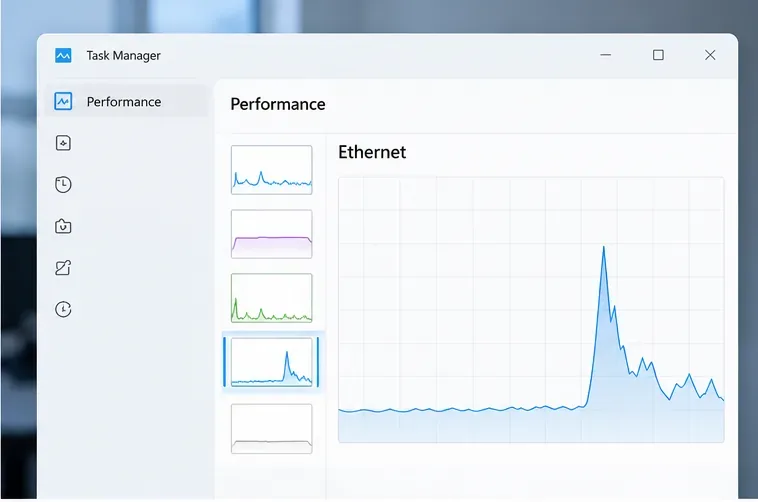
First check PUBG’s official news and support channels for a maintenance notice or service issue. PUBG Support confirms that connection trouble can occur while updates are being pushed or routine maintenance is underway. If a maintenance notice matches the time of your match, wait until it ends before changing your router or firewall settings. Check PUBG’s official news page and the official connection troubleshooting article.
If there is no relevant notice, pause large downloads, game updates, cloud backups, and high-resolution streams on your PC and other devices using the same connection. PUBG specifically recommends closing programs that consume substantial bandwidth. Do not end unfamiliar Windows processes; close apps you recognize and can safely pause. Play another match under similar conditions. A useful improvement is fewer or no warnings while those transfers are paused, not merely a faster result from an internet speed test.
If possible, connect the PC directly to a LAN port on your router with an Ethernet cable. Keep the game, server region, and other network activity as consistent as you can, then compare the next match. Steam’s network troubleshooting guidance recommends testing a wired connection when possible, because it helps separate a Wi-Fi or local-link problem from a wider connection issue. Microsoft also explains how to connect a Windows PC to a router by Ethernet in its Ethernet troubleshooting guide.
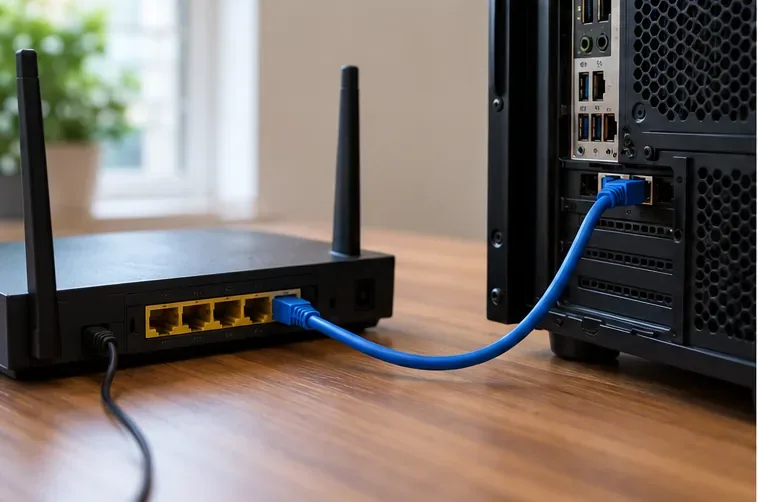
If Ethernet makes the warning disappear, focus on Wi-Fi signal, router placement, interference, or the wireless adapter. If the warning remains on Ethernet and other devices also lose connection, restart the modem and router once, then test again. A restart can clear a temporary router issue, but it cannot repair an ISP outage or a persistent route problem. Avoid a factory reset unless your router manufacturer or ISP gives you a specific reason; it can erase connection settings.
On Windows 11, run the Network and Internet troubleshooter from the Get Help app, as Microsoft recommends for connection problems. You can also test another online game or a video call on the same PC. If several services show interruptions, the issue is more likely to involve the PC, router, or ISP than PUBG alone. For Wi-Fi-specific checks, use Microsoft’s Wi-Fi troubleshooting guide.
Security software can sometimes block a game connection after an update. PUBG Support suggests checking firewall interference, but leaving a firewall disabled is not a good permanent fix. If you test this, keep it brief, restore protection immediately, and use your security vendor’s instructions to allow the legitimate PUBG and Steam applications through the firewall on the network profile you actually use. Do not download “lag fix” tools, disable antivirus indefinitely, or open random router ports based on a generic video.
If you use a VPN or proxy, test one match without it if that is safe and permitted on your network. A VPN can change the route and may improve or worsen latency; it is not a guaranteed fix. Do not buy a VPN solely on the promise of lower PUBG ping.
After each change, play a comparable match and record whether the alert returns, whether movement or hit registration feels delayed, and whether any visible in-game network indicator remains unstable. A practical result is repeated play without the warning or rubber-banding—not one quiet minute in the lobby. If you changed several things at once, you will not know which one helped, so change one category at a time.
A high download speed does not rule out short packet loss, unstable latency, or a poor route to a particular game server. Conversely, a basic ping test to a website does not reproduce PUBG’s traffic. Steam’s official network diagnostic notes that ordinary ping tests use ICMP, while games may use UDP, and the two can be handled differently. Use a speed test as a basic bandwidth check, not as proof that a match connection is healthy. Compare in-game symptoms, a wired-versus-Wi-Fi test, and whether other services are affected.
This guide targets PUBG: BATTLEGROUNDS on PC. PUBG Mobile has a separate support path; use the PUBG MOBILE Help Center for mobile-specific connection problems. No single network change can guarantee a fix: the useful outcome is a stable connection across repeated matches, with the evidence pointing to the PC, Wi-Fi/router, ISP, or game service before you take the next step.
Interface and hardware illustrations are representative, not captured PUBG or Windows screenshots. The Task Manager-style graph and support form do not display real measurements or a live support page.
Enable PUBG’s network statistics HUD to monitor ping and packet loss in a match. See where to find it, what the numbers mean, and what they cannot diagnose.
Learn how to import VALORANT crosshair codes, compare presets with manual settings and spectator copy, and fix common import issues.
Choose Dota 2 minimap size, hero icons, team colors, and background settings by readability, fewer misclicks, and clear results on your own display.
Fix Fortnite texture pop-in on PC with official steps for GPU drivers, file verification, DirectX 12, high-resolution textures, VRAM, SSDs, and stutter.
Learn what Heroes of the Storm minimap size and position options are verified, improve readability, and choose camera-click controls that suit you.
Set Super Smash Bros. Ultimate Quickplay to prefer hazards-off stages. Follow the Preferred Rules menu steps and learn why matchmaking may not always honor them.
Enable Server Latency and Packet Loss in Warzone to monitor connection quality, read the overlay, and use recurring spikes to guide troubleshooting.
Learn how to carry from mid lane in League of Legends by setting up waves, choosing safe roam windows, reading side lanes, and converting pressure into objectives.
Fix Minecraft Evoker spell problems with a safe vanilla test, version checks, log review, and a step-by-step way to isolate mod or datapack conflicts.
Fix PUBG stuck on Initializing on Steam with a focused checklist for PC service notices, launch options, game files, downloads, and connection issues.








