How to Check Real-Time Server Latency in the PUBG HUD

Enable PUBG’s network statistics HUD to monitor ping and packet loss in a match. See where to find it, what the numbers mean, and what they cannot diagnose.
Illustrative example: Maya opens Hearthstone after an update and can play a match, but the shop says it is closed. She sees the message on her PC, so she is unsure whether her account, the game files, or her internet connection is responsible. The steps below show how she can narrow that down without treating a single clue as proof.
A “Shop Closed” notice does not identify one specific cause. Blizzard’s troubleshooting guidance for mobile connection problems starts with checking for service issues, updating the app, restarting the device, testing another connection, and only then clearing app data or reinstalling. Blizzard forum guidance on the exact shop message also points to connection, account, and damaged local files as possible causes. That guidance is useful, but it is not a guarantee that any one fix will work for every current client.
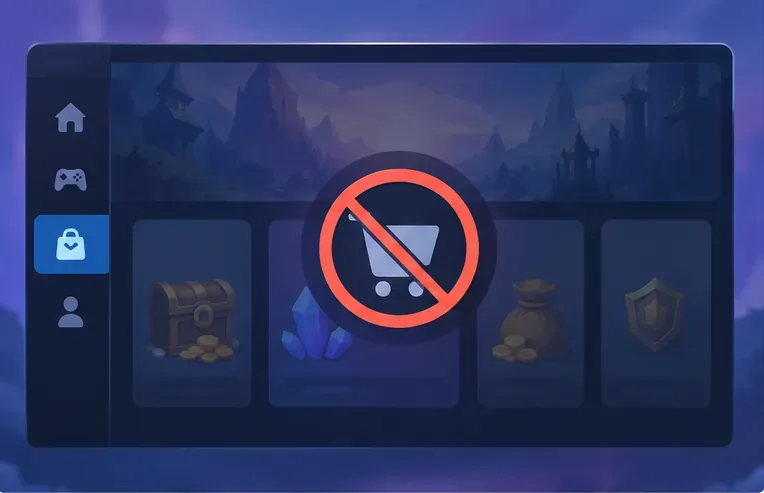
Before changing settings, note where the message appears. Check Blizzard’s official service and support announcements, then look at the Hearthstone Technical Support forum for reports posted around the same time. A cluster of recent reports after a game update makes a temporary service-side issue more plausible. It does not prove that every player has the same cause, so avoid deleting files or reinstalling repeatedly while an outage is being investigated.
Next, compare the same account on another device if one is already available. If the shop is closed on both PC and phone, but the rest of the game works, the issue may follow the account or a shared service rather than one installation. If the shop works on another device, focus on the original device, its network path, or its local game data. This comparison is a diagnostic clue, not a definitive account-status check.
For Maya, suppose the shop is closed on her PC but opens on her phone using the same Battle.net account. That makes a PC-specific cause more likely. If it is closed on both, she should check official updates and proceed with low-impact tests before reinstalling.
Close Hearthstone completely, not just the shop panel, and launch it again. On PC, exit the game and the Battle.net desktop app, then reopen Battle.net and allow any Hearthstone update to finish. On mobile, check the Apple App Store or Google Play Store for an available Hearthstone update. Blizzard’s mobile connection guide also recommends restarting the device and checking that it meets the game’s current requirements.
After the update or restart, sign in to the same Battle.net account and open the shop once. Give the client a little time to finish loading. If the shop remains closed, record whether the game itself is fully connected, whether currency or collection information is missing, and whether the issue began immediately after an update. Avoid making repeated purchases while the shop is in an uncertain state.
In Maya’s example, a clean restart is a quick test. If the store returns, she can stop troubleshooting. If not, she moves to a connection comparison instead of reinstalling right away.
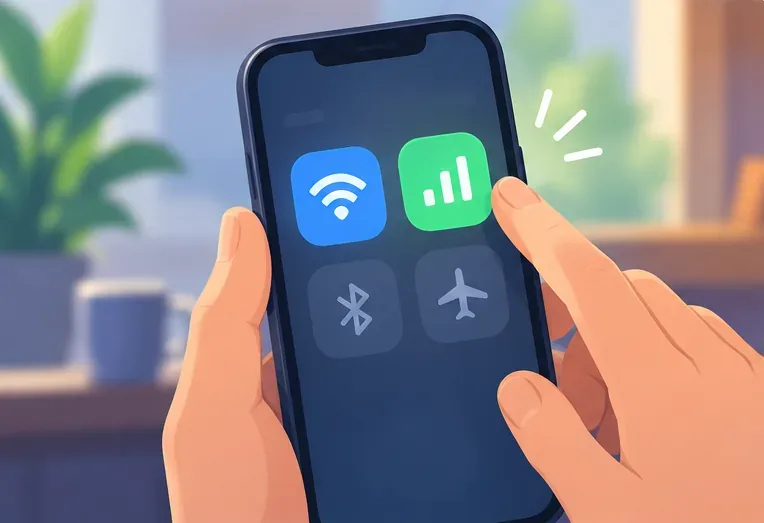
Try switching between Wi-Fi and mobile data on a phone. On a PC, use a trusted alternate network, such as a phone hotspot, only long enough to check whether the shop loads. Keep the test brief if your mobile plan has a data limit. If the shop works on the alternate connection but not the usual one, the result points toward the router, ISP routing, DNS, firewall, or filtering software on the original path.
For a short test, pause a VPN, proxy, custom DNS filter, or network-wide ad blocker if you use one, then restore it afterward. Do not leave your firewall or antivirus disabled. If the game works only when security software is paused, add the appropriate Blizzard application exception using that software’s own documentation rather than leaving protection off. Avoid factory-resetting a router or changing advanced firewall settings unless you know how to restore the original configuration or your ISP/device maker advises it.
Maya can compare her home Wi-Fi with a phone hotspot. If the shop opens only through the hotspot, she should note that result and contact her ISP or network administrator if the issue persists. If the shop remains closed on both, a local game or account-side issue becomes more plausible, though the test cannot prove which one.
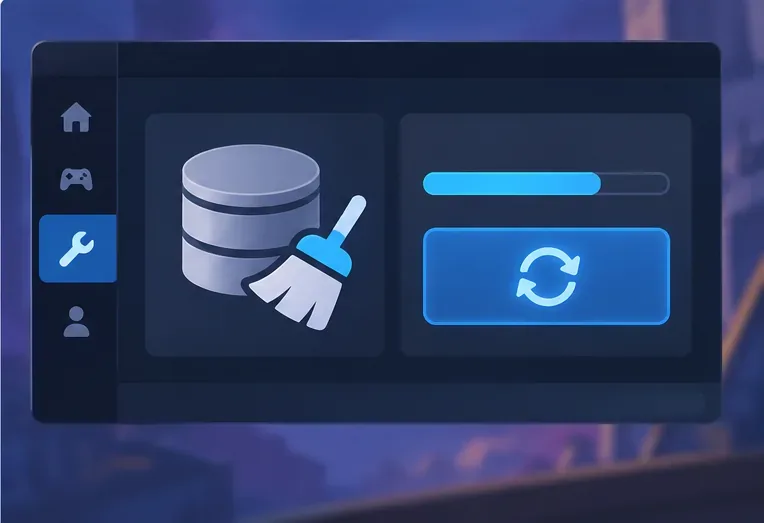
Blizzard’s current mobile connection guidance recommends clearing Hearthstone’s cache or data through the device’s app storage settings when earlier steps fail. Android menu labels vary by manufacturer and system version, but the controls are usually under Settings, Apps, Hearthstone, and Storage. Try clearing the cache first. Clearing app data is a stronger reset: it may sign you out and require the game to download files again, so make sure you can sign back in before using it. Do not clear data for unrelated apps.
Use the lower-risk steps first: update Hearthstone through the App Store, force-close and reopen it, restart the device, and test another connection. If the shop is still closed, Blizzard’s mobile guide recommends uninstalling and reinstalling the game. Before uninstalling, confirm that you know the Battle.net account credentials and that the account is the one holding your collection and purchases. Reinstall only from the official app store.
In the Battle.net desktop app, select Hearthstone and use its available scan or repair control if shown in the game’s options menu. The exact position or label can change with app versions, so follow the current launcher interface. If repair does not help, close the game and launcher before considering Blizzard forum guidance to remove the local Battle.net and Blizzard cache folders from Windows AppData locations. This is an advanced cleanup: remove only the named cache folders, not the Hearthstone installation or unrelated folders, and expect the launcher to rebuild local data. Do not edit the Windows registry based on unrelated forum posts.
On Mac, use the current Battle.net repair or reinstall flow and Blizzard’s supported Mac troubleshooting instructions; do not apply Windows AppData steps to macOS.
If the shop remains closed after these checks, open a Blizzard Support request or post in the official Hearthstone Technical Support forum. Include your platform and OS version, region, the date the issue began, the exact message, whether the game itself connects, and the results of the other-device and alternate-network tests. Do not post your password, payment details, or full account credentials. If support confirms an account restriction or a service-side problem, local cache cleanup cannot remove it.
Return to the same device and network that showed the error, sign in to the intended Battle.net account, and open the shop again. The practical check is that the shop loads normally and its available sections and currency display without the closed notice. If it works only on another device or network, keep that distinction in your support report rather than repeating every reset. If the error returns after a patch or appears on multiple devices at once, check Blizzard’s official updates again before making more changes.
For Maya, the best next step depends on her comparison: a working phone points her toward the PC client; a working hotspot points toward the home network; and a persistent error across devices and networks is a reason to contact Blizzard Support with evidence. These tests narrow the possibilities; they do not establish a guaranteed fix or diagnose account status by themselves.
Enable PUBG’s network statistics HUD to monitor ping and packet loss in a match. See where to find it, what the numbers mean, and what they cannot diagnose.
Learn how to import VALORANT crosshair codes, compare presets with manual settings and spectator copy, and fix common import issues.
Choose Dota 2 minimap size, hero icons, team colors, and background settings by readability, fewer misclicks, and clear results on your own display.
Fix Fortnite texture pop-in on PC with official steps for GPU drivers, file verification, DirectX 12, high-resolution textures, VRAM, SSDs, and stutter.
Learn what Heroes of the Storm minimap size and position options are verified, improve readability, and choose camera-click controls that suit you.
Set Super Smash Bros. Ultimate Quickplay to prefer hazards-off stages. Follow the Preferred Rules menu steps and learn why matchmaking may not always honor them.
Enable Server Latency and Packet Loss in Warzone to monitor connection quality, read the overlay, and use recurring spikes to guide troubleshooting.
Learn how to carry from mid lane in League of Legends by setting up waves, choosing safe roam windows, reading side lanes, and converting pressure into objectives.
Fix Minecraft Evoker spell problems with a safe vanilla test, version checks, log review, and a step-by-step way to isolate mod or datapack conflicts.
Fix PUBG stuck on Initializing on Steam with a focused checklist for PC service notices, launch options, game files, downloads, and connection issues.








