Home
» 🎮 Esports
»
How to Fix Hearthstone’s “Reconnecting to Game” Infinite Loop
How to Fix Hearthstone’s “Reconnecting to Game” Infinite Loop
How to Fix Hearthstone’s “Reconnecting to Game” Infinite Loop
If Hearthstone keeps showing “You were disconnected from your last game. Reconnecting…” and returns to the same screen, the Hearthstone reconnecting to game loop may come from a temporary service issue, a broken connection, damaged local files, or a session the client cannot restore. The message alone does not identify the cause. Work through these four checks in order, testing the game once after each change. No local fix can guarantee recovery of a match that has already ended on the server.
1. Let one reconnect attempt finish before restarting
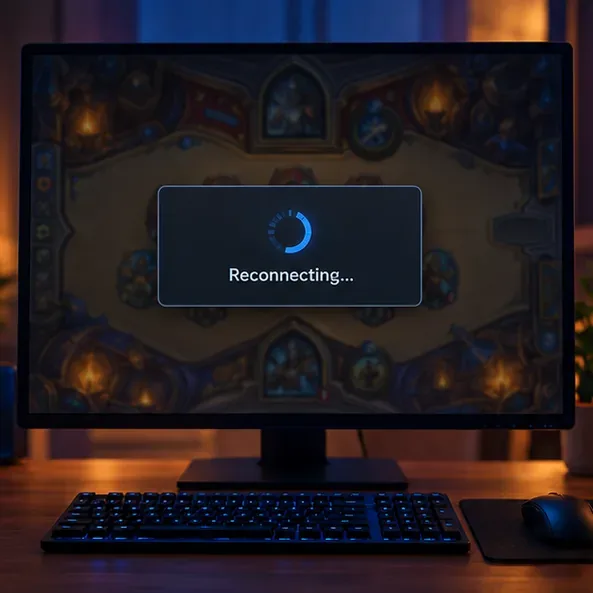
A reconnect dialog over a dimmed card-game board represents the stuck screen; allow one attempt to resolve before restarting the client once.
If the Hearthstone Reconnecting screen has just appeared, leave the game open briefly and let that attempt resolve. If it keeps cycling or returns to the same prompt, close Hearthstone once and reopen it. Repeated force-closing and relaunching usually tests the same saved session again, so it is not a useful loop to repeat.
A Blizzard support reply on the official forum from 2019 described a legacy workaround for cases where the old match had timed out: wait until the client changes to “Could not reconnect,” start a Solo or Practice match, concede it, and restart Hearthstone. This is old, situation-specific guidance, not a currently guaranteed fix. Only consider it if the original match is no longer recoverable and you are willing to abandon it; the steps may not apply to Battlegrounds, an active Arena run, or newer client behavior. Read the original 2019 reconnect guidance on the Hearthstone forum.
2. Check for a service notice and finish any update
A launcher update and repair panel illustrate checking that Hearthstone has finished updating before testing again.
Before changing settings or deleting data, check Blizzard’s current Hearthstone news and technical-support forum for maintenance notices or reports posted at the same time. Blizzard’s mobile connection article also advises checking for outage information or waiting before troubleshooting further. Similar-looking player posts are useful context, but they do not prove that Blizzard has confirmed a widespread outage.
Update Hearthstone from the platform where you installed it: Battle.net on PC, Google Play on Android, or the App Store on iPhone and iPad. Let the download and installation finish, then close and relaunch the game. On October 17, 2026, the latest full patch notes located for this article were version 37.0, published October 12 and released October 13. Its listed bug fixes do not name the reconnect loop, so do not assume that patch specifically fixes this problem. The absence of a listed fix also does not establish what is happening to an individual session. Check Blizzard’s Hearthstone 37.0 patch notes.
Two player threads on Blizzard’s forums from September 18 through October 3, 2026 describe similar reconnect behavior, including a Battlegrounds report. They are individual reports, not official confirmation of a shared bug or a current outage. Read the September Battlegrounds bug report and the follow-up support thread.
3. Test a different network
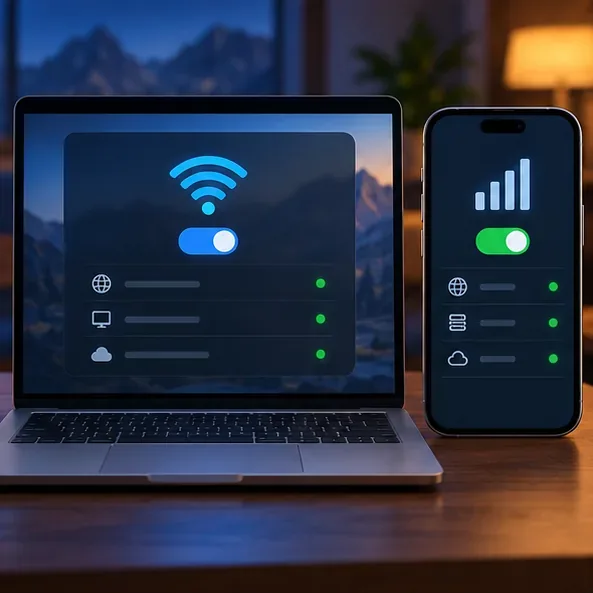
Comparing Wi-Fi with cellular data helps show whether a reconnect loop follows one network path.
A speed test can look normal even when a brief interruption or a route between your device and the game service is failing. If you play on a phone or tablet, switch once from Wi-Fi to mobile data, or switch back to Wi-Fi if you were using cellular. Blizzard lists this comparison among its mobile connection steps. On a PC, try another trusted network if one is available; keep any hotspot test brief if your mobile plan has a data cap.
If Hearthstone connects on the alternate network, the result points toward the original connection path, but it does not prove that your router or internet provider is at fault. Restart your router using its manufacturer’s instructions, then test again. If the loop appears on both networks, restore your normal connection and continue to the local repair steps. Do not disable your firewall or antivirus, copy unknown DNS or port-forwarding settings, or repeatedly switch Hearthstone regions while a match may still be recoverable.
4. Repair the local client, then report a persistent session loop
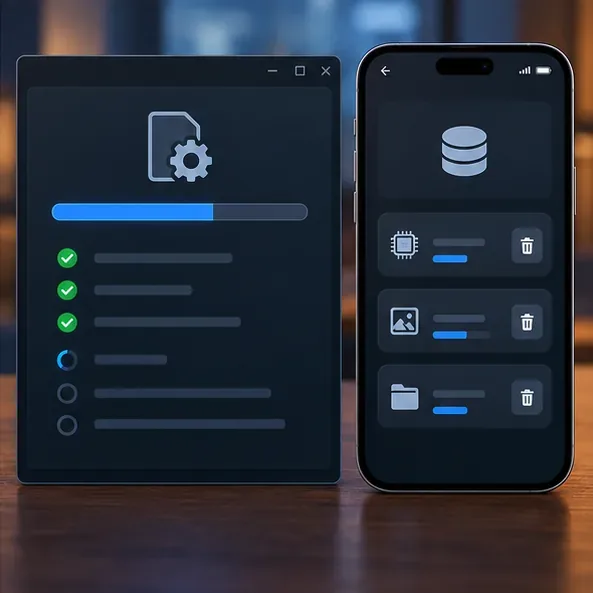
A desktop repair scan and mobile storage panel represent the local file and cache checks to try after updating and comparing networks.
On PC
In the Battle.net desktop app, select Hearthstone, open its options menu, and choose Scan and Repair. Wait for the scan to finish, then launch the game once. If the problem remains, fully exit Hearthstone and Battle.net, restart the computer, and test again. Blizzard’s repair guide explains the launcher’s repair process. Avoid deleting arbitrary folders or editing the Windows registry; those steps can remove settings without changing a server-side match session. See Blizzard’s Battle.net game repair instructions.
On Android
Install any Hearthstone update, restart the device, and test once on the alternate network. If the loop continues, open Android’s app-storage settings for Hearthstone and clear the cache first. Menu names vary by device. Clearing app data or storage is a stronger reset: it can sign you out and require the game to download files again, so confirm that you know the correct Battle.net login before using it. Blizzard’s mobile troubleshooting article lists clearing cache or data and reinstalling among its later steps. Read Blizzard’s mobile connection checklist.
On iPhone or iPad
Update Hearthstone from the App Store, force-close and reopen it, restart the device, and compare Wi-Fi with cellular data. If it still loops, reinstalling from the official App Store is a later option. Make sure you can sign back into the correct Battle.net account first. A reinstall can replace damaged local files, but it cannot guarantee that a stuck match record or service-side issue will be cleared.
If the same account hits the loop on more than one device and more than one network, stop repeating cache clears and reinstalls. Contact Blizzard Support or post in the official Hearthstone Bug Report forum with your platform, operating-system and Hearthstone versions, game mode, selected region, approximate time the disconnect began, exact message, and the network and repair steps you tried. Never include your password or payment details. Blizzard’s desktop and laptop troubleshooting page is available here.
How to tell whether the fix worked
After each change, launch Hearthstone once and check whether it reaches the main menu without reopening the same reconnect prompt. If you get back in, do not enter another high-stakes match until you have decided the previous one is no longer recoverable. Record whether only one network failed, whether the repair scan found anything, and whether another device behaved differently. These details help support distinguish a local app or network problem from a persistent session issue.
There is no verified universal fix for every Hearthstone reconnect loop. The steps above use Blizzard’s current connection and repair guidance where available, while treating the older concede workaround as historical. If the issue follows your account across devices and networks, Blizzard Support may need to investigate the session.