Home
» 🎮 Esports
»
How to Fix the Hearthstone Playful Sprites Error on Launch
How to Fix the Hearthstone Playful Sprites Error on Launch
If Hearthstone stops at launch with a “Playful Sprites” message, check for a Blizzard service problem before reinstalling. Then update the game, restart your device, and compare two network connections. If the problem remains, use the repair or app-data steps that apply to your platform.
The message does not identify one specific fault. In a September 2022 explanation from Blizzard Technical Support, a staff member described Playful Sprites as a generic login failure message. That incident involved account rewards, but its cause should not be assumed for a different failure today.
Research note, October 8, 2026: no new official fix specifically resolving all Playful Sprites launch errors was verified for this guide. Blizzard's support pages sometimes returned only a navigation shell during research; its indexed mobile troubleshooting instructions and accessible staff posts provided the guidance below. No live server-health assessment or hands-on test result is claimed.
Before you start: identify the failure you actually have
Take a screenshot of the complete message, including any code in the corner. Record your platform, game region, and whether the error appears before the main menu. A connection error at the tavern screen needs a different investigation from an application that closes without displaying a message.
Use the same Battle.net account and Hearthstone region for your comparisons. Changing both the device and the region makes a successful login harder to interpret. Before clearing app data or reinstalling, confirm you can sign in to your account and complete any authentication challenge.
What you observe
What it suggests
Best next check
The same account fails on two devices and two networks.
A service, regional, or account-specific issue becomes more plausible.
Look for an official notice and prepare a support report.
One device works on cellular data but fails on home Wi-Fi.
The Wi-Fi connection or its route deserves investigation.
Repeat the comparison with the same account and region.
Your phone works, but your computer fails on the same network.
A desktop client or software conflict becomes more plausible.
Close optional tools and repair the desktop installation.
The app closes without a Playful Sprites message.
This may be a crash rather than a login failure.
Use Blizzard's platform-specific crash guidance.
These are diagnostic clues, not proof. A successful browser connection also does not establish that the route to Hearthstone's services is working.
Eight checks, from the least disruptive to a clean installation
1. Check official service notices
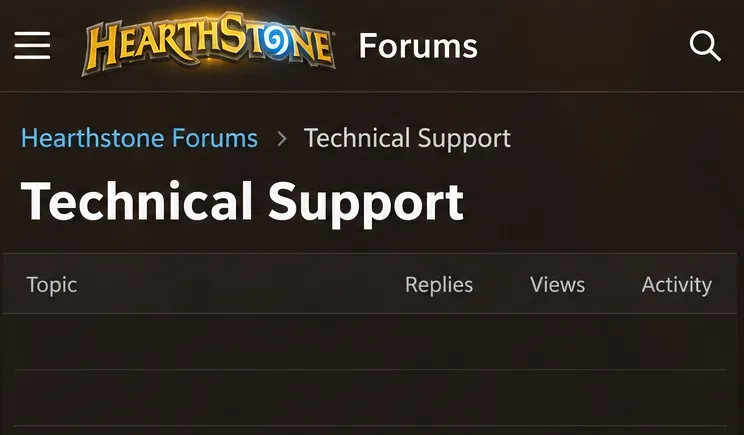
Check any service notice displayed in Battle.net and visit the official Hearthstone Technical Support forum. Look for a Blizzard staff response matching your platform, region, and symptom. A collection of player reports can flag a pattern, but it does not confirm the cause or prove an outage has been resolved.
If an official notice describes a relevant service interruption, wait for its update and retry afterward. Deleting local files cannot repair Blizzard's servers. If no notice matches, proceed through the local checks; the absence of a notice is not a guarantee that every service is healthy.
Illustrative forum view: check official staff notices; the empty topic area does not indicate current service health.
2. Finish available game updates
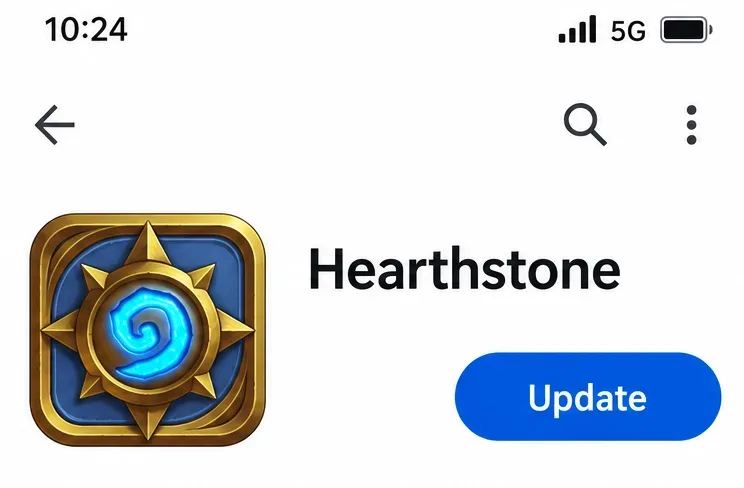
On desktop, open Battle.net, select Hearthstone, and let pending updates complete before launching. On mobile, open the game's official App Store or Google Play listing and install an available update. Do not obtain a replacement installer or Android package from an unofficial download site.
An update button means there is something to install; it does not promise that the update fixes your particular error. If the store shows no update, continue rather than repeatedly uninstalling to force one. Store availability can differ, so compare the version you actually have when reporting the problem.
Illustrative app-store view: install an available Hearthstone update before repeating the launch test.
3. Restart the client and device
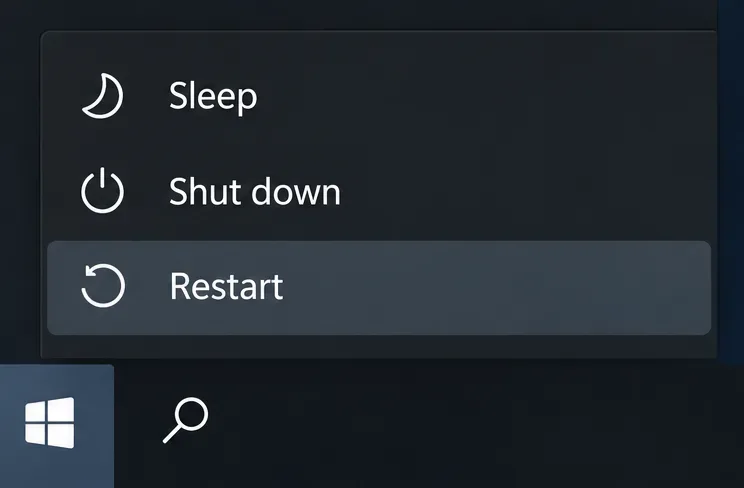
Close Hearthstone completely. On desktop, quit Battle.net as well, then restart the computer and launch from Battle.net. On a phone or tablet, restart the device and open Hearthstone again after it reconnects to the network.
This is a clean launch test. Record whether the failure appears at the same point and with the same code. Avoid launching multiple copies or making several unrelated changes between attempts; a useful troubleshooting sequence keeps each result interpretable.
Illustrative power menu: restart the computer for a clean client launch.
4. Compare Wi-Fi with another connection
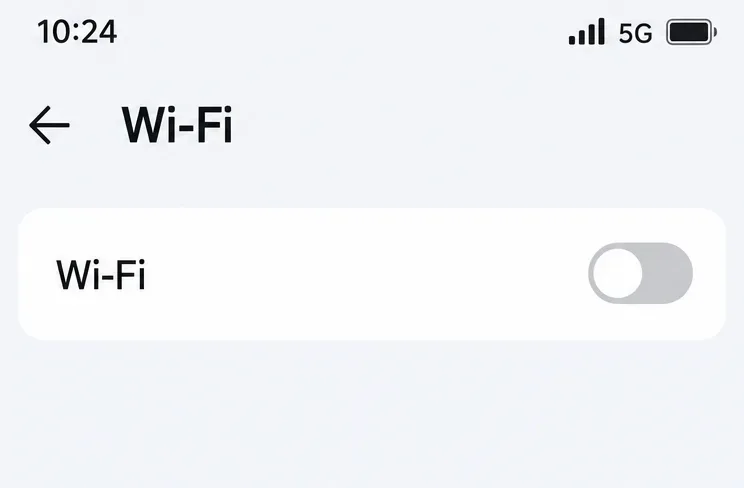
On mobile, try cellular data instead of Wi-Fi, or Wi-Fi instead of cellular data. Account for any data charges. On desktop, a brief test through a trusted phone hotspot can provide a similar comparison; avoid downloading a full reinstall over a limited data plan.
If a VPN or proxy is already active, disconnect it for this comparison when permitted on your network. Installing a new VPN is not a necessary first-line fix. If Hearthstone launches only on the alternate connection, focus on your usual network rather than immediately clearing game data.
Restart your home router if you control it and doing so will not interrupt other important use. On a school or workplace connection, ask the administrator about restrictions. Avoid changing managed network settings or turning off firewall protection wholesale.
Blizzard's mobile connection troubleshooting article includes checking for outages, updating, switching connections, restarting, checking compatibility, clearing Android app cache/data, and reinstalling. Follow only the actions relevant to your device.
Illustrative connection view: compare cellular data with Wi-Fi using the same account and game region.
5. Test without desktop deck trackers or overlays
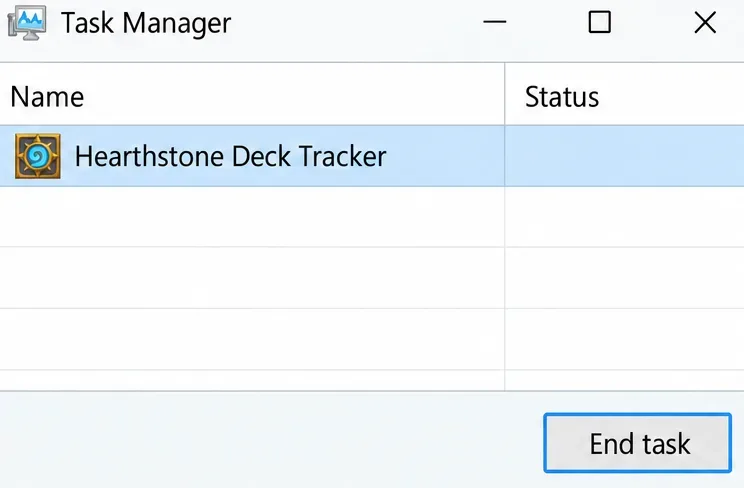
If you use a deck tracker, companion utility, or optional overlay, close it completely and try launching Hearthstone alone. Check the system tray or menu bar so the utility is not merely minimized. If it starts automatically, temporarily prevent it from opening during your test.
Blizzard's staff response in the historical thread linked above advised removing deck-tracking add-ons when the error persisted. Closing optional tools first is a less disruptive diagnostic step. If the game works only without a tool, check that tool's updates or uninstall it through the operating system's normal process.
This is not evidence that every tracker causes Playful Sprites. The result matters: a repeatable difference with and without the same utility is more useful than blaming whichever application happens to be installed.
Illustrative process view: make sure an optional deck tracker is fully closed for the launch comparison.
6. Run Scan and Repair on the desktop installation
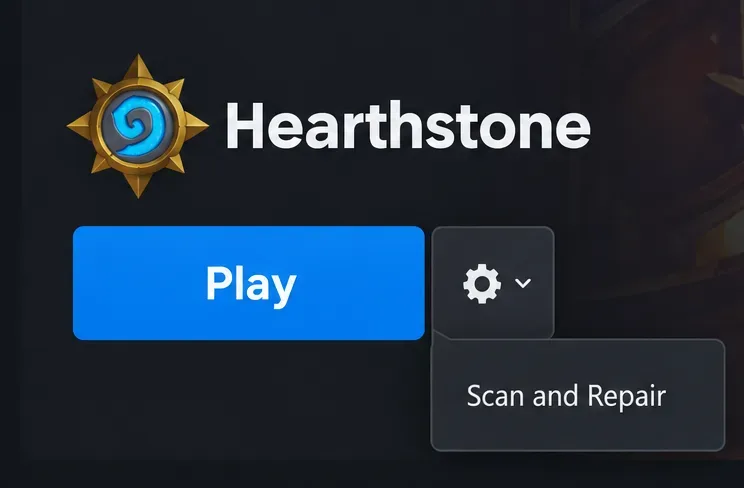
With Hearthstone closed, select it in Battle.net. Open the Options cog next to Play, choose Scan and Repair, and select Begin Scan. Let the scan and any resulting download finish before launching again. If those controls are unavailable while an update is running, finish the update first.
Repair checks local installation files. It cannot resolve every account or connection problem. If it finishes successfully but the same message returns, record that outcome instead of scanning repeatedly without another clue.
Illustrative launcher view: open the Options cog and choose Scan and Repair on desktop.
7. Clear Android cache before considering a data reset
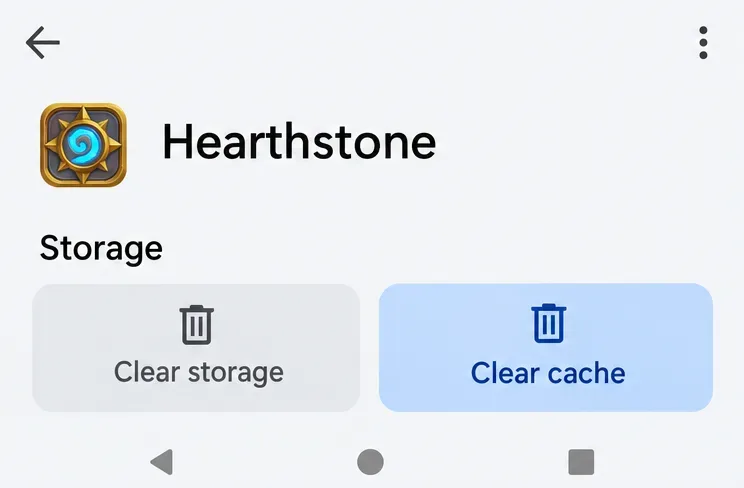
On Android, open device Settings, find Hearthstone in the app list, and open its storage section. Choose Clear cache first, then relaunch. Menu names vary by manufacturer. Cache is temporary local data; clearing it is different from resetting the app's stored data.
If that does not help, Blizzard's mobile guidance also includes clearing app data. Treat Clear storage or Clear data as a more disruptive option: it can remove local settings and downloaded resources and require another sign-in. Confirm your account access before choosing it.
Do not copy this Android path onto an iPhone or iPad; there is no equivalent universal Clear cache button for every iOS app. For desktop, avoid deleting entire Blizzard or Battle.net directories based on an old forum reply. This guide does not prescribe a Windows or Mac folder purge because the current error-specific path was not verified.
Illustrative storage view: start with Clear cache; Clear storage is a separate, more disruptive reset.
8. Reinstall only after the earlier checks
If the failure remains isolated to one installation, uninstall Hearthstone through Battle.net on desktop or your device's normal app controls on mobile. Reinstall from Battle.net, the App Store, or Google Play. Allow the download and required resources to finish, then sign in using the same account and region.
Reinstallation costs time and bandwidth. It is a reasonable final local step, but a weak next move when the same account already fails across several devices and networks. In that situation, preserve your findings and contact Blizzard instead of repeating the download.
Illustrative store view: reinstall from the official listing after the earlier local checks.
Verify recovery before starting a competitive match
Launch Hearthstone, confirm the main menu loads, and check that your collection is accessible in the intended region. Close and reopen the game once to see whether the launch error returns. If login is stable, use a low-stakes session before committing to a competitive match.
A single successful attempt is encouraging, but it does not prove a permanent fix. If the message returns, note which connection and optional tools were active. That gives the next investigation a concrete starting point.
When to stop troubleshooting and contact Blizzard
Escalate when the same account fails on multiple devices and connections, when an official incident has ended but your error persists, or when the relevant local steps have not helped. Use Blizzard Support or the official Technical Support forum linked above.
Provide the complete error text and code.
Include the time of failure and your time zone.
List the platform, operating-system version, game version, and Hearthstone region.
Describe the network comparison and any second-device test.
Summarize the update, restart, repair, cache, and reinstall steps you actually completed.
Keep passwords, authentication codes, and private account details out of public posts. The most useful report explains where the problem follows you: the account, the device, or the connection. That distinction helps support investigate a generic Playful Sprites message without another round of unnecessary reinstalls.