Home
» 🎮 Esports
»
How to Fix EA SPORTS FC Unable to Connect to EA Servers
How to Fix EA SPORTS FC Unable to Connect to EA Servers
When EA SPORTS FC stops at “Unable to connect to EA servers,” it can be hard to tell whether the problem is the game, your console or PC, your EA account, or an outage. Start by checking the service itself. If servers are available, move from simple restarts to network checks, then try the EA app’s cache recovery on PC. This order helps you find the cause without changing router settings unnecessarily.
EA’s live status page changes as incidents are reported, so this guide does not assume the servers are up or down. The steps below apply broadly across recent EA SPORTS FC editions; menu labels and online requirements can vary by edition and platform.
Before you troubleshoot: identify what is failing
A server connection error means the game cannot complete its connection to EA’s online services. It does not, by itself, prove that your internet is disconnected or that your account has been banned. “Platform services” means the online network for PlayStation, Xbox, Nintendo Switch, Steam, or another store or console. The EA game service and the platform service can have separate outages.
Have these details ready: your FC edition, device or console, the exact error wording, and whether other online games or websites work. Do not share your password or one-time security code with anyone offering a fix.
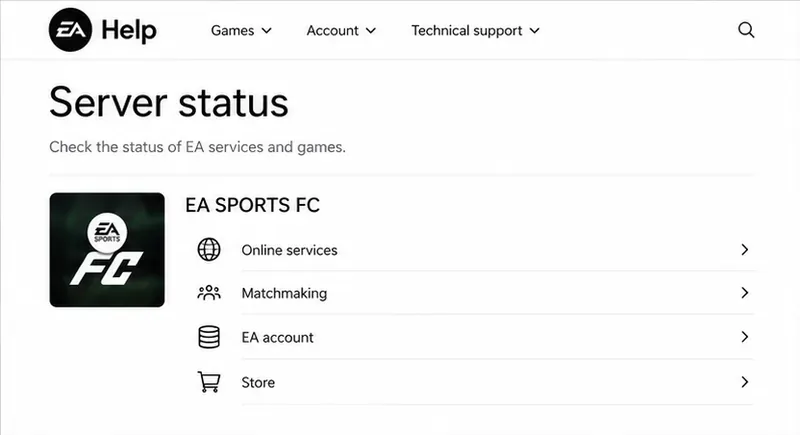
The EA Help status screen separates EA SPORTS FC service categories; check the current status before changing local settings.
Step 1: Check EA and platform status
Open EA’s server status page and select the EA SPORTS FC edition you play. Check your platform’s service status as well. EA’s page can list game services and platform-specific entries, so check the line that matches your console or PC storefront.
If EA or the platform reports an incident, wait and try again later. A widespread outage cannot be repaired by reinstalling the game, changing DNS, or resetting your router. If the status pages show normal service but you still cannot connect, continue below. Status pages may lag behind a new interruption, so a brief delay before retrying can also help.
Step 2: Restart the game and confirm account access
Close EA SPORTS FC fully. On console, quit it from the system menu instead of leaving it suspended or in Quick Resume. On PC, exit the EA app or Steam if it is launching the game.
Restart the console or computer, reopen the launcher if applicable, and install any update it offers. An outdated game client can fail to reach online features.
Sign in to the EA account linked to your game. If the account is already active on another device, sign out there and retry. Check that you have not switched to a different EA account by mistake.
Console online multiplayer may require the platform’s relevant paid online membership, depending on the game, platform, and mode. Check the platform’s official account or subscription page if the game reports that online play is unavailable. For a child account, a parent or guardian may need to review online communication and multiplayer permissions. If EA account access itself is blocked, check EA’s account notices and support instead of repeatedly changing network settings.
Step 3: Test your local connection
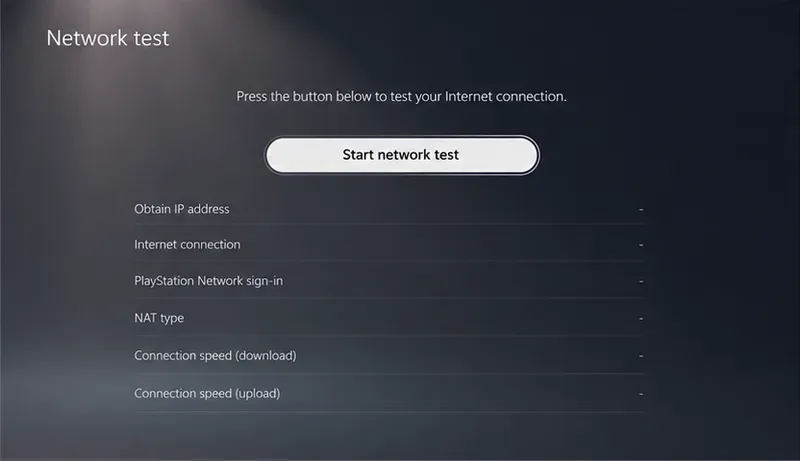
First, see whether another device on the same home network can access the internet, then run the console or PC network test. On PlayStation, the built-in test can show internet and PlayStation Network connection results; other platforms provide their own network diagnostics. A network test confirms local connectivity, but it does not guarantee that EA’s game service is reachable.
A platform network test can separate a home internet problem from an EA game-service problem.
Restart the modem and router: unplug their power, wait at least 30 seconds, reconnect them, and allow the connection to return before launching the game. Avoid pressing the router’s reset pin, which can erase its configuration. If you use a work, school, hotel, or shared network, its firewall or sign-in page may restrict gaming traffic; test on a trusted home network if available.
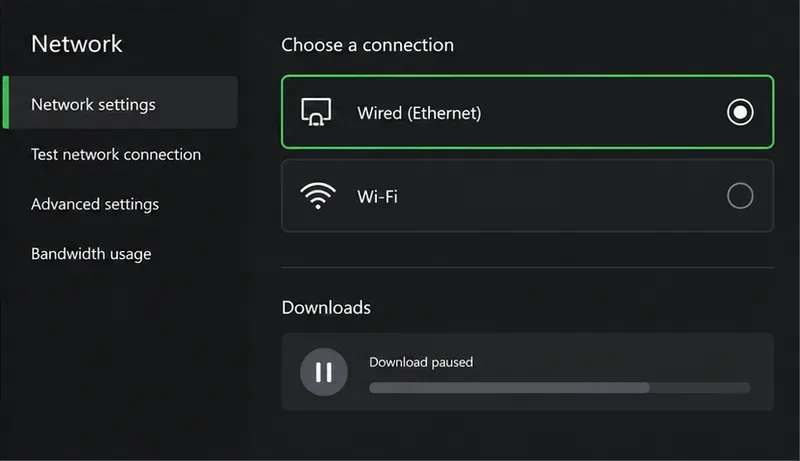
For a quick connection comparison, connect the console or PC by Ethernet if possible. Wired connections avoid some wireless interference. If you must use Wi-Fi, try 5 GHz when you are near the router; 2.4 GHz reaches farther but can be slower or more crowded. Pause large downloads and high-resolution streams on other devices while testing.
Testing over Ethernet and pausing a large download can reveal whether Wi-Fi or competing traffic is contributing to the failure.
Step 4: Use PC-specific fixes only when they fit
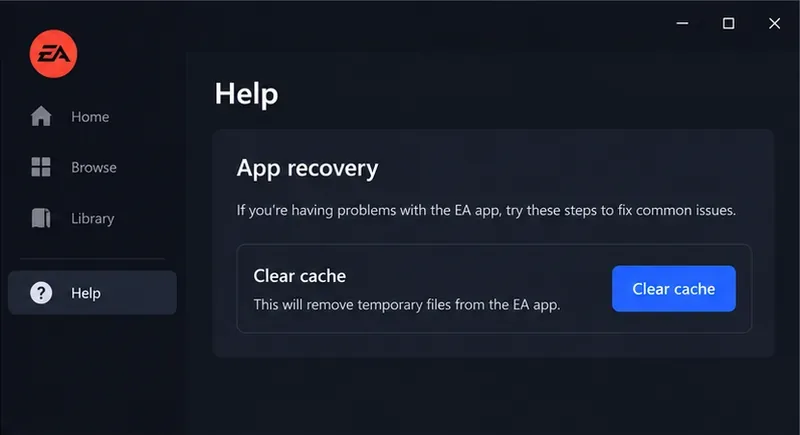
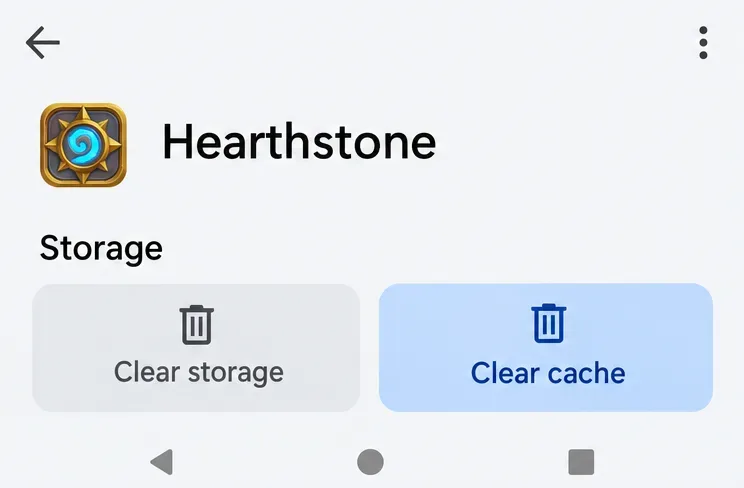
If the EA app itself is stuck offline, not loading, or failing to update, clear its temporary cache. In the EA app, choose Help > App recovery > Clear cache, then let the app restart and sign in again. Cache means temporary app files; clearing it does not repair an EA server outage and does not delete your installed games. See EA’s official cache instructions for Windows-specific alternatives.
The EA app’s App recovery panel contains the Clear cache control for app-side loading problems.
If the game is installed through Steam or Epic, restart that launcher too and check its download or update queue. Temporarily disconnect from a VPN only as a diagnostic test, then reconnect it afterward if you normally use one. VPN routing can affect the path to a game server, but turning it off is not a universal fix.
For a persistent issue limited to one home network, check the router maker’s firmware guidance and your ISP’s outage notices. EA also recommends checking router placement, Wi-Fi channel congestion, and connection type. Avoid disabling your firewall or copying random port-forwarding settings from an unverified site; those changes can reduce network security or break other devices.
Quick diagnosis table
What you observe
Best next check
EA or platform status shows an incident
Wait for service recovery, then retry.
Other devices also have no internet
Restart the modem/router and check with your ISP.
Internet works, but only FC fails
Restart the game, verify account access, then check FC status again.
EA app is offline or will not update
Use App recovery to clear the EA app cache.
FC works on another network but not at home
Compare Ethernet and Wi-Fi; investigate router or ISP settings.
Common mistakes to avoid
Do not reinstall FC as the first response. It takes time and cannot fix an outage or account restriction.
Do not change DNS, router channels, or advanced settings before checking server status and basic connectivity.
Do not assume a failed connection means a ban. Review official EA account notices if you suspect an enforcement action.
Do not treat one successful network test as proof that EA’s servers are reachable; test FC online again.
Final check: confirm the fix
After each change, launch the game and try the same online feature that failed. Confirm that you can sign in, reach the relevant online menu, and complete a fresh connection attempt. If the game still fails, compare with another online game or a different trusted network. That comparison helps identify whether the issue follows FC, your device, or the home connection.
When you contact EA Help, include your platform, FC edition, exact error text, approximate time and time zone, and the checks you already completed. Never include your password. EA’s connection troubleshooting page also explains its Connection Quality Report, a tool for reviewing connection quality in supported modes; it is useful for lag or instability, while an inability to sign in may need the server, platform, account, or network checks above.