Home
» 🎮 Esports
»
Best Minimap Shape and Rotation Settings in Warzone
Best Minimap Shape and Rotation Settings in Warzone
For most Warzone players, the best starting point is a square minimap with rotation enabled. A square uses more of the display area for nearby streets and terrain, while rotation keeps the direction you are moving toward at the top of the map. That combination can make quick route checks easier during a fight or rotation.
There is no setting that is best for every player. If a moving map makes you lose your sense of direction, a square minimap with rotation disabled may be easier to read. The right choice is the one that lets you identify a route, ping, or landmark at a glance without pulling your attention away from the action.
This guide is for the standard Call of Duty: Warzone HUD on PC and console. Menu names and available options can change between updates, platforms, and modes. Activision's public guides discuss HUD customization broadly, but do not provide a current, platform-by-platform specification of every minimap shape and rotation control. Treat the recommendations below as a practical starting point, and use the options shown in your current build.
Which minimap shape should you choose?
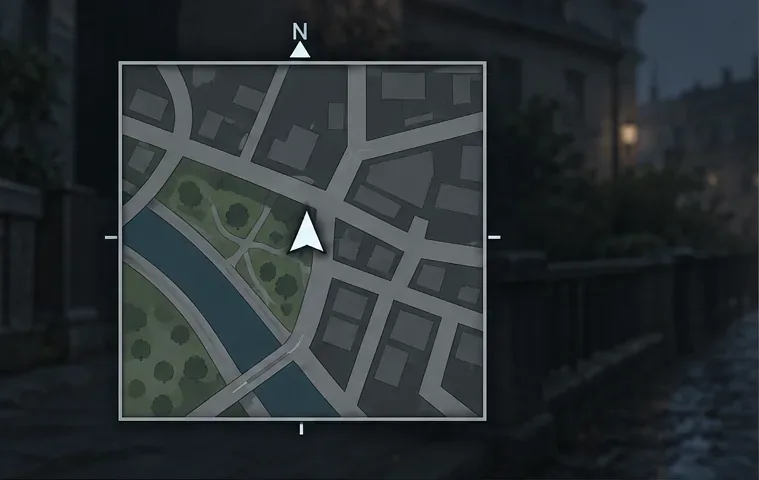
Start with Square. A square minimap shows more of the area in its corners than a circle of similar on-screen width. That extra visible area can make it easier to notice a street bend, a building edge, or a route approaching diagonally ahead. The difference is most useful when you are moving quickly and only have time for a brief glance.
A square minimap keeps the rectangular map window visible, including corner areas around nearby streets. This is a schematic HUD illustration, not a captured Warzone screen.
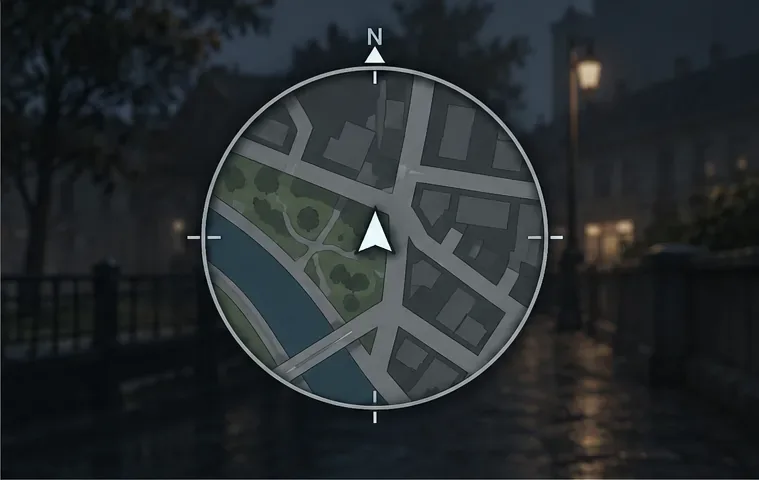
A Circle can feel cleaner if you prefer a rounded HUD or want less visual information at the corners. Its circular boundary clips map details that appear near the square's corners. That may reduce clutter for some players, but it also means you have less peripheral map area to scan. Try Circle if the square feels busy, especially if your HUD already has many elements competing for attention.
The circular map boundary cuts off some corner detail from the same simplified layout. Consider this tradeoff if you prefer a compact, rounded HUD.
Shape does not make the map zoom farther out or change how enemy information works. It changes the outline of the area you can see. Do not expect Square to reveal enemies that the game has not otherwise exposed; it simply gives the map display more visible corner space.
Should minimap rotation be on or off?
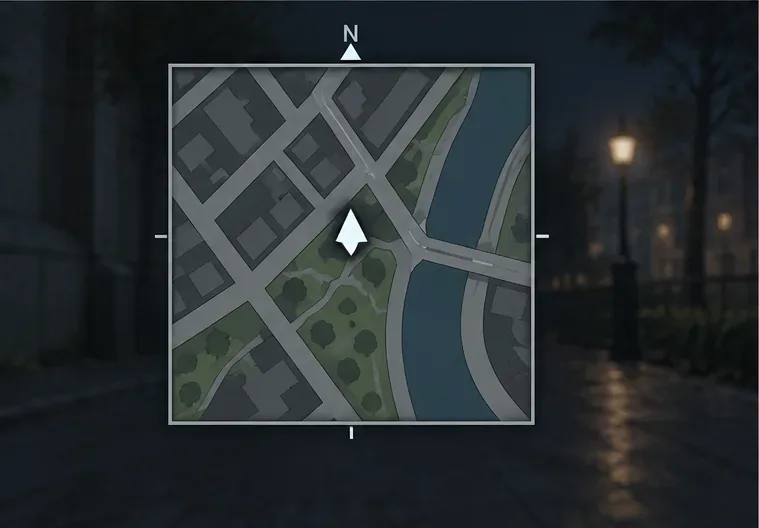
Rotation On means the map turns as your Operator changes direction, so the direction you face stays toward the top. Streets and landmarks rotate around the player marker. Many players find this easier for immediate movement: if a route is shown above the marker, it is generally in front of them. The tradeoff is that the map's compass orientation changes as you turn, which can make fixed north-south directions harder to remember.
With rotation enabled, the player’s forward direction is shown toward the top while the surrounding map turns. This can make an immediate turn easier to interpret.
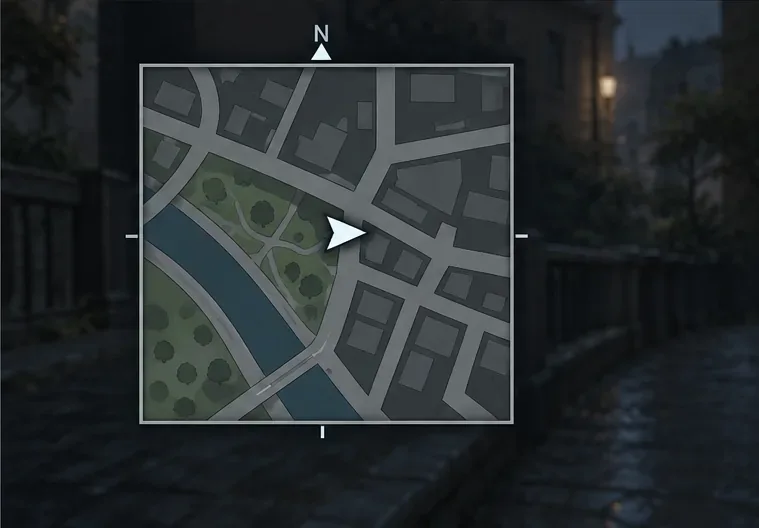
Rotation Off typically keeps north at the top while the player marker turns to show the direction you are facing. This is often called a fixed or north-up map. It gives you a stable reference for compass directions and can help if you already navigate by north, south, east, and west. However, the route in front of you may appear at an angle, so you have to translate the map orientation while moving.
With north-up orientation, the map stays fixed and the player marker turns. Use the compass cue and marker direction together to read your heading.
If the game labels the toggle differently, look for a minimap rotation or orientation option. Do not confuse it with separate Tac-Map controls for zooming or centering the large map.
What setup works best for different players?
Fast rotations and close-range play: Try Square with Rotation On. Square corners expose more surrounding map, and a forward-up view can make the next route easier to spot.
Compass-based navigation: Try Square with Rotation Off. The north-up reference stays stable while you learn routes and call out directions.
Less HUD clutter: Try Circle with either rotation mode. The smaller visible corners may reduce map detail around the edge, but they do not remove other HUD elements.
Returning players with established muscle memory: Keep the orientation you already know. A wider view is not useful if you have to pause and decode it during combat.
For example, imagine a player leaving a building to reach a squad ping across a diagonal street. With Square and Rotation On, more of the diagonal route may remain visible, and the player can keep the direction of travel toward the top. With Square and Rotation Off, the streets stay aligned to north, but the player may need to translate the marker's direction toward the ping. The first option may be faster to interpret; the second may be more reliable for someone who navigates by compass.
How do you change and test the settings?
Open Settings before entering a match. If the current build offers a settings search box, search for “minimap.” Otherwise, inspect the Interface or HUD category and read the option descriptions.
Choose Square as your first shape test, if available. Keep other HUD options unchanged so you can judge the shape by itself.
Set minimap rotation On and play a short practice or low-pressure match. Watch whether the route ahead is easier to recognize while moving.
Switch only rotation to Off for another short session. Notice whether the stable north-up orientation helps you retain direction or makes you spend longer interpreting angles.
Compare both settings in the same situation: leaving cover, following a ping, or checking a street before crossing. Keep the option that is quicker to understand without a second glance.
If you are on Warzone Mobile, the control surface differs from PC and console. Activision's Warzone Mobile controls guide specifically describes customizable HUD elements, including changing the Tac-Map between square and circle and disabling map rotation. Follow that mobile-specific control editor instead of assuming desktop menu instructions apply.
How can you tell the setting is helping?
Judge the minimap by useful decisions, not by how familiar it looks in Settings. You should be able to locate your player marker, understand your heading, and pick out the next street or ping quickly. If you keep looking back and forth to work out which way the map is facing, test the other rotation mode. If the square feels visually crowded, compare Circle while leaving rotation unchanged.
Change one option at a time. After choosing a shape, test both rotation modes before adjusting map size, opacity, or other HUD elements. Changing several settings together makes it difficult to tell which adjustment improved readability. Revisit your choice after a major interface update, because game menus and HUD options can change over time.
Quick recommendation
Use Square + Rotation On as a sensible first setup for quick route checks. Choose Square + Rotation Off if a fixed compass orientation matters more to you. Pick Circle when its cleaner outline feels easier to scan and reduced corner visibility does not bother you. There is no universal competitive advantage proven by shape alone; comfort, screen size, HUD layout, and how you navigate matter.