Home
» 🎮 Esports
»
How to Fix the Brawl Stars Red Wi-Fi Lag Icon: Which Changes Help?
How to Fix the Brawl Stars Red Wi-Fi Lag Icon: Which Changes Help?
The most useful first fix for the Brawl Stars red Wi-Fi lag icon is to compare your current connection with another network. Try Wi-Fi and cellular data separately, then keep the connection that produces fewer warnings and more responsive matches. Wi-Fi is often economical at home; cellular can be a useful alternative when your home connection is unstable. Neither is automatically better.
This guide compares eight troubleshooting choices, from free changes to support escalation. Change one thing at a time and test between matches, rather than switching connections during a battle. The interface illustrations show relevant controls, not evidence of a successful repair.
Documentation checked October 8, 2026. Phone menus vary by operating system and manufacturer. This article does not claim that a live Brawl Stars outage is occurring.
1. Check whether the problem is local or shared
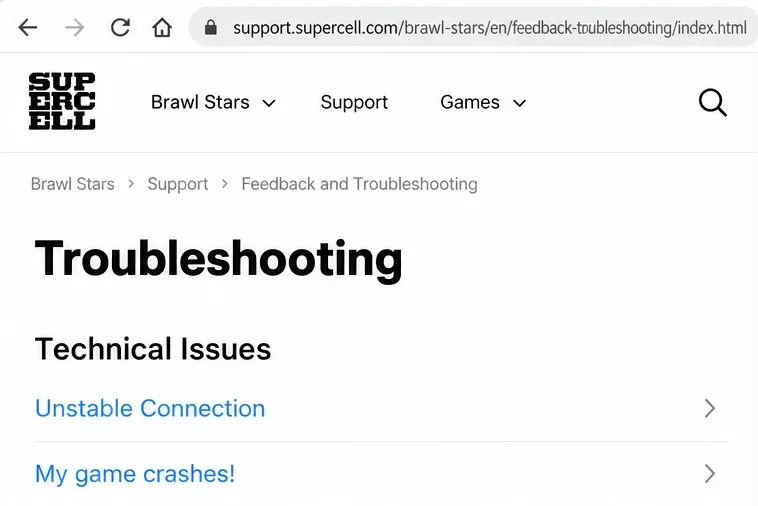
Supercell’s Unstable Connection guidance identifies the on-screen warning as a connection problem. The red icon alone does not tell you whether the cause is your Wi-Fi, your internet provider, the route to a game server, or a service problem. The official sources reviewed do not publish an exact latency or packet-loss threshold for activating it.
Check the game’s notices and official Brawl Stars news for relevant maintenance or technical announcements. If a confirmed disruption matches your experience, waiting for the stated resolution is more useful than repeatedly changing phone settings. No announcement, however, is not proof that every server is healthy.
Also compare solo play with playing alongside friends in another region. Supercell’s server information says the game normally chooses a nearby server, but matchmaking or friends outside your region can lead to another server. A difference between these situations is a diagnostic clue, not proof of a fault. Record it for support.
The Unstable Connection entry is the relevant starting point in Supercell’s troubleshooting resources.
2. Compare Wi-Fi with cellular data
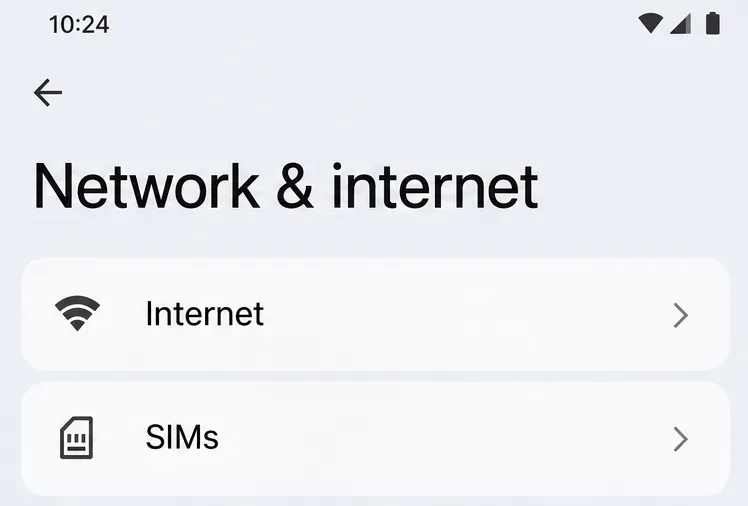
On Android, open Settings and look for Network & internet or Connections. Turn Wi-Fi off and mobile data on for a cellular test; reverse that setup for a Wi-Fi test. Menu names differ. Google recommends this comparison in its Android connection troubleshooting guide. On iPhone, use Settings > Wi-Fi to disconnect from Wi-Fi and check that cellular data is available.
Test in the same location and, as far as practical, similar matchmaking conditions. Use a low-stakes match rather than Ranked while evaluating the connection. Note warning frequency and delayed movement or attacks. One good match is encouraging, but repeated comparisons provide stronger evidence.
Choice
When it makes sense
Main tradeoff
Home Wi-Fi
Matches are stable near your router and you want to conserve mobile data
Distance, shared traffic, and the home internet connection can affect reliability
Cellular data
Wi-Fi repeatedly warns while cellular matches are responsive
Data allowance, carrier coverage, and network congestion matter
Another trusted Wi-Fi network
You need to distinguish a home-network issue from a phone or game issue
The test requires access to a different connection; results are location-specific
If cellular improves the result, that narrows your investigation toward the home connection; it does not identify the router as the culprit. If both fail, continue checking the game, device, and service conditions. A 5G label is not a guarantee of a better match than Wi-Fi.
Android network settings provide the controls needed to compare Wi-Fi with mobile data; labels vary by phone.
3. Improve the existing Wi-Fi connection before buying anything
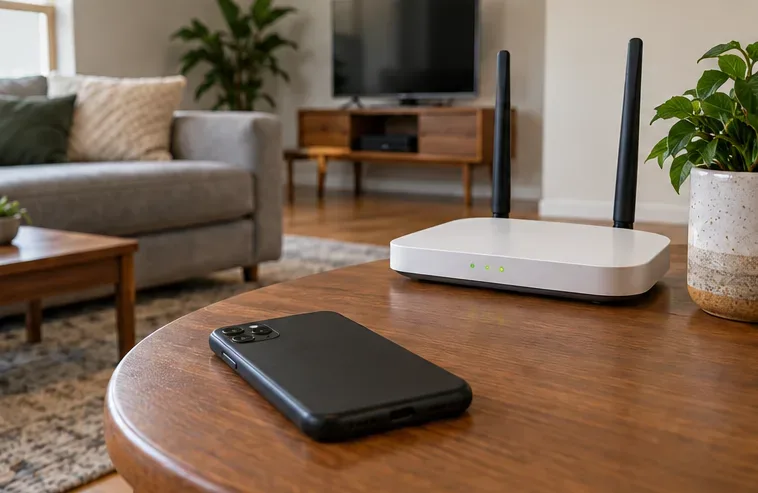
Move closer to the router and compare another match from that position. This is free and especially useful when warnings appear in a bedroom but not near the access point. Google’s connection guidance recommends checking whether moving closer helps.
For a separate comparison, pause large downloads, uploads, or cloud backups that you control. Supercell’s official connection troubleshooting advice recommends checking other network activity and comparing connections. Coordinate with other household members rather than abruptly stopping their work.
A stronger local signal cannot repair an upstream internet problem. Likewise, a fast download speed does not establish that a game connection stays responsive throughout a match. Keep the improvement only if your actual match behavior improves. If the problem follows one room, router placement or coverage deserves attention before a faster internet subscription.
Testing near the router helps compare local Wi-Fi coverage with conditions farther away.
4. Choose a Wi-Fi band for your location
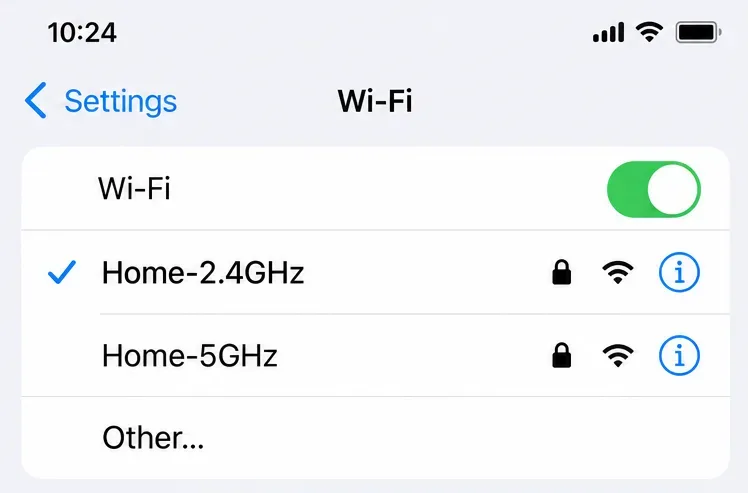
If your router exposes separate 2.4 GHz and 5 GHz networks, compare them while staying in the same place. NETGEAR’s explanation of Wi-Fi frequencies describes the tradeoff: 2.4 GHz offers more coverage, while 5 GHz offers higher potential speed and generally less overcrowding, but less range through obstacles.
Try 5 GHz when you are near the router and the 2.4 GHz environment is busy. Retest 2.4 GHz when you are farther away or behind several walls. Choose based on fewer connection warnings, not just the highest speed-test result.
The network names in the illustration are examples. Many routers use one name and select a band automatically. If you do not see separate networks, consult your router’s documentation rather than assuming your phone has a universal band-selection button. Changing router-wide settings can affect other devices.
Separate example network names illustrate a band comparison; your router may use one shared name.
5. Restart the router when the home network is the suspect
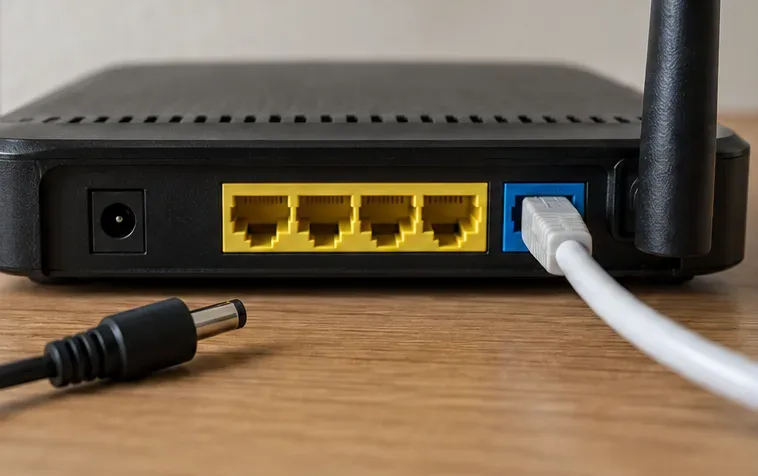
A router restart is worth trying when several devices have connection trouble or the warning repeatedly occurs only on your home network. Follow your equipment’s instructions. Google’s general troubleshooting procedure is to disconnect power, wait 30 seconds, reconnect it, and wait for the connection to return before testing.
The cost is a temporary interruption for everyone sharing the network. Arrange a suitable moment if someone is on a call or using connected services. Restarting means cycling power; pressing a factory-reset button is a different operation that can erase configuration.
If the warning returns after every restart, repeated power cycling is not a lasting solution. Keep the evidence from your Wi-Fi-versus-cellular comparison and discuss persistent home-network trouble with your internet provider.
Disconnecting router power illustrates a restart; the Ethernet cable remains connected.
6. Review iPhone connection assistance and its data cost
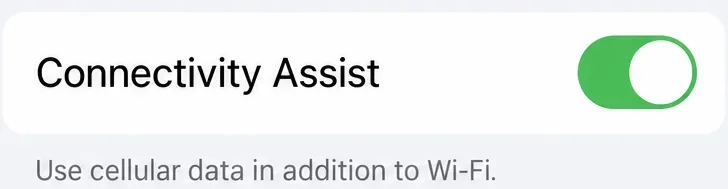
Apple’s Connectivity Assist documentation, updated September 14, 2026, describes using cellular data alongside Wi-Fi when Wi-Fi is slow or unusable. On supported software, the control is in Settings > Wi-Fi near the bottom. Older software may use the name Wi-Fi Assist and a different location.
For a clean Wi-Fi-only comparison, temporarily turn the assistance control off if it is present. After testing, restore your preferred setting. Leaving it enabled may suit someone with adequate cellular coverage and a generous data allowance; disabling it offers more predictable control over mobile data use.
Apple lists conditions where assistance does not operate, including international roaming and cellular Low Data Mode. Its documentation does not promise a Brawl Stars-specific fix. Judge it by your own repeatable results rather than treating the toggle as a guaranteed gaming optimization.
Connectivity Assist can supplement Wi-Fi with cellular data, so include its data cost in your decision.
7. Update the game and restart the device
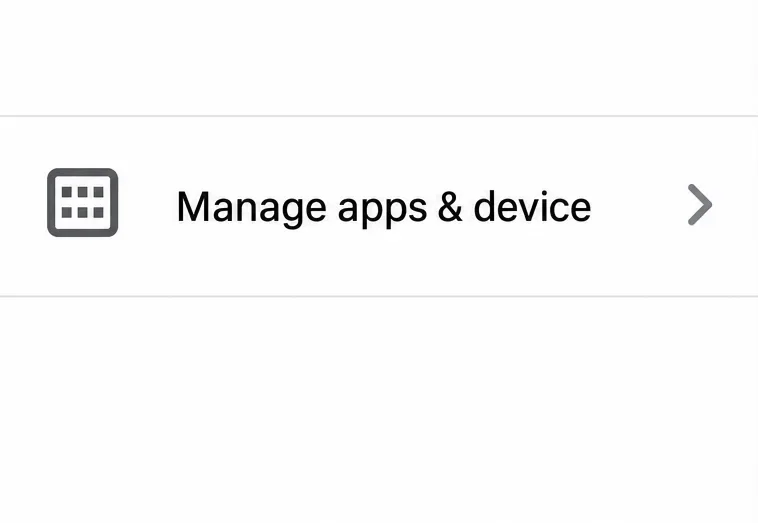
Install an available official Brawl Stars update, then reopen the game. On Android, Google’s Play Store update instructions use the profile menu > Manage apps & device > Updates available > See details, followed by Update for the app. An Update button appears only when an update is available.
On iPhone, Apple’s current manual app update instructions use the App Store account button > App Updates, then Update beside the app. Restarting the phone is another low-effort option if the problem persists.
Updating keeps the installed client current, but does not establish that an update fixes this particular warning. Avoid making reinstallation your first choice: it requires another download, does not test the network, and requires confidence that you can recover access to your account. A repeatable network comparison is usually more informative.
Manage apps & device leads to available updates; this illustration does not indicate that a Brawl Stars update is available today.
8. Escalate with evidence instead of stacking random fixes
Choose whom to contact based on the pattern. Home Wi-Fi fails while cellular works: start with your internet provider, especially if other devices also struggle. Cellular alone fails: ask your carrier about coverage or service issues. Brawl Stars keeps warning across different connections while other services behave normally: send Supercell the comparison results. These patterns guide investigation; they do not conclusively locate the fault.
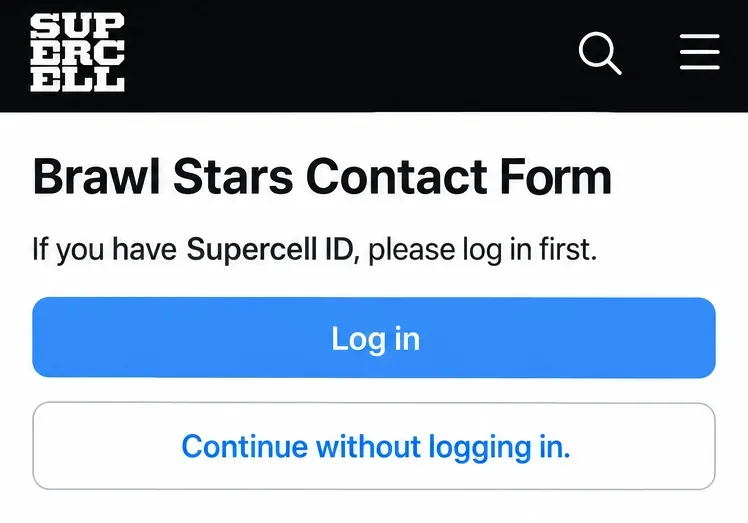
Use the official Brawl Stars contact form. Include your phone model, operating system, game version, country or region, approximate timestamps with time zone, and whether you were solo or in a cross-region team. Explain which networks you tested and whether moving near the router changed anything. Attach a screenshot of the warning if you have one.
Do not assume a VPN, DNS change, paid booster, or faster plan is necessary simply because the icon is red. The reviewed official guidance does not establish any of those as a universal repair. Paying for a change before identifying the failing connection adds cost without clarifying the cause.
Supercell’s contact form offers sign-in options; provide your network comparisons when requesting help.
Which option should you keep?
For a data-conscious player, keep home Wi-Fi if moving closer or choosing a different band reliably improves matches. For someone whose home connection repeatedly fails but cellular works, cellular is a practical temporary choice within the plan’s allowance. For cross-region groups, compare local or solo matches before spending money on networking equipment.
If every reasonable connection test fails, preserve the details and seek support rather than repeatedly resetting settings. The useful outcome is a connection that behaves consistently in your situation, or a clear record that helps the provider or Supercell investigate.