How to Check Real-Time Server Latency in the PUBG HUD

Enable PUBG’s network statistics HUD to monitor ping and packet loss in a match. See where to find it, what the numbers mean, and what they cannot diagnose.
Updated October 7, 2026. Bandai Namco’s latest listed TEKKEN 8 patch notes are for version 3.02.01, dated August 19, 2026. Those notes describe matchmaking-dialog, character, and leaderboard changes; they do not identify a general PC “Fatal Error” crash fix. That means there is no verified patch-specific fix to promise here. Start by separating a game crash from a match disconnect, then test the game, files, graphics load, and network in a controlled order.
For example, imagine a player whose game closes with a Fatal Error just after an online match begins. That scenario is illustrative, not a report of a real test or a confirmed bug. The same troubleshooting sequence can help you narrow down your own case without assuming that the opponent, Wi-Fi, or a particular graphics option caused it.
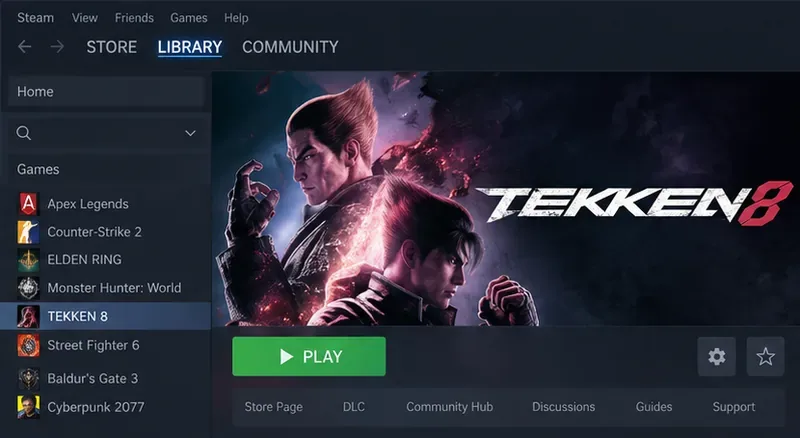
A crash means the game process closes, freezes, or displays an error and stops responding. A disconnect means the game remains open but the online match ends, returns to a menu, or reports a connection problem. The distinction matters: verifying game files or lowering graphics settings may help investigate a crash, while a router or service-status check is more relevant when the game stays open.
Write down the exact error wording, when it appears, and what the game does next. Note your platform, game version, whether the error happens every time or intermittently, and whether it occurs in practice or other offline modes. “It happens online” is useful timing information, but it does not by itself prove that the internet connection caused the game to close.
Let Steam, PlayStation, or Xbox finish installing any pending TEKKEN 8 update, then fully close and reopen the game. On PC, also restart Windows if an update or graphics-driver installation is waiting for a reboot. Check the publisher’s version 3.02.01 patch notes and official TEKKEN news for later announcements before treating an old workaround as current.
The patch history offers relevant context, but not a guaranteed remedy. In its June 2024 version 1.05 notes, Bandai Namco said the Steam version added automatic graphics-setting reductions in subsequent matches if processing load exceeded a threshold during online battles. That is a performance safeguard described by the publisher, not evidence that a Fatal Error is caused by graphics load or that the safeguard resolves every crash. See the official version 1.05 notes.
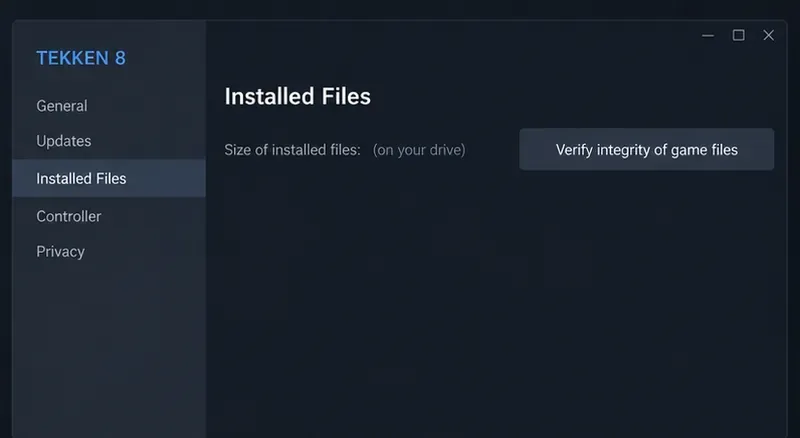
File verification asks Steam to compare the game’s installed files with its current expected files and replace files that are missing or damaged. Open the Library, right-click TEKKEN 8 (or use its gear menu), choose Properties, open Installed Files, and select Verify integrity of game files. Wait for Steam to finish, then launch the game again. Steam documents these steps in its Verify Integrity of Game Files guide.
A validation notice for one or more files does not automatically mean the process failed: Steam notes that some local configuration files may be intentionally left alone. Avoid interrupting verification, and do not run another heavy disk or install task at the same time. This step applies to the Steam PC version; console players should use the platform’s own update and game-repair options instead.
Compare the PC with the current TEKKEN 8 system requirements on Steam. Confirm that Windows, the graphics driver, and the game are up to date. If you recently changed GPU overclocking, undervolting, memory tuning, or CPU settings, temporarily return those components to their standard settings for diagnosis. A marginally unstable system can fail under a demanding scene even if other games appear to run normally; this is a troubleshooting possibility, not a conclusion about your machine.
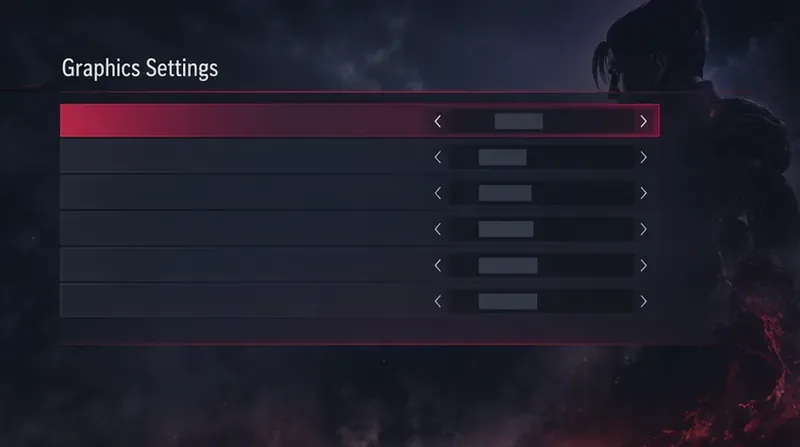
For one test session, lower the game’s graphics preset or rendering load using options that actually appear in your current build. Close other demanding applications. Change one variable at a time and record whether the crash timing changes. Do not copy a random list of exact settings from another PC: available options and performance depend on hardware and game updates.
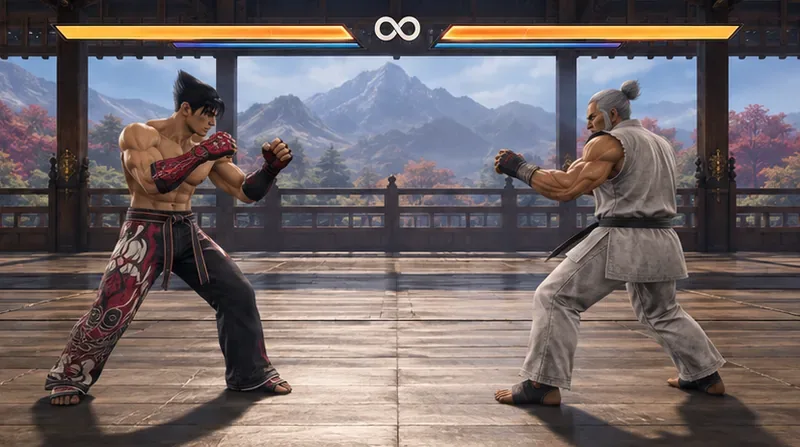
Launch a practice or other offline mode and play long enough to see whether the same failure occurs. If offline play also crashes, prioritize game files, system stability, drivers, and graphics load. If offline play is stable but the game process closes only during online matches, note the exact match stage when it happens and check official TEKKEN announcements for maintenance or known issues. Keep in mind that a repeatable online-only crash still does not prove the network is the root cause; online play can change the scene, workload, and timing.
If the game stays open and only the match disconnects, then investigate the connection branch: check whether other online services are working, restart the router if practical, use a wired connection for a comparison, and avoid downloads or streaming on the same connection during a test. These steps address connection stability, not a process-level Fatal Error.
On PlayStation 5 or Xbox Series X|S, install available game and system updates, then fully restart the console rather than only resuming a suspended game. Check that the console has adequate free storage and clear ventilation. Compare an offline mode with an online match. If the game crashes in both, use the console’s built-in game management or repair guidance; do not follow PC-only directions such as Steam file verification or GPU-driver installation. If only the online match ends while the game remains responsive, focus on the console’s connection and platform service status.
If the crash continues after updating and file verification, send the publisher or platform support team a concise report: platform and operating-system version, game version, exact error text, approximate time, what mode and match stage triggered it, whether offline play also fails, and the troubleshooting steps already tried. On Windows, Microsoft’s DirectX diagnostic instructions explain how to run DxDiag and save system information that can help support review display and driver details. Share diagnostic files only through the support channel you choose.
For a publisher support request, use Bandai Namco’s official customer support portal; Steam players can also consult Steam Support. Avoid deleting configuration folders, editing the registry, or downloading unofficial “crash fix” files unless official support specifically directs you to do so. Those actions can remove settings or introduce new problems without identifying the cause.
For the illustrative player at the start, the next useful action is not to change every setting at once. They should record whether the app closes or the match merely disconnects, verify game files if they use Steam, and compare one offline session with one online session. That produces clearer evidence for the next step and a more useful support report if the fatal error persists.
Enable PUBG’s network statistics HUD to monitor ping and packet loss in a match. See where to find it, what the numbers mean, and what they cannot diagnose.
Learn how to import VALORANT crosshair codes, compare presets with manual settings and spectator copy, and fix common import issues.
Choose Dota 2 minimap size, hero icons, team colors, and background settings by readability, fewer misclicks, and clear results on your own display.
Fix Fortnite texture pop-in on PC with official steps for GPU drivers, file verification, DirectX 12, high-resolution textures, VRAM, SSDs, and stutter.
Learn what Heroes of the Storm minimap size and position options are verified, improve readability, and choose camera-click controls that suit you.
Set Super Smash Bros. Ultimate Quickplay to prefer hazards-off stages. Follow the Preferred Rules menu steps and learn why matchmaking may not always honor them.
Enable Server Latency and Packet Loss in Warzone to monitor connection quality, read the overlay, and use recurring spikes to guide troubleshooting.
Learn how to carry from mid lane in League of Legends by setting up waves, choosing safe roam windows, reading side lanes, and converting pressure into objectives.
Fix Minecraft Evoker spell problems with a safe vanilla test, version checks, log review, and a step-by-step way to isolate mod or datapack conflicts.
Fix PUBG stuck on Initializing on Steam with a focused checklist for PC service notices, launch options, game files, downloads, and connection issues.








