How to Check Real-Time Server Latency in the PUBG HUD

Enable PUBG’s network statistics HUD to monitor ping and packet loss in a match. See where to find it, what the numbers mean, and what they cannot diagnose.
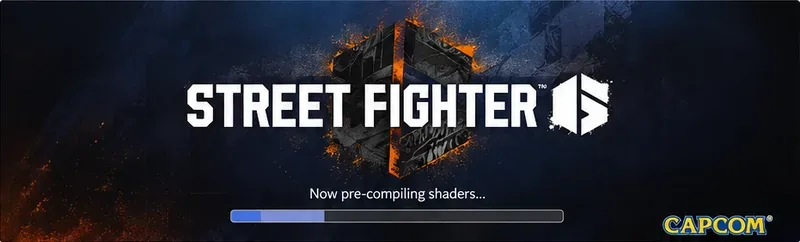
When Street Fighter 6 stops on a shader pre-compiling screen, the useful question is not simply “Which fix works?” but “Which fix matches what the PC is actually doing?” A long first-time compile, a damaged game file, a graphics-driver cache problem, and a background-software conflict can look almost identical from the loading screen. The safest approach is therefore to start with low-risk checks and escalate only when the evidence points elsewhere.
Do not force-close the game merely because the progress bar pauses for a few minutes. Shader compilation is CPU- and storage-dependent, and it can take longer after a graphics-driver change, a game update, or a cache reset. NVIDIA also documents that installing a new driver removes its shader cache, so the first run afterward can involve fresh compilation and stutter.
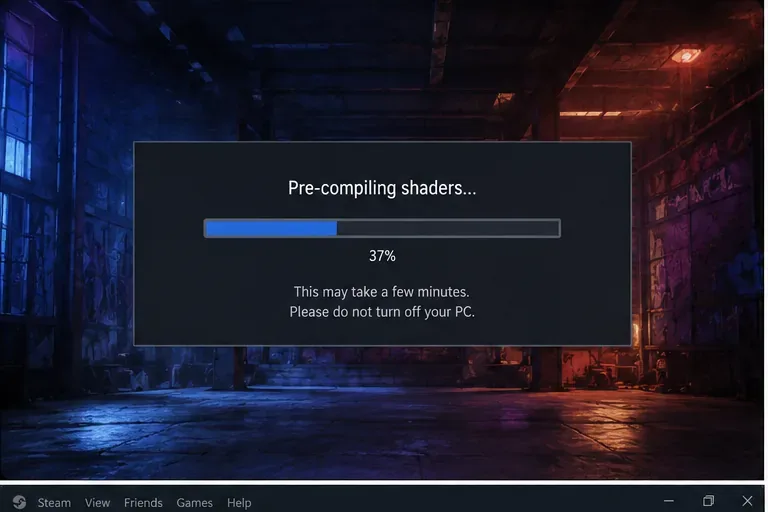
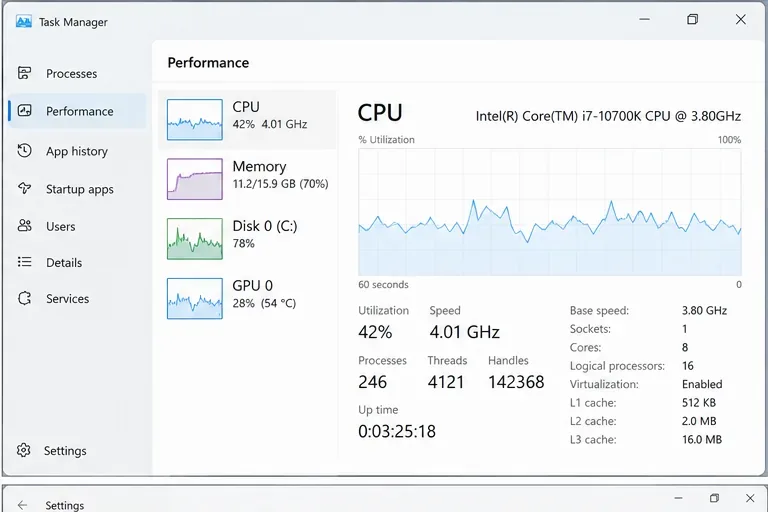
Open Task Manager and watch CPU and disk activity while the game remains on the compilation screen. If the game process is using meaningful CPU time or disk I/O and the system is responsive, waiting is the least disruptive choice. If the percentage never changes and the process sits near zero activity for an extended period, move on to the fixes below.
| Option | Best fit | Main trade-off |
|---|---|---|
| Wait and monitor activity | First launch, recent game update, recent GPU-driver update | Takes time, but changes nothing on the system |
| Restart Windows and the game | One-off hang or abnormal system state | Fast and low risk, but does not repair corrupted files |
| Verify Steam files | Problem began after an update, crash, or interrupted install | Can redownload damaged data; verification itself takes time |
| Update or cleanly reinstall the graphics driver | Old driver, display problems, repeated shader failures | More invasive; a new driver can force shader caches to rebuild |
| Reset shader caches | Repeatable hangs after driver changes or suspected cache corruption | The next launch is expected to compile shaders again |
| Reduce interference from background software | Recording, overlay, RGB, monitoring, or security tools are active | You temporarily lose those tools or overlay features |
Close Street Fighter 6, exit Steam, restart Windows, then launch Steam and the game again. This clears a temporary bad state without deleting caches or changing settings. Capcom’s current Steam troubleshooting guidance recommends rebooting around driver work and also advises testing with other applications closed when stability or performance is poor.
Choose this when: the issue appeared once, the PC recently resumed from sleep, or a driver/game update completed without a reboot. Skip ahead when: the game hangs at the same point after every restart.
Valve’s supported file check is one of the highest-value steps because it can repair missing or damaged game data without requiring a full reinstall. In Steam, open Library, right-click Street Fighter 6, choose Properties, open Installed Files, and select “Verify integrity of game files.” Steam notes that the process can take several minutes and that some local configuration files may not validate, which can be normal.
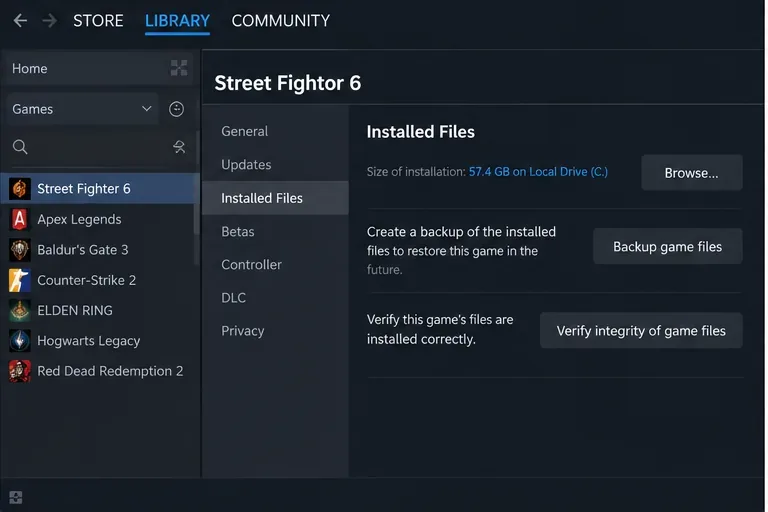
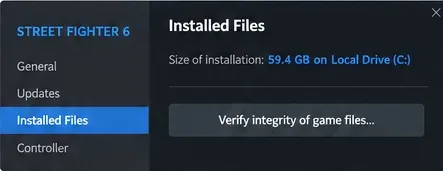
Trade-off: verification is safer than deleting folders by hand, but it can consume disk and network time if Steam needs to reacquire files. If the problem started immediately after an interrupted update or a crash, this is usually preferable to experimenting with undocumented configuration edits.
Capcom explicitly recommends updating both the Windows operating system and video drivers for Street Fighter 6. If you are already on the newest driver and the problem began after a driver installation, Capcom also suggests trying a clean driver installation to remove leftovers from previous driver packages or profiles. After installing a graphics driver, reboot Windows before testing again.
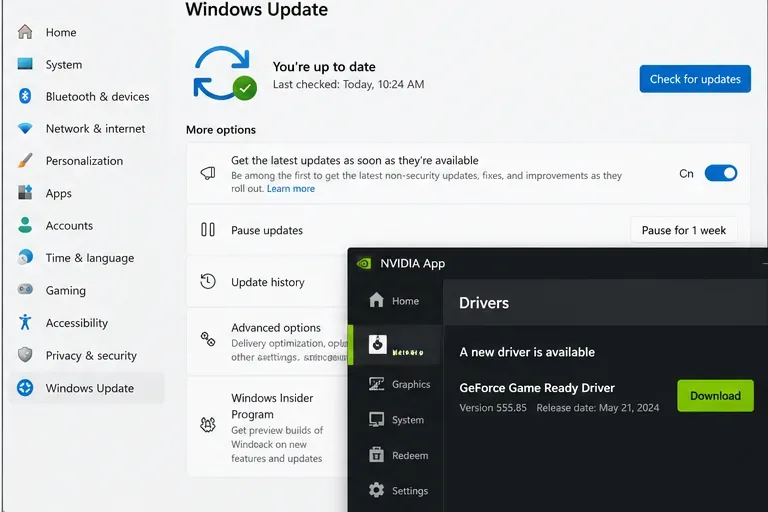
This step has a real trade-off: driver updates can fix compatibility bugs, but changing the driver also invalidates shader caches. NVIDIA’s control-panel documentation states that a new driver installation deletes its shader cache, so a slow first launch after updating does not by itself prove that the fix failed.
Official resources: Capcom’s Street Fighter 6 Steam troubleshooting guide and NVIDIA’s Shader Cache Size documentation.
Deleting or resetting a shader cache is not a universal performance boost. It is most useful when the cache itself may be stale or corrupted, especially after driver changes. The cost is predictable: the next run has to rebuild shader data, so startup may temporarily take longer.
On AMD Radeon systems, AMD Software includes a documented “Reset Shader Cache” control. AMD explains that the cache stores compiled shaders to reduce later CPU work and loading time, and that Reset Shader Cache deletes the stored cache files.
On NVIDIA systems, first confirm that Shader Cache Size is not disabled or set unnecessarily small. NVIDIA says the cache exists to prevent repeated shader compilation and that too small a size can evict shaders still in use. Changing this setting is less destructive than repeatedly purging caches.
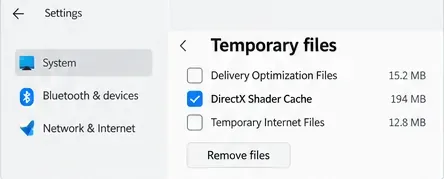
If Windows exposes “DirectX Shader Cache” under Settings > System > Storage > Temporary files, removing it is another cache-reset option. Treat it as an escalation step, not routine maintenance. The expected result is not an instantly faster next launch; the expected result is a clean cache that the graphics stack can rebuild.
Official AMD reference: AMD Software graphics settings and Reset Shader Cache.
On dual-GPU laptops, Street Fighter 6 can behave poorly if Windows launches it on the integrated GPU instead of the discrete graphics processor. Capcom’s general Steam troubleshooting guide recommends making sure the high-performance GPU is selected. In current Windows versions, you can also review Settings > System > Display > Graphics, add the game if necessary, open Options, and choose High performance.
Trade-off: using the discrete GPU is usually the correct choice for this game, but it increases power draw and heat on a laptop. Plug the laptop into AC power while troubleshooting so a battery-saving profile does not become another variable.
Capcom warns that video-recording applications and other demanding programs can consume CPU, GPU, memory, or I/O bandwidth and compromise game stability. Close nonessential software, especially screen recorders, performance overlays, RGB suites, hardware monitors, browser tabs playing video, and third-party injectors. Then test the shader compile again with only Steam and the game running.
This is a diagnostic step: if compilation suddenly finishes, re-enable background applications one at a time until you identify the conflict. That is more useful than permanently disabling every utility on the PC.
Player discussions sometimes recommend editing Street Fighter 6 configuration keys to bypass shader warming or forcing alternative graphics APIs. Capcom’s support article confirms that the game has a config.ini file in the installation directory, but the official troubleshooting guidance does not document a shader-warming key or endorse a specific manual edit as the standard fix for this startup problem.
That distinction matters. A manual edit may get a particular machine past the compilation screen, but bypassing pre-compilation can simply move shader compilation into gameplay and create stutter later. For a stable setup, prefer supported file verification, driver/cache repair, GPU selection, and software-conflict checks first.
If none of the above changes the behavior, the next useful action is not an endless cycle of reinstalls. Capcom asks affected PC players to provide the CPU, GPU and VRAM, driver version, system memory, Windows version, graphics settings, exact reproduction steps, screenshots or video, and crash data when available. Capcom says Street Fighter 6 crash reports are normally placed in a CrashReport folder under the game’s installation directory.
Use Capcom’s Street Fighter 6 support checklist as the reporting template. This gives support a repeatable case instead of only “shader compiling is stuck.”
A good outcome is not merely reaching the main menu once. After the fix, shader pre-compilation should either complete normally or stop recurring in the same broken way, the game should launch consistently after a reboot, and gameplay should not gain new hitching because shader caching was permanently disabled. If a cache reset works but every launch recompiles from scratch, investigate whether security software, storage cleanup, or a driver setting is continually deleting the cache.
For most PCs, the best order is: monitor activity, restart, verify Steam files, update Windows and the GPU driver, reset the relevant shader cache only if the failure repeats, test without background utilities, and finally escalate to Capcom with system details. That order keeps the early steps reversible and reserves the more disruptive options for cases where they are justified.
Enable PUBG’s network statistics HUD to monitor ping and packet loss in a match. See where to find it, what the numbers mean, and what they cannot diagnose.
Learn how to import VALORANT crosshair codes, compare presets with manual settings and spectator copy, and fix common import issues.
Choose Dota 2 minimap size, hero icons, team colors, and background settings by readability, fewer misclicks, and clear results on your own display.
Fix Fortnite texture pop-in on PC with official steps for GPU drivers, file verification, DirectX 12, high-resolution textures, VRAM, SSDs, and stutter.
Learn what Heroes of the Storm minimap size and position options are verified, improve readability, and choose camera-click controls that suit you.
Set Super Smash Bros. Ultimate Quickplay to prefer hazards-off stages. Follow the Preferred Rules menu steps and learn why matchmaking may not always honor them.
Enable Server Latency and Packet Loss in Warzone to monitor connection quality, read the overlay, and use recurring spikes to guide troubleshooting.
Learn how to carry from mid lane in League of Legends by setting up waves, choosing safe roam windows, reading side lanes, and converting pressure into objectives.
Fix Minecraft Evoker spell problems with a safe vanilla test, version checks, log review, and a step-by-step way to isolate mod or datapack conflicts.
Fix PUBG stuck on Initializing on Steam with a focused checklist for PC service notices, launch options, game files, downloads, and connection issues.








