How to Check Real-Time Server Latency in the PUBG HUD

Enable PUBG’s network statistics HUD to monitor ping and packet loss in a match. See where to find it, what the numbers mean, and what they cannot diagnose.
If StarCraft II only becomes sluggish when very large armies collide, start by determining whether you are losing frame rate or suffering network latency. The fixes are different, and success should be measured against the same repeatable large battle rather than by how the game feels in an empty base.
As of October 7, 2026, Blizzard’s current StarCraft II 5.0.15 release notes, its 5.0.15 hotfix, and the 5.0.16 PTR notes do not announce a general fix for performance drops specifically caused by large army clashes. The useful approach is therefore controlled troubleshooting rather than waiting for an unconfirmed patch. You can check Blizzard’s current notes here: StarCraft II 5.0.15, 5.0.15 hotfix, and 5.0.16 PTR.
The goal is not necessarily to make a 200-supply battle run like an empty early-game screen. A useful result is more specific:
Use one replay, custom scenario, or repeatable late-game fight as your test. Change one thing, replay the same section, and compare. If you change resolution, graphics preset, background applications, and network at the same time, you lose the ability to identify what actually helped.
Begin with the moment the two armies collide. If animations become visibly choppy, camera movement loses smoothness, and the frame rate falls while the game otherwise remains connected, treat the problem as local performance first. If visual frame rate remains reasonably stable but units pause, jump forward, or commands arrive noticeably late, treat the connection as the stronger suspect.
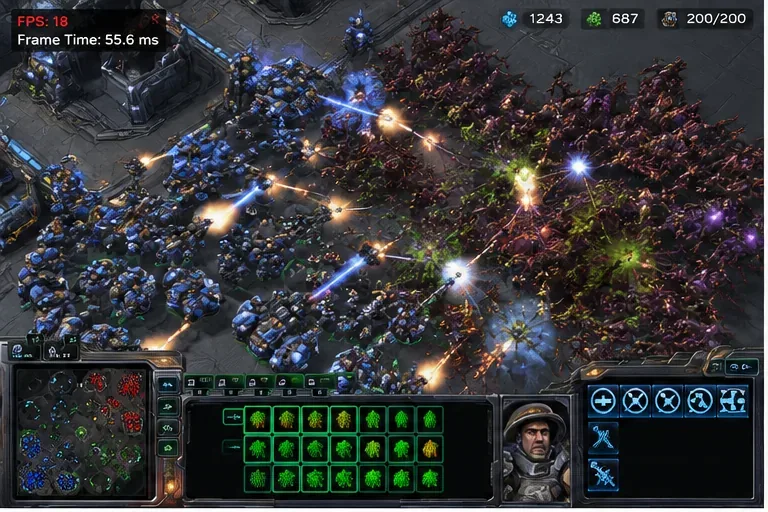
A repeatable large battle is the right place to measure improvement; an empty base can hide the bottleneck you are actually trying to fix.
This distinction matters because reducing graphics settings can improve rendering load but will not repair packet loss or a congested Wi-Fi connection. Likewise, rebooting a router will not help much if the computer is simply struggling to process and draw a crowded fight.
Change approach when: lowering graphics has no visible effect and your symptoms are delayed commands rather than choppy rendering. In that case, skip ahead to the network checks in Step 5.
Open StarCraft II’s Graphics options and use a lower overall quality preset as a diagnostic test. Do not start by randomly changing every individual option. A preset gives you a clean before-and-after comparison and reduces effects, shadows, models, post-processing, and other visual work together.
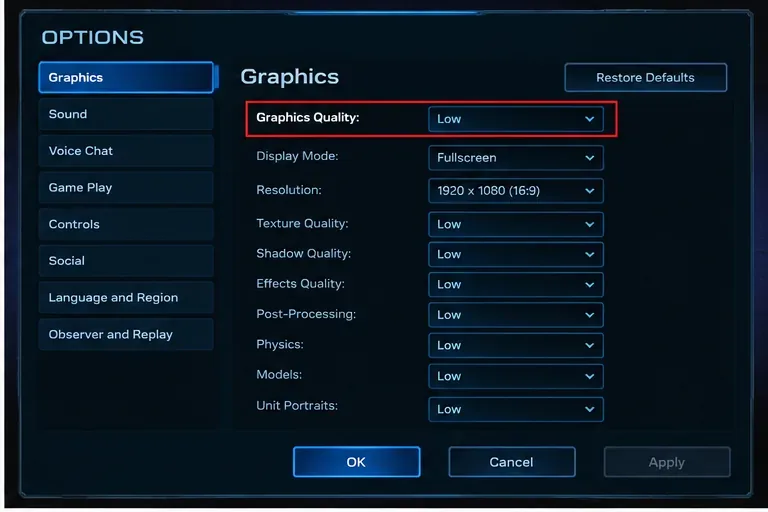
Temporarily lowering the overall graphics preset is a diagnostic step. If the large battle becomes smoother, raise settings one at a time afterward.
Run the same large engagement again. If the improvement is substantial, you have confirmed that at least part of the slowdown is tied to local graphics or effects workload. From there, raise the preset or individual settings gradually until you find the best balance between image quality and late-game stability.
If changing from a high preset to a low preset barely changes the worst slowdown, do not keep sacrificing image quality indefinitely. That is a sign to inspect CPU load and other system constraints instead.
A setting can raise your average frame rate while the decisive 10-second army clash still stutters badly. Judge the same stress point. The useful metric is how low performance falls during the fight and how responsive control remains, not only what the counter says during normal play.
Blizzard’s support guidance for performance problems consistently recommends updating drivers and the operating system and closing other applications to free resources and avoid software conflicts. Before testing again, close browsers with many tabs, recording or streaming software you do not need, game overlays that are not essential, and other heavy background programs.
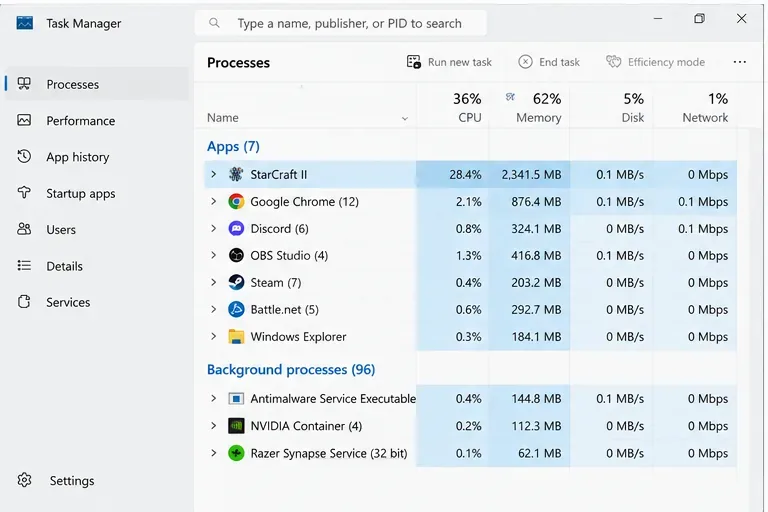
Task Manager helps identify background applications competing for CPU time and memory during a large engagement.
Then install current Windows updates and a stable graphics driver from your GPU manufacturer. Restart the PC after the update so the next test starts from a clean state. Blizzard’s current StarCraft II system requirements page lists an Intel Core i5 or AMD FX-series processor or better, GTX 650 or Radeon HD 7790 or better, and 4 GB RAM as recommended Windows specifications, while also warning that requirements can change. Those specifications are useful as a compatibility baseline, not a guarantee of high frame rates in the heaviest late-game situations. See Blizzard’s StarCraft II system requirements.
A good sign: the same battle now has fewer severe dips after background programs are closed. A reason to change approach: CPU usage is still very high during the clash while reducing graphical quality has little impact.
Open Task Manager’s Performance tab while reproducing the problem. The purpose is not to chase a specific percentage; it is to compare behavior during quiet gameplay and during the exact clash that causes the slowdown.
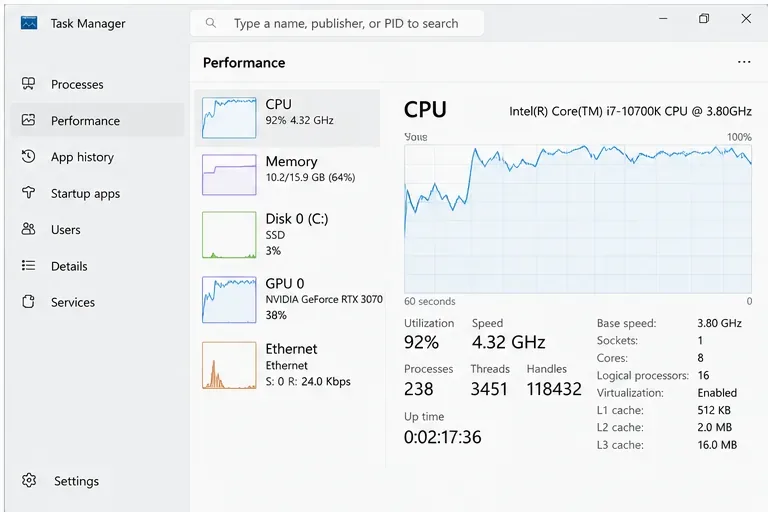
If CPU load rises sharply during the problem while GPU load is comparatively moderate, keep investigating CPU-side load rather than only lowering resolution.
On a laptop, plug in AC power and use the manufacturer’s normal performance mode rather than a battery-saving profile. Make sure vents are not blocked. If performance starts normally and deteriorates after several minutes of sustained play, temperature or power limits deserve attention. Blizzard’s technical support guidance for its PC games also treats overheating as a possible cause of performance problems.
A practical diagnostic rule is this: if dropping resolution dramatically lowers GPU load but barely improves the worst army-clash slowdown, resolution is probably not the main lever. Restore a resolution you can comfortably use and focus on background CPU load, cooling, power settings, and the processor itself.
Large RTS battles create more work than small skirmishes. If your system is already clean, current, cool, and running low graphics settings, there may not be another configuration change that produces a large improvement. At that point, a faster processor platform can matter more than continuing to lower visual quality. This is especially relevant when the slowdown scales strongly with unit count rather than screen resolution.
If the picture remains smooth but command response becomes delayed, use Blizzard’s network guidance rather than continuing to lower graphics. Close downloads and other internet-heavy programs, power-cycle the modem or router, and test a wired Ethernet connection if possible. Blizzard specifically notes that Wi-Fi can be less reliable for online gaming and recommends a direct wired connection when troubleshooting.
The official guidance is available at Blizzard Support: Optimizing Your Internet Connection. If the issue persists, use the StarCraft II support hub for current latency and technical-support resources.
Also use Battle.net’s repair function if behavior changed suddenly after a patch or local file problem. File repair is unlikely to transform normal late-game CPU scaling, but it is reasonable when the slowdown is new, inconsistent, or accompanied by other graphical or client errors.
| What changes during the same large fight | Most useful next move |
|---|---|
| Low graphics preset gives a large improvement | Raise visual settings gradually until the clash becomes unstable again, then back off one step. |
| Lower resolution helps a lot | The GPU/rendering workload is significant; keep a lower resolution or reduce visual effects. |
| Lower resolution barely helps, but CPU load spikes | Focus on background CPU load, cooling, power mode, and processor limits. |
| Game looks smooth but commands arrive late | Switch to network troubleshooting; test Ethernet and stop background downloads. |
| Only one patch or installation suddenly behaves badly | Update fully, restart, and use Battle.net repair before assuming a hardware limit. |
| Everything is already optimized and huge fights still slow down | Accept the remaining engine/hardware limit or consider a CPU/platform upgrade rather than sacrificing more image quality. |
There is no setting that can guarantee perfectly flat performance in every 200-supply engagement, custom map, Co-op scenario, or effect-heavy battle. Different maps and unit compositions can place different loads on the client, and online matches add network conditions that a local replay cannot reproduce.
That is why the quality of the troubleshooting process matters. Use the same heavy fight, record what changed, and stop changing settings once the result stops improving. If graphics adjustments help, tune visual quality around the worst fight you actually care about. If they do not, switch to CPU and system checks. If the frame rate is fine but responsiveness is not, switch to the network path. That produces a clearer answer than repeatedly lowering every option without knowing which problem you are solving.
For StarCraft II lag during large army clashes, the best outcome is a system that remains controllable at the most demanding moment—not simply a high FPS number during light gameplay. Diagnose the symptom first, lower the graphics preset as a controlled test, remove background load, inspect CPU behavior and power/thermal limits, and only then move to connection troubleshooting if visual performance is already stable. When further settings changes stop producing measurable improvement, that is the point to stop tuning and recognize the remaining hardware or engine limit.
Enable PUBG’s network statistics HUD to monitor ping and packet loss in a match. See where to find it, what the numbers mean, and what they cannot diagnose.
Learn how to import VALORANT crosshair codes, compare presets with manual settings and spectator copy, and fix common import issues.
Choose Dota 2 minimap size, hero icons, team colors, and background settings by readability, fewer misclicks, and clear results on your own display.
Fix Fortnite texture pop-in on PC with official steps for GPU drivers, file verification, DirectX 12, high-resolution textures, VRAM, SSDs, and stutter.
Learn what Heroes of the Storm minimap size and position options are verified, improve readability, and choose camera-click controls that suit you.
Set Super Smash Bros. Ultimate Quickplay to prefer hazards-off stages. Follow the Preferred Rules menu steps and learn why matchmaking may not always honor them.
Enable Server Latency and Packet Loss in Warzone to monitor connection quality, read the overlay, and use recurring spikes to guide troubleshooting.
Learn how to carry from mid lane in League of Legends by setting up waves, choosing safe roam windows, reading side lanes, and converting pressure into objectives.
Fix Minecraft Evoker spell problems with a safe vanilla test, version checks, log review, and a step-by-step way to isolate mod or datapack conflicts.
Fix PUBG stuck on Initializing on Steam with a focused checklist for PC service notices, launch options, game files, downloads, and connection issues.








