If Rainbow Six Siege crashes at startup only when you try to use Vulkan, the most important fix is to stop treating Vulkan as a current launch option. Ubisoft removed the Vulkan API from Rainbow Six Siege with Operation Twin Shells on September 10, 2024. The game moved to DirectX 12, while DirectX 11 remained an optional path at that time. Ubisoft's current PC requirements, updated in 2026, list DirectX 12 as the required graphics API.
That means a modern "Vulkan crash" is usually one of two things: an old shortcut, launch argument, or guide is still trying to start the retired Vulkan path; or the game is crashing during normal startup and the error is being misidentified as a Vulkan problem. Start with the renderer check below, then work through file integrity, the graphics driver, and Ubisoft Connect cache. Test the game after each change so you know which fix actually mattered.
1. Make sure you are launching the current DirectX version, not an old Vulkan path
Do this first because Vulkan is no longer available in the current game. Ubisoft's Operation Twin Shells notes explicitly say that Rainbow Six now uses DX12 and that the Vulkan API is no longer available. Ubisoft's current system requirements also list DirectX 12.
Launch Siege from the normal Play button in Ubisoft Connect, Steam, or Epic Games rather than from an old desktop shortcut created years ago. If you previously added a custom launch command specifically for Vulkan, remove it. Likewise, do not keep using an old Vulkan-specific executable or shortcut copied from an older installation.
If your launcher still exposes a legacy DirectX 11 option, it can be useful as a diagnostic fallback on some installations, but do not assume it will exist forever. As of 2026, DirectX 12 is the API Ubisoft lists in the active requirements.
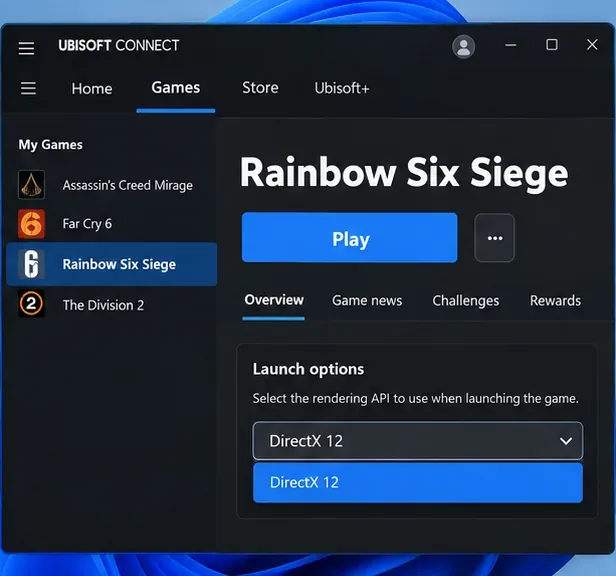
Illustrative launcher view showing the intended current outcome: Rainbow Six Siege starting through DirectX 12 rather than a retired Vulkan path. Launcher wording can differ by version.
How to tell whether this step applies to you
- You used to choose "Vulkan" from a launcher menu.
- You still have a very old Rainbow Six Siege desktop shortcut.
- You copied launch options from a guide written before September 2024.
- The game starts from the normal launcher but fails when started from a custom shortcut or command.
If switching back to the normal launch path fixes the crash, stop here. There is no benefit in trying to repair Vulkan support for a renderer Ubisoft removed.
2. Verify the Rainbow Six Siege game files
If the correct launch path still closes immediately, verify the installation next. Ubisoft says missing or corrupted files can prevent a PC game from starting, and its current support instructions recommend file verification for startup crashes.
In Ubisoft Connect PC, open Library, select Rainbow Six Siege, use the cog next to Play, and choose Verify files. Ubisoft notes that copies owned through Steam or Epic can also be verified directly in those launchers. Steam's own Verify Integrity of Game Files page confirms the current path through Properties and Installed Files.
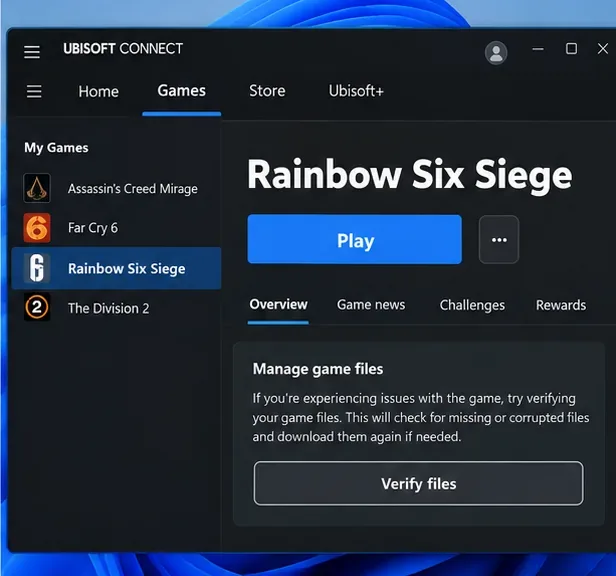
The file-check stage should end with the launcher verifying the installed Rainbow Six Siege files and restoring anything missing or corrupted.
This fix is especially relevant after an interrupted update, a storage error, an antivirus quarantine, or a manual modification inside the game folder. If verification replaces files, restart Windows before testing again.
3. Update the graphics driver from the GPU manufacturer
A startup crash that survives file verification can come from the graphics stack rather than the game files. Use the current driver package for your exact GPU, especially if the crash began after a major Siege update, a Windows update, or a GPU swap.
For NVIDIA hardware, use the official GeForce driver page. For AMD, use AMD Drivers and Support. Intel users can use Intel Driver & Support Assistant.
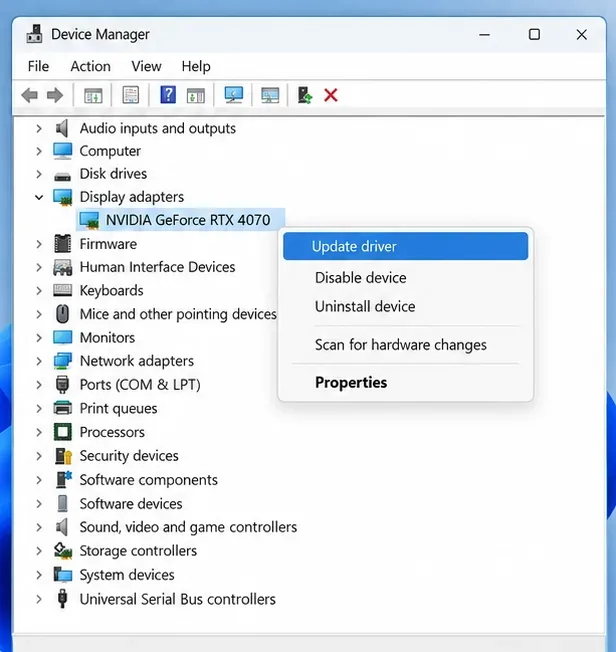
Windows can identify the display adapter, but for gaming drivers it is better to obtain the current package from NVIDIA, AMD, Intel, or your laptop manufacturer when the OEM requires a customized driver.
Do not jump straight to driver-cleaning utilities unless a normal update fails or the driver installation appears damaged. AMD, for example, documents its own Cleanup Utility for cases where a standard uninstall is not enough. A clean-driver reinstall is a stronger step, not the first one.
Example
Suppose Siege launched normally last week, Windows updated, and now the game closes before reaching the menu. If file verification reports no problem, installing the latest supported GPU driver and restarting the PC is a sensible next test. By contrast, if the same PC also crashes in several other 3D games, the problem is less likely to be Siege-specific and more likely to involve the driver, GPU stability, or Windows.
4. Clear the Ubisoft Connect PC cache
If the launcher itself is behaving strangely, clear its cache before reinstalling the whole game. Ubisoft says its cache stores frequently used launcher data and that emptying it can resolve some technical issues.
First, log out and close Ubisoft Connect PC completely, including the system-tray process. Ubisoft currently documents two default cache locations:
- C:\Program Files (x86)\Ubisoft\Ubisoft Game Launcher\cache
- C:\Users\<Username>\AppData\Local\Ubisoft Game Launcher\cache
At each location, rename the cache folder to something such as cache_backup, then restart Ubisoft Connect PC. The launcher should create a fresh cache folder automatically. See Ubisoft's cache-clearing instructions for the current paths.
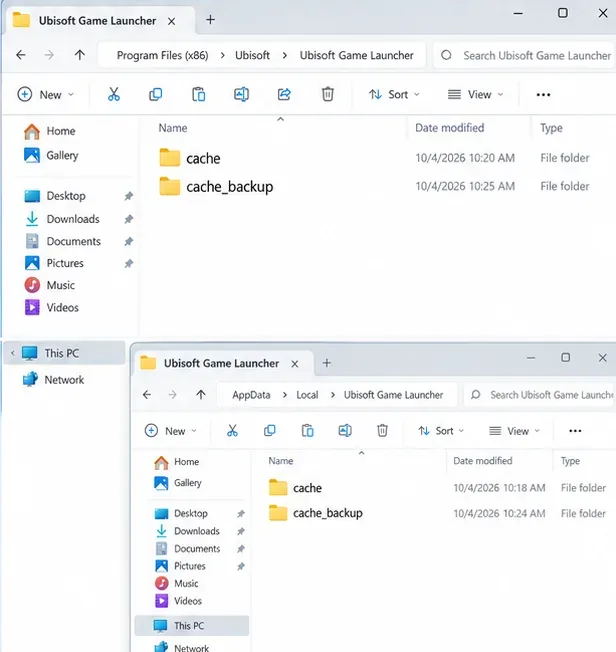
Renaming the launcher cache folders preserves the old data as a backup while allowing Ubisoft Connect PC to create fresh cache folders on the next start.
This step is most useful when Ubisoft Connect repeatedly refreshes, shows inconsistent game state, fails immediately after Play, or began misbehaving after a launcher update. It is less likely to fix a crash that also happens when the executable reaches the game engine successfully and then fails under load.
5. If the crash remains, check Ubisoft Anti-Cheat and background software
Current Rainbow Six Siege builds also rely on Ubisoft Anti-Cheat. Ubisoft's September 2026 support guidance says that if a protected game has launch problems, you should first verify the game files, then repair or reinstall Ubisoft Anti-Cheat if its installation is corrupted. The installer is located in the game's Sentinel folder on supported installations. Follow Ubisoft's current Anti-Cheat troubleshooting guide rather than deleting anti-cheat files manually.
Also test with nonessential overlays, monitoring tools, RGB utilities, injectors, and tuning software closed. Ubisoft specifically notes that background applications can interfere with Ubisoft Connect PC overlay behavior. Steam's current startup-troubleshooting guidance likewise recommends disabling nonessential software when a game will not launch.
Only change one category at a time. For example, close overlays and monitoring tools, test once, and then restore them if the crash continues. This avoids "fixing" the issue without knowing which program caused the conflict.
How to confirm the problem is actually fixed
A successful result is more than seeing the splash screen once. Use this quick check:
- Launch Siege from the normal launcher three times, including once after a Windows restart.
- Confirm it reaches the main menu without a Vulkan-related prompt or an immediate desktop crash.
- Start a short training or local session so the 3D renderer is actually loaded.
- If you changed drivers or cleared launcher cache, confirm the problem does not return after a second cold launch.
If the game still crashes before the main menu after these steps, collect the exact error message and note whether the failure occurs before or after Ubisoft Anti-Cheat starts. Also compare your PC against Ubisoft's 2026 minimum requirements: Windows 10 or 11 64-bit, at least 8 GB RAM, a supported GPU at or above the listed minimum, SSD storage, and DirectX 12. A system below those current requirements is not a good candidate for older Vulkan-era workarounds.
Bottom line
For a current Rainbow Six Siege installation, the fastest answer to a "Vulkan crash on startup" is that Vulkan itself is obsolete for Siege. Ubisoft removed it in September 2024. Use the standard current launch path, verify the files, update the GPU driver, and refresh Ubisoft Connect's cache. If startup still fails, repair Ubisoft Anti-Cheat and rule out background-software conflicts. That sequence addresses the parts of the modern startup chain that still exist instead of spending time on a renderer the game no longer supports.









