How to Check Real-Time Server Latency in the PUBG HUD

Enable PUBG’s network statistics HUD to monitor ping and packet loss in a match. See where to find it, what the numbers mean, and what they cannot diagnose.
Rainbow Six Siege error code 2-0x0000d00a appears when the game loses its connection to the server’s matchmaking service. Ubisoft’s error-code page recommends restarting the game. If that does not clear the error, check Ubisoft’s live service status and work through the connection checks below, starting with the least disruptive steps.
Matchmaking is the online service that groups players and starts matches. Losing that connection does not by itself prove your internet is down: the game server, a temporary route between your home and Ubisoft, the router, or a security setting could be involved. Ubisoft’s code description identifies the lost matchmaking connection, but it does not identify one universal cause on every player’s device.
If you are in a Ranked match, do not repeatedly force-quit while trying random fixes. Siege may apply a temporary sanction or penalty for disconnecting from Ranked. If a match is already underway, reconnect when possible and consult Ubisoft’s current support information before testing disruptive changes.
Keep your platform handy (PC, PlayStation, or Xbox), note the approximate time and your region, and remember whether the error happens at launch, while joining a match, or after playing for a while. Those details help separate an account or service issue from an unstable home connection. You do not need to reinstall the game or change advanced router settings as your first move.
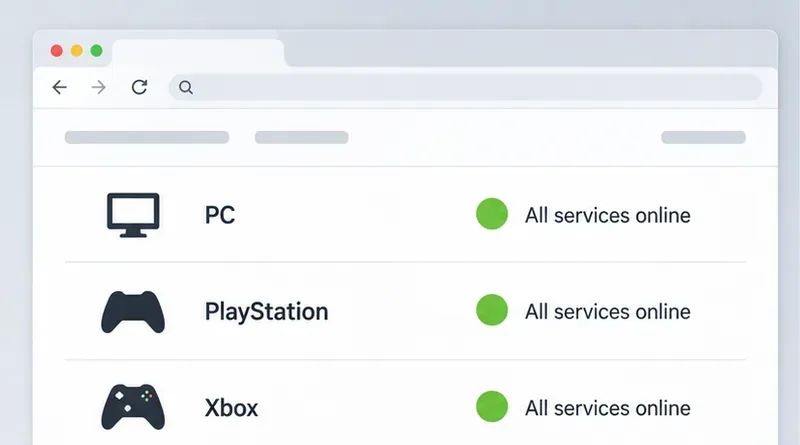
Open Ubisoft’s Rainbow Six Siege Service Status page and check the row for your platform. The page can change while you troubleshoot, so refresh it if the error persists. Also look for an official maintenance or service notice linked from Ubisoft support channels.
If Siege services for your platform show an outage or planned maintenance, wait for Ubisoft to restore the service, then relaunch the game. Changing DNS, forwarding router ports, reinstalling the game, or resetting your console will not repair an outage on Ubisoft’s side. If the status page shows no issue, continue; a normal status display does not rule out a short-lived or regional connection problem.
Ubisoft’s specific guidance for error 2-0x0000d00a is to restart the game. Exit to the desktop or console home screen, make sure Siege is no longer running, and launch it again. On PC, close Ubisoft Connect or Steam as well if the launcher appears stuck, then reopen the launcher and start the game from your normal library.
On PlayStation or Xbox, close the game from the system’s game menu rather than only returning to the console home screen. If a normal close does not help, restart the console using its standard power menu. Avoid interrupting a system update or unplugging a console that is still shutting down. Try matchmaking once after the restart; if it works, you can stop here.
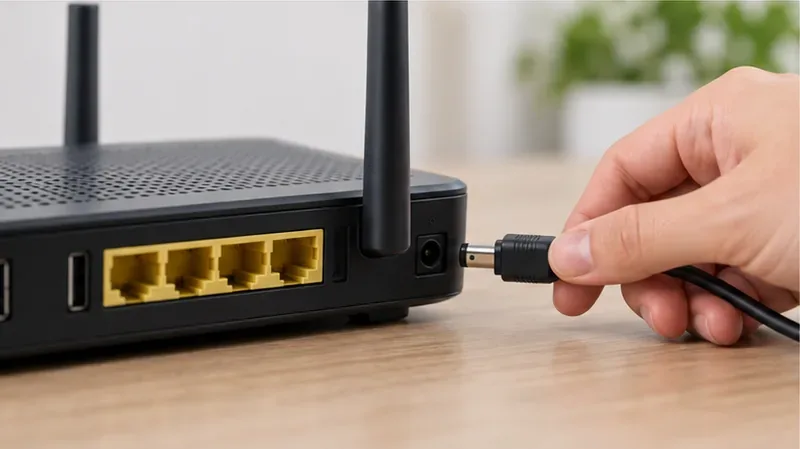
A modem connects your home to your internet provider; a router shares that connection with your devices. If the game restart did not help, pause large downloads, streaming, and cloud backups, then restart your networking equipment using its power button or by briefly unplugging its power cable. If you have a separate modem and router, power both off, reconnect the modem first, wait until its connection lights settle, then power the router back on. Give the network a few minutes to reconnect before opening Siege.
This is a normal restart, not a factory reset. Do not press and hold a recessed Reset button: that can erase your Wi-Fi name, password, and provider settings. If your internet provider supplied a combined modem-router, follow its restart instructions. Check whether other devices can load websites after the restart, then test Siege again.
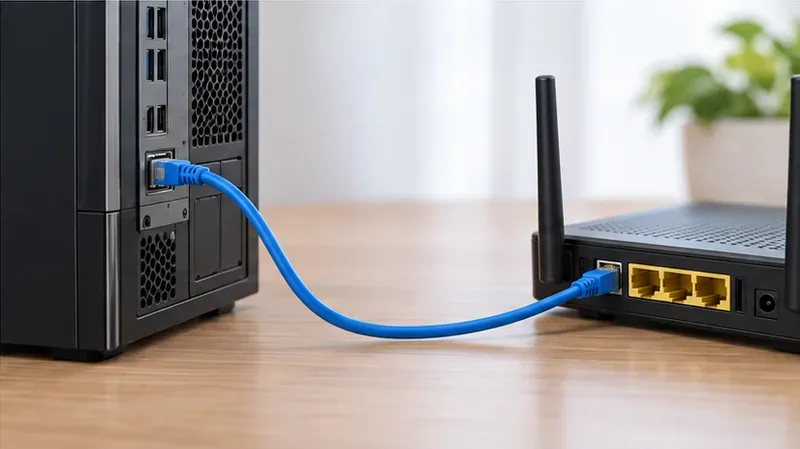
Wi-Fi signal strength, interference, and other household traffic can cause brief drops that are easy to miss during ordinary browsing. If you play on PC or a docked console and have an Ethernet cable, connect directly to the router and test Siege. A wired test is useful because it removes Wi-Fi from the path; it does not change Ubisoft’s servers or guarantee a fix.
If Ethernet is not practical, move closer to the router, temporarily pause other high-bandwidth activity, and compare results. Check whether other devices lose their connection at the same time. If several devices have trouble, contact your internet provider or inspect its service notice. If only Siege fails while other services work, continue with the next checks.
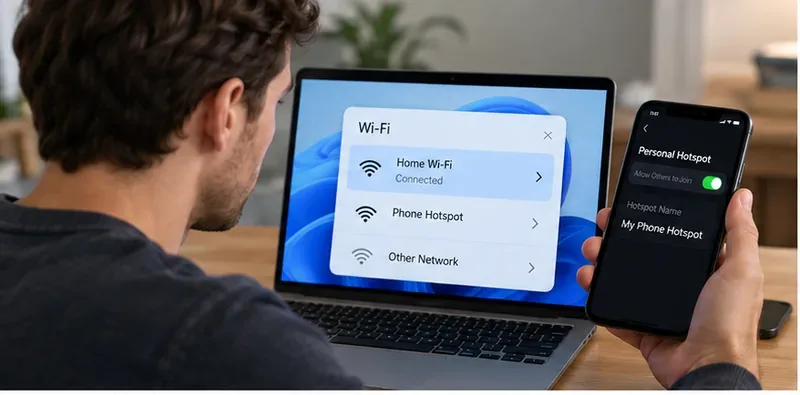
A short test on a different connection can show whether the problem follows your home network. If you have permission and enough mobile data, connect the PC to a phone hotspot, or test a console on another trusted network. Do not download updates over a metered mobile connection. Disconnect once you have confirmed whether Siege can reach matchmaking.
If Siege connects on the alternate network but not at home, that points toward the home router, provider route, or local network configuration; it does not identify which one. If the same error appears on two independent networks, Ubisoft services, the game installation, or an account/platform issue becomes more plausible. Recheck the status page and keep the comparison result for support.
On PC, temporarily disconnect a VPN or proxy if you use one, then try Siege on your regular connection. A VPN changes the route your traffic takes; it can help isolate a routing problem, but it can also add latency or be blocked by a service. Do not use a VPN as a permanent workaround without checking the game’s current rules and your provider’s terms.
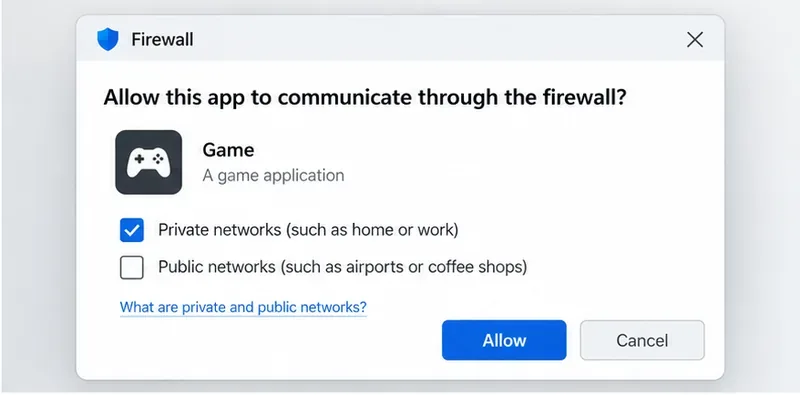
Review Windows Firewall or the security suite you actually use. Confirm that Rainbow Six Siege and Ubisoft Connect are not blocked on your trusted private network. If you are unsure which executable or rule belongs to the game, use the security app’s help or Ubisoft Support rather than allowing every program or turning the firewall off. Restore any temporary test setting after checking. Console players can skip this PC-only step.
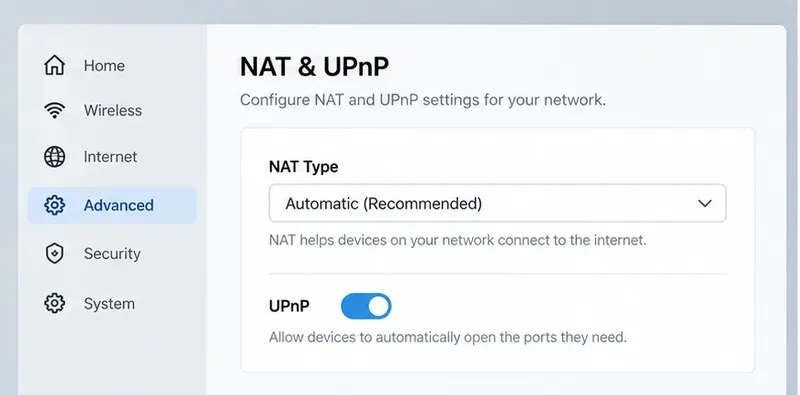
NAT (Network Address Translation) lets multiple devices share one public internet address. A strict or double NAT arrangement can interfere with some multiplayer connections, but error 2-0x0000d00a alone does not prove that NAT is the cause. Check your console’s network test or router status first. If it reports a restrictive NAT, consult the router maker’s instructions or your internet provider.
Some routers offer UPnP, a feature that allows devices on your home network to request the network mappings they need. Whether to enable it depends on your router, network, and security preferences. Change one setting at a time, keep a note of the original value, and test Siege after each change. Avoid putting a console or PC in a router’s DMZ, disabling security features broadly, or forwarding random ports from an unofficial list. If your provider uses carrier-grade NAT or your home has multiple routers, ask the provider how to configure multiplayer access safely.
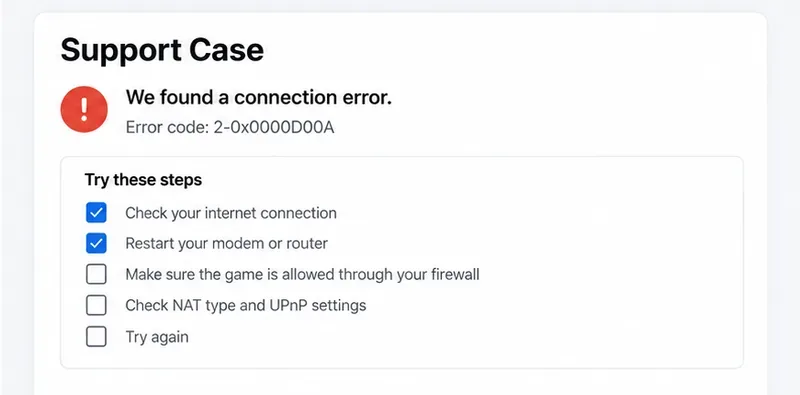
If the error continues after a restart and basic network checks, open Ubisoft’s article for error 2-0x0000d00a and follow its current advice. You can also use Ubisoft’s Rainbow Six Siege PC connectivity guide for PC-specific troubleshooting, or contact Ubisoft through the support page for your platform.
Include the exact code, platform, approximate time and time zone, country or region, whether the service-status page showed an issue, and what happened on Ethernet or another network. Mention any VPN, firewall, or router changes you tested and whether other online games worked at the same time. Do not send passwords, payment details, or one-time verification codes. If Ubisoft confirms an outage, wait for the service update rather than repeating local changes.
For this code, begin with the step Ubisoft names—restart Siege—then use the live status page and simple connection comparisons to narrow the cause. Reserve router configuration changes for cases where the evidence points to the home network, and use Ubisoft Support when the error persists across networks or platforms.
Enable PUBG’s network statistics HUD to monitor ping and packet loss in a match. See where to find it, what the numbers mean, and what they cannot diagnose.
Learn how to import VALORANT crosshair codes, compare presets with manual settings and spectator copy, and fix common import issues.
Choose Dota 2 minimap size, hero icons, team colors, and background settings by readability, fewer misclicks, and clear results on your own display.
Fix Fortnite texture pop-in on PC with official steps for GPU drivers, file verification, DirectX 12, high-resolution textures, VRAM, SSDs, and stutter.
Learn what Heroes of the Storm minimap size and position options are verified, improve readability, and choose camera-click controls that suit you.
Set Super Smash Bros. Ultimate Quickplay to prefer hazards-off stages. Follow the Preferred Rules menu steps and learn why matchmaking may not always honor them.
Enable Server Latency and Packet Loss in Warzone to monitor connection quality, read the overlay, and use recurring spikes to guide troubleshooting.
Learn how to carry from mid lane in League of Legends by setting up waves, choosing safe roam windows, reading side lanes, and converting pressure into objectives.
Fix Minecraft Evoker spell problems with a safe vanilla test, version checks, log review, and a step-by-step way to isolate mod or datapack conflicts.
Fix PUBG stuck on Initializing on Steam with a focused checklist for PC service notices, launch options, game files, downloads, and connection issues.








