How to Check Real-Time Server Latency in the PUBG HUD

Enable PUBG’s network statistics HUD to monitor ping and packet loss in a match. See where to find it, what the numbers mean, and what they cannot diagnose.
Illustrative example: Imagine Jordan, a Windows player who clicks Play in Steam, sees the Easy Anti-Cheat (EAC) loading screen, and then returns to the desktop. This is a hypothetical troubleshooting example, not a real player report or a tested outcome. The same symptom can come from damaged game files, an EAC service problem, an interrupted update, or software on the PC. Work through one change at a time so you can tell what helped.
This guide covers the Windows version of Paladins launched through Steam. The Epic Games version uses a different launcher, and console menus do not use these steps. An EAC message by itself does not prove that an account was banned or that a particular file is the cause. Copy the exact wording or error code before changing anything.
Jordan first saves any open work, closes Steam, and restarts the computer from the Windows power menu. A restart clears a stuck game process and lets pending service or system changes finish. After Windows comes back, Jordan opens Steam, waits for any queued Paladins update to complete, and tries Play once.
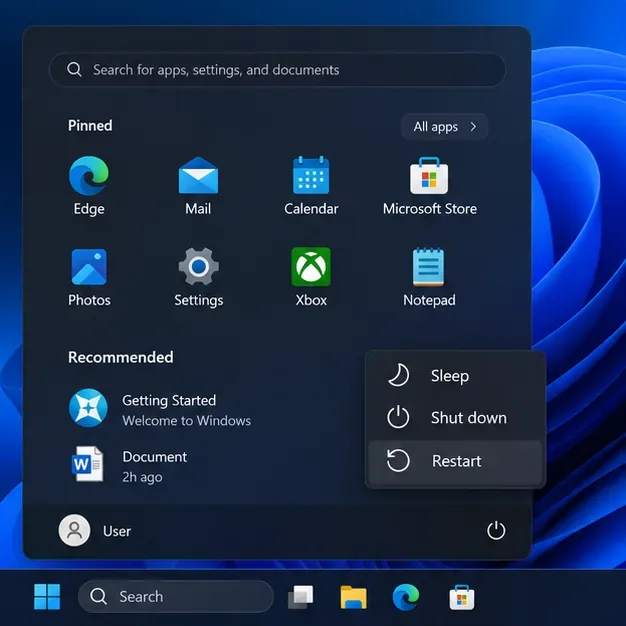
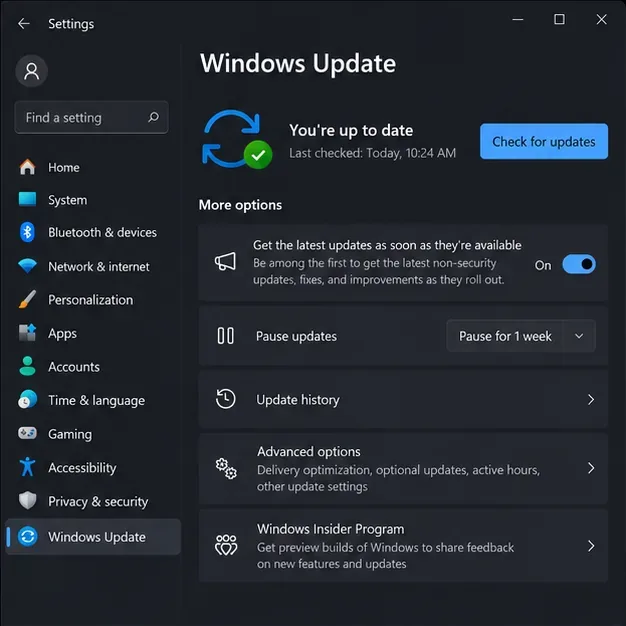
If Windows Update is waiting for a restart, complete that restart before testing again. If the game still closes at the Easy Anti-Cheat screen, move on rather than repeatedly clicking Play. Note whether Steam displays an update, an EAC message, or no message at all.
Steam can compare the installed game files with the files it expects and replace missing or damaged items. Valve recommends this check for games that crash or have missing content. In Jordan’s example, the route is:
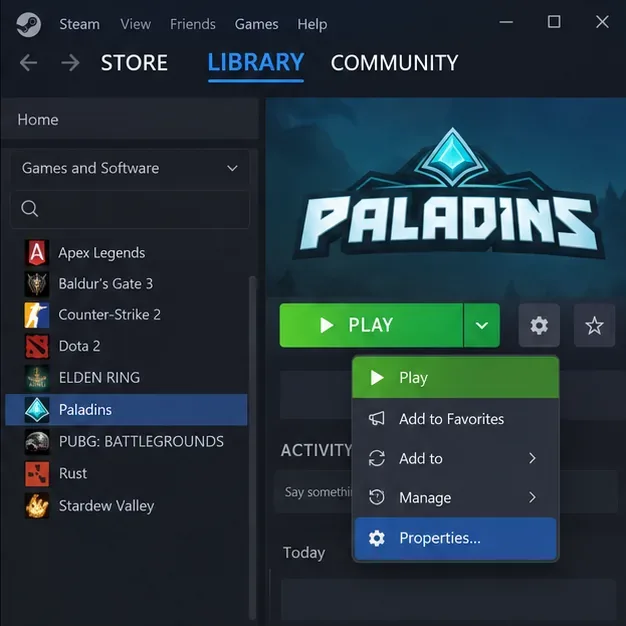
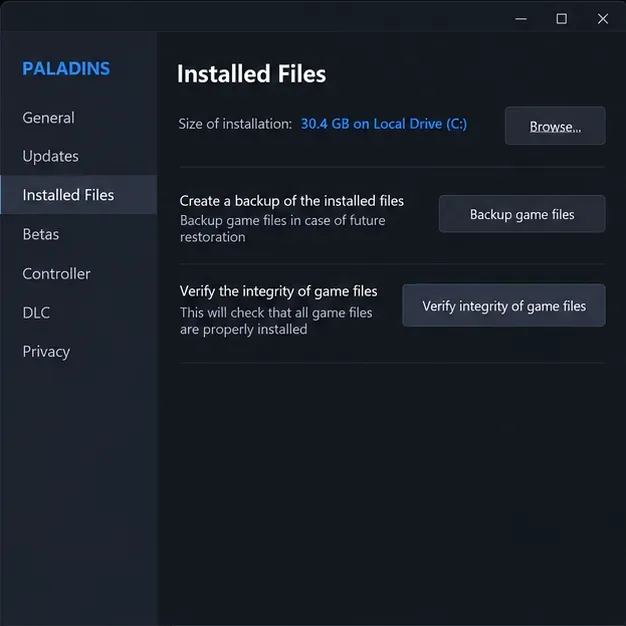
Steam may take several minutes. Let it complete without starting another verification or a disk-intensive task. It may report that one or more files could not be verified; Valve says this can be normal for local configuration files that are not meant to be replaced. Allow Steam to finish any download it starts, then restart Steam and try Paladins once. If the EAC error remains, keep the exact message for the next step.
EAC errors do not all mean the same thing. “Easy Anti-Cheat is not installed,” a service-start failure, an unknown-file-version message, and an error code such as 30005 have separate troubleshooting entries in the Easy Anti-Cheat Player Support FAQs. Open the entry matching the wording on Jordan’s screen and follow its current instructions. EAC’s player-support page also says to contact the relevant game’s support channel when its FAQ does not resolve the issue.
For a Windows service error, consult EAC’s Windows Service guidance. Some EAC recovery procedures are intended for advanced users. Do not copy commands from an unrelated game guide, download a standalone anti-cheat installer from a third-party site, or delete service files by hand. If the official instructions do not clearly match the error, skip advanced repair and ask Hi-Rez support for the Paladins-specific next step.
A security product or an interrupted system update can sometimes affect game files or a service, but the error alone does not establish that this happened. Jordan checks Windows Update for a pending restart and opens Windows Security’s Protection history only to see whether it actually recorded an action involving Paladins or Easy Anti-Cheat.
If Protection history names a Paladins or EAC file, read the detection details and confirm the file’s location before taking action. Do not assume a detection is a false positive. If you have verified the item with the security vendor or the game’s official support, use that vendor’s instructions for handling the exact file, then verify Paladins files in Steam again. Do not turn off real-time protection, add a blanket exclusion for the Steam folder, or restore an item you cannot identify.
If there is no relevant security event, leave protection settings alone. For a one-time diagnostic, close optional overlays or monitoring utilities you recently installed or updated, then launch once. Reopen them afterward if they were not the cause. Avoid disabling security software or unrelated services as a routine fix.
After the checks, restart Steam, select Paladins in the Library, and launch it once through Steam. A useful result is reaching the game’s main menu without the EAC error. If the same failure returns, stop repeating the same repairs and record:
Use the official Hi-Rez Paladins support page for a game-specific case. For a Steam-client or file-verification problem, Valve’s Verify Integrity of Game Files instructions and its game-launch troubleshooting guide are the relevant starting points. Include the evidence above instead of trying fixes that bypass EAC.
In this hypothetical, if restarting resolves the launch, there is no reason to alter EAC or security settings. If Steam finds files to replace, the file check was a sensible repair step, but it does not prove EAC alone caused the crash. If neither action changes the symptom, the exact message determines whether the EAC service article or Hi-Rez support is the better next stop. This sequence narrows the cause while preserving the anti-cheat and Windows security settings.
The visible menus can change as Steam and Windows are updated. If a label has moved, use the official support links above rather than relying on an old menu screenshot. These checks address common local launch problems; they cannot confirm whether a temporary service-side issue exists or diagnose every PC configuration.
Enable PUBG’s network statistics HUD to monitor ping and packet loss in a match. See where to find it, what the numbers mean, and what they cannot diagnose.
Learn how to import VALORANT crosshair codes, compare presets with manual settings and spectator copy, and fix common import issues.
Choose Dota 2 minimap size, hero icons, team colors, and background settings by readability, fewer misclicks, and clear results on your own display.
Fix Fortnite texture pop-in on PC with official steps for GPU drivers, file verification, DirectX 12, high-resolution textures, VRAM, SSDs, and stutter.
Learn what Heroes of the Storm minimap size and position options are verified, improve readability, and choose camera-click controls that suit you.
Set Super Smash Bros. Ultimate Quickplay to prefer hazards-off stages. Follow the Preferred Rules menu steps and learn why matchmaking may not always honor them.
Enable Server Latency and Packet Loss in Warzone to monitor connection quality, read the overlay, and use recurring spikes to guide troubleshooting.
Learn how to carry from mid lane in League of Legends by setting up waves, choosing safe roam windows, reading side lanes, and converting pressure into objectives.
Fix Minecraft Evoker spell problems with a safe vanilla test, version checks, log review, and a step-by-step way to isolate mod or datapack conflicts.
Fix PUBG stuck on Initializing on Steam with a focused checklist for PC service notices, launch options, game files, downloads, and connection issues.








