How to Check Real-Time Server Latency in the PUBG HUD

Enable PUBG’s network statistics HUD to monitor ping and packet loss in a match. See where to find it, what the numbers mean, and what they cannot diagnose.
Example scenario (illustrative only): Jordan updates Mobile Legends: Bang Bang, opens the game, and sees the in-game resource download stop at 99 percent. The lobby is partly visible, but the progress number does not change. This example is not a real support case or a tested result. It shows how to narrow the problem without assuming that “99%” identifies one specific cause.
First, check whether the 99% bar is inside MLBB or belongs to the Google Play Store or Apple App Store. Those are separate downloads. A store update can be stuck before the game opens; an in-game resource download happens after launch and may use a different delivery path. As of October 7, 2026, I could not verify a current official Moonton article that documents a specific fix for MLBB’s in-game resource download stopping at 99%. The steps below combine safe checks with general Android and Apple download guidance; they are not a guaranteed repair for a Moonton-side resource issue.
A progress number by itself does not prove that the final one percent is still downloading, that the files are damaged, or that your account is the problem. The game may be waiting for a network response, writing downloaded data, or encountering a different device or service issue; without an error message or Moonton diagnosis, those are possibilities, not confirmed explanations. If the number has not moved for several minutes, note whether the phone still has internet access and whether the game responds to taps. Avoid repeatedly force-closing it while the screen still appears active.
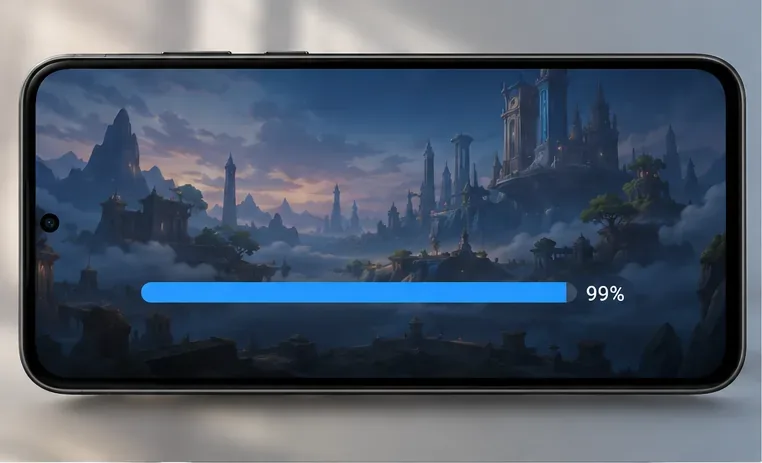
Look at the screen where the progress appears. If the bar is shown after MLBB has opened, treat it as an in-game resource problem. If Google Play or the App Store is still installing or updating the app, follow that store’s download steps instead. This distinction matters because clearing a store cache cannot repair a server-side resource package inside an already-open game.
For Jordan’s example, the 99% bar is visible inside the game after launch, so he should begin with the game and connection checks below. If the Play Store page still says “Pending” or “Installing,” skip ahead to the store-specific section instead.
Open a trusted webpage or another app that needs internet. If that also fails or loads inconsistently, address the connection first: move closer to the Wi-Fi router, reconnect to the network, or switch once between Wi-Fi and mobile data. Google’s official guidance for stuck Play downloads likewise starts by checking Wi-Fi or mobile data strength. That advice is useful as a basic connectivity check, but it does not establish that the Play Store caused an in-game MLBB download stall.
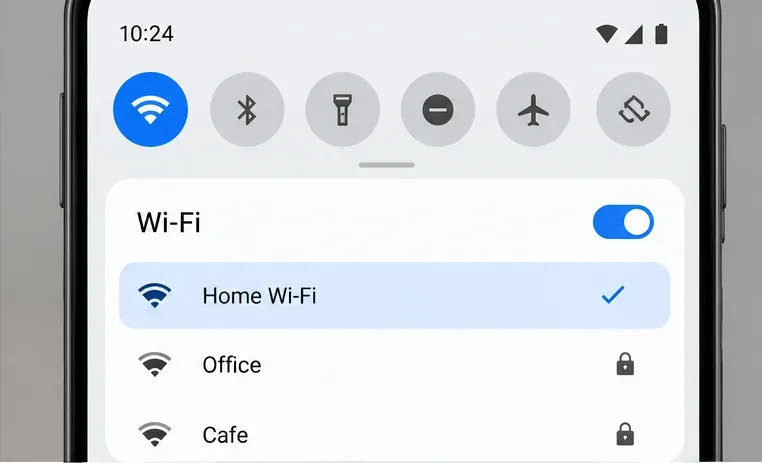
If the download resumes on another network, the original route may be unstable or restricted. If you use mobile data, check your plan before allowing a large game download to continue. Pause VPNs, private DNS filters, or network firewalls only if you normally use them and can safely restore them; do not install an unofficial VPN or change regions to bypass game access restrictions. If the bar remains at 99% on both networks while other apps work, move on rather than cycling repeatedly through network settings.
If MLBB stops responding, close it from the recent-apps screen and reopen it. If the game responds normally, leave it in the foreground for the next check so the phone does not suspend it while you switch apps. If that does not change the progress, restart the device and try again on a stable connection. Google recommends closing and reopening the Play Store and restarting the device for store downloads; applying a restart to the game is a low-risk general check, not an MLBB-specific fix confirmed by Moonton.
Before force-stopping, clearing cache, or reinstalling, make sure you know how your MLBB account is linked and can sign back in. Do not unlink accounts or share passwords, verification codes, or payment details with anyone offering a “99% fix.”
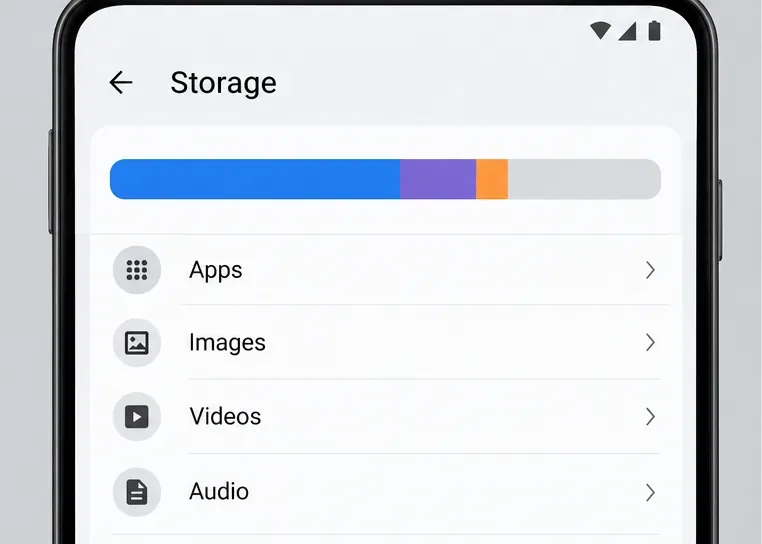
On Android, open Settings > Storage and check whether the device is nearly full. Resource downloads need room to save and unpack files, but I could not verify a universal free-space threshold for MLBB. Google identifies low storage as a possible reason Play downloads or installations may fail; that is general platform advice, not a published MLBB resource-size requirement. Free space by removing files you recognize, such as old videos or unused downloads, and keep a buffer rather than deleting folders whose purpose you do not know.
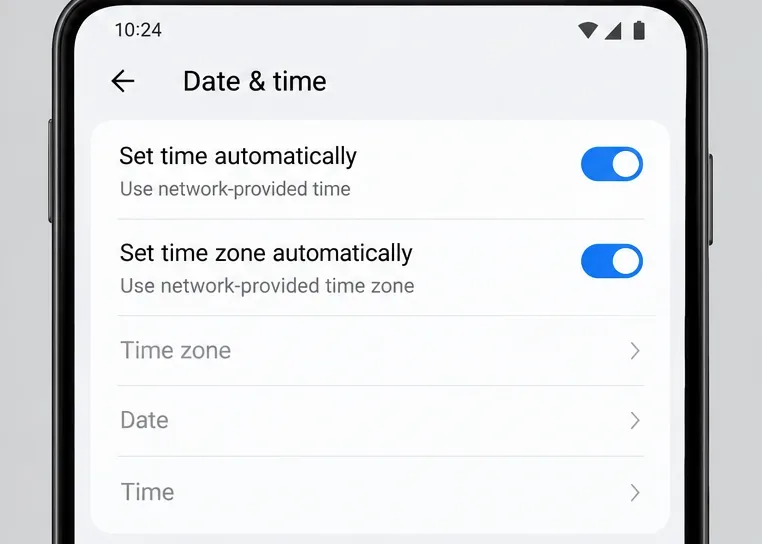
Also check that Android’s date, time, and time zone are set automatically. Google includes this check in its general Play download troubleshooting because incorrect device time can interfere with online services. The exact path varies by phone, but it is usually under Settings > System > Date & time or a similarly named menu. If these settings are already automatic and correct, do not keep changing them.
If the resource download still will not move, Android may offer a cache-only option for MLBB. Open Settings > Apps > Mobile Legends: Bang Bang > Storage & cache, then choose Clear cache. Android menu names vary by manufacturer and OS version. Reopen the game and check the download again.
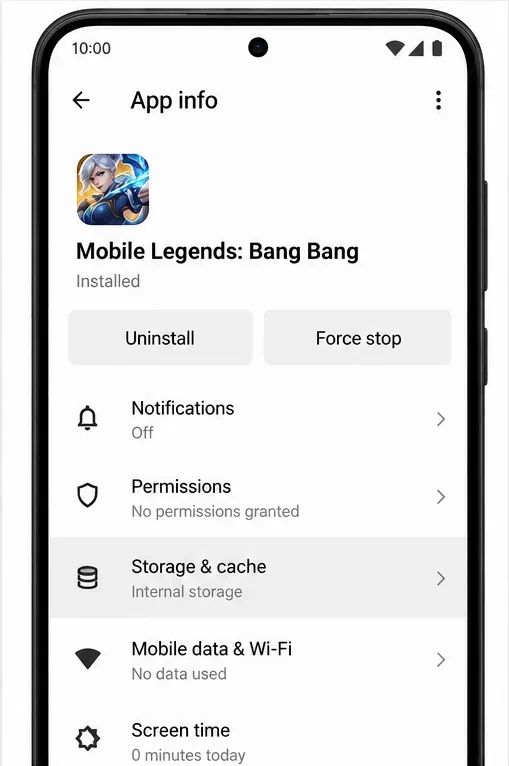
Do not tap “Clear storage,” “Clear data,” or “Delete app data” as a synonym for clearing cache. Those options can remove local app data or sign-in state, and may make you download resources again. Clearing cache is a troubleshooting check, not a proven fix for the exact 99% issue. If the game is not linked to an account you can recover, stop before using any action that clears stored data.
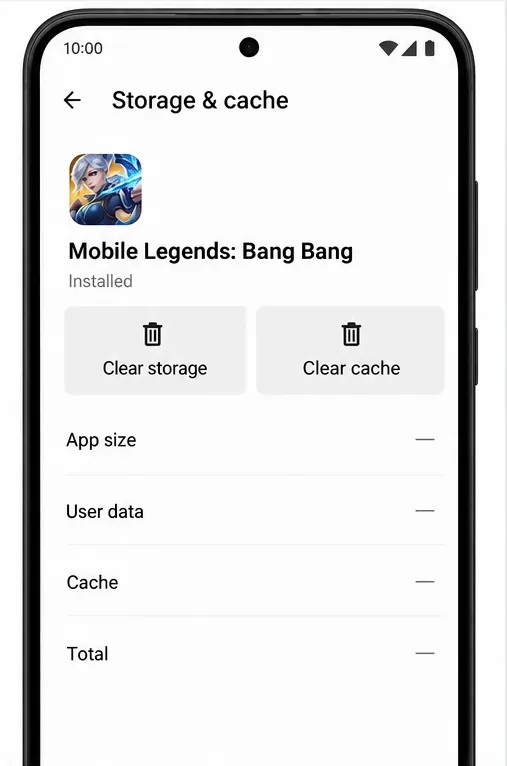
If the app update itself is stuck in Google Play—not the resource bar inside MLBB—Google recommends clearing the Play Store cache. Touch and hold Google Play Store, open App info, choose Storage & cache, and tap Clear cache. Google notes that clearing Play Store storage can reset Store settings, so start with cache and consult its current instructions before clearing data. Do not clear Google Play Services data as an early step; Google warns that this can affect saved information and sign-ins.
After the store update completes, open MLBB and let the in-game resource download continue. If the app is already installed and only its internal resource bar is stalled, Play Store cache is unlikely to be the relevant first fix.
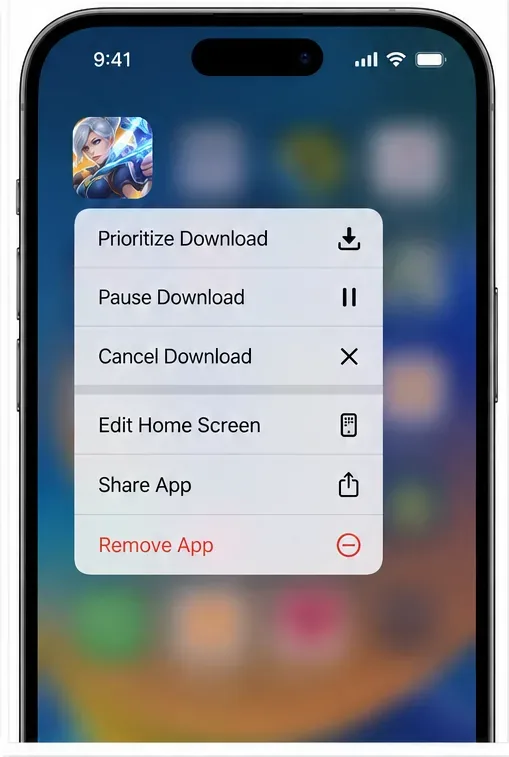
If the App Store is still downloading or updating the MLBB app, Apple documents a Prioritize Download option: touch and hold the app icon on the Home Screen, then choose that option if it appears. Restarting the iPhone or iPad is another Apple-recommended store-download check. These instructions apply to an App Store download or update, not necessarily to resource files downloaded after MLBB opens. iOS does not provide the same general per-app “Clear cache” button shown in Android settings, so avoid deleting and reinstalling the game until your account access and recovery method are confirmed.
If other apps have internet, storage is available, the device has restarted, and the in-game resource bar still remains at 99%, collect a few details before contacting support: device model, Android or iOS version, game version if visible, approximate time the download stopped, whether Wi-Fi and mobile data behave differently, and a screenshot of the message or progress. Do not send a password, one-time code, or payment-card data.
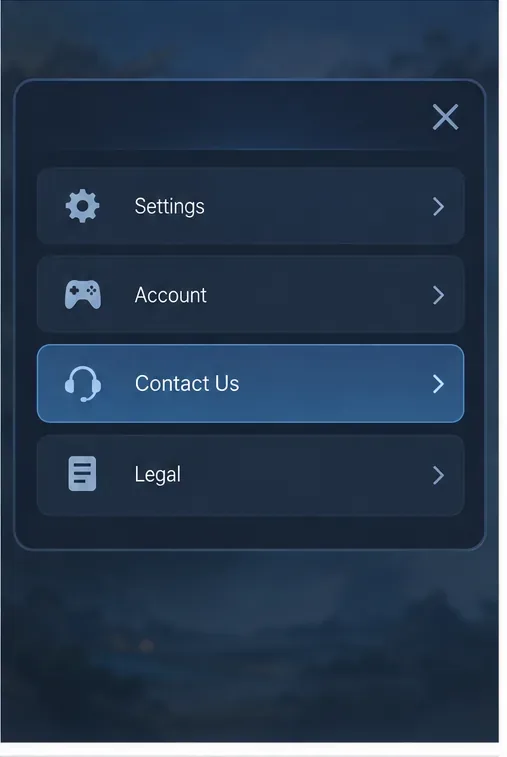
The official Google Play listing for Mobile Legends: Bang Bang identifies an in-game Contact Us route and lists mobilelegendsgame@moonton.com as its support email. If the game’s support screen is unavailable, use the support address shown on the current listing for your region. A reply from support is the appropriate way to confirm whether the issue is a known resource-delivery problem affecting your account, region, or current game build.
In the illustrative scenario, Jordan should change one thing at a time and watch for the 99% figure to move, an in-game completion notice, or a clear error. If it advances after switching networks, that is a useful clue about the connection, not proof of a permanent fix. If it moves only after clearing cache, he should confirm he can still sign in and that the required resources finish downloading. If it stays at 99% while the rest of the phone works, he should stop repeating the same steps and contact Moonton with the details above.
When the download appears complete, return to the lobby and confirm the game loads the missing content without prompting for the same resources again. Avoid starting a ranked match until the game is stable. Reinstalling is a last resort: only consider it after confirming account recovery, checking that your login method works, and following any current Moonton support instructions.
Google’s current help covers general Play Store downloads, storage, connectivity, time settings, and Play Store cache; Apple’s current guidance covers App Store downloads and updates. The MLBB Google Play listing provides the official support contact. These sources do not establish a single cause or guaranteed repair for a resource download frozen at 99% inside MLBB. Device menu wording and store options can change by manufacturer, OS version, and region.
Enable PUBG’s network statistics HUD to monitor ping and packet loss in a match. See where to find it, what the numbers mean, and what they cannot diagnose.
Learn how to import VALORANT crosshair codes, compare presets with manual settings and spectator copy, and fix common import issues.
Choose Dota 2 minimap size, hero icons, team colors, and background settings by readability, fewer misclicks, and clear results on your own display.
Fix Fortnite texture pop-in on PC with official steps for GPU drivers, file verification, DirectX 12, high-resolution textures, VRAM, SSDs, and stutter.
Learn what Heroes of the Storm minimap size and position options are verified, improve readability, and choose camera-click controls that suit you.
Set Super Smash Bros. Ultimate Quickplay to prefer hazards-off stages. Follow the Preferred Rules menu steps and learn why matchmaking may not always honor them.
Enable Server Latency and Packet Loss in Warzone to monitor connection quality, read the overlay, and use recurring spikes to guide troubleshooting.
Learn how to carry from mid lane in League of Legends by setting up waves, choosing safe roam windows, reading side lanes, and converting pressure into objectives.
Fix Minecraft Evoker spell problems with a safe vanilla test, version checks, log review, and a step-by-step way to isolate mod or datapack conflicts.
Fix PUBG stuck on Initializing on Steam with a focused checklist for PC service notices, launch options, game files, downloads, and connection issues.








