How to Check Real-Time Server Latency in the PUBG HUD

Enable PUBG’s network statistics HUD to monitor ping and packet loss in a match. See where to find it, what the numbers mean, and what they cannot diagnose.
Start by selecting a low-ping Marvel Rivals server node, testing Ethernet instead of Wi-Fi, and pausing competing downloads or uploads. Those choices address different causes: server distance, your local connection, and congestion. If spikes continue, compare a direct connection with your existing VPN disabled and collect a network diagnostic before paying for new equipment or a routing service.
There is no single best fix for every high-ping match. A player who always queues across an ocean needs a different solution from someone whose connection jumps whenever a household backup starts. This guide compares the practical options and explains what each test can establish.
Official guidance was checked on October 8, 2026. Connection choices apply broadly, while the Windows illustrations and CapturePro instructions are for PC. Console players should use their platform’s network settings and contact official support rather than looking for a Windows executable.
High ping is delay in network communication. Spikes mean that delay changes suddenly; jitter describes variation in delay, while packet loss means some packets do not reach their destination. Low FPS and uneven frame times are local rendering symptoms. They can feel similar during a fight, but they require different fixes.
Watch the game’s available network and performance readings when the problem happens, rather than judging only by how movement feels. Rubber-banding together with a ping jump supports investigating the network. A frame-rate drop while the network reading stays steady supports investigating PC performance. Neither observation identifies the exact faulty component by itself.
Cloudflare’s latency explanation distinguishes delay from bandwidth. A higher-speed internet plan does not automatically shorten the route to a distant game server. Lower graphics settings can help rendering, but they should not be presented as a guaranteed high-ping fix.
| Option | Most useful when | Main tradeoff | What to compare |
|---|---|---|---|
| Select fewer low-ping server nodes | Ping is consistently high or varies by match location | A narrower pool may increase matchmaking waits | Match ping, spikes, and queue time |
| Use Ethernet | Wi-Fi is unstable or sensitive to room location | A cable and accessible router port are required | Spike frequency on the same node |
| Adjust Wi-Fi placement or band | A cable is impractical | Coverage and interference vary by home | Stability at the actual gaming location |
| Pause background transfers | Spikes coincide with downloads, uploads, or backups | Other tasks finish later | Behavior with traffic quiet versus active |
| Remove an unnecessary VPN or proxy | An extra network layer is already enabled | It may affect services that depend on it | Direct versus tunneled connection |
| Collect diagnostics and escalate | Free, controlled tests have not isolated the cause | Support needs a reproducible report | Exact time, node, and test results |
Marvel Rivals’ official server-selection guide allows a single node or a group of nodes. Check the options and ping estimates available in your current game build before queuing. Start with a low-ping node, then compare its actual match behavior.
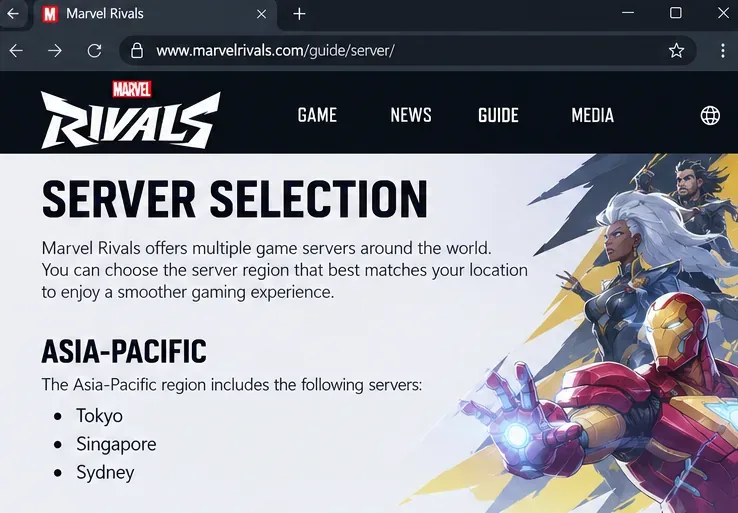
For competitive play, a narrower selection of consistently responsive nodes is a reasonable starting point. For casual sessions where waiting is the bigger problem, adding another acceptable node may be a better compromise. The effect on queue time depends on the mode, population, and time of day; the official guide does not promise a particular waiting-time reduction.
Illustrative example: a group spread across different countries may prefer a node that is tolerable for everyone over the one that gives only the party leader the lowest ping. Compare the group’s experience rather than declaring one geographic region universally best.
Changing Steam’s download region is not the same operation as choosing a Marvel Rivals matchmaking node. Use the game’s server selection for this test.
If possible, connect your PC or console to the router with Ethernet and compare several matches on the same selected node. Confirm that the device is actually using the wired connection. Keep other conditions similar, including background traffic and approximate playing time.
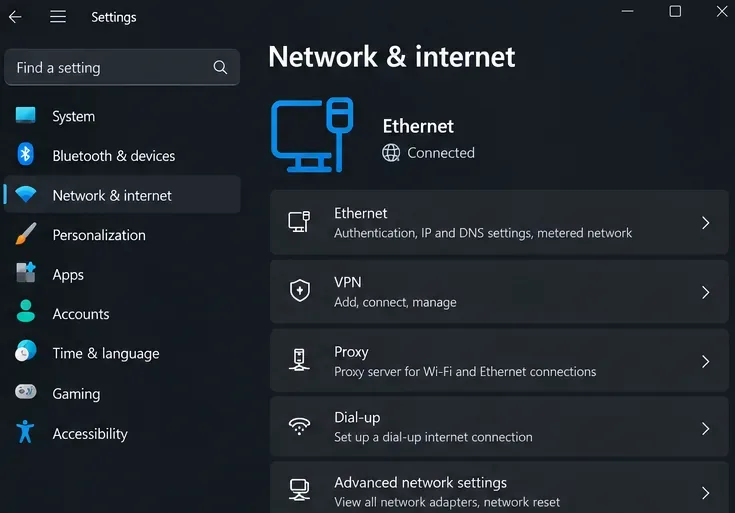
The advantage is a direct test of whether the wireless part of your setup contributes to the spikes. The limitation is equally important: Ethernet does not remove delays elsewhere on the internet. If high ping remains unchanged, buying a more expensive Wi-Fi router is not yet supported by that result.
Choose Ethernet when consistency matters more than cable convenience. Choose the Wi-Fi tests below when a temporary or permanent cable is impractical.
Test closer to the router and, if your router offers separate supported bands, compare them at your normal gaming location. Do not assume the band with the highest advertised speed will be the most stable through several walls.
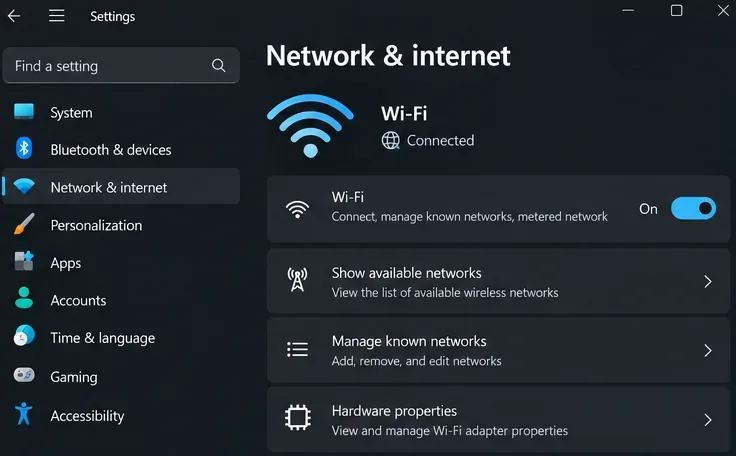
Microsoft’s Wi-Fi troubleshooting guidance includes testing another frequency band and restarting network equipment. Change one variable at a time. If moving closer helps repeatedly, placement or coverage is a stronger lead than reinstalling the game.
A mesh node or extender may make placement more convenient, but do not buy one solely on the assumption that it guarantees lower game latency. Test what you can with existing equipment first.
Pause launcher downloads, cloud backups, large uploads, and unnecessary streams during a comparison session. Check other devices too: an idle-looking gaming PC does not mean the household connection is idle.
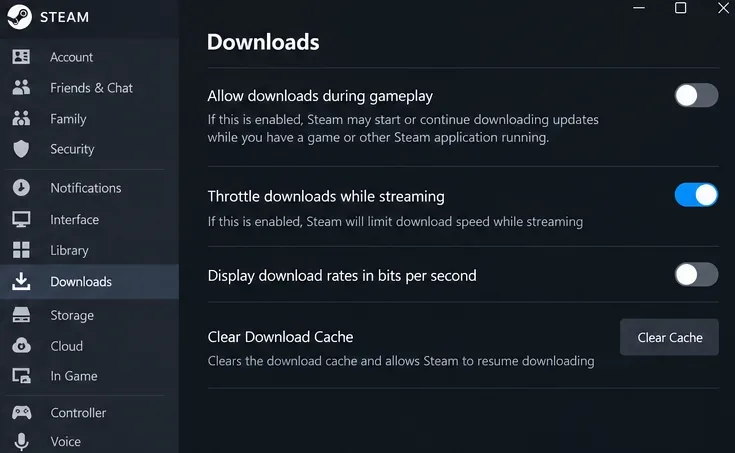
Steam documents its download behavior during gameplay. If you have enabled downloads during gameplay, turn that option off for the test. This does not pause backups or transfers in other applications.
If spikes repeatedly disappear with transfers paused and return when those transfers resume, congestion is a useful working explanation. It remains an inference from the comparison, not proof that a particular router feature is defective. The immediate tradeoff is straightforward: smoother gaming now, slower completion of other tasks.
Consider a faster plan only after establishing that your current connection is regularly overwhelmed. More bandwidth is a poor substitute for fixing a distant node or unstable wireless link.
Restart the game and device. If the whole home connection is behaving poorly, restart the modem and router using the manufacturer’s procedure. Microsoft notes that restarting this equipment temporarily disconnects other users, so choose an appropriate moment.
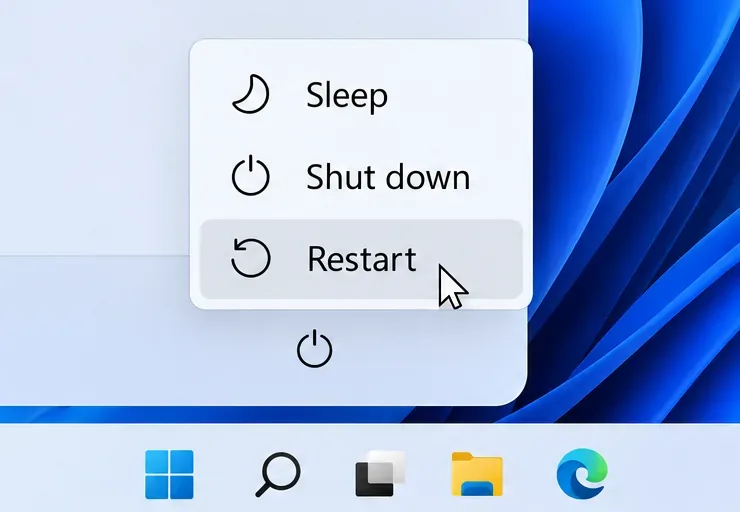
A restart is inexpensive, but repeated restarts without a lasting change are not a diagnosis. If practical, make a short comparison on a trusted alternate connection, such as mobile tethering, while watching data use. Keep the selected game node the same.
If the same device behaves better through another provider, that points toward a difference in the network path or home setup. It does not prove your ISP is at fault, and cellular service can have its own variable latency. Treat it as evidence to report, not an automatic replacement for your normal connection.
If a VPN or game accelerator is already running, test with it disabled on a personal network where direct access is permitted. An additional service may change the route, but that alone does not establish whether it improves or worsens Marvel Rivals latency. Compare repeated sessions rather than one favorable match.
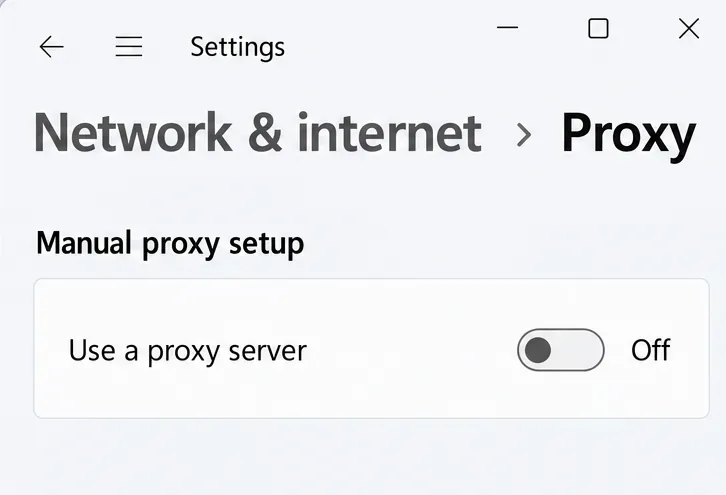
For login failures, Marvel Rivals has a separate official proxy troubleshooting guide. It advises checking whether “Use a proxy server” is enabled in Windows. That article addresses login problems, not a confirmed universal fix for in-match ping spikes. Do not change an organization-required proxy without its administrator’s guidance.
A paid routing service adds cost and another dependency. Consider it only if a permitted trial gives a repeatable improvement on your actual node without introducing loss or disconnections. No specific service is endorsed here.
The official Network Analysis Tool guide, dated January 9, 2025, instructs PC players to launch CapturePro.exe from the game installation directory. Use the bundled tool; do not download an executable with that name from an unrelated website.
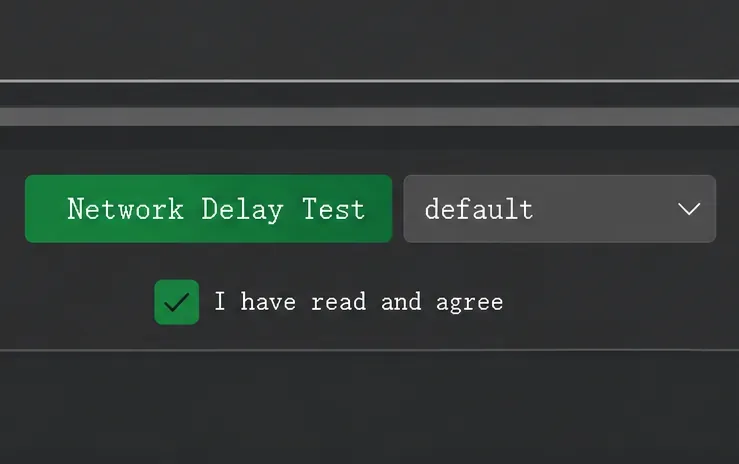
Choose Network Delay Test for significant in-match delay. Select the node you use, or a relevant nearby region. The guide says to stop the test after approximately 20 seconds, or run it alongside gameplay and stop when noticeable latency occurs. Network Adaptability Test is the separate option for inability to log in or enter a match.
If your current installation does not contain the documented tool, ask official support for the current procedure. The guide does not establish identical tool availability on every platform or future build.
Keep a short record of the selected node, connection type, time of day, and background traffic. Compare ordinary ping, the highest observed readings, disconnects, and how often spikes occur across multiple matches. Record FPS separately. A lower average with frequent large spikes may still feel worse than a slightly higher but steady connection.
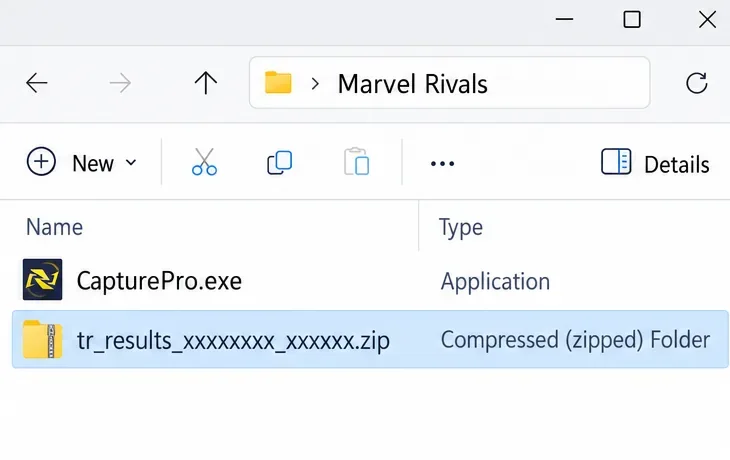
CapturePro’s guide identifies a tr_results_xxxxxxxx_xxxxxx.zip archive and directs players to official Discord support. Follow the support link from that guide. Add your platform, country, ISP, affected node, approximate incident time with time zone, and what changed during the Ethernet, traffic, or alternate-connection tests.
Also check official Marvel Rivals announcements for maintenance or acknowledged issues. A service interruption calls for waiting and retesting; a repeatable local comparison calls for fixing that part of your setup. Keep the option that improves your actual sessions, and revert changes that do not.
Enable PUBG’s network statistics HUD to monitor ping and packet loss in a match. See where to find it, what the numbers mean, and what they cannot diagnose.
Learn how to import VALORANT crosshair codes, compare presets with manual settings and spectator copy, and fix common import issues.
Choose Dota 2 minimap size, hero icons, team colors, and background settings by readability, fewer misclicks, and clear results on your own display.
Fix Fortnite texture pop-in on PC with official steps for GPU drivers, file verification, DirectX 12, high-resolution textures, VRAM, SSDs, and stutter.
Learn what Heroes of the Storm minimap size and position options are verified, improve readability, and choose camera-click controls that suit you.
Set Super Smash Bros. Ultimate Quickplay to prefer hazards-off stages. Follow the Preferred Rules menu steps and learn why matchmaking may not always honor them.
Enable Server Latency and Packet Loss in Warzone to monitor connection quality, read the overlay, and use recurring spikes to guide troubleshooting.
Learn how to carry from mid lane in League of Legends by setting up waves, choosing safe roam windows, reading side lanes, and converting pressure into objectives.
Fix Minecraft Evoker spell problems with a safe vanilla test, version checks, log review, and a step-by-step way to isolate mod or datapack conflicts.
Fix PUBG stuck on Initializing on Steam with a focused checklist for PC service notices, launch options, game files, downloads, and connection issues.








