How to Check Real-Time Server Latency in the PUBG HUD

Enable PUBG’s network statistics HUD to monitor ping and packet loss in a match. See where to find it, what the numbers mean, and what they cannot diagnose.
If Marvel Rivals closes, freezes, or returns to the desktop before you reach the main menu, work through the checks below in order. Start with the launcher and game files, then check graphics selection and security software. These steps address common PC-side causes without asking you to download unofficial fixes or disable protection across your whole computer.
As of October 7, 2026, the latest official patch notice I found is Version 20261001, deployed October 1. Its listed fixes cover matchmaking and customization interface issues; it does not announce a startup-crash fix. That does not identify the cause on your PC, but it means the notice itself gives no reason to assume a newly fixed crash. Read the official October 1 patch notes and install any newer update shown by your launcher.
First let Steam or the Epic Games Launcher finish downloading and applying every Marvel Rivals update. A paused download, pending patch, or launcher still running an update can leave the client in an inconsistent state. Exit the launcher from its menu, reopen it, and check the game’s update status. Then restart Windows once before testing again; this clears a stuck game or launcher process and lets pending system updates complete.
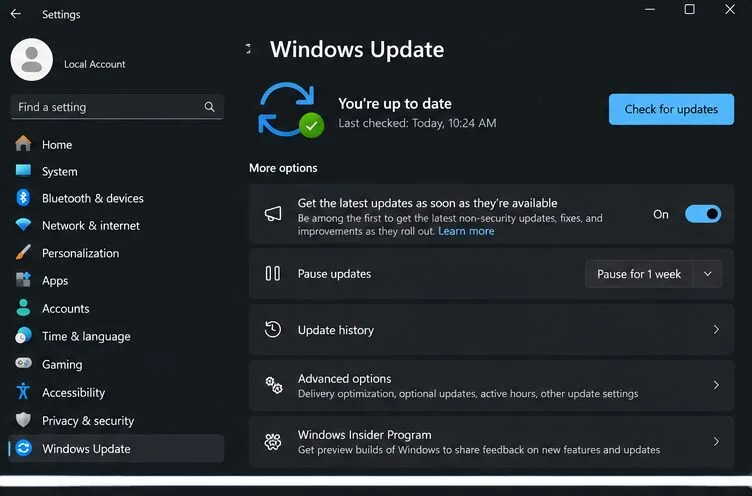
Install available Windows updates and restart if Windows asks. Also check that the drive containing the game has free space. The game’s official technical FAQ, published December 1, 2024, lists Windows 10 64-bit version 1909 or later, DirectX 12, 16 GB of memory, and 70 GB of storage among its minimum PC requirements. Those are dated baseline figures, so compare your system with the current store listing and your GPU vendor’s supported driver information as well; requirements can change.
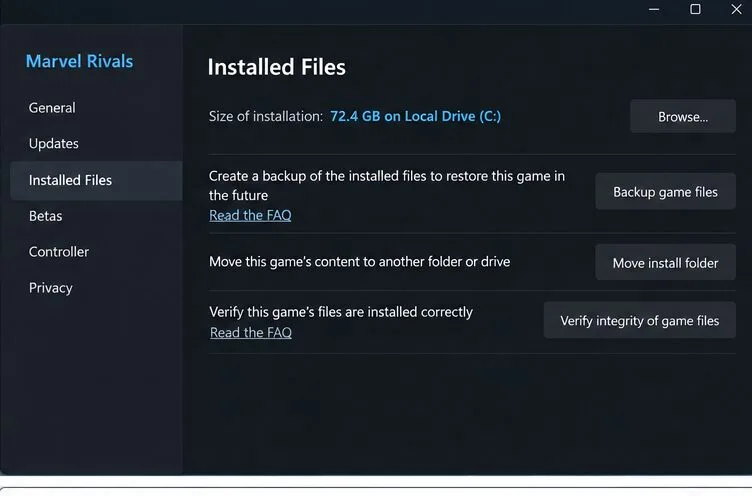
A damaged or incomplete file can stop a game during startup. Close Marvel Rivals completely, then use the repair option in the launcher where you installed it. On Steam, open Library, right-click Marvel Rivals, choose Properties, select Installed Files, and click Verify integrity of game files. On Epic Games Store, open Library, use the three-dot menu beside the game, choose Manage, and select Verify. Wait until the launcher reports that the check is finished, then launch the game once.
Marvel Rivals’ own Integrity Check and Repair instructions document those launcher routes. Verification may take a while and can download replacement files. It does not normally remove your account progress, which is tied to your game account, but let the launcher complete its process instead of interrupting it.
Marvel Rivals requires DirectX 12, and the developer’s FAQ recommends installing a current graphics driver when players encounter launch errors. Get the driver from the maker of your graphics hardware, not from a third-party driver bundle: use the NVIDIA driver page, AMD Drivers and Support, or Intel Download Center. Follow the vendor’s installer directions, then restart the PC.
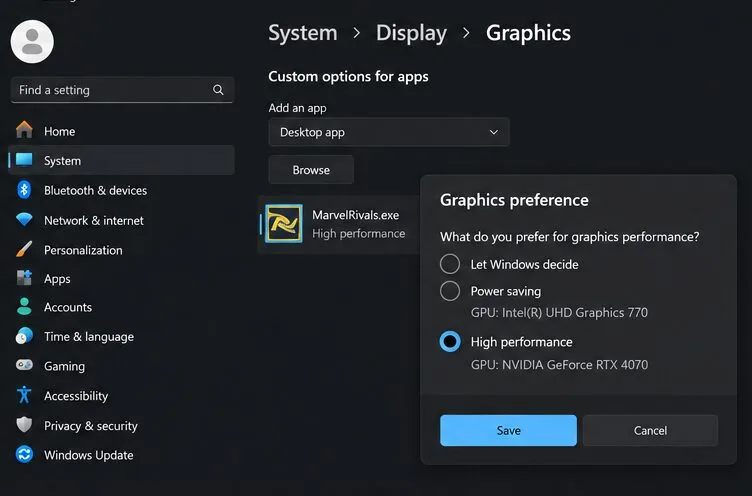
If you use a laptop with both integrated and discrete graphics, Windows may assign the game to the lower-power GPU. In Windows 11, go to Settings > System > Display > Graphics. Add the Marvel Rivals executable if it is not listed, open Options, choose High performance, and save. Microsoft notes that this setting selects the preferred GPU for that app; restart the game after changing it. The exact executable location depends on where the launcher installed the game.
The developer’s common technical issues FAQ also recommends checking the GPU driver and hardware requirements for DirectX 12 errors. If the launcher offers the game’s official GPU Debug Mode, Marvel says it can help investigate repeated crashes, but performance may be affected while it is enabled. Treat it as a temporary diagnostic option, not a performance setting.
Security software can quarantine or block a game executable after an update. Check its protection history or quarantine first; restore a file only if it is the official Marvel Rivals executable in the game’s installation folder. Do not turn off antivirus protection globally or download a replacement DLL from a file-sharing site.
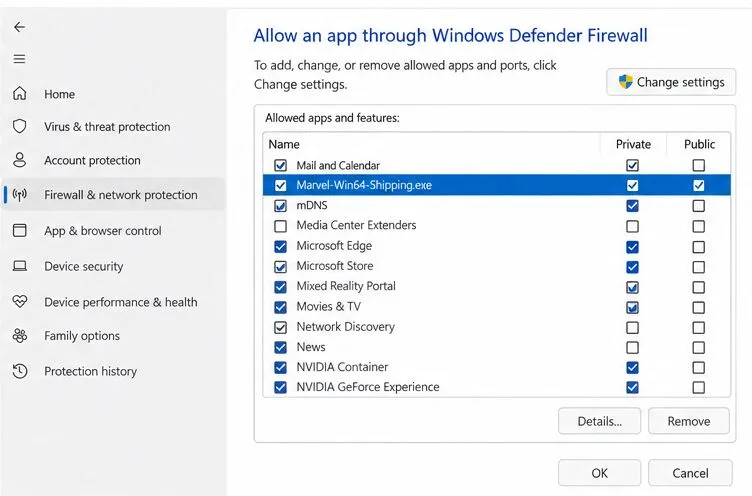
If Windows Firewall is blocking the game, use Windows Security or Control Panel to allow the official executable through the firewall. Marvel’s FAQ names the game folder and Marvel\Binaries\Marvel-Win64-Shipping.exe as the relevant path, and describes adding an app through Windows Firewall’s allowed-apps list. Use the actual installation path on your PC. Keep the exception limited to that executable and the network profile you use; avoid opening unrelated apps or ports. Windows Controlled Folder Access can also block a game from writing files, so review its block history and allow the specific game executable only if you recognize it.
After making a security exception, restart the launcher and test again. If the game still exits, remove any exception that did not help. Marvel’s FAQ for launch and connection issues gives the current official paths and executable names to check.
| What you see | What to check next |
|---|---|
| The game does not open or closes immediately | Finish launcher updates, restart Windows, and verify the game files. |
| A DirectX 12 or unsupported device message appears | Confirm the GPU supports DirectX 12 and install a vendor driver that supports your model. |
| “Out of Video Memory” appears on a 13th- or 14th-generation Intel desktop CPU | Follow Intel’s or your motherboard maker’s BIOS guidance and contact support if you are unsure. |
| The game worked before a patch, then stopped | Run file verification and check the launcher and official patch notes for a follow-up update. |
One specific issue called out by Marvel affects some systems using Intel 13th- or 14th-generation desktop processors, where a launch crash may show an “Out of Video Memory” message. The developer recommends installing the latest BIOS from Intel or the motherboard manufacturer. BIOS updates are model-specific, so read the manufacturer’s instructions carefully or ask its support team for help. Marvel also lists Intel Extreme Tuning Utility as an advanced workaround involving a small reduction in performance-core ratio; do not change CPU settings unless you understand the risks and can restore the original values. See the official Intel crash guidance.
For persistent crashes, collect a diagnostic package before contacting support. Marvel’s Client Diagnostic Tool guide says to close the game, open its local installation folder from Steam’s Manage menu, run client_diagnose.exe, and select Analyze. The tool creates a ZIP file that can be attached when contacting the official support channel. Include your Windows version, CPU and GPU models, the launcher you use, when the crash occurs, and any exact error text. This helps support distinguish a file, driver, security, or hardware-specific issue.
Change one setting at a time and test after each change. If a step makes no difference, undo temporary settings such as firewall exceptions or GPU Debug Mode before moving on. Avoid unofficial “crash fix” downloads, registry cleaners, and launch parameters from unrelated posts: they can add risk without confirming the cause.
Enable PUBG’s network statistics HUD to monitor ping and packet loss in a match. See where to find it, what the numbers mean, and what they cannot diagnose.
Learn how to import VALORANT crosshair codes, compare presets with manual settings and spectator copy, and fix common import issues.
Choose Dota 2 minimap size, hero icons, team colors, and background settings by readability, fewer misclicks, and clear results on your own display.
Fix Fortnite texture pop-in on PC with official steps for GPU drivers, file verification, DirectX 12, high-resolution textures, VRAM, SSDs, and stutter.
Learn what Heroes of the Storm minimap size and position options are verified, improve readability, and choose camera-click controls that suit you.
Set Super Smash Bros. Ultimate Quickplay to prefer hazards-off stages. Follow the Preferred Rules menu steps and learn why matchmaking may not always honor them.
Enable Server Latency and Packet Loss in Warzone to monitor connection quality, read the overlay, and use recurring spikes to guide troubleshooting.
Learn how to carry from mid lane in League of Legends by setting up waves, choosing safe roam windows, reading side lanes, and converting pressure into objectives.
Fix Minecraft Evoker spell problems with a safe vanilla test, version checks, log review, and a step-by-step way to isolate mod or datapack conflicts.
Fix PUBG stuck on Initializing on Steam with a focused checklist for PC service notices, launch options, game files, downloads, and connection issues.








